

Workspaces
A workspace holds its own reference data, change sets and publications. Before editing, check the workspace name and its model release. Follow Switch workspace to open another dataset.
Each workspace runs its own model
Section titled “Each workspace runs its own model”Two workspaces can run the same model and hold different records. They can also run different models, with different applications, types, fields and views. Changing one workspace’s model does not change another workspace’s model. Switching workspaces copies and moves nothing.
Home shows the workspaces you may browse, their models and releases, and their application buttons. Default marks the instance’s default workspace; it does not mean other workspaces share its data. The workspace called Default need not be the default workspace.
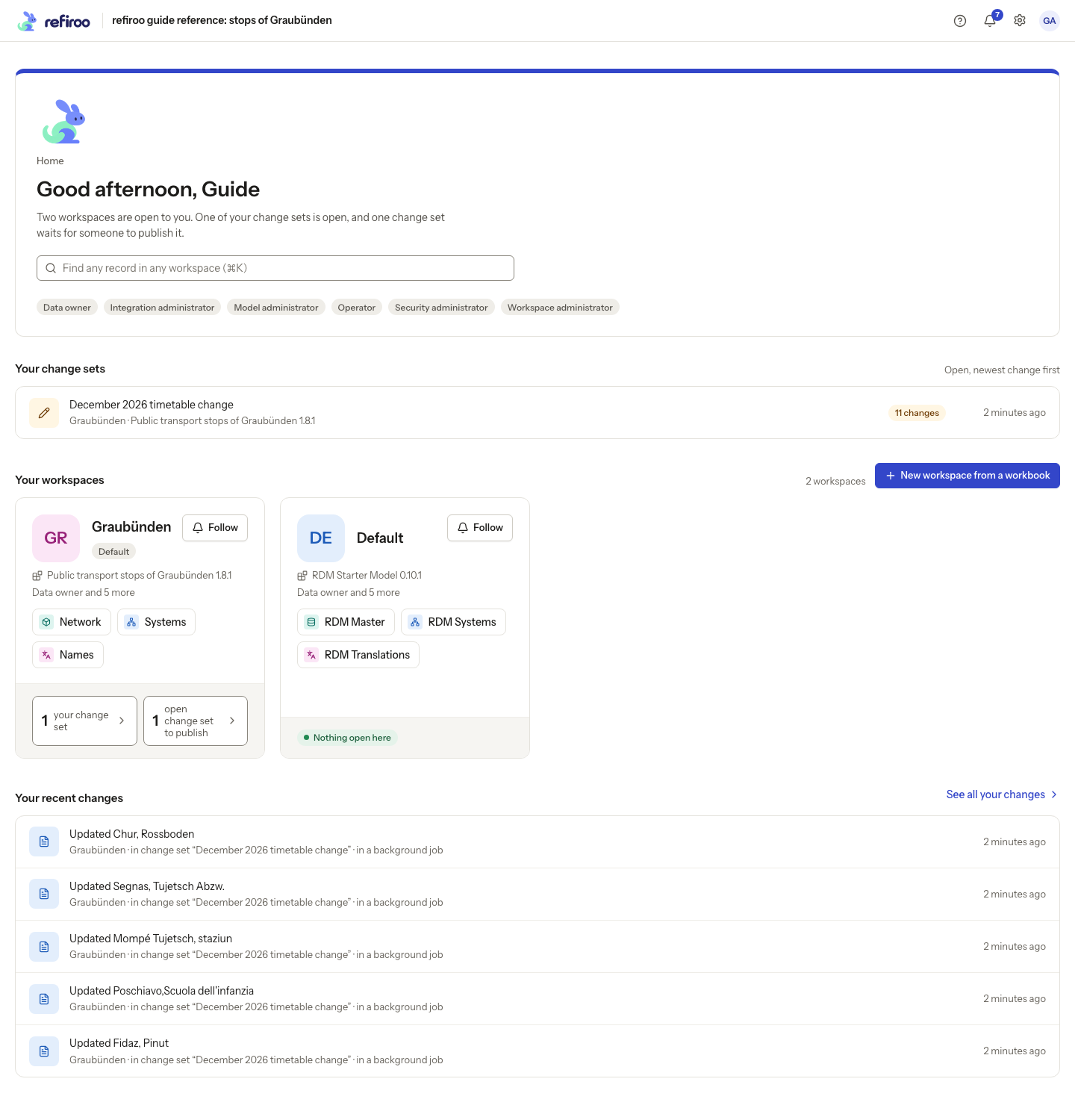
Above: Guide Admin’s Home shows the open change set December 2026 timetable change above the workspace cards Graubünden and Default.
Within an application, Workspace in the sidebar names the dataset. The text beneath names its model and release. The banner above the records identifies Live, a change set or a publication. Those are contexts within a workspace.
The workspace’s page
Section titled “The workspace’s page”Choose a workspace’s name on Home to open its page. Find a record searches names across its applications and lists. Up/Down chooses a result; Enter opens it. Applications offers each application’s starting view and links straight to its lists.
Your shelf keeps the lists and other views you use most, from any application in this workspace. Choose Add a list and tick the lists, trees or matrices you want. You can also use the pin button in a list’s header. A tile opens that view; its count, when available, is the number of live records of its source type, not a count of matrix cells or a filtered view.
Drag tiles to arrange them. For keyboard or touch use, open a tile’s menu and choose Move earlier or Move later. Right-click also opens that menu. Take off your shelf removes the shortcut, leaving its data in place. The shelf and its order stay in this browser, separately for each workspace.
Needs you lists your waiting change sets. What changed groups recent activity by day; consecutive repeats of one kind of change fold with a count such as 4 in a row. These are summaries, not a complete history. Workspace actions, including Edit model, appear only when your permissions allow them.
Switching and access
Section titled “Switching and access”The selector offers workspaces you may browse. Other model identifies a different model; Other release identifies a different release of the same model. After switching, check the applications and views again. The former view may not exist in the destination. With only one available workspace, its name appears without a selector.
You need Browse access to read data, and the appropriate editing permissions to change it. Reader can browse; Contributor can prepare changes in change sets; Data steward and Data owner can also change Live. Custom grants can narrow writes to particular applications or record types. See What you can do for your own access.
If no workspace is offered, ask an administrator for access. A loading failure does not mean there are no workspaces: retry the failed read first.
Workspace administration
Section titled “Workspace administration”A retired workspace remains readable but refuses changes. Where your access permits it, open it from Settings › Workspaces, rather than the active workspace selector. Creating, renaming, retiring and deleting workspaces are described in Managing workspaces.
A workspace from a workbook
Section titled “A workspace from a workbook”Choose New workspace from a workbook on Home beside Your workspaces, in Settings › Workspaces, or on a workspace’s page. This creates a separate workspace; it does not load into the workspace you have open.
The action appears when you hold Workspace administration, Install a model or Model release, and Bulk and import at the instance, plus Model authoring. Workspace administration, model administration and integration jobs must also be switched on for the deployment. If any required access or capability is missing, the action is hidden.
- Choose an XLSX workbook or CSV file in Workbook. Name starts with a name taken from the file; change it if needed. Choose Read the workbook. refiroo reads the file, finds its lists and checks every row before creating the workspace.
- Review What refiroo found. Each list shows its source sheet where applicable, its row count, how many rows load, any rows skipped for want of a key, and why rows do not load. The total covers every row, not a sample. Choose Create workspace to install the model, create the workspace and start loading the workbook into Live. A refused row does not stop the other rows from loading.
Adjust keeps the draft and opens its canvas so you can change the structure or how the workbook is read. If no list was found, or checking did not finish successfully, Create workspace is hidden; read any explanation and use Adjust to inspect the draft. A read failure appears under Not read. A creation refusal appears under The workspace was not created, with the problems to resolve.
Cancel closes the dialog and removes the draft made for the review. If removal fails, the draft remains under Settings › Model. To start on an existing model instead, open More ways to start in the file step and choose New workspace on an installed model. From Home or a workspace’s page this takes you to Settings › Workspaces; from Settings it opens the New workspace form. You can also make a workspace without data that way.
After creation, the new workspace’s page shows Loading with the file name and the number of items processed, out of the total when available. When loading finishes, the notice shows counts for created, updated and unchanged, followed by how many rows did not load or that every row loaded. For refused rows, choose See the rows to open the job’s details. Dismiss removes the notice; it does not undo the load. If loading fails or stops, the page shows the reason. The workspace already exists, so inspect the load in Settings › Jobs before trying again. The notice is kept only for the current page load; after a browser reload, find the job in Settings › Jobs.
When a destination cannot open
Section titled “When a destination cannot open”The selector searches workspace labels; the page address keeps the workspace’s key. Switching can show a toast explaining that the destination runs another model or release. Not in this model means the address names an application, collection or record type this workspace lacks. Use the offered workspaces whose models contain it, or choose an available application here. An unknown workspace or a release that cannot be served has its own explanation. Read that reason and ask the operator to restore a supported release where needed; retrying a record edit cannot make an unavailable model readable. Other workspaces can still be used.
Refresh after the model changes
Section titled “Refresh after the model changes”If the workspace changed release while your page was open, the message can say … now runs …. Nothing was saved. or Reload to see it. Choose Reload, then review the current form and context before editing. A stale screen must not overwrite data under a different model.
Manage workspaces, beside or inside the selector, opens its Settings entry where permitted. Its Applications · … links open the workspace’s applications. Loading the catalogue or an individual workspace is distinct from an empty result; wait or retry the error. Creating, renaming, setting the default, retiring, reactivating and deleting are administration tasks. Their controls and deployment availability belong to Managing workspaces. Capability groups is an operator status panel, not a setting a steward changes to gain access.
To open retired or unreadable data, follow Open a retired or unavailable workspace. To read activity across workspaces, use History.
A retired workspace is marked Retired · read only. In Settings its Overview shows the model, creation and last-change facts, and Open workspace leads to its start page. Wait while Loading workspace catalogue… or Loading workspace… is shown; an error is not an empty catalogue.
A missing model element can say No other workspace’s model has it. Choose Go back or the offered workspace start page, then choose a collection present in that model. If another workspace is offered, its Open in … action changes the workspace as well as the page; check the destination before making changes.
Actions for this workspace
Section titled “Actions for this workspace”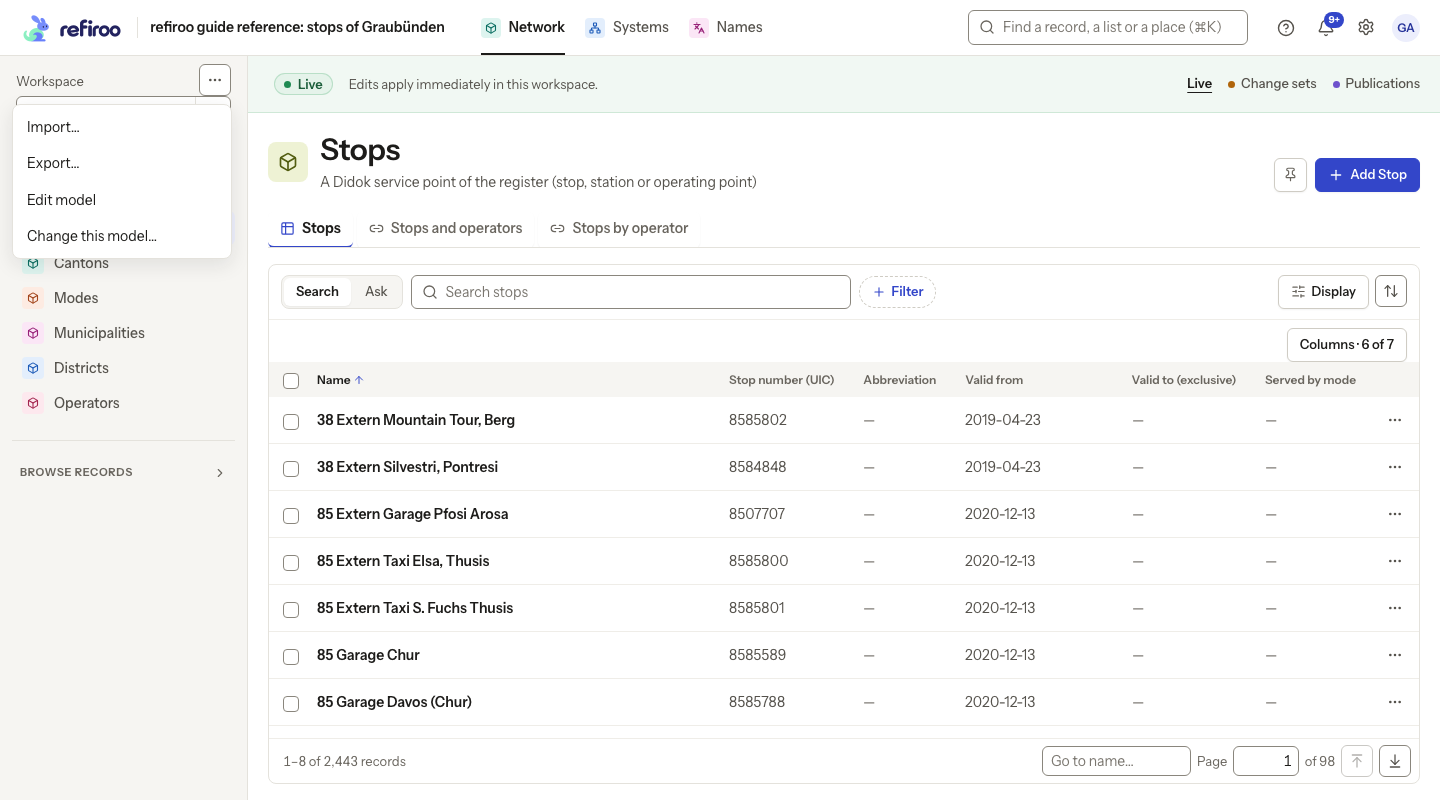
Above: the menu for Graubünden while reading the Stops collection in Network. Its actions apply to this workspace and the data context being viewed.
The ⋯ menu beside the workspace selector offers Import…, Export… and Edit model when your permissions and the current context allow them. Export starts from what the current page shows; check the chosen columns, filters and data context in its dialog. See Importing and exporting for what the file includes.
Edit model opens the workspace’s model draft, returning to that draft on later visits. It changes the structure rather than an individual record. Ask a model administrator when you need that change; see Models. Applying a model shows its effect before confirmation. If records must move, the migration preview must be confirmed before they move.
The workspace’s Settings page offers Overview, Access, Approval and Activity according to your permissions. Overview links to its applications; Activity shows changes newest first, grouped by day. Access and Approval describe who can work here and how publication is approved. They do not grant editing rights simply because you can read the workspace.
A context that could not load
Section titled “A context that could not load”Loading the model…, Loading change set… or Loading publication… means the read is still pending. Could not load this content reports a failed read, not an empty dataset. Read its explanation and use Retry after correcting a connection or service problem. Return to Live, where offered, leaves the failed snapshot view for this workspace’s current data. Check the context banner before continuing; changes made in Live take effect immediately.