

Relation matrices
Use a relation matrix to compare many records against another set of records and see where connections exist or are missing. For the steps to filter, create and correct cell records, see Fill in a relation matrix.
Rows, columns and the records in a cell
Section titled “Rows, columns and the records in a cell”The model defines the row type, the column type and the relationship being read. Each cell shows the row’s related records that sit under that column record in their hierarchy, possibly several levels below it. A chip shows the first of the view’s chosen cell fields holding text or a number, or the related record’s name when none does.
A language can be a column, but so can a system or another model-defined type. A matrix does not automatically translate anything or create missing records.
Drag the right edge of the row-heading column or any record column to change its width. With a keyboard, Tab to the edge and use the Left or Right arrow key. refiroo remembers these widths for this view in your browser on this device. If a cell value is cut off, point at the cell or move keyboard focus into it to read the full value in a box. The box usually appears below the cell, or above it when space is short. Opening the cell still opens its usual dialog.
On a narrow screen, the matrix keeps all the columns currently shown. Scroll sideways to reach those outside the screen; use the column chooser to work with a smaller selection.
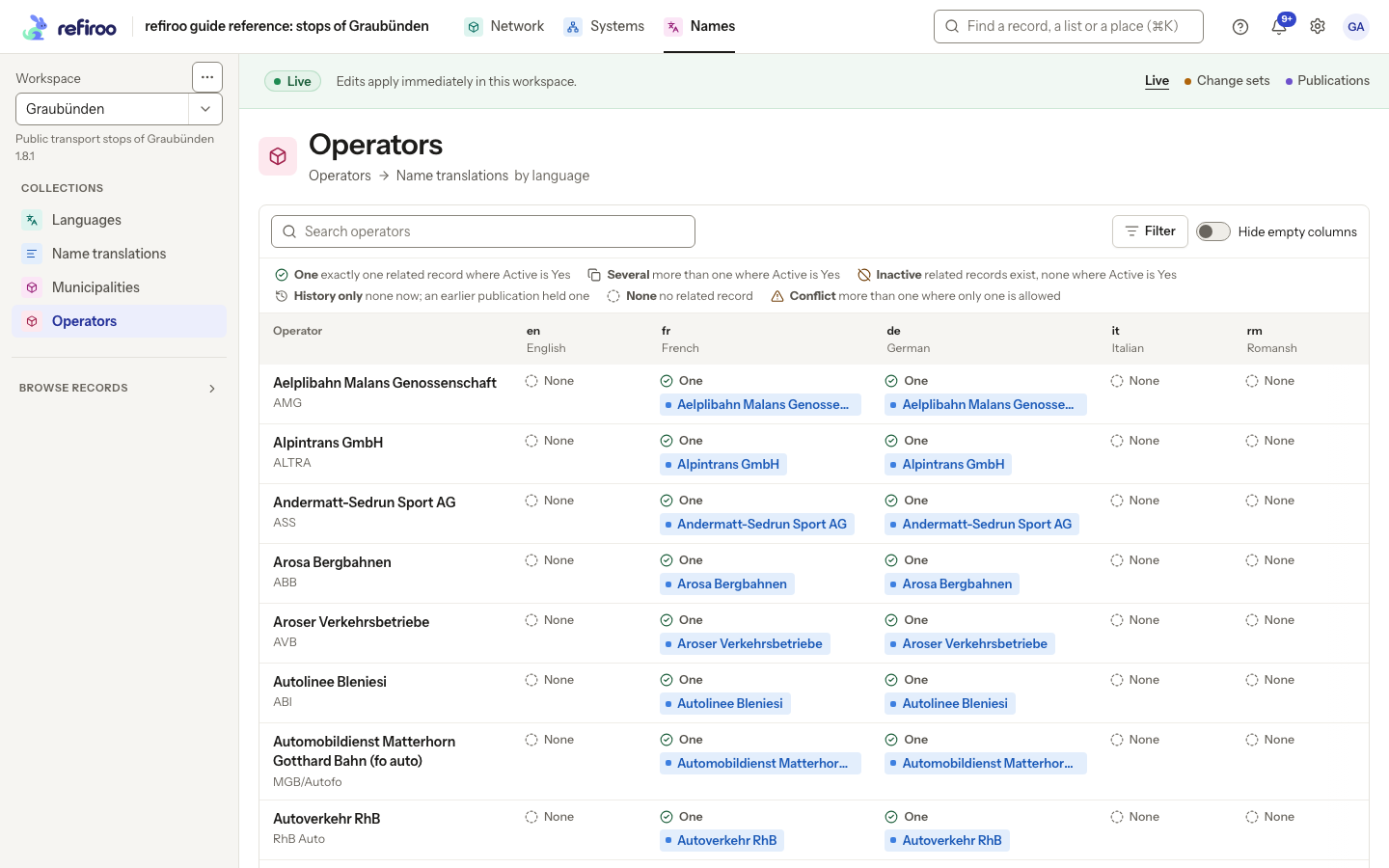
Above: Operator names in Names compares operators against five languages. French and German cells contain related name records; many English, Italian and Romansh cells are None.
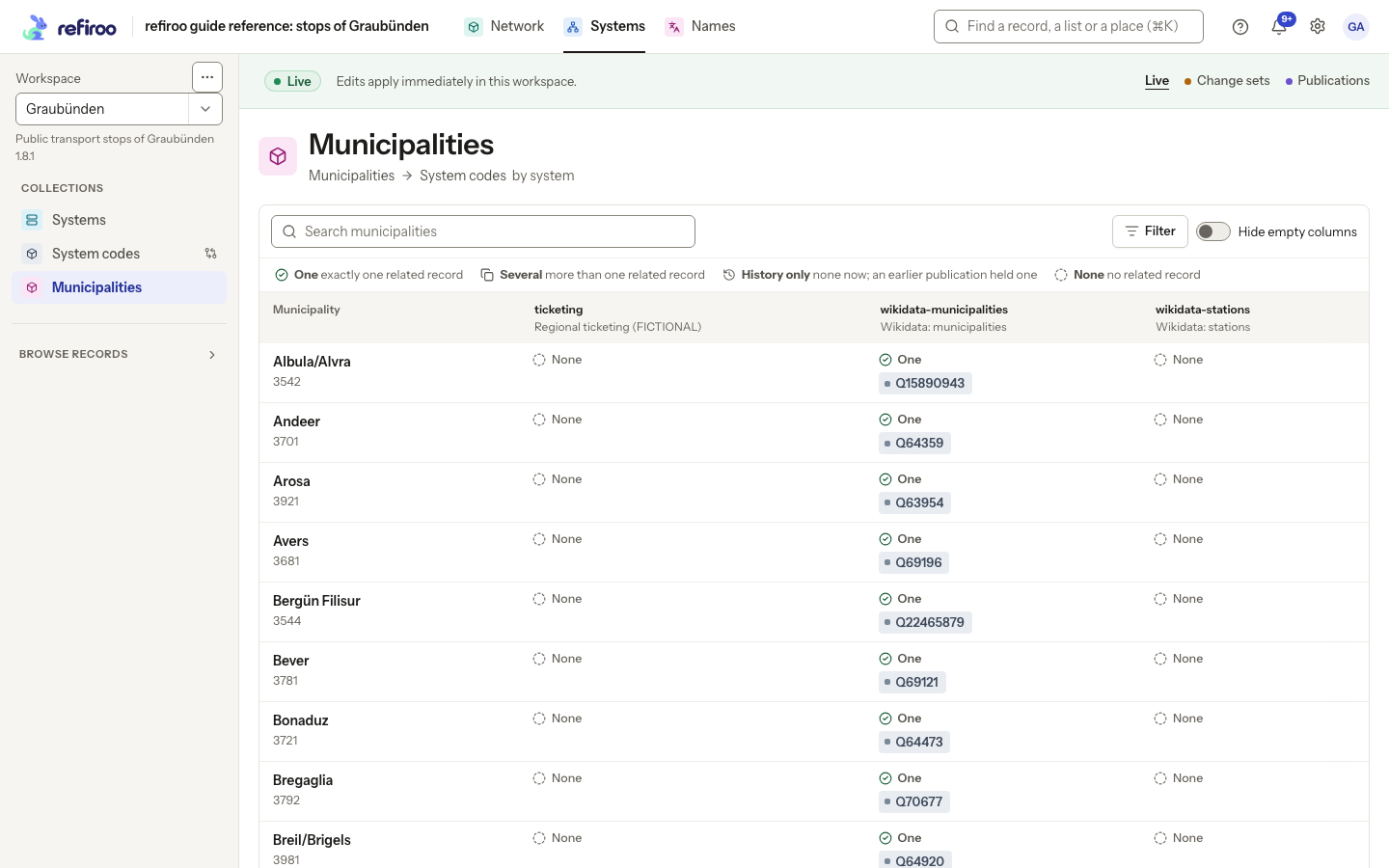
Above: Municipalities by system in Systems uses systems as columns and System codes as the related records. This is the same view kind with a different configuration.
Cell states
Section titled “Cell states”Read the legend above the table. A model may define a condition for a related record to count, such as a Yes/No field. This condition is separate from a record’s validity dates unless the model’s rules make that connection. Not all states apply to every configuration.
| State | Meaning |
|---|---|
| One | Exactly one related record counts in this cell. |
| Several | More than one related record counts. This may be allowed. |
| Inactive | Related records exist, but none meets the condition for counting. This state applies when the relationship defines such a condition. |
| History only | No related record is present now, but an earlier publication held one. |
| None | No related record is present and the cell has no earlier-publication record to show. |
| Conflict | More than one record counts where the model permits only one. Inspect and resolve the extra counting records. |
Live writes refuse a second counting record where only one is allowed. A change set can hold two before validation: the cell then shows Conflict with its count. Resolve the extra counting record or connection and validate again before publishing. This state comes from the relationship’s one-per-column counting rule. A relationship cardinality limit also restricts creation, but does not by itself give the cell a Conflict label.
One does not prove that every field is complete or that its content is correct. None does not mean an existing record merely has an empty text field. History only refers to an earlier publication, rather than every past edit in a record’s history. Historical content in a cell is read-only; where offered, Create from this uses it to prepare a new record.
Filters and coverage
Section titled “Filters and coverage”Search narrows the rows. Filter offers Cell state and a column chooser named after the column type, followed by to show. A state filter finds rows with that state in at least one chosen column across the whole list, including rows not yet scrolled into view.
By default, the matrix includes all records of its column type, even those that do not concern the rows you are working on. Use the column chooser on its own, with Any state, to show only the columns you need; Show all followed by the column type’s plural name clears that selection.
The choice belongs to the page you have open, not to the view’s saved settings, and does not change what other people see. The page’s address keeps the chosen columns and cell state, so a bookmark or shared link opens the same selection. Opening the view again from the navigation clears that selection; Hide empty columns may still leave columns out.
Hide empty columns, beside Filter, leaves out columns with no related record in any row left by the current search and scope. A scope limits the rows to those under one record. The check includes all those rows, not just the ones on screen. The column navigation skips empty columns, so they do not take up places on each page of columns.
The switch is off by default. Like column widths, its setting is remembered for this view in this browser on this device, including after a reload. Another device starts with it off. In a change set or publication, it checks that change set’s or publication’s own records.
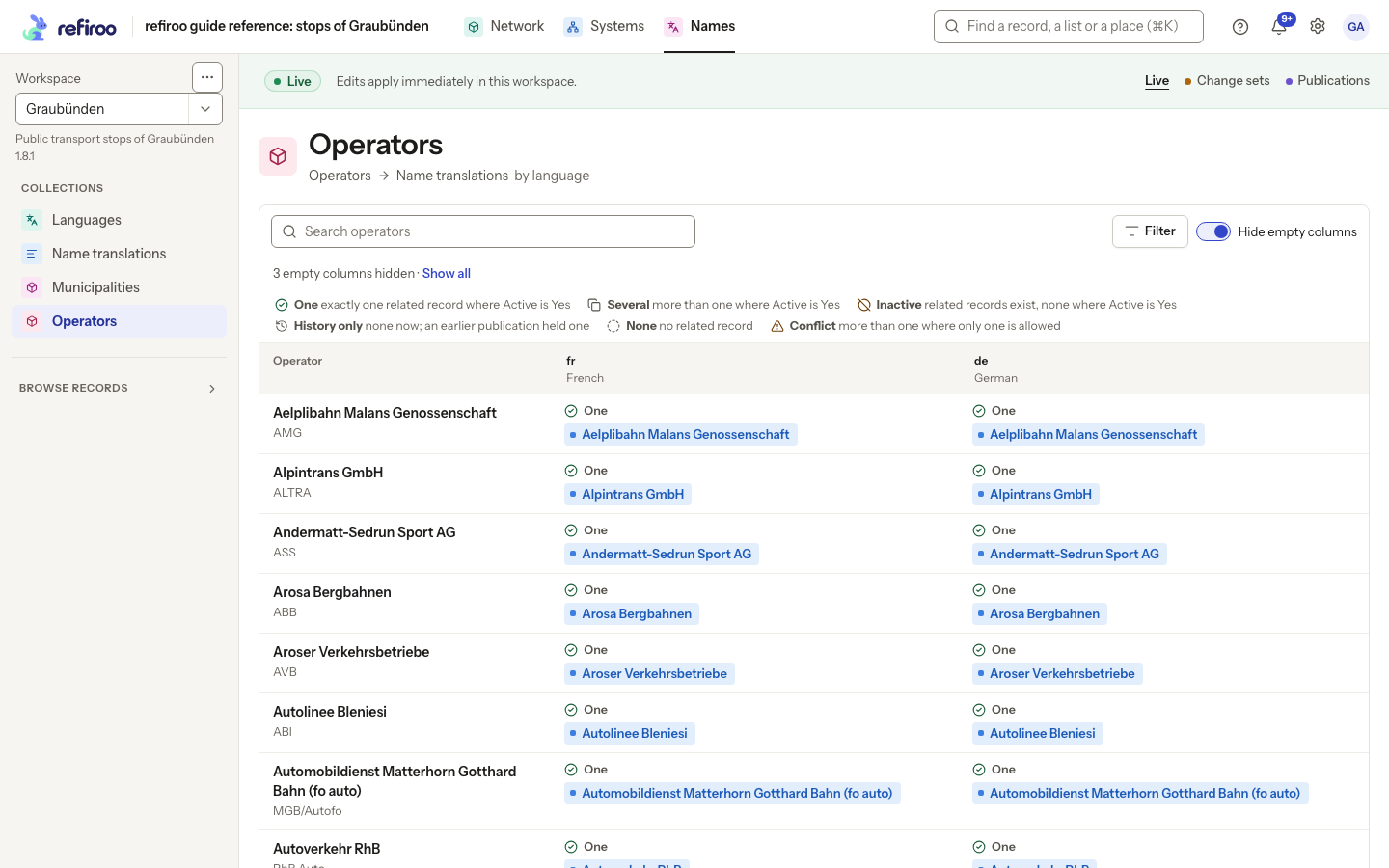
When columns are left out, a line below the toolbar says N empty columns hidden, or 1 empty column hidden for one. Show all on this line turns the switch off. If you have chosen columns in Filter, those columns are shown regardless of the switch. The switch then says No effect while columns are chosen in Filter. Its setting is kept and takes effect again when you clear the column selection.
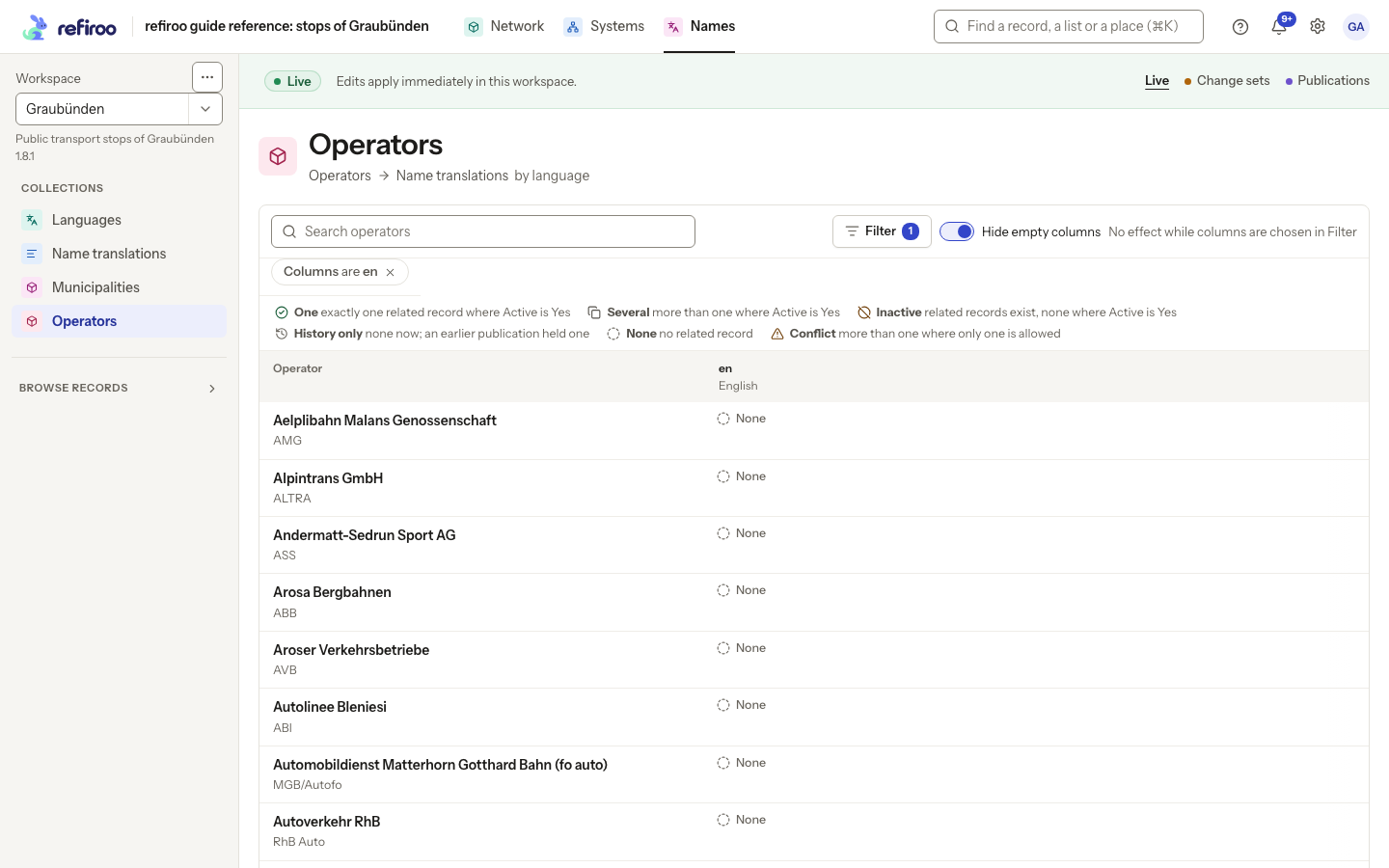
Choose the columns before interpreting results for cells in state None. If no columns were explicitly selected, choosing a state uses the columns currently shown. A result with no matching rows means no matches for that search, state and column selection; it does not prove coverage in omitted columns. Any state removes the state restriction. Clearing the column selection also clears the state restriction. Up to 20 selected columns can be shown at once; unselected columns can be browsed with the column navigation when available.
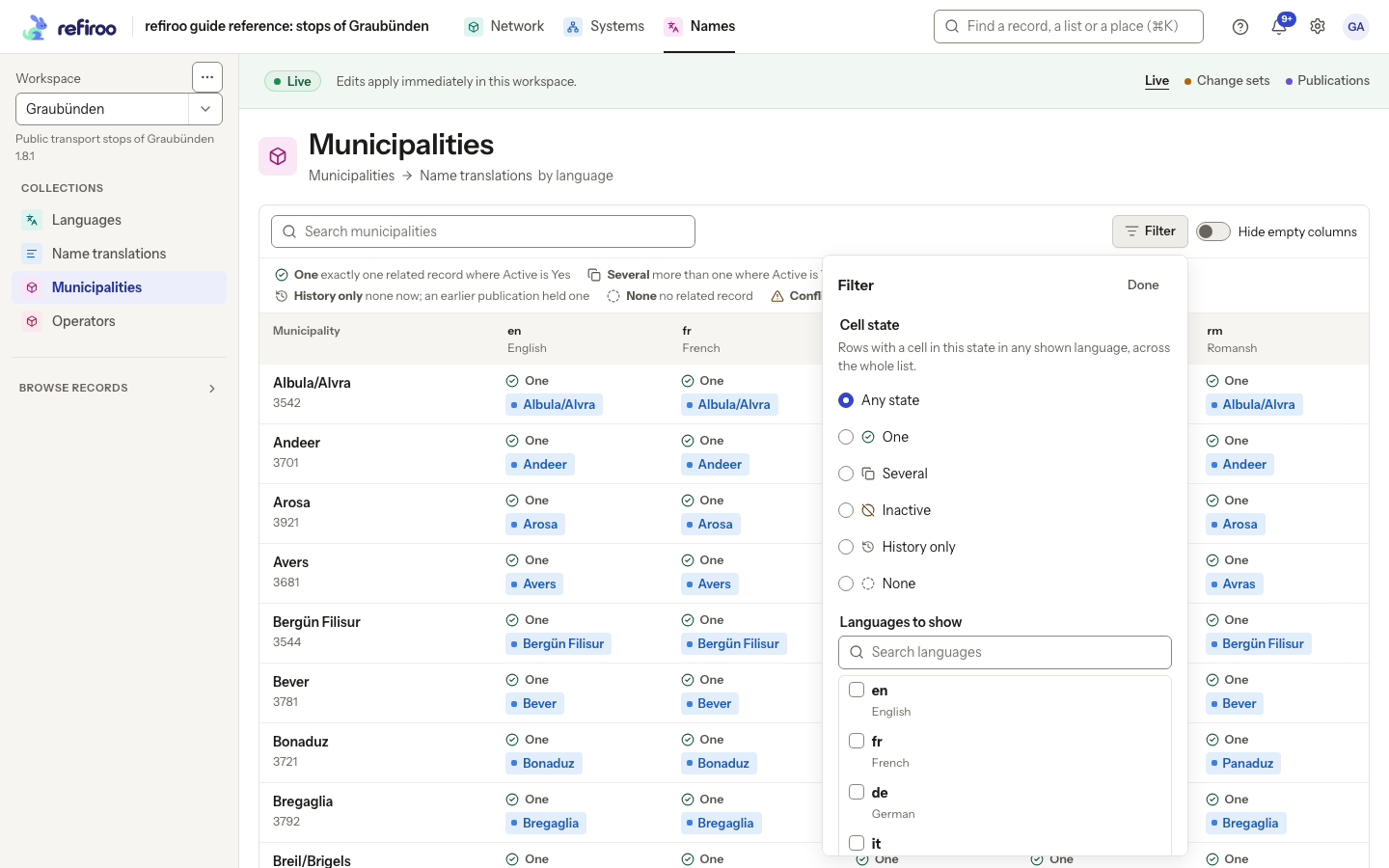
Above: Municipality names offers Languages to show. Its legend defines counting as Active is Yes. The same state filter can be used with columns representing systems.
What you can change from a cell
Section titled “What you can change from a cell”The model chooses the available actions: create a related record, edit its displayed fields, link an existing record, or unlink it. Opening a populated cell shows a table, even when it contains only one record. Each row identifies a linked record. Its displayed fields come first, then a tinted Attributes of the relationship group holds values of its connection to the matrix row. This separates a record’s content from facts about the connection.
Use the filter box to find a row by its record name or displayed record fields. It does not search the relationship’s values. Open leads to the record’s full page. Unlink asks within that row: Keep cancels; Unlink removes only the connection. A required owner connection cannot be removed on its own.
Where editing is permitted, change a value where it stands. A Yes or no checkbox saves with one click. Other values become their input over the cell, keeping the table in place, without Save or Cancel buttons. Leaving a field by clicking elsewhere or pressing Tab saves it; Enter also saves a single-line value. In text of several lines, Enter adds a new line and Ctrl+Enter (Cmd+Enter on a Mac) saves. Escape puts the old value back; an unchanged input closes without saving or showing a notice. A saved input shows ‹Field› saved with Undo, including for a relationship’s value or a value set for the first time. Emptying an optional input and leaving it removes the value and shows ‹Field› removed with Undo. A refusal keeps the input open with the reason and Cancel and Save again beneath it; leaving it again retries only after its input changes. Review any error before closing. A save refreshes the cell and leaves the table open.
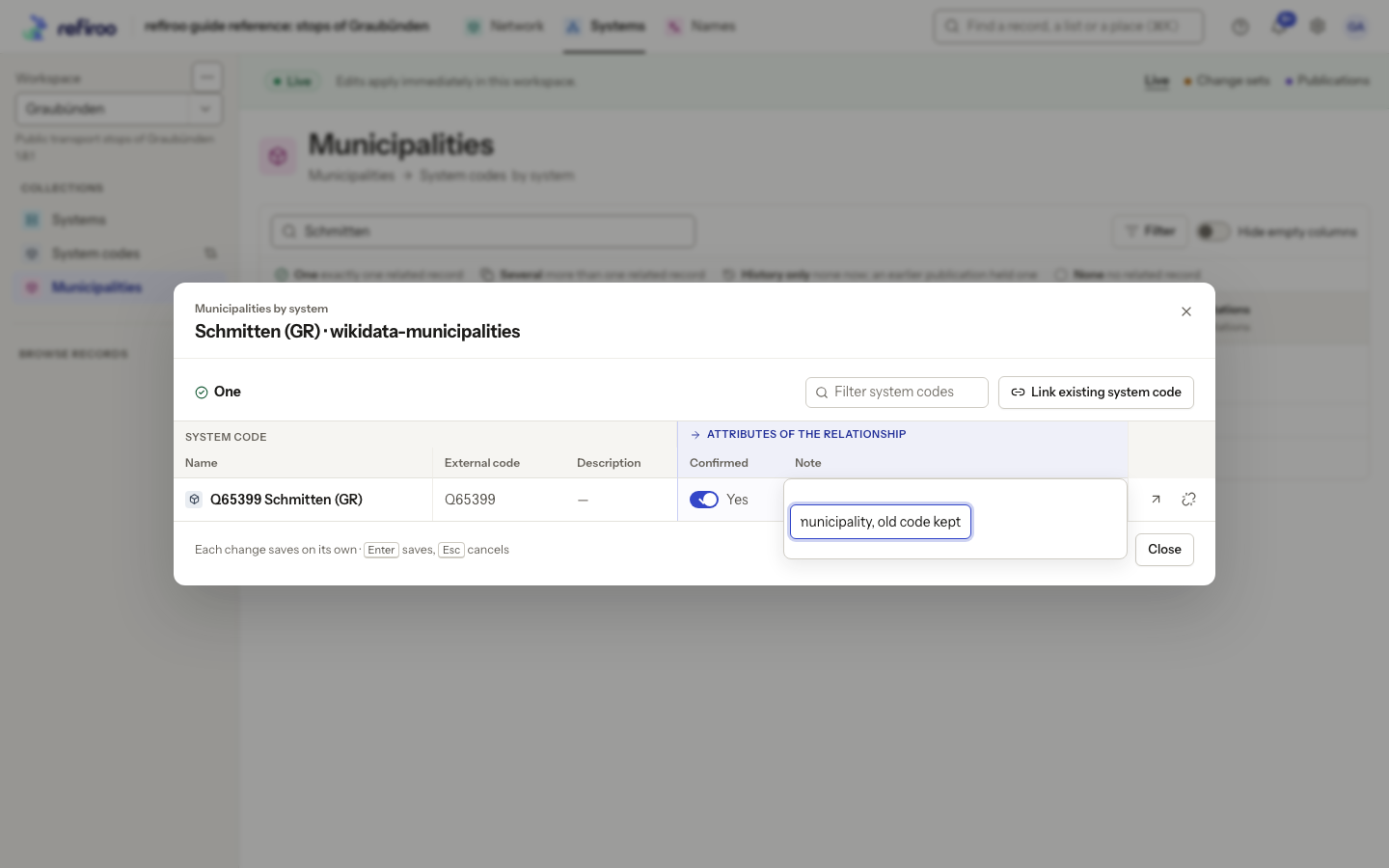
Above: Municipalities by system in the Graubünden workspace. The Schmitten (GR) cell under wikidata-municipalities contains one System code, Q65399. Confirmed is ticked, and the Note editor is open over “Merged municipality, old code kept”. Open and Unlink belong to that row.
A populated cell offers Create beside Link existing when the view permits those actions and the cell may hold several records. A filled cell does not offer Create when uniqueness is scoped to the column type, or the relationship lets the row connect to only one record. That includes one-to-one, many-to-one read from its source, and one-to-many read from its target. Empty, inactive and history-only cells can still offer creation.
An empty cell explains which row and column have no related record and offers Link existing or Create where permitted. A read-only cell keeps the table for inspection without editing. Historical content names its publication and remains read-only.
Creation fixes the row and column and asks where under the column the new record belongs. Only places where the new record can meet the relationship’s rules are offered. If the rules identify a single group and it is missing, saving creates it with the record. Otherwise the group already holding the most records used by this view in the column is selected; a tie leaves no selection. A group holding none is never selected automatically, even as the only one.
If neither rules nor data give a place, refiroo can propose a new group using the type and name of groups this view uses in other columns. The proposed name is editable and an existing group can be chosen instead. Saving creates the group and record together. This uses the current model; no model change is needed. A proposal is offered only where the structure, required fields and relationship rules allow it. If no suitable place is found, choose or prepare one in the app. See When a new group is proposed. The created record is listed in its container too. The record and its connection are created together. Both Create and Link existing include Attributes of the relationship when the pair carries values: fill these for the new connection, separately from the record’s fields. Linking instead uses an existing candidate. Where the relationship permits it, the same record can be linked under several rows: these are separate connections to one shared record, not copies. Disabled candidates explain why they cannot be linked. Unlinking keeps the record, but cannot leave an owned record without a required owner.
For an inactive cell, inspect existing records before creating another. For a conflict, review which records should count; do not assume several records are always wrong. All saves must satisfy the model’s rules, including any limit of one counting record per row and column. A refusal explains that the row already has a record here and only one may count. Where offered, Open the … already here takes you to that record; inspect it before creating another.
For example, a translation matrix can create a missing name under a language and allow only one counting name for each row and language. A mapping matrix can instead reuse a code already linked under another row, or create a separate code. These choices come from the model’s relationships and view actions. Connected systems see the new record and connection after publication where their access exposes them. Reuse retains the record’s identity under every row; unlink removes a connection while leaving that record available elsewhere.
To work on the cells outside the browser, see Export records. The main matrix sheet loads only its cells; clearing a cell does not remove its contents in refiroo. In a record-field workbook, cells holding several records are skipped. A link workbook has value sheets for editing individual records and loads non-empty lists of connections. See Matrix cells and new records.
Who may edit, and refused saves
Section titled “Who may edit, and refused saves”Browse allows reading. Edit live or Work in change sets allows the corresponding writes, subject to scoped grants and the actions configured for the view. A read-only cell may therefore still be readable on a record’s page. See Record permissions. Publications and retired workspaces cannot be edited.
Successful Live saves apply immediately; change-set saves remain proposed. A duplicate refusal can offer Open the … already here to inspect the existing record. Changed elsewhere means the cell has been refreshed after another change: review it and your preserved input before retrying. If that record is no longer in the cell, the dialog returns to its current contents. A load error does not mean the cell is empty; retry the read.
See Relationships for ownership and candidates and Change sets for reviewing and publishing proposed work.
A model administrator adds the matrix to the applications that need it. Its row, column and cell types must be listed there; the records themselves remain in their own applications. Showing a matrix does not move or duplicate them. A table in another application can therefore list fewer records than the matrix reads through its relationships.
To restore an inactive cell, inspect the existing record and change the field that determines whether it counts. For a history-only cell, Create from this, where offered, prepares a new record from historical content; it does not edit the earlier publication. Check the new values and required connections before saving. Use Link existing for a record already present, and unlink only when the relationship’s rules permit it.
Screenshot data: Source: opentransportdata.swiss, Service Points (Didok), Federal Office of Transport / SBB, snapshot 2026-11-02. Wikidata, CC0. See The example data for sources and fictional additions.
Cell previews and editing details
Section titled “Cell previews and editing details”A cell reports its full count but previews at most five records. Open the row’s record to inspect the complete relationship list. Conditions on the target end produce Inactive and uniqueness Conflict states only when reading the relationship in its outgoing direction; an incoming matrix does not apply those target-end states.
Focus a cell and press Enter or Space, or click it, to open its actions. The table offers inline value edits and row actions Unlink and Open; Create …, Link existing … and Create from this appear where applicable. When choosing a container, Goes in offers Search places…. Link or move choices can stay visible but disabled with a reason such as Already linked or a cardinality limit. Does not count identifies a candidate outside the cell’s counting condition.
A conflict can say Changed elsewhere or Not saved, with a link to the affected record. If a stale edit finds its record no longer belongs to this cell, the dialog explains and returns to the cell’s current actions. Inspect those before choosing another change. The page address keeps search, column selection, state and row position. Leaving a dirty form asks whether to discard unsaved changes; cancel that prompt to keep editing.
Read the dialog and leave it safely
Section titled “Read the dialog and leave it safely”A conflict cell can show Conflict (… ) with its count. Open the cell with Enter or Space. Use Open on a row to inspect a record, or Close to leave its table. Link candidates can stay visible but disabled with Already linked or a message that the record is already linked to as many records as allowed. Choose another eligible candidate; searching again does not remove that limit. Does not count identifies a record outside the counting condition.
Not saved reports a failed write; Changed elsewhere reports a conflict and refreshed information. Inspect the current record before retrying. Remove cell state … and Remove chosen columns … clear those restrictions. If leaving a changed form asks Discard your unsaved changes?, stay to finish or confirm that you want to abandon the input. The saved address retains matrix columns, state and position, rather than unsaved form values.