

Map a workbook column
Open a draft with an attached workbook and Model authoring. See Workbook onboarding for the source and profile. You can also map columns on the canvas by dragging them onto object types or attributes.
- Select the sheet, then a column in Source. Read its status, Feeds, Read as, Matched by and Statistics. Filled and distinct values help assess a mapping; they do not prove the column’s meaning. Review frequent values, placeholders and delimiters.
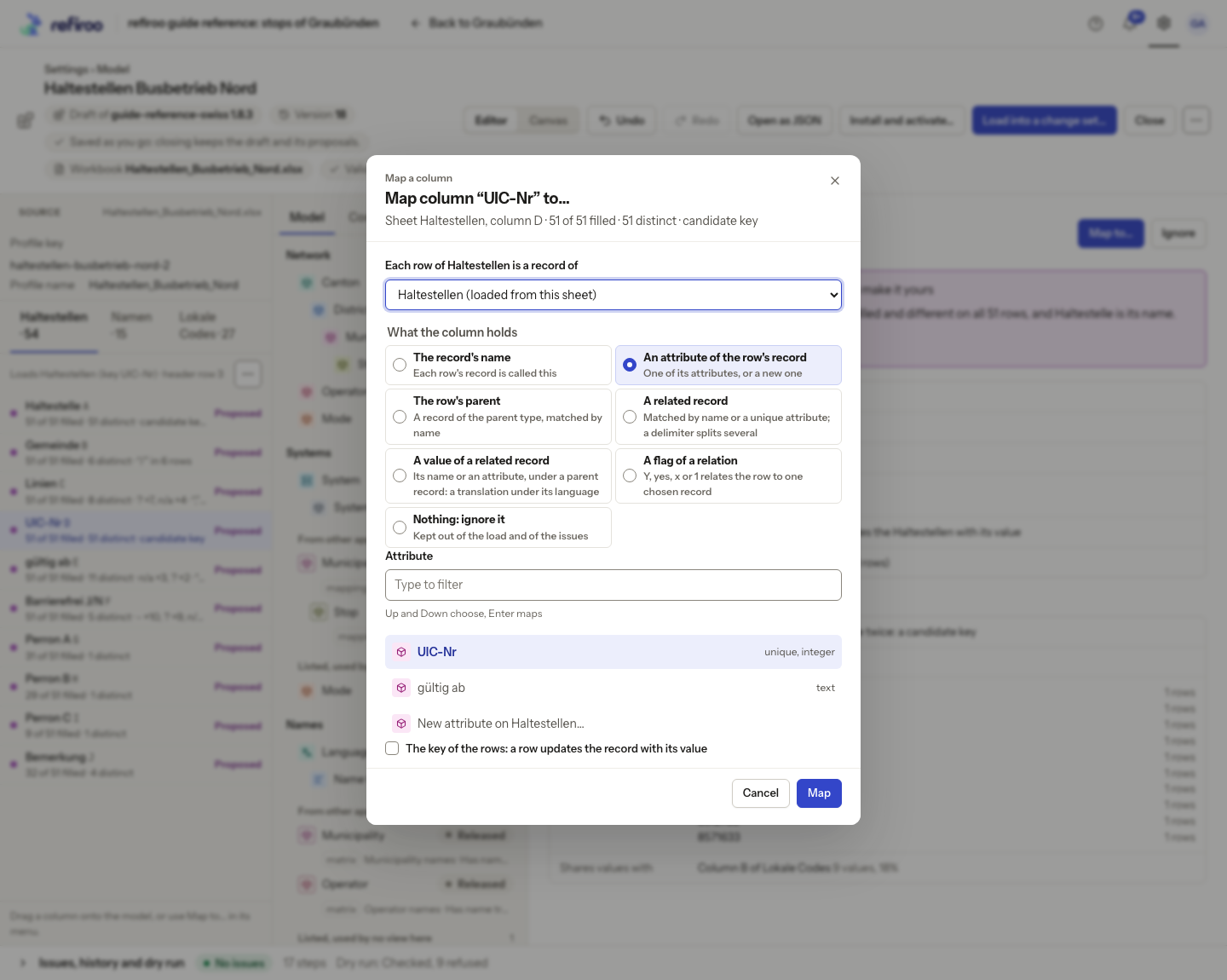
- Choose Map to…, or drag the column onto a type. Select the type whose rows are being read and What the column holds: a name, attribute, parent, lookup, related record, relationship flag, or an ignored column. The form changes with this choice.
- For a new attribute, review Attribute name, proposed Value type and Unique. For a parent or relationship, choose the offered destination. A missing parent type or relationship must be modelled first; the form explains when there is none.
- For a lookup, set Matched by. A unique attribute can find existing records; only name matching can create missing named records. Enable Create the records a cell names that do not exist only when those names really define records you want to maintain.
- For a related record, choose what the column fills and its parent. Choose a fixed named parent or The one each row names in and The column naming it. A fixed parent and a column cannot both supply the same source’s parent. Name matching for that record is under the chosen parent, rather than a search across every parent.
- For a flag, check The record a Y relates the row to. Its default comes from the header; change it if that is not the intended record. For a multi-value lookup, set Split a cell on only when each part names a separate record; Do not split keeps the cell whole.
- Choose Map. Not mapped leaves the attempted mapping unapplied; correct the stated problem. Ignore or Ignore the column excludes values you do not intend to load.
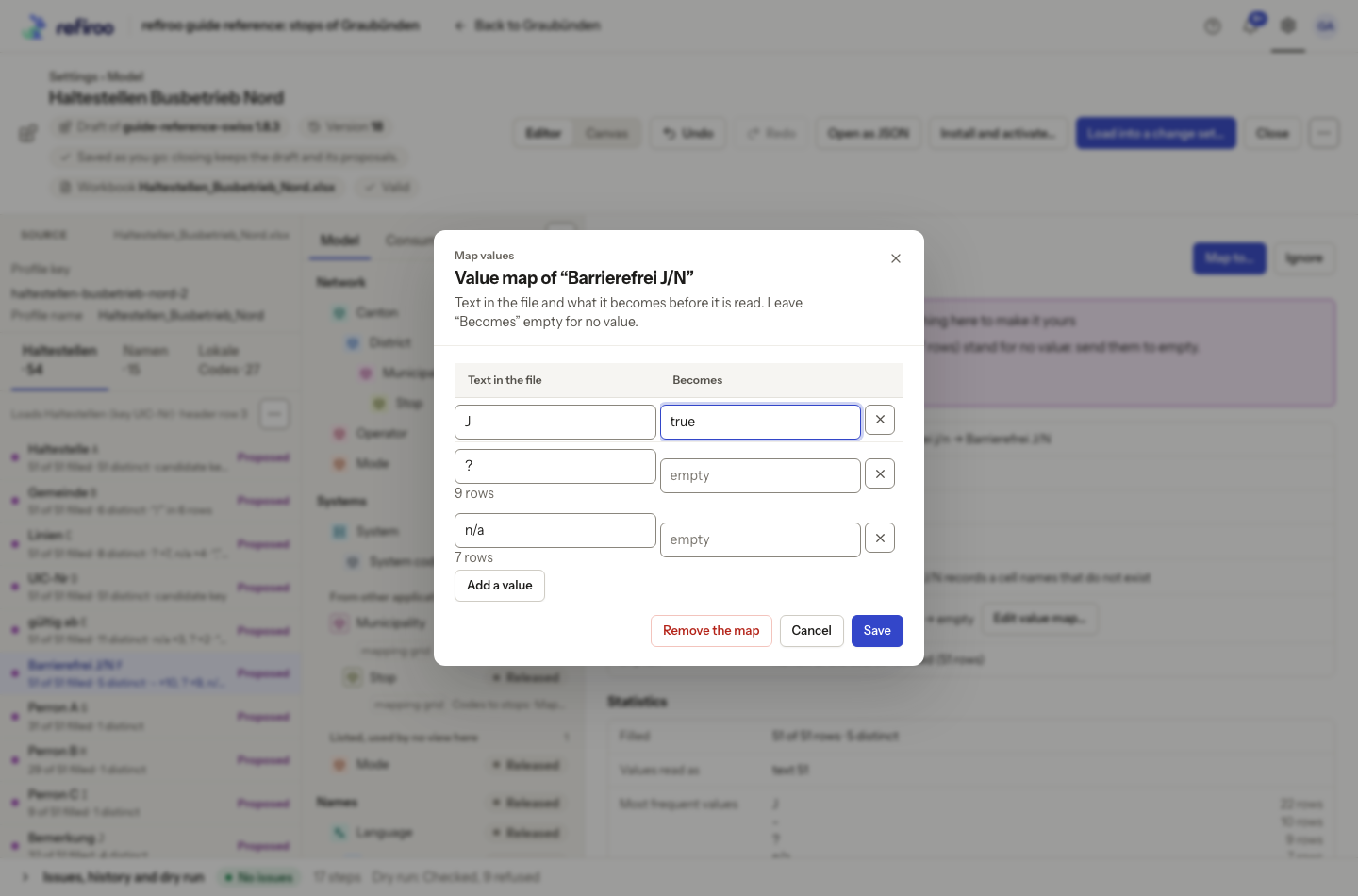
- Back in the column panel, use Add a value map… or Edit value map…. Pair Text in the file with Becomes, including intended placeholder handling. Remove a row to stop that replacement. This changes reading instructions, not the original spreadsheet.
- Choose Save the value map to keep its replacements, or Cancel to leave them unchanged. Check Key before Use as the key of the rows. A non-unique column explains why it cannot serve as a key. Review the refreshed dry run.
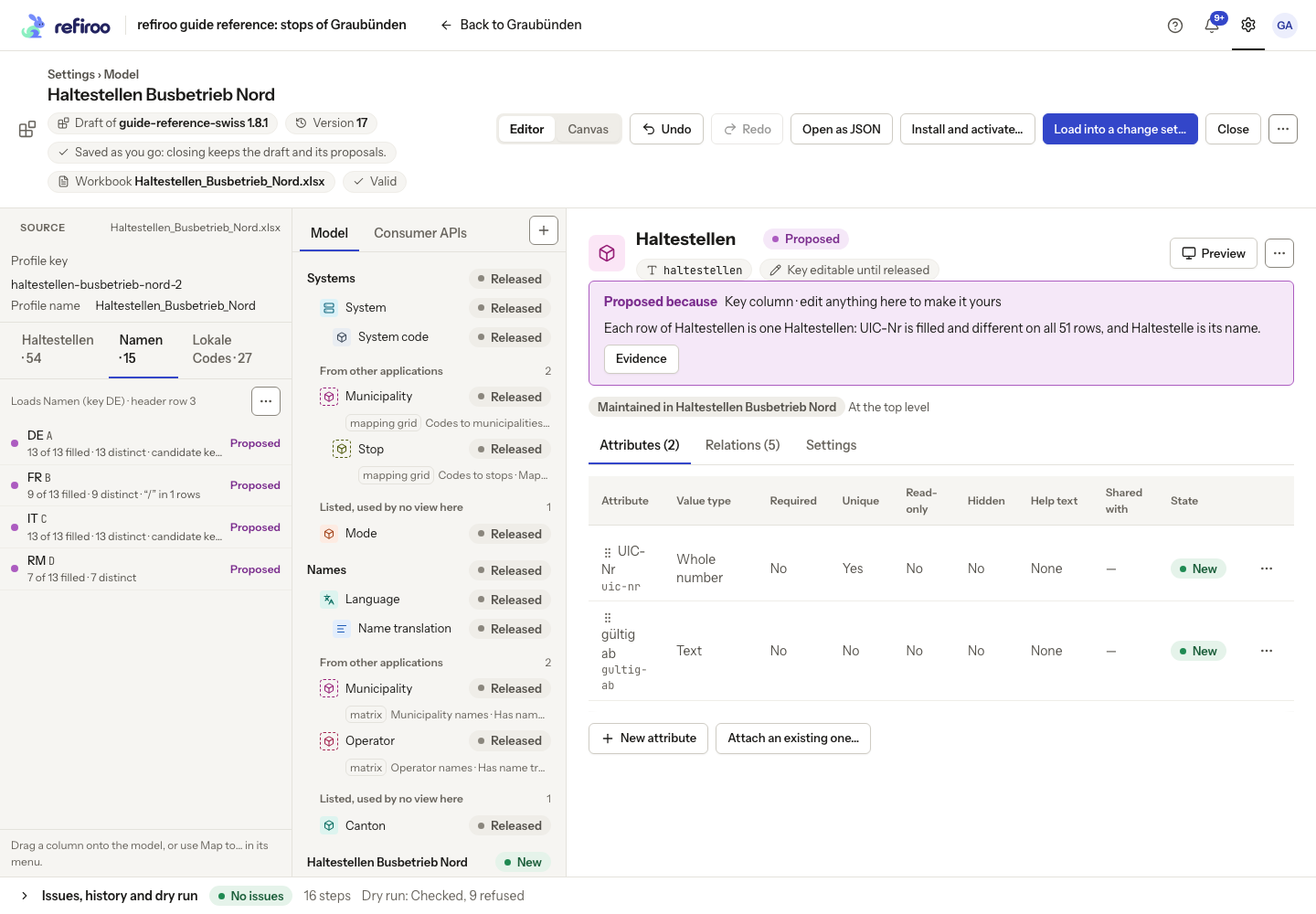
The mapping form shows the selected source column and its destination. A value map changes how the file is read before matching or conversion. For a sheet that loads records, the column panel’s Readings row also offers Fill blanks from the cell above, Rows holding only this column are headings… and Read these columns as rows…. For columns read as rows, select at least two columns, name the two added columns and choose Read as rows. For headings, name the added column, choose the parent object type and choose Read headings. A reading that is on has its corresponding Stop… entry. The Source pane marks columns that have a reading; check the refreshed dry run after changing one.
If none of a sheet belongs in the load, open its Source menu and choose Ignore this sheet. It removes that sheet’s reading sources, not its cells or live records. Check other sheets’ lookups and the refreshed dry run; use Undo if excluding the sheet was unintended.