

Arrange applications and views
Arrange a draft so people can find the types and views they need. You need Model authoring. Any application can use a view when its structure fits. See Applications and views for listings and view rules.
- In the model pane, choose Add, Application…. Enter Name and, if useful, Description, then choose Add application. In an existing application, select its row instead.
- Check Object types and Stands to see what it lists and where records belong. Use Object type to create a definition, or List an existing type… to list a shared type here. Check the intended type before applying: listing it does not copy its records.
- Open a listed type’s menu. Use Stop listing in this application where offered to remove only that listing. For containment or a move between applications, use Split, merge and move types instead. Released listings and placements can be refused when data uses them; read the impact before proceeding.
- Inspect Views, including each view’s kind, Shows and state. Rename… changes a view’s label. To add or configure a relation matrix, follow Add a relation matrix.
- Use Group collections in navigation for sidebar sections, their order and initial folded state. This does not change record parents.
- Use Preview a type, then Edit a record page or Choose table columns, filters and sort for screen layout. Use Add a table, tree or mapping grid for the other view forms.
- Check Issues and review the saved steps before installing. A Not applied notice means the attempted step was refused; correct its named problem. Undo reverses unwanted saved work.
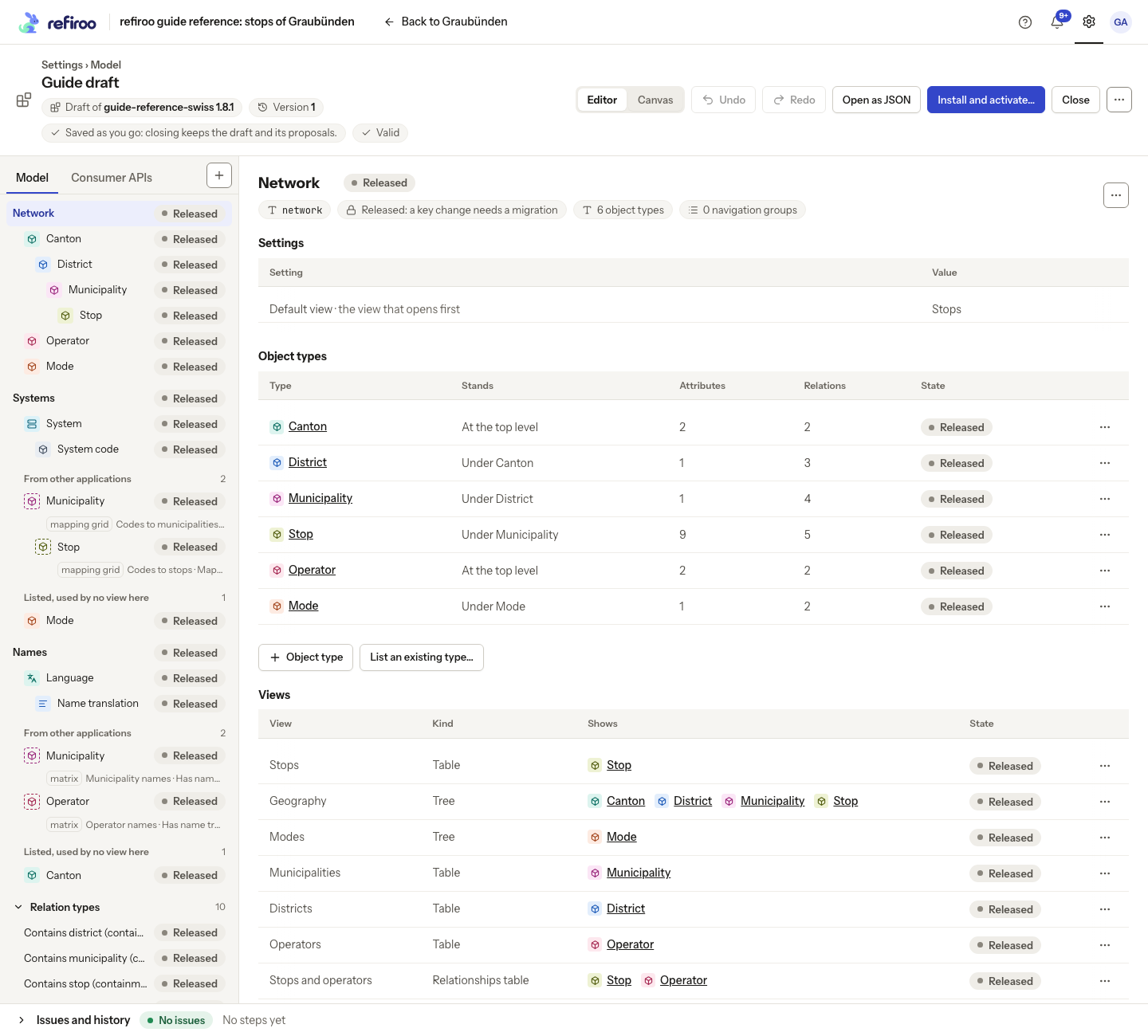
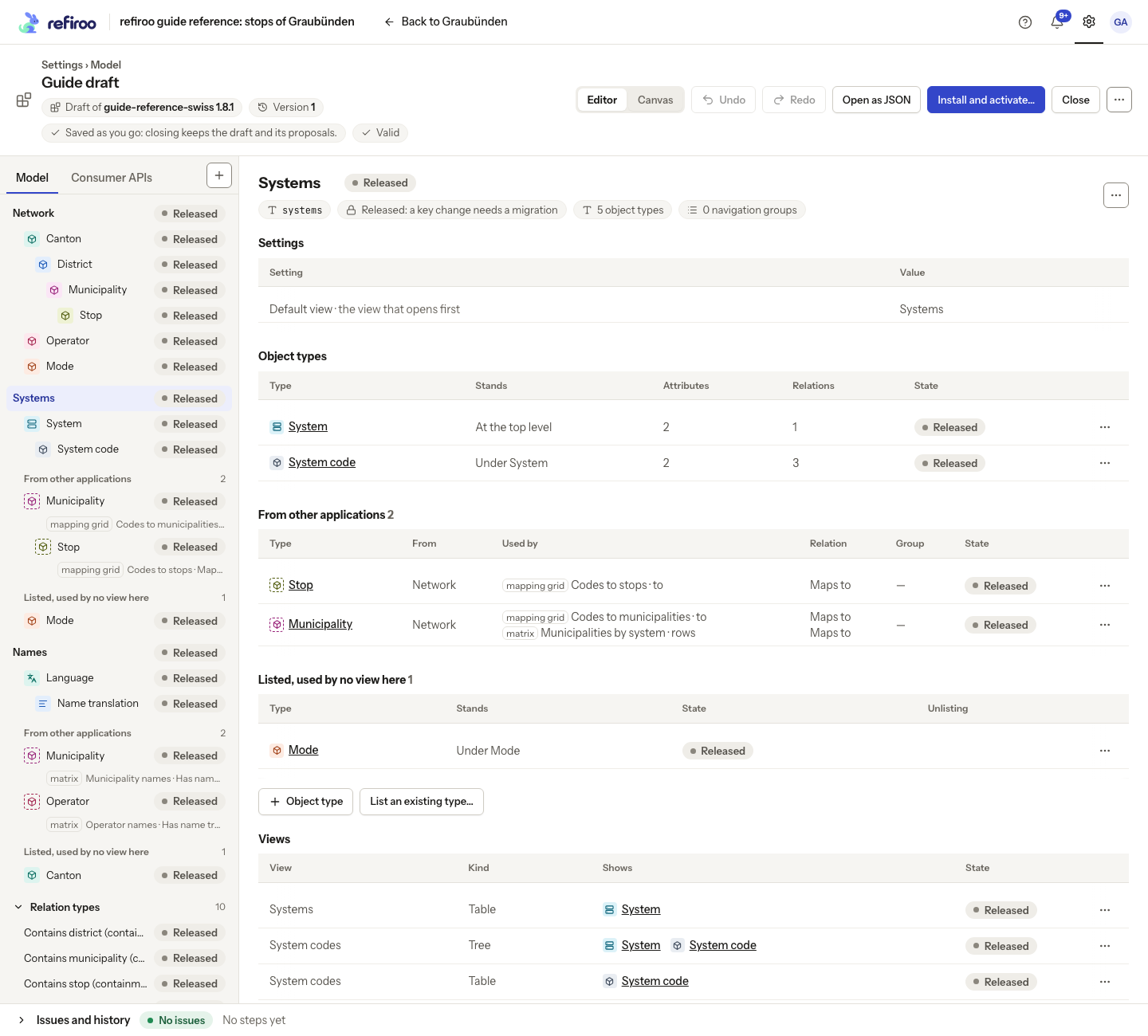
Example: an application in the Graubünden model declares all four view kinds. These are choices in that model, rather than features reserved for the subject of that application.
The live workspace keeps its current navigation and layouts until the release is activated.
To choose the opening view, edit Default view under the application’s Settings, select one of its views. Selecting it saves immediately. To remove a non-matrix view, choose Remove view. Read “Types only it needed stop being listed here.” before confirming: review the application’s listings as well as the view list afterwards. Removal changes navigation, not the stored records. Restore an unwanted draft change with Undo.