Importing and exporting
Export data to read or edit outside refiroo, then import it with a preview. Export needs Browse in the workspace. Import needs Bulk and import and permission to write the target record types in Live or a change set. The deployment must allow new jobs. Publications and retired workspaces can be exported but cannot receive an import.
Use Export records, Edit in Excel and import back, or Import a file.
If a workbook should become a workspace of its own, see A workspace from a workbook.
What an export contains
Section titled “What an export contains”Open Workspace actions › Export. On a view, What starts with This view and its name. This takes the view’s search, supported filters, parent scope and chosen columns, including matching rows beyond those on screen. The count line names its context and size when known: rows × columns for a matrix, records for a tree or mapping grid.
Choose The type, The application or The whole workspace for whole types rather than the view’s narrowed selection. From Settings › This instance › Jobs, choose types in a workspace. Valid on optionally limits an export by business date; ordinary browser lists have no equivalent selector. When a page’s search is not included, the dialog says so. A filter on a relationship’s own values is not carried into a view export; read that notice before assuming the file contains exactly the connections left on screen.
Kind of file offers For editing in a spreadsheet and, for a table view or a selection of types, Technical. Other view kinds export as an editing workbook. Technical exports offer Excel (XLSX), CSV and JSON Lines. Choose Between exported records, All their relationships or None for relationships. All their relationships can refer to records outside the chosen record scope. Everything is read at one instant. The job’s file summary records its scope, counts, size and checksum. Failed or cancelled exports have no downloadable file. Downloads remain subject to job and file retention.
Workbook layouts
Section titled “Workbook layouts”For editing in a spreadsheet makes an Excel (XLSX) workbook. Its shape follows the selection:
| Selection | What the workbook holds | What loads back |
|---|---|---|
| Table view | The table’s columns, labels and order, with optional related sheets. | Editable record values and relationships, according to the saved layout. |
| Matrix showing record fields | One row per row record; each column record has a group of cell fields, with hidden cell identities and versions. | The cell records only. Row labels are for reading. |
| Matrix showing links | One column per column record, listing linked records by a chosen text field, with dropdowns backed by a value sheet per column. | Connections within each row and column; value-sheet records where editing or creation is enabled. |
| Relationships table, rows | One row per connection, showing both records and the relationship’s values. | Connection values; a new row without identities can connect two named records. |
| Relationships table, grid | One row per source record, with Linked and relationship values under each target. | Connection values; Yes can link a missing pair. No removes nothing. |
| Mapping grid | One row per source record, with its target in a relationship column. | The target relationship, as in a table workbook. |
| Tree | One sheet per type, with its parent by name. | Editable records and parent choices. |
| Type, application or workspace | One sheet per type, parents’ types first, with fields, parents and relationships by name. | Editable values on each sheet; a connection between sheets loads from the later sheet only. |
A view enabling Link existing or Unlink uses the link-matrix layout, even when it also enables Create. Otherwise the matrix shows its cell fields. Keep hidden identity and version columns, including those that distinguish parents with the same name.
Every XLSX export, including a technical workbook, has About this export as its second sheet. Read it for the view or scope, workspace, context, search and filters, export time, counts, relationships and load-back rules. It is for reading and is ignored on import. CSV and JSON Lines files have no sheets.
Text in CSV files
Section titled “Text in CSV files”In a CSV export, text beginning with =, +, -, @, a tab or a carriage return gets one
extra leading single quote, so a spreadsheet shows it as text rather than a formula. The same
rule applies when one or more single quotes already precede that character. For example,
=1+1 is written as '=1+1, and '=1+1 as ''=1+1.
Keep that added quote when returning an exported CSV. With Profile: None, import removes exactly one protective quote from record names and text fields. Returning an unchanged export therefore leaves the original values unchanged, including their original quotes. Other quotes are kept. This reading applies to exported CSV layouts, not to an ordinary CSV read through a stored profile. XLSX files are unaffected; their values need no added quote.
Matrix cells and new records
Section titled “Matrix cells and new records”Export does not ask where new matrix records go. The relationship’s candidate rules limit which groups can hold them. If the rules identify one group and it is missing, it is created with the record. Otherwise the group holding the most of this view’s records in the column is used; a tie gives no choice. An unused group is never picked automatically, even if it is the only one.
When neither the rules nor data give a place, refiroo can propose a new group named like the groups this view uses in other columns, where the structure and rules allow it. In the browser, review or edit its proposed name, or choose an existing group. An import preview says will create … under …; confirming creates the group and record together. No model change is needed. If no suitable place is found, a new record is refused with the column and reason. Choose or prepare a group in the app before previewing again.
The main matrix sheet loads only its cells; value sheets load their records separately. Empty or cleared cells change nothing; removing all values or links in a cell is done in refiroo. In the record-field layout, a cell holding several records is shown joined and not loaded back. Edit those records individually in the app. In the link layout, a non-empty list replaces only that cell’s connections: listed records are linked, omitted records are unlinked, and other columns are left alone. Names containing a semicolon are written and read with a comma instead. Keep that displayed form when editing. Where the matrix also permits creation, an unknown value can create a record in the derived or proposed group; otherwise the list must identify existing candidates.
Value sheets and matching fields
Section titled “Value sheets and matching fields”For a link matrix, What each cell lists selects Name or a text field of its records. The default is Name. The file records the field so it can be read back. A linked record with no value in that field refuses the export; choose another field or supply the missing value. The selected values need to distinguish records within each column for import to resolve them.
Each Values · … sheet lists the column’s eligible and already-linked records, their fields (except fields holding JSON), their group and hidden identities and versions. Its values back the main-sheet dropdowns. With Edit or Create enabled, edits update by identity; where Create is enabled, a new row creates a record. A row not selected in any cell still loads. With only Link existing and Unlink, value sheets are for reading and do not load. A matrix showing the record’s own fields has no value sheets.
A main-cell value matching a value-sheet row refers to that record. Renames are recognised by the new value and also the old one unless another sheet row now uses it. The same new value in both places is one record. A value in neither the sheet nor existing records creates one where allowed, supplying its name and the chosen field only. Other required values still apply. Duplicate matching values are refused as ambiguous. Spreadsheet edits do not themselves synchronise the two sheets; import resolves them together.
The preview’s How the file is read shows matching fields, values matched, value-sheet counts and where new records go. For an unrecorded reading, it guesses the field and marks it Guessed, with a note when the choice is uncertain. Choosing another field runs the preview again. Save these fields in the profile, where offered, keeps the reading for later files. No records are written before Load the file. Follow Import a file.
For steps, see Edit in Excel and import back.
A workbook for people
Section titled “A workbook for people”For a table view, For editing in a spreadsheet makes a workbook shaped by your table: visible columns in their order,
readable labels and typed cells. Advanced: columns and sheets changes the columns, their
order, which field a relationship column shows and which relationships get separate sheets.
Related records are exported in full, even where the browser showed only a few chips.
Record identity and versions are held in hidden columns. Keep those columns and the workbook’s
saved import information when editing. Cells naming a record offer dropdowns from the
List - … sheets of eligible records, on the main sheet and on relationship sheets alike (both
records of a relationship row). A cell that may name several records offers the list too; type
the others separated by ; past Excel’s warning. By default only relationships that need one get
a sheet of their own: one holding several records, carrying its own fields, or shown by a field
other than the name. A relationship holding one record is edited in its main-sheet column.
Numbers shows each list as a pop-up menu that takes only its items; the file’s About this
export says how to set the cells to Automatic to type other values.
Columns marked (not imported) are for reading. A table relationship column that owns its records is read-only; edit those records on their own sheet or in refiroo. An ambiguous or overlong relationship cell becomes a read-only summary pointing to its sheet. Several owned records for one parent also form a summary rather than an editable single value. Edit the appropriate sheet instead.
When imported with Profile: None, the workbook is read as exported. An untouched workbook changes nothing; changed names, fields and added rows are loaded as edits. A record changed by someone else since export is refused unless you deliberately choose the overwrite option. A main-sheet relationship list replaces that whole set; connections still chosen keep their identity and values. A relationship sheet adds or updates connections, but omitting a row does not remove one.
Blank ordinary field and owned-record cells leave values unchanged. To clear such a value, use refiroo’s field editor. An empty table cell replacing a relationship set empties that set, where its rules permit it. Check the preview carefully when clearing a relationship list. A required connection still cannot be cleared.
An owned-record relationship can use Columns per parent to make a workbook for filling in. Each chosen parent contributes columns for its owned record’s fields. Filling an empty column creates that record under its parent and connects it to the row’s record. See Add a language with a workbook for the generic steps and an example. Excel permits at most 16,384 columns; a wider layout fails when the export job runs. Reduce parents or fields and export again.
Read a file through a profile
Section titled “Read a file through a profile”An import profile tells refiroo how sheets and columns become records, names, fields, parents and relationships, and which values identify existing records. Choose the file first, or drop it onto the file field. The form selects a profile when exactly one valid profile fits; you can still choose None or another fitting profile. JSON Lines uses none; CSV accepts a profile with CSV settings or a single source, and a workbook accepts any valid profile for this workspace’s model. Invalid profiles and profiles for other models are omitted. The three loading-policy choices are under Options. Profile setup belongs to Workbook onboarding; a steward can load its next version.
A saved profile can also read selected columns of a wide sheet as rows: each filled cell makes a row with its column header and value; empty cells make no row. It can fill blanks from the nearest filled cell above in a column, and read heading rows as the parent of the rows beneath them. A heading row has just one filled cell in the chosen column; it is not loaded as a record. Its heading applies until the next heading. These instructions are reused for the next file, including its check and load. Column headers match without surrounding spaces.
A model administrator sets these readings on the canvas or in the model editor. In the editor, a column’s Readings row offers Fill blanks from the cell above, Rows holding only this column are headings… and Read these columns as rows…, with a Stop… entry for each reading that is on. A loaded list’s Readings row also offers Read these columns as rows…. The Source pane marks columns that have a reading.
Under Settings › Workspaces and models › Import profiles, Upload the next version… stores an XLSX or CSV file and starts a job to read its sheets and columns. While waiting, the page says Checking [file name]: profiling its sheets, then reading it through the profile…. This reading step writes no records. If The file could not be read appears, follow its reason and upload a corrected file. A file that is too large or is neither XLSX nor CSV is refused. Checking and loading must wait until its analysis is finished.
The profile page reports Columns, Values, Records and Profile against the active release. To inspect the source’s sheets, detected lists, header rows, column statistics and cell ranges while changing the mapping, a model administrator uses the draft’s source pane. Those statistics show filled and distinct values, candidate keys, frequent values, placeholders and shared values with other columns or records in the comparison workspace; they are evidence to review.
A newer upload supersedes the earlier file for this profile in this workspace. The earlier file is kept for the job retention period after replacement, then deleted. It does not replace another workspace’s upload. The stored file is shared with its uploader and holders of Bulk and import in its workspace; a file naming no workspace requires that access at the instance. Keep your own original if it needs to outlive this retention.
A missing or ambiguous related name is refused. Parents can be resolved from existing records or the same file, and are loaded before children. Repeated keys with compatible filled cells, in one sheet or several sheets of the file, combine into one record; conflicting filled values refuse all contributing rows. Blank cells do not conflict with another row’s supplied value. A profile without a stable key warns that later uploads may create new records instead of finding earlier ones.
For a source that loads its own records by a key, the model administrator chooses Records no row names in its list panel in the model editor or the canvas inspector. Report them is the default: the load reports missing records and keeps them. Delete them asks for confirmation with Delete them on load. Every subsequent load then stages those removals in a change set; live data changes only when it is published. Choosing Report them again stops future deletions. A profile must still fit the workspace’s model; ask its model administrator to fix named problems.
Preview and load
Section titled “Preview and load”The import always previews first in the browser. Choose whether to Load the rows that can load or Load nothing unless every row loads, and whether found records may be updated. The preview reports creations, updates, unchanged and refused rows. Its column report shows empty, converted, mapped and refused cells, and found, missing or ambiguous record matches. A large file may be sampled; the page says how much was tried. Loading checks the whole file against current data, so the final result can differ.
Load the file confirms; Cancel import ends the preview without writes. Expired previews cannot load. Correct refused rows in the original file and resend the whole file: already loaded rows should preview unchanged when their data and matching choices are unchanged. Refused rows are listed on the job page; there is no download of just the refused rows.
For an export from another workspace, Load them as this workspace’s own creates separate records with stable identities derived for the destination. Parents and relationships stay together; resending the file finds those copies. They do not stay linked to the originals. Refuse them instead reports the source workspace on the refused rows.
Read Jobs for progress, cancellation, access and retention.
Read the preview’s evidence
Section titled “Read the preview’s evidence”The preview counts Created, Updated, Unchanged, Deleted, Refused items and Rows. A sample means only part of the file was tried. In Rows in the preview, choose All rows, Refused or Not loaded. Read Outcome and Why, or what it does for the individual rows; a refused cell gives its column and reason.
How the file was read explains each sheet and column:
| Count | What to check |
|---|---|
| Bound to | The field, name, parent or relationship receiving this column. |
| Cells and Empty | Whether the expected rows supplied anything to read. |
| Read and Value-mapped | Values successfully read or translated through the profile’s value choices. |
| Refused | Cells that could not be used; correct their stated cause before loading. |
| Found, Not found and Ambiguous | Whether a name or key identified exactly one existing record. |
A Check marker calls attention to a column. The Read as exported summary identifies a workbook using its saved import information. This import records the chosen file, profile and load policy. After confirmation, The result reports Applied items, Refused items and Not loaded. Read that result even when the preview looked right.
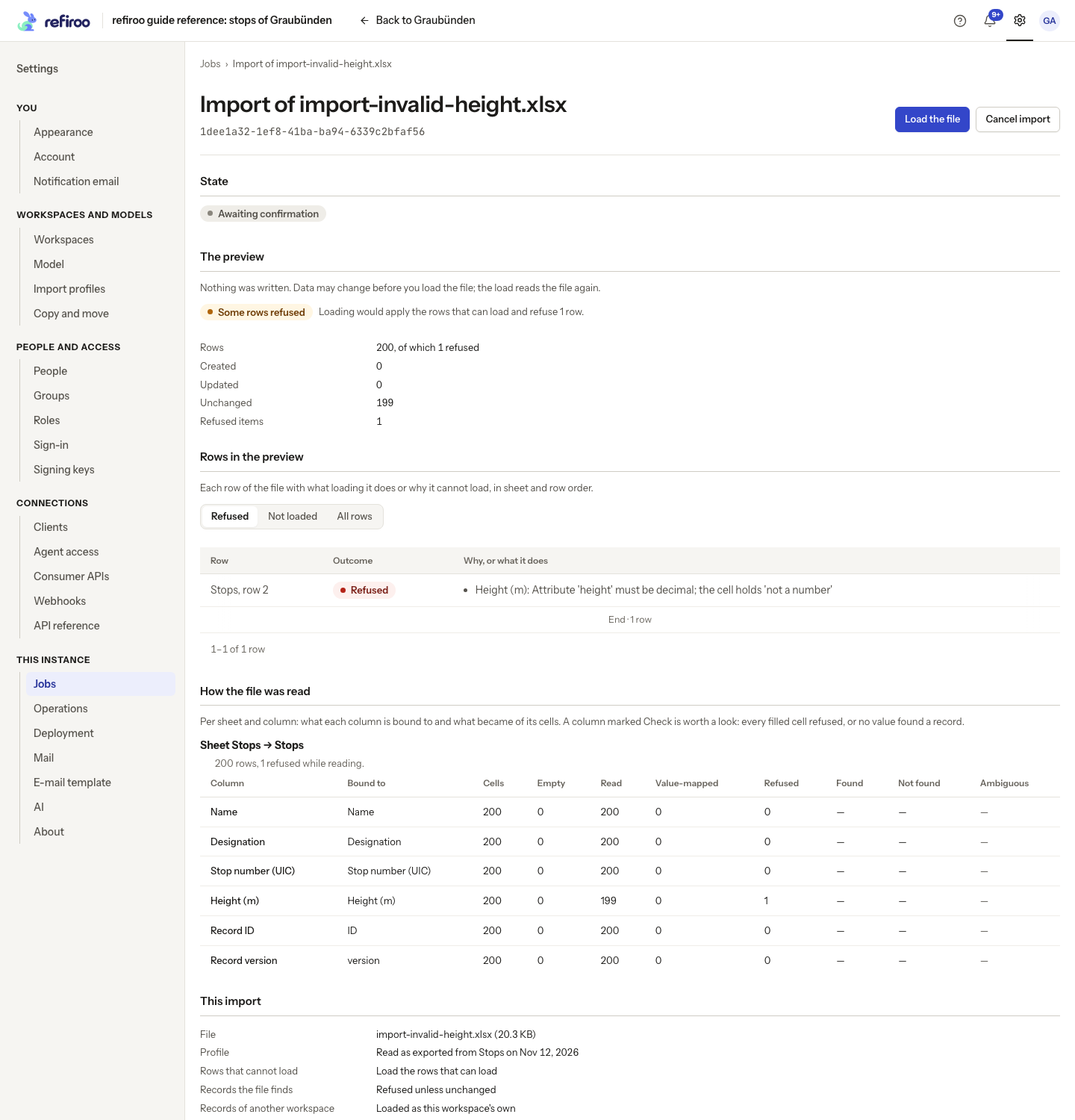
Above: one row in the reference Stops workbook is refused because Height (m) contains “not a number”. The column counts show 115 height values read and one refused; the preview has written nothing.
Profiles and recurring keys
Section titled “Profiles and recurring keys”In Settings › Workspaces and models › Import profiles, Valid means the profile fits its model; Needs a fix means a named problem must be resolved. Neither guarantees that every row in the next file is valid. Not loaded yet means no retained last load is shown. Scroll to the end of the catalogue to read more profiles. If there are no profiles, ask a model administrator to prepare one through Workbook onboarding.
Last load offers Open the change set review while its work is proposed, or Open the load’s job for the retained operation. A load can be missing here because it has passed retention. Uploading the next file checks it without changing records. Accepting a column rename or ignoring a new column changes the profile used for subsequent checks; review those decisions with its owner. See Load the next version of a workbook.
A matching key may combine several columns. Every component must be present and identify at most one stored record. Fill incomplete keys or ask the profile owner to resolve ambiguous combinations. Changing only a display name need not create a new record when a stable key still finds the original.
An export uses one consistent reading of the data. If its worker restarts after a crash, it starts the export again rather than appending new data to half of an old file. Follow the job until it has a completed file. Home itself has no Import or Export action; open an application or use Jobs. A record’s History is a list of changes, not an earlier-state viewer, and offers no restore or undo. See History.
What the next file can change
Section titled “What the next file can change”A profile belongs to one model. Use it in a workspace running that model; a different model needs its own suitable profile. A file carrying records from another workspace with a different model cannot load them as counterparts: those rows are refused while other valid rows can load under the chosen load policy.
The next-version check can recognise a renamed header when its column stays in the same position and holds the same values. Accept saves that rename; Ignore saves the decision not to load a new column. Each decision checks the file again before loading.
For a lookup allowing one related record, a changed value in the next file switches the connection to the newly named record. Missing records are kept unless the profile says to delete them. That deletion also removes their connections, but refuses a record that others depend on. Review the refused items and the change set before publishing.
File refusals and completion notices
Section titled “File refusals and completion notices”A preview can refuse all rows participating in a parent cycle, rather than loading either record into an invalid hierarchy. If the file cannot be read or does not fit the profile, loading changes nothing. Correct the file or ask the profile owner to repair its mapping.
The tab that starts an import reports when its preview is ready and when loading finishes, unless you already have that job open. A collection reloads after an import started in this tab loads into it. For exports, the completion notice offers Download and the job page; a failed or cancelled export instead reports that state. Keep the tab open for these notices, or return to Jobs to inspect the result later.
A stored upload used by an import profile is visible to its uploader and to people allowed to import in its workspace. Treat the file as shared with those workers when choosing what to upload. Losing a write permission can stop a job at its next step; review its applied counts before asking an authorised colleague to continue the work.
Let the assistant prepare the import
Section titled “Let the assistant prepare the import”When the assistant is enabled and you have the required access, Import… in the workspace menu first opens Load a workbook. Give it one XLSX or CSV file, instructions, or both. It proposes the model and load for review rather than publishing records. Import without the assistant… opens the ordinary manual import. See Loading with the assistant and Load a workbook with the assistant. The whole file and your words go to Claude Code, turns can incur costs, and task files are retained; AI and your data explains those rules.
Remove an uploaded file or an import profile
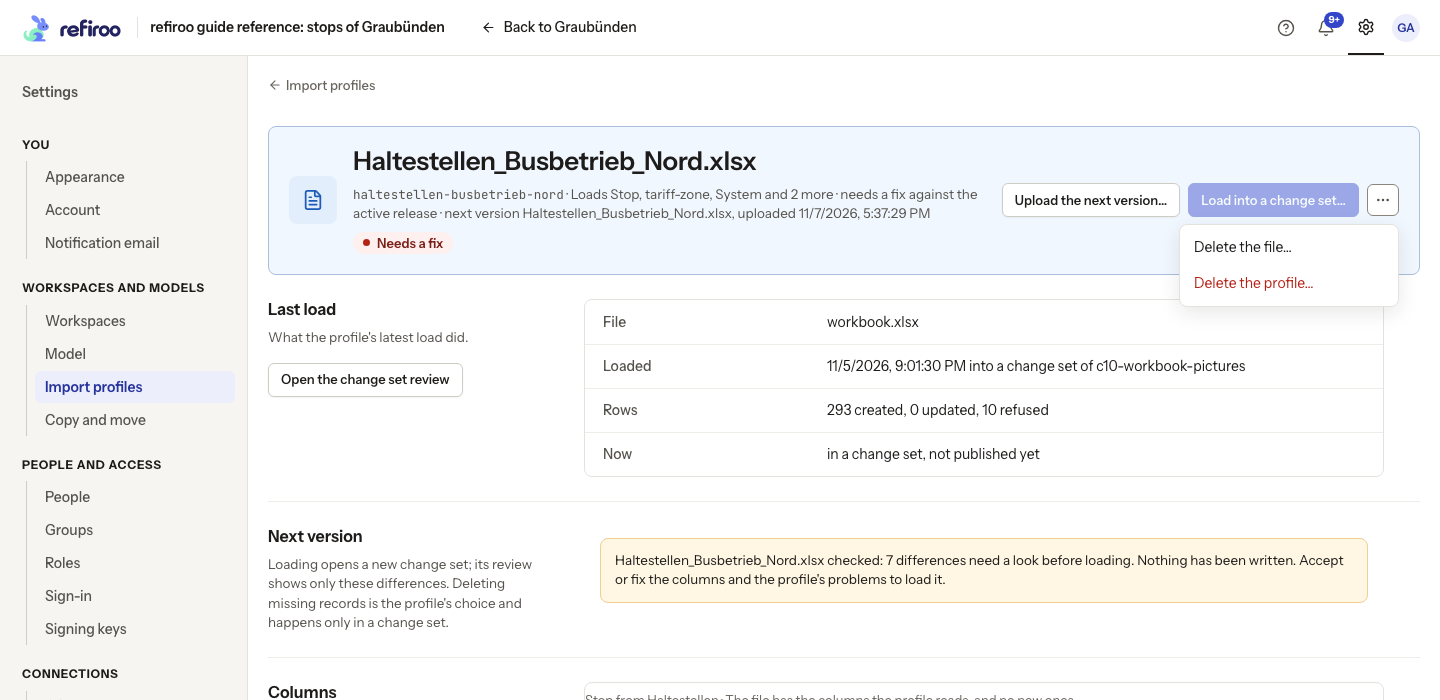
Section titled “Remove an uploaded file or an import profile”Open Settings › Workspaces and models › Import profiles and open the profile’s row. ← Import profiles on the first line returns to the list. People with Bulk and import find the deletion actions under More actions; without that access the actions are absent. Deleting either item does not undo a load or remove records already loaded into a workspace.
- More actions › Delete the file… asks Delete
? . Delete the file removes that upload, its stored cells and the analysis of its sheets and columns. This analysis is not the saved import profile that maps the columns. A check still reading it is asked to stop. The import profile stays. Upload the file again before checking or loading it. - More actions › Delete the profile… asks Delete the profile
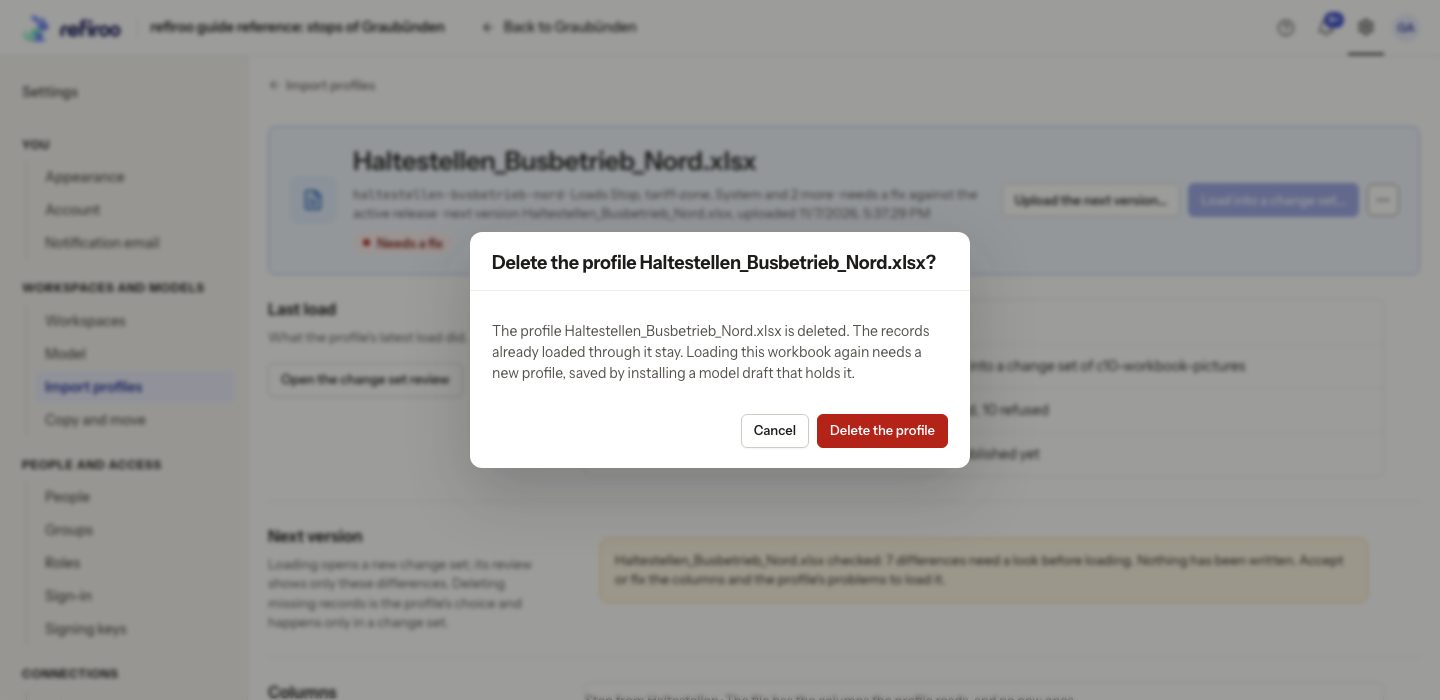
? . Delete the profile removes the saved instructions for reading the workbook and returns you to the profile list. Loading the workbook again needs a new profile saved by installing a model draft that holds it; ask a model administrator to prepare this through Workbook onboarding.
Choose Cancel in either confirmation to keep the item. A refusal stays in the confirmation with its reason. If someone changed the file or profile since you opened it, cancel, reload the page and inspect the latest version before trying again. There is no undo button for either deletion. Keep the original workbook outside refiroo if you need to upload it later.
Default file and preview limits
Section titled “Default file and preview limits”An import normally accepts a file of up to 200 MiB. Its preview tries at most 10,000 items; Load nothing unless every row loads normally allows at most 10,000 items. Your operator can change these limits. Read Limits on Jobs and the limit reported by the import form. If a file exceeds the limit, split or reduce it, or agree a suitable limit with the operator. If splitting a recurring workbook whose profile deletes missing records, ask its owner first: each part could otherwise treat records in the other parts as missing.
Jobs and their downloadable files are normally retained for seven days. Download an export before its Kept until time. A retained import profile can outlive its last load’s job; Last load is not an archive of every workbook loaded through it.