

Add a record type and fields
Work in an editable draft with Model authoring access. If needed, create a draft first. The model editor explains the panes and saved steps.
Add the type
Section titled “Add the type”- Select the application that should list the type. If the draft is empty, use Application to add one first, enter its name and choose Add application.
- In the application’s Object types section, choose Object type. In Add an object type, enter Name and, if needed, Plural name. Leaving the plural empty uses the name with an s; fill it explicitly when that would read incorrectly.
- Choose Stands: At the top level for independent records, or Under a type for children. For children, choose the Containment relation. If creating one, fill both Relation name (from the parent) and Reverse name (from the child). These describe the same connection from each end.
- Choose Add type. The type appears in the model pane and application table. A new type gets a generated table view and record page. Check where it stands before adding fields. If Add type is unavailable, complete the required names and choices; read any refusal before trying again.
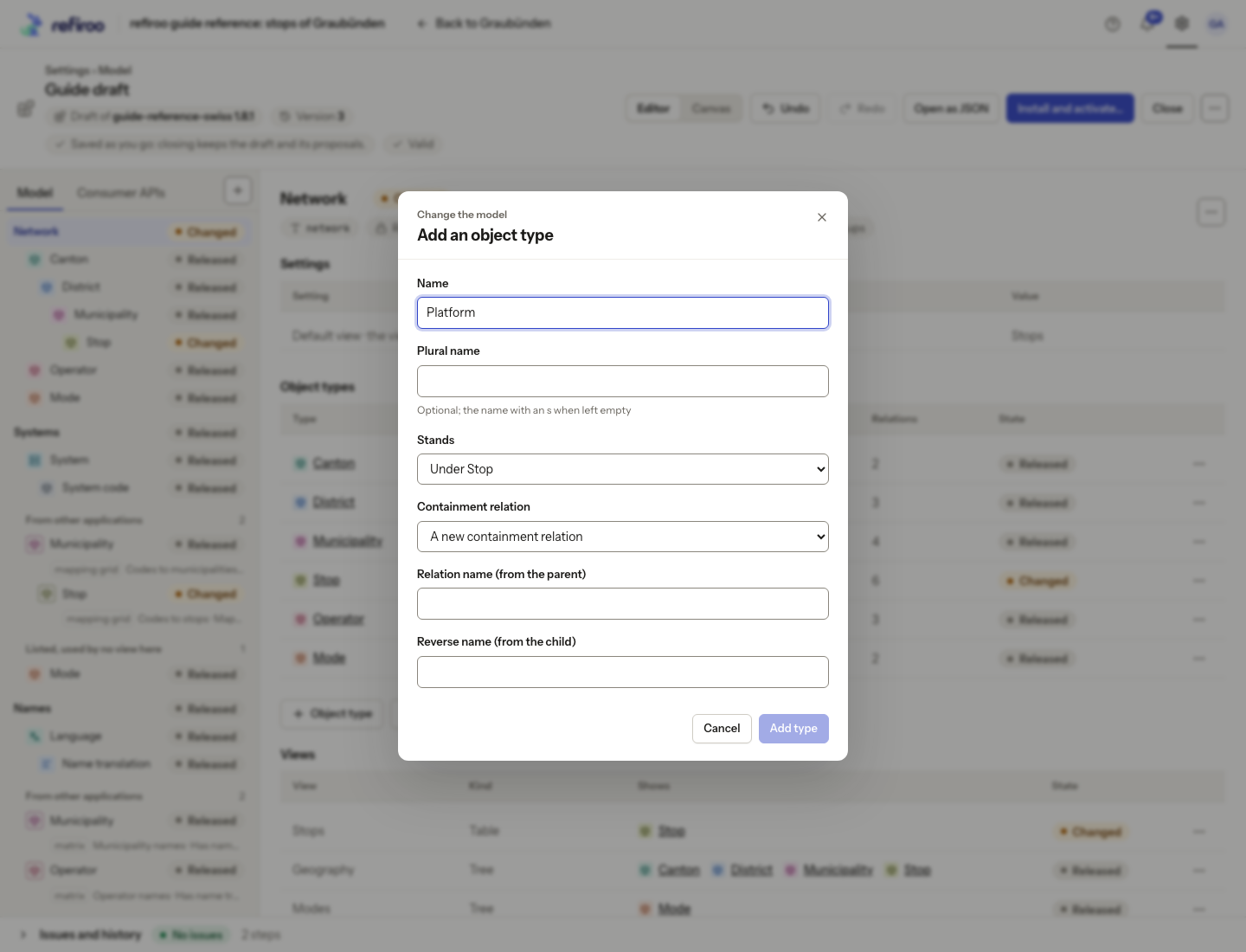
Above: Platform is proposed Under Stop in Network. Both containment names still need filling; the captured dialog was cancelled, so no Platform type was added.
Containment defines record hierarchy, not merely indentation in the editor. Use Move to… when you need to change placement; moving a released type used by data may need migration.
Add fields with the right value types
Section titled “Add fields with the right value types”- Select the type and open Attributes. Review the existing rows before creating another field.
- Choose New attribute. Enter Name and select Value type: for example Text, Long text, Whole number, Decimal number, Yes or no, Date, Date and time or JSON for structured values. Choose for the value’s meaning, not its appearance in a spreadsheet. A code containing leading zeroes may need text, even if every character is a digit.
- Review Features. Searchable includes the field in record search. Filterable allows filtering; the view decides which filter controls it shows. Unique prevents another record in the workspace from holding that attribute value. It is an attribute-wide rule, including other types that share the attribute. Sortable is still shown, but ordinary non-structured fields sort from list headers regardless of that checkbox.
- Choose Required if records of this type must hold a value. Consider existing records: making a field mandatory does not fill it for them. Choose Add attribute and wait for the row.
- Check its value type, Required and Unique settings. The new row is marked New, its type may be Changed, and the header’s draft version advances. Expand Issues and history to see the saved step. No live record has acquired a value from adding the definition alone.
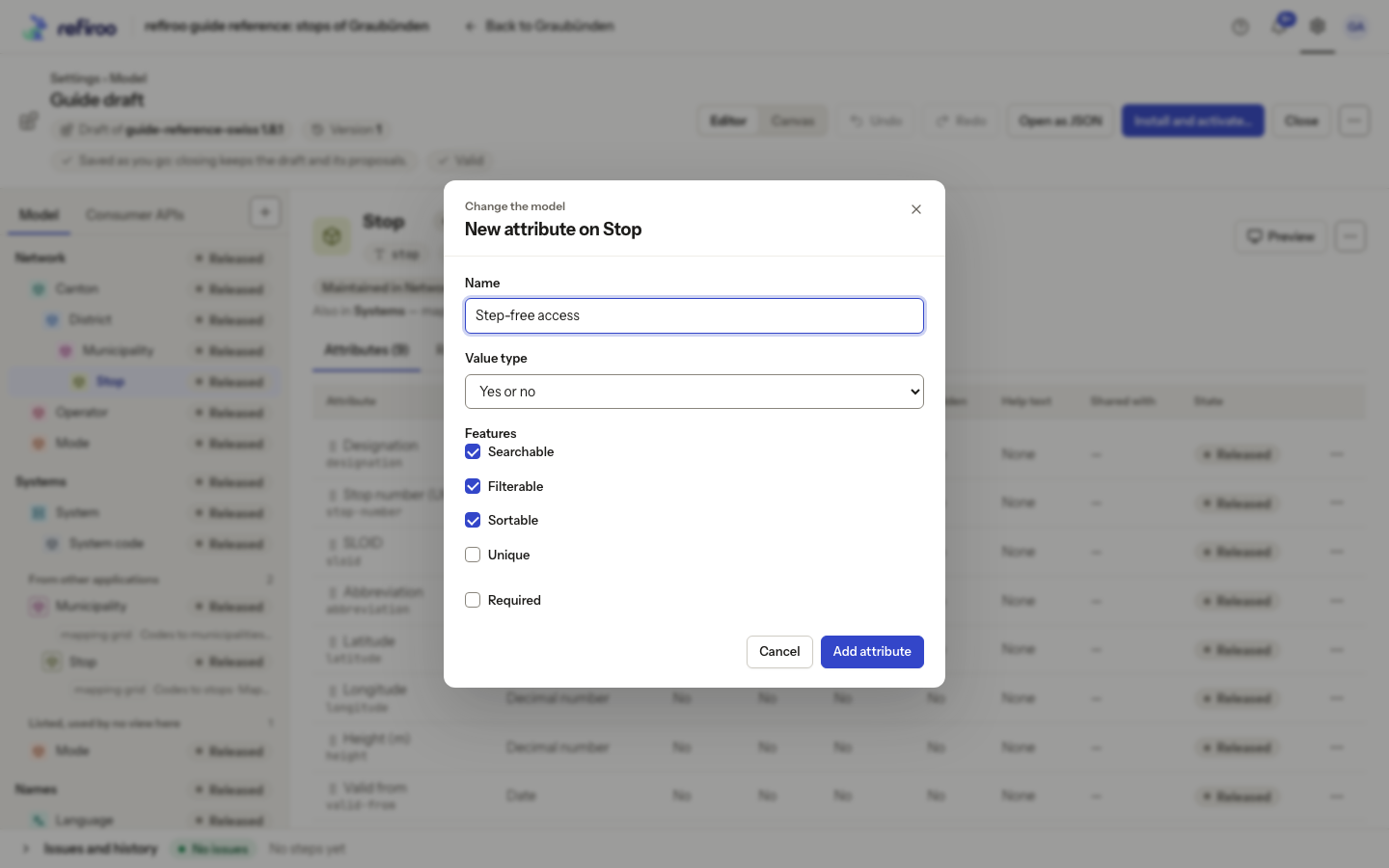
Above: Step-free access is being added to Stop as Yes or no, with Required unticked.
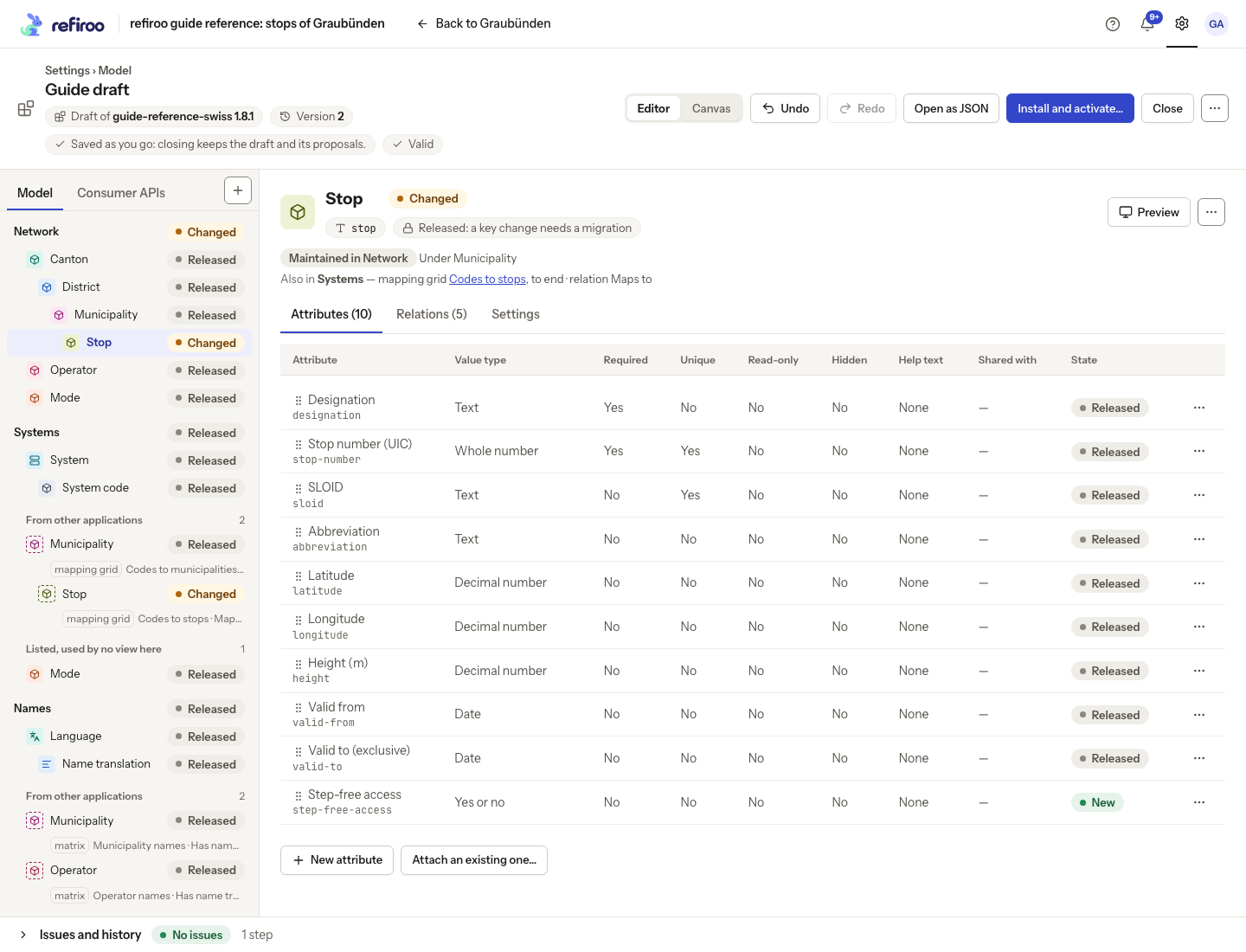
Above: Step-free access is New, Stop is Changed and Guide draft has reached version 2.
Reuse or adjust a field
Section titled “Reuse or adjust a field”Choose Attach an existing one… when the same field definition already exists. Review Shared with before changing its definition: renaming a shared attribute affects every type that uses it. Required and Read-only can differ by type. Read-only prevents ordinary value editing; it does not supply a value automatically.
Select an editable setting cell. A choice from a list saves as soon as you select it; a text input saves when you leave it or press Enter. Escape puts the old value back. An unchanged input closes without saving. A refusal keeps your input and the reason open, with Cancel and Save again beneath it. A refusal on a released field means you must review its existing data and the migration requirement rather than forcing the edit. The visual editor refuses a released field’s value-type change when it affects stored values. Ask a specialist model author to prepare that change in the JSON view, save and compare the draft, and install the target release. Then review the workspace migration before converting data. A draft save alone changes no stored record values.
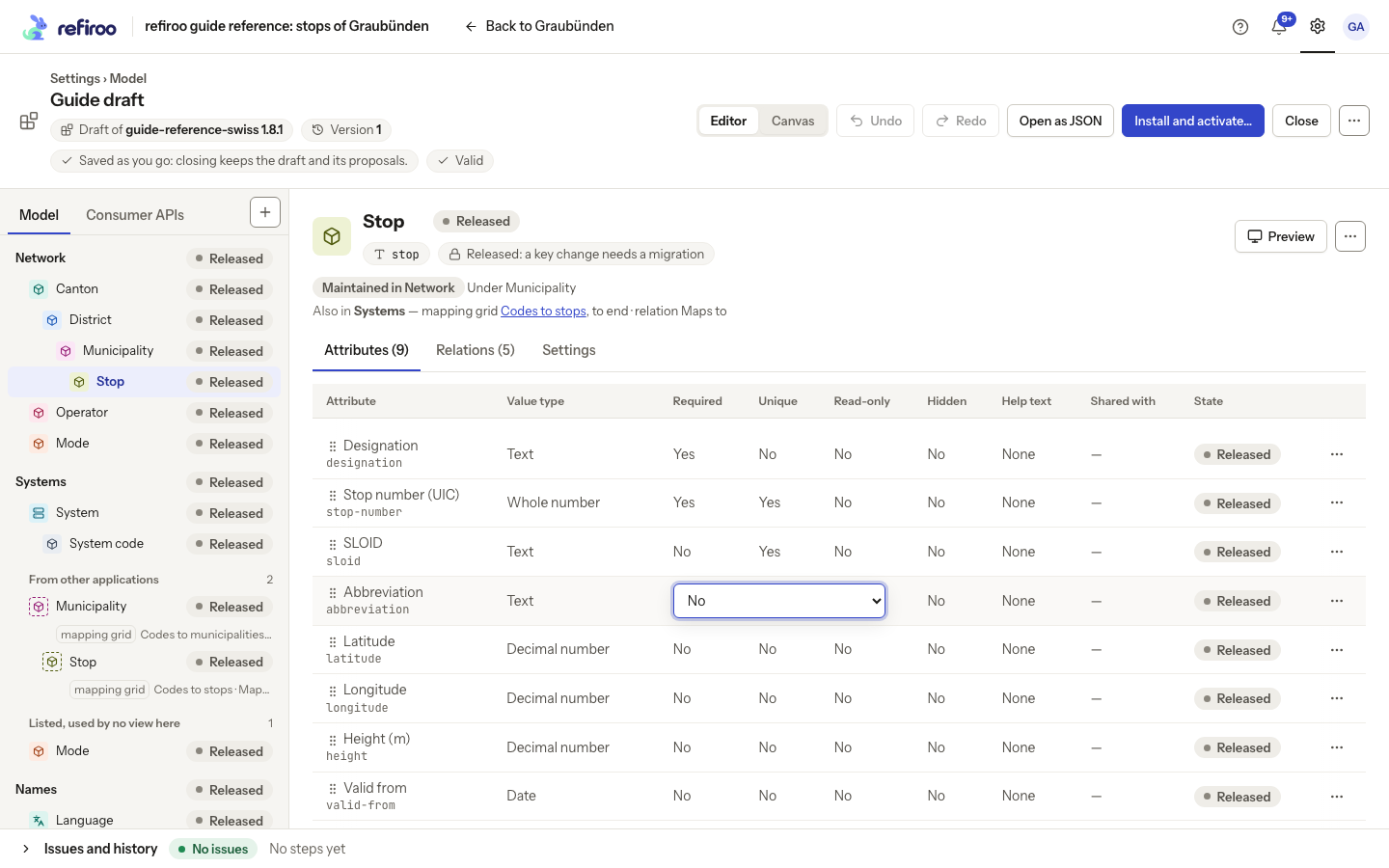
Above: Abbreviation’s Required choice is open on Stop. This capture was cancelled without changing it.
Check Issues, then arrange the layout before releasing.
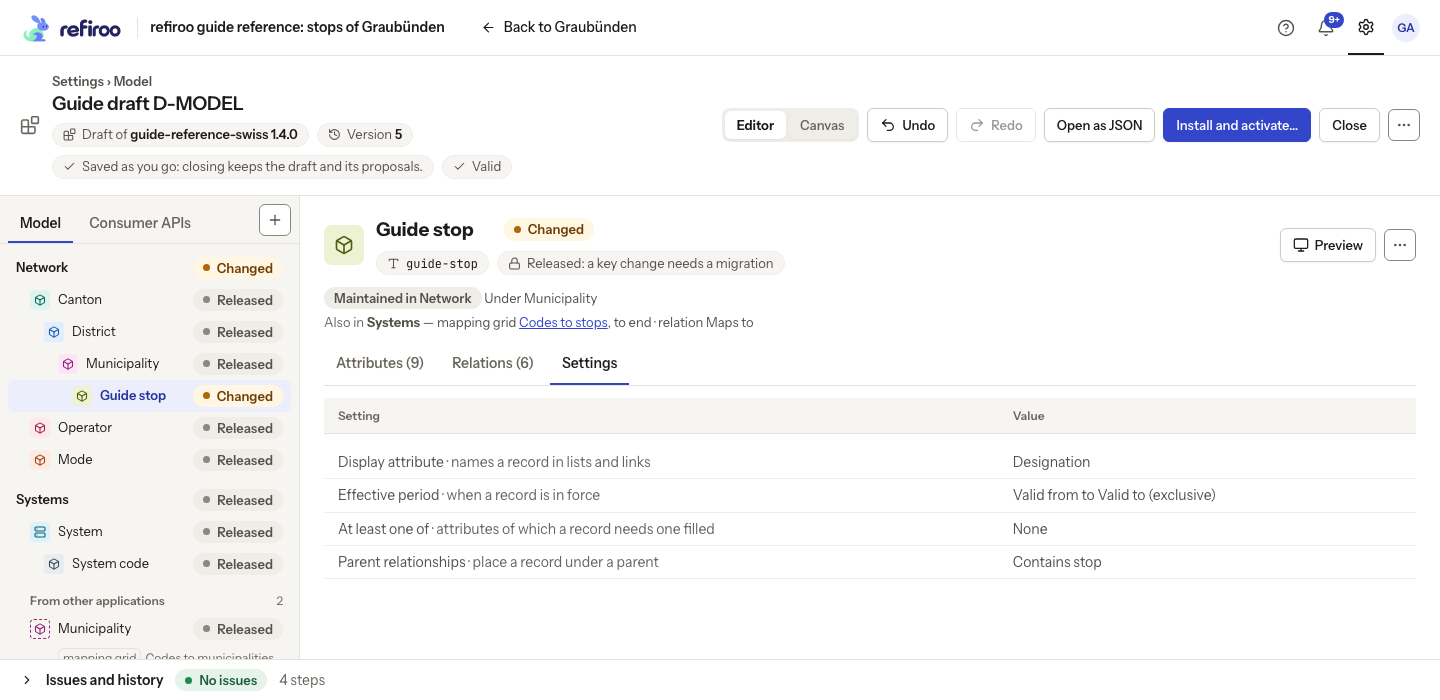
A list of allowed records is a relationship to a list type, rather than another field value type. Turn into a list type… on an attribute asks for the relationship’s name and which records may be chosen. Configure its candidate criteria as described in Add a relationship. After adding fields, open the type’s Settings. Edit Display attribute to choose which attached field names records in lists, links and titles, or choose None: records are named by their name. Edit At least one of to select fields of which one must hold a value; clear the selection to remove that requirement.
For business validity, attach two Date fields, then edit Effective period. Select Starts on and Ends on, then Save. The fields must differ; the end is exclusive and must be later than the start when both are filled. Empty dates leave that end open. Adding the rule does not repair existing dates: review compatibility before activation.
Default values still need a specialist; see the JSON view. Text-format and length rules are not offered by these controls.