

Check a workbook with a dry run
A dry run reads every mapped row without writing records. Model validity and row acceptance are separate checks. Open a workbook draft with Model authoring and see Workbook onboarding and Issues and dry runs for the different results.
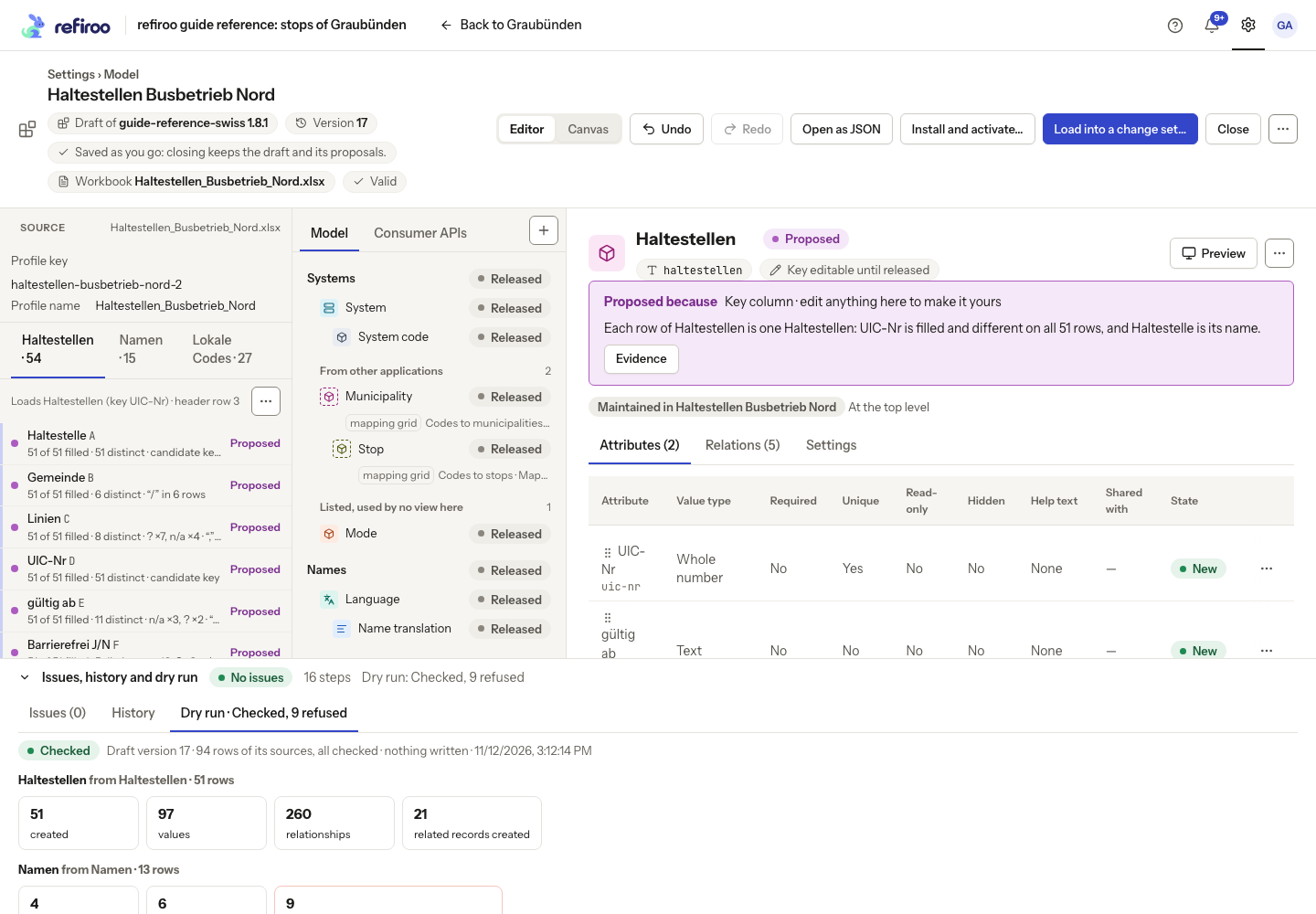
- Expand Issues, history and dry run. Resolve blocking Issues in the model or profile first, then choose Dry run.
- Check the draft version and comparison workspace. Wait for Checking… to finish. Checked is a completed check; Failed or Stopped is not. Read any failure and correct its cause before retrying or making the next mapping change.
- Open each source tab. Read records created or updated, values, relationships, related records created and refused rows. These are different units, so do not add them as a row total.
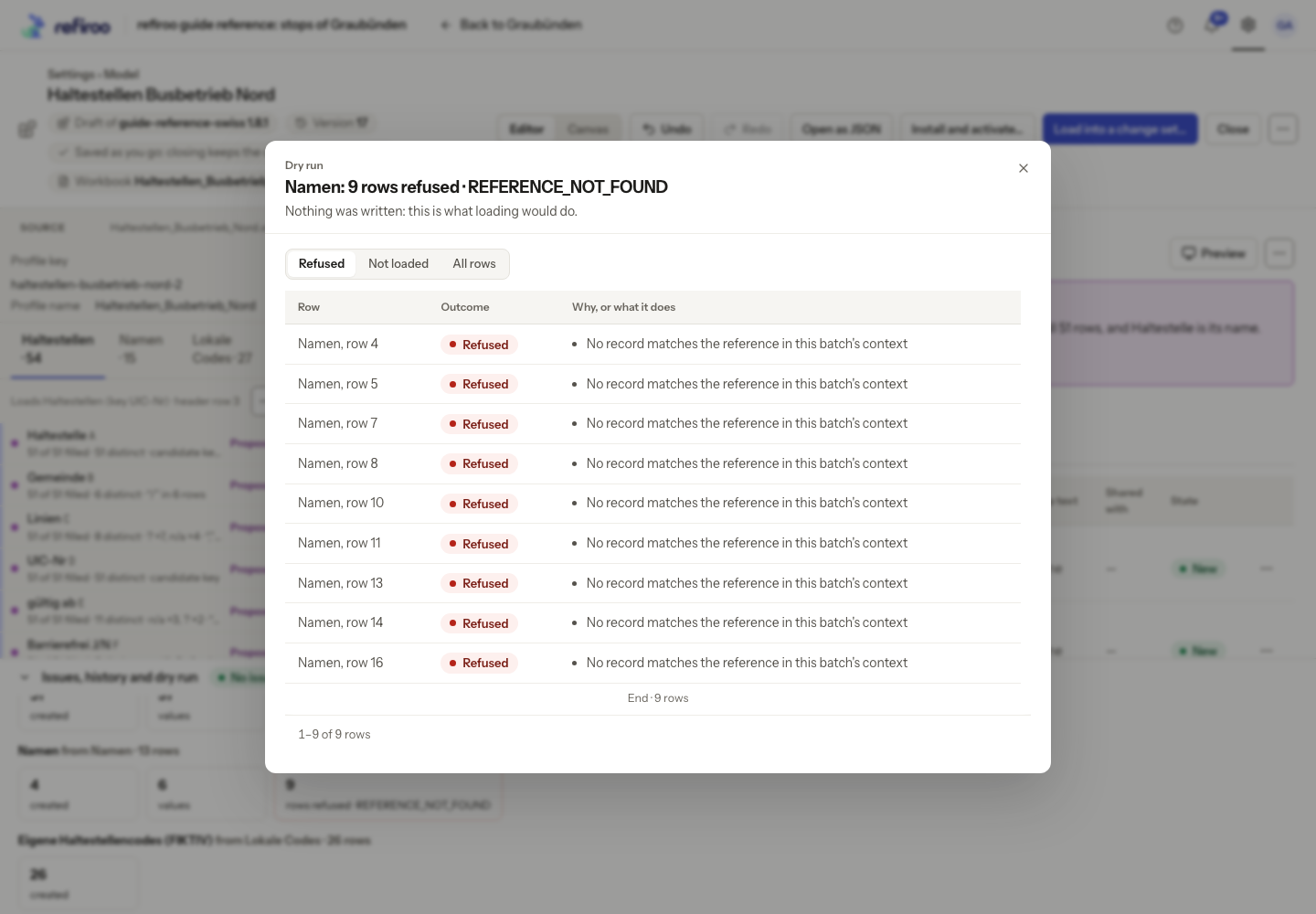
- Select a figure to inspect the rows behind it. Open the refused-row figure to read sheet, row number and reason. Correct an unresolved reference, wrong type or missing required value at its source or in the mapping. A valid draft can still refuse source rows.
- After editing, wait for the new check. was compares with the previous result; it is not a count from an actual import. Use the result for the current draft version.
- Account for every source and any remaining refusal before loading into a change set.
The eventual load can meet newer records or different workspace data. Review its actual result and change set too; a dry run is neither an import nor a publication.