

Managing workspaces
Manage datasets under Settings › Workspaces. You need Workspace administration for workspace changes; reading data, changing models and granting access need their own permissions. For everyday navigation, see Workspaces.
Find a workspace
Section titled “Find a workspace”Where your access permits it, Manage workspaces or Settings, Workspaces opens the workspace list. It shows the model and release of each workspace and marks the default.
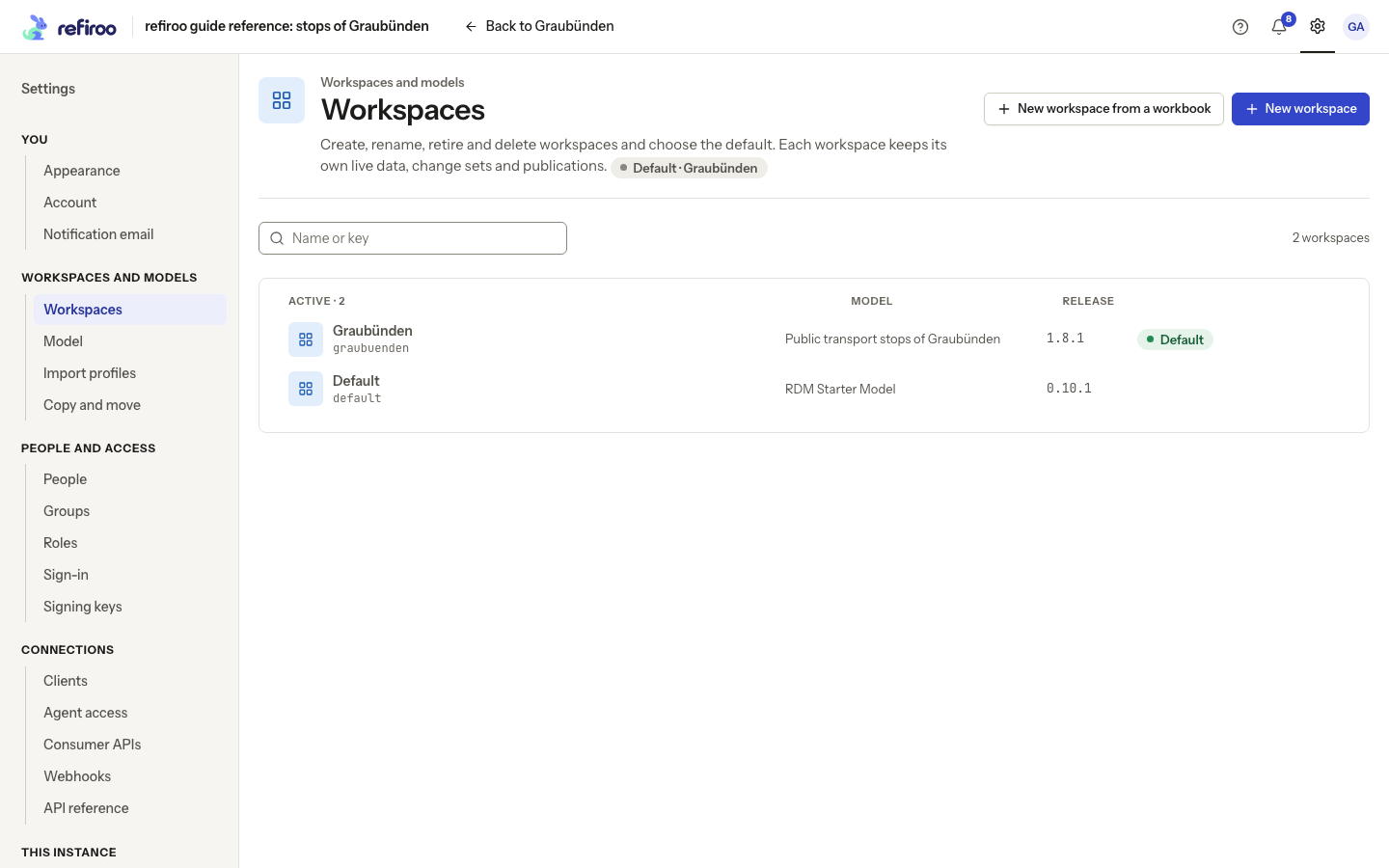
Above: Graubünden and Default run different models. This capture only views the list.
Open a workspace row to inspect Overview, Access, Approval and Activity. ← Workspaces on the first line returns to the list. Open workspace returns to its data; Activity shows history across records. The other actions require administrative permissions: New workspace, Edit model, More actions › Copy or move data… and More actions › Retire… change the workspace or its configuration. Opening the page does not perform them.
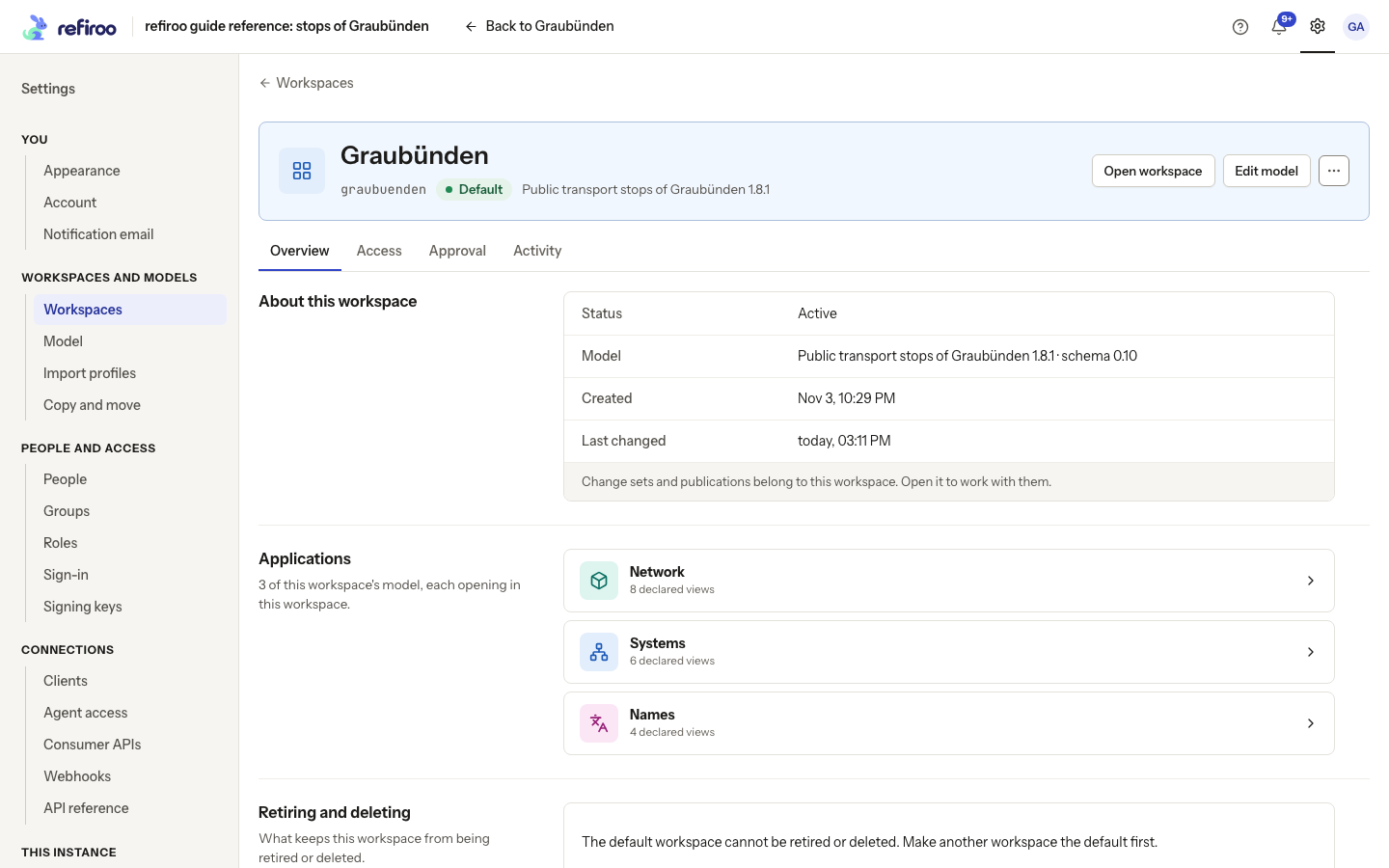
Above: Graubünden’s Overview shows its key, model, applications and default status.
A retired workspace remains readable but refuses changes. Open it through workspace management, rather than the active workspace selector. The default workspace cannot be retired or deleted; an administrator must make another workspace the default first.
Create or rename a workspace
Section titled “Create or rename a workspace”- Open Settings › Workspaces. Search the list with Search workspaces (by name or key) before creating another dataset. Active workspaces appear first, then retired ones.
- Choose New workspace. Complete its name and key. The key forms its address; choose it carefully. Use the default workspace’s model, or choose another usable installed release.
- Choose Add workspace and check the new workspace’s Overview, model and applications. It has its own data; creation copies no records from the default workspace. Read any refusal before retrying. Cancel leaves the list unchanged.
- To change its displayed name later, select the name where it stands, enter the new name, then leave the field or press Enter to save. Escape puts the old name back; an unchanged input saves nothing. The save notice offers Undo. If refused, the input stays open with the reason and Cancel and Save again beneath it. Renaming does not change its key or create a new dataset.
Retire, reactivate, make default or delete
Section titled “Retire, reactivate, make default or delete”- More actions › Retire… asks for confirmation. It removes the workspace from the active selector and refuses writes, keeping data, change sets, publications and history readable. Open it from this list later. More actions › Reactivate makes it available for work again.
- More actions › Set as default chooses the default destination. It neither copies data nor changes the models of other workspaces. Check the Default mark after the action.
- More actions › Delete… is only for an empty, never-published workspace with no change sets or webhook subscriptions. A workspace ever published can only be retired, even after its data is removed. The screen explains what prevents deletion. Confirm only after checking the name and key.
The default workspace cannot be retired or deleted. Make another active workspace the default first. If another administrator changed the workspace or default while the page was open, review the refreshed state and repeat only the action still needed.
Tabs and model changes
Section titled “Tabs and model changes”Overview shows the workspace’s facts and its model’s applications; each application opens in this workspace. Access lists grants for people, groups and clients. Approval holds publication policies. Activity lists changes newest first, grouped by day, with filters; see History. Only tabs your access allows are shown.
Edit model opens the saved draft for the workspace, reopening it on later visits. It needs Model authoring, Model release and Browse, and an active workspace. Check Applies to, then use Apply to this workspace… after editing. The confirmation lists model changes, data compatibility, open change sets left behind and other workspaces left unchanged. If records must move, review the separate preview before confirming. Follow Install and activate a release. More actions › Copy or move data… starts a copy or move.
Workspace administration can also be switched off by the deployment. The page then stays read only and names the setting; ask the operator to enable it if administration is needed.
Workspace tasks
Section titled “Workspace tasks”Create a workspace, Edit its model, Make it the default and Retire or delete it give the steps. To choose an installed release, use Change a workspace’s model.
Cannot be opened on a workspace whose model language is unsupported needs the offered model-language repair or operator help; see Model language versions. A missing application bookmark can instead mean Not in this model: open a collection declared by this workspace. Editing the displayed name keeps the permanent key. A stale save asks you to review newer state; it does not silently overwrite another administrator’s edit.
Permanent keys and changes made at the same time
Section titled “Permanent keys and changes made at the same time”A workspace key has at most 160 characters, using lowercase letters and digits separated by single hyphens. Leading and trailing spaces are removed. Its key cannot be changed after creation, and a retired workspace still reserves its key. Change Name to rename the dataset.
Retirement waits for a write already in progress to finish. Once retirement succeeds, later live and change-set writes are refused. If two administrators change the default from the same starting state, one succeeds and the other must refresh and review the new default.
Retiring also suspends active webhook subscriptions for this workspace. Reactivation makes the workspace writable again but does not resume those subscriptions automatically. Ask their administrator to review and resume them; undelivered events are kept only for their retention period. See Webhooks for delivery recovery.