

Find records
Find a record and check its fields and connections. See Records for background on records, workspaces and applications.
For choosing a dataset or view, follow Open an application. For the connected records you inspect, see Relationships.
Open the right list
Section titled “Open the right list”- On Home, find the workspace you need under Your workspaces. Choose its name or tile to open its page, then choose an application. An application link on its card opens it directly.
- Check Workspace in the sidebar. If it names a different workspace, select the intended one before searching: a record with the same name elsewhere may hold different data.
- Choose the collection you need under Collections. To find a list by name, use the search above the page and choose a result under Lists. Press ⌘K on a Mac or Ctrl+K elsewhere to focus search. See Applications for lists and places in search. The collection’s heading identifies the list. Available collections and their labels depend on your workspace’s model.
- Choose Live at the top to search current data. Check the green Live banner. To inspect proposed or previously published data, open that change set or publication instead; check the context before interpreting the results.
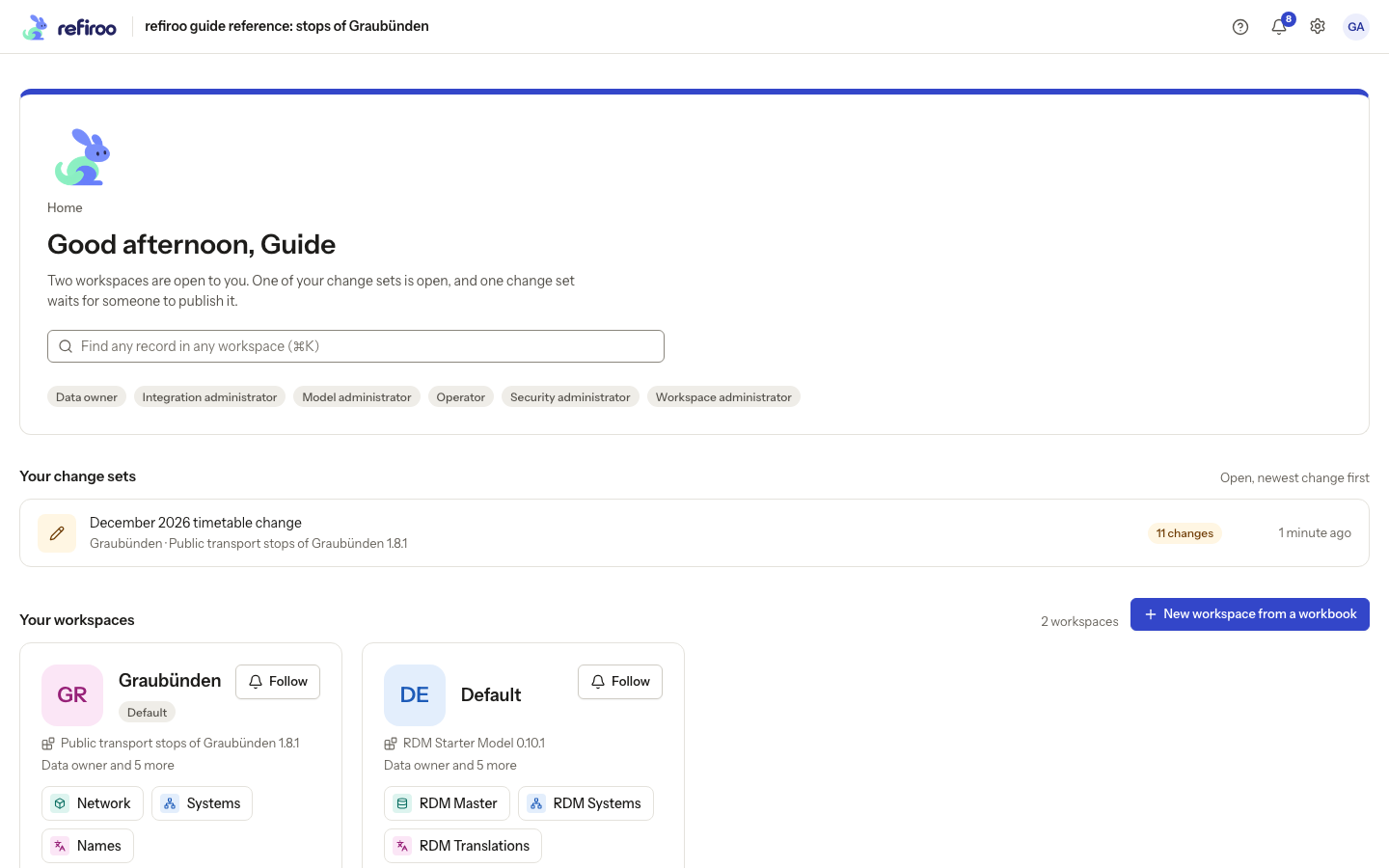
Above: the Graubünden workspace card offers Network, Systems and Names. Network contains the Stops collection used in the following screenshots.
Search for a record
Section titled “Search for a record”- To search names across the workspace, use Find a record in this workspace above the page or Find a record on the workspace’s page. Check the list and path beside a result; use the arrow keys and Enter to open one in Live. To stay in a change set or publication, or search just this collection, type all or part of the record’s name in the search box above the list. Wait for the results to update. Use a shorter part of the name if you are unsure of its spelling.
- Check the result names and identifying fields before opening one. Several records may have similar names; a number, date or related record can distinguish them.
- If the record is missing, check the workspace, application and context first. Clear filters that may exclude it. Clear the search text to see the list without that search. If the list reports a loading failure, use its retry control rather than treating it as an empty result.
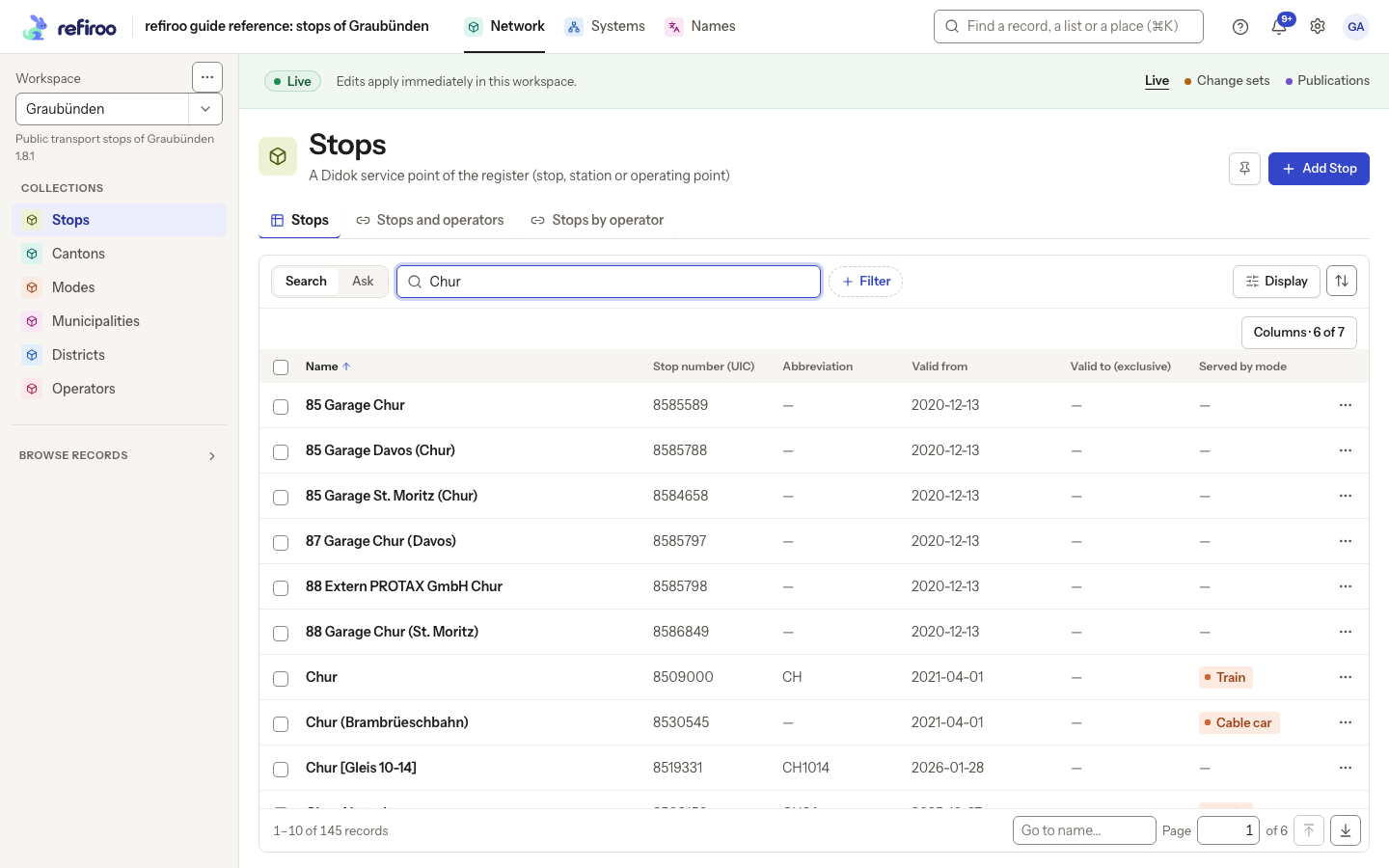
Above: searching Stops for Chur in Network, in the Graubünden workspace, returns matching stops. The number and operator columns help distinguish similar names.
Filter and sort the results
Section titled “Filter and sort the results”- Choose + Filter beside the search box. The menu lists the fields and relationships available for this list. Use its search box to find an option if the menu is long.
- To find an exact field value, select the field, choose Is where offered, enter the value, and choose Apply. Use a number for a numeric field or a date for a date field. A pill above the results shows the filter. Search text still narrows the same results; clear it if you are now looking by a number rather than a name.
- To filter by a connection, select a relationship under Relationships. Search the offered records, select the one you need, and choose Apply. The pill identifies the chosen connection. If the record is not offered, check the relationship and try a shorter search.
- Open the sort button, marked with up and down arrows beside Display. Choose a field. Open it again and choose Ascending or Descending. Ascending puts earlier dates or smaller numbers first; descending puts later dates or larger numbers first. The column heading’s arrow shows the direction.
- Check the results and the total at the bottom. Remove an unwanted filter with its pill’s ×. Clear search and filters clears both when search and filters are active. If no records match, remove conditions one at a time to find which one excludes the record.
If the table offers Hide inactive (N) beside Filter, turn it on to hide the records marked Inactive, whose chosen Yes/No field is No. Check the added pill, such as Active: not No. Records with no value have no mark and stay visible. To bring back the hidden records, turn the switch off or remove the pill with ×. Choosing Yes in + Filter instead keeps only Yes records and excludes those with no value. Other field names change the mark and switch wording. See Show or hide inactive records for the count and rules.
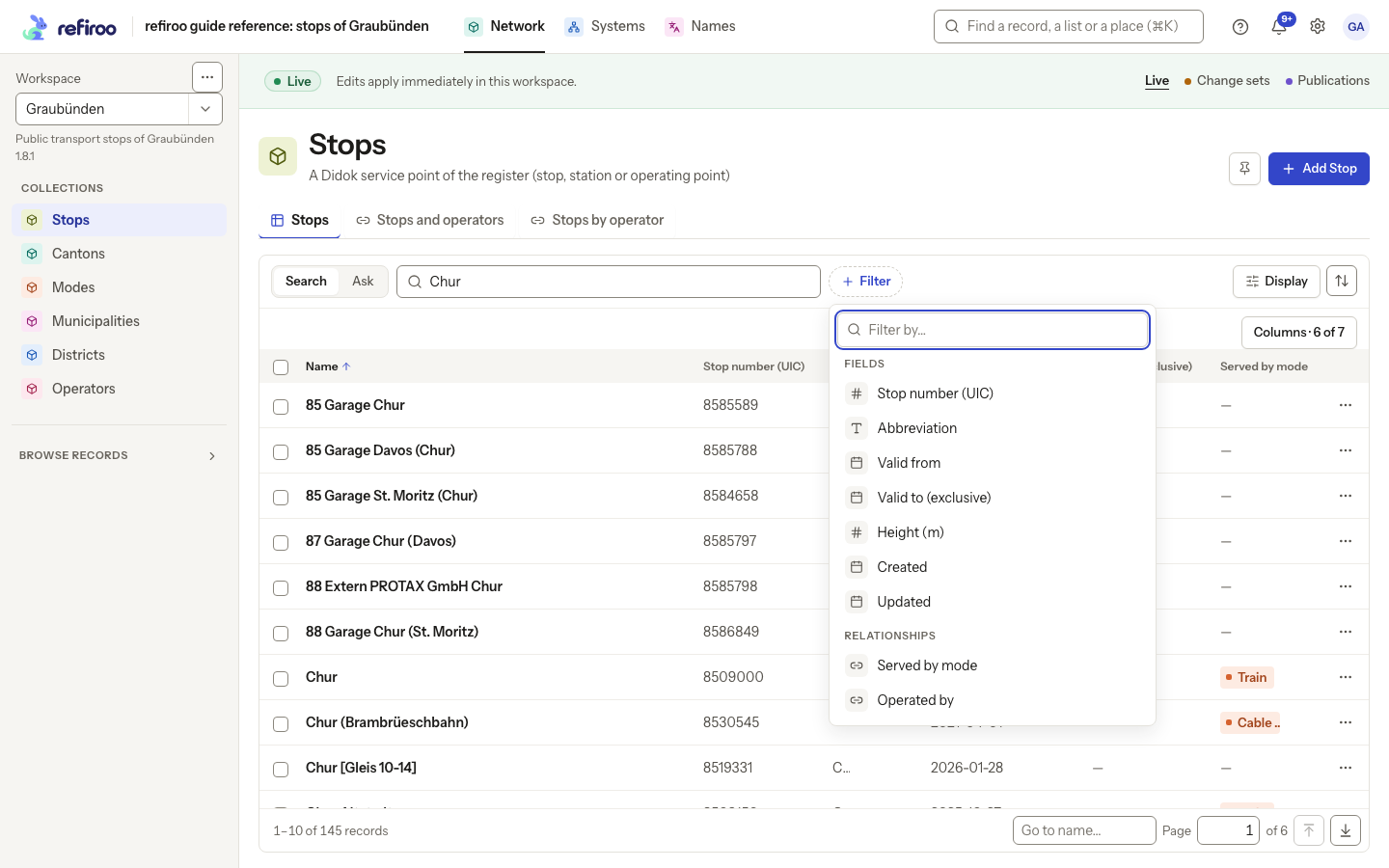
Above: the Stops filter menu offers Stop number (UIC), date fields and the Operated by relationship. In this example, a number filter of 8509006 identifies Chur Wiesental.
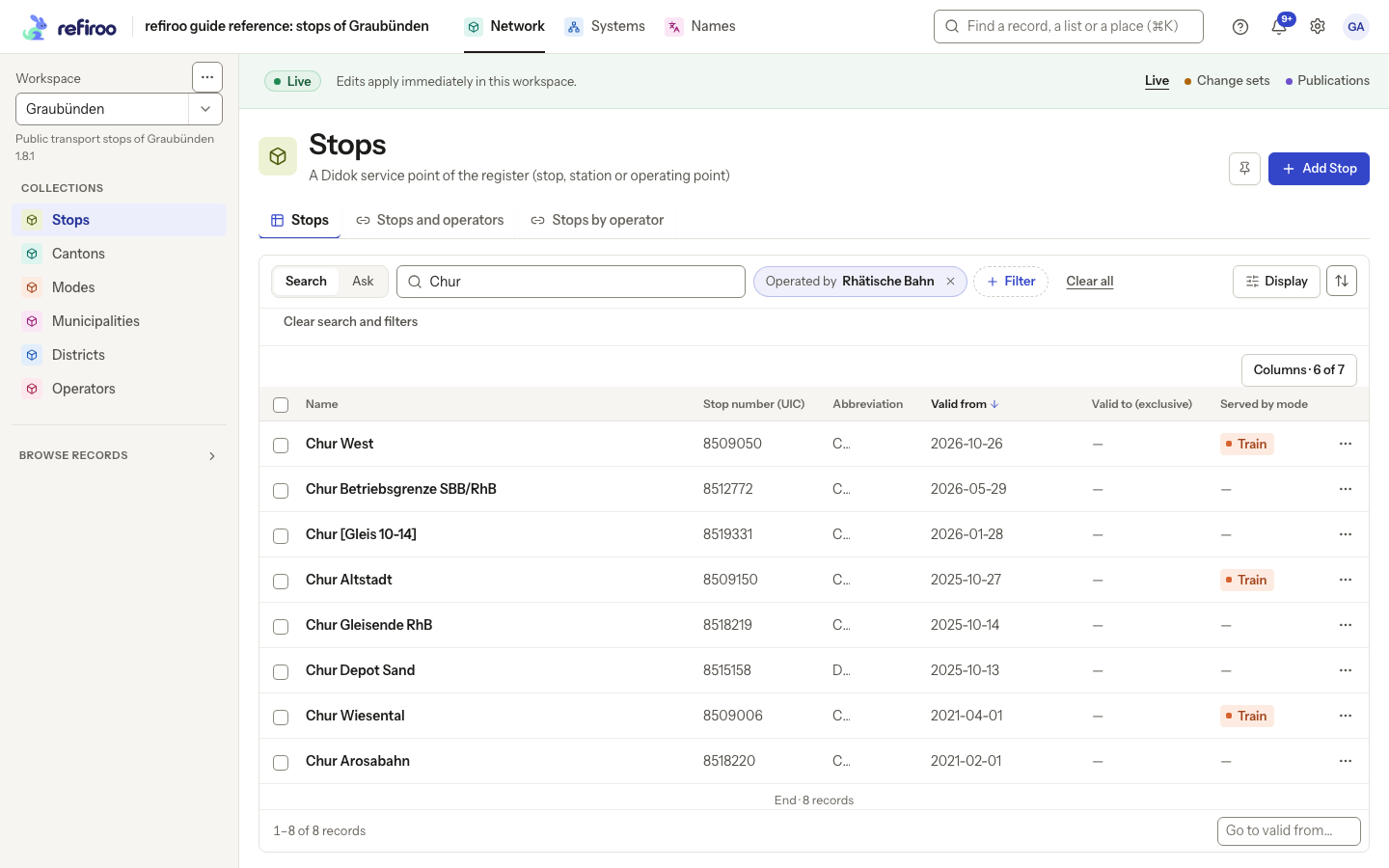
Above: in Network in the Graubünden workspace, search Chur and Operated by Rhätische Bahn leave eight stops. Valid from is sorted newest first; Chur Wiesental is among the results.
Inspect the record
Section titled “Inspect the record”- Choose the result’s name. On a desktop, the record opens beside its list with a heading and identifying fields. Choose Expand to full page for the full record page. On a phone, it opens the page directly. Check the path above the heading to confirm its place in the hierarchy, especially if names repeat.
- Read the fields in the heading and details panels. The labels depend on the record type. An unset value differs from zero or No; see Records if you need to interpret a field.
- Read the relationship sections for connected records. Scroll down to find further sections. No relationships yet means that section has no connections. If a panel reports an error, retry that panel; the error does not mean there are no related records.
- Choose ← and the list’s name above the title when finished. Your search, filters, sort and position are preserved, so you can inspect the next result. To make a correction, follow Correct a record.
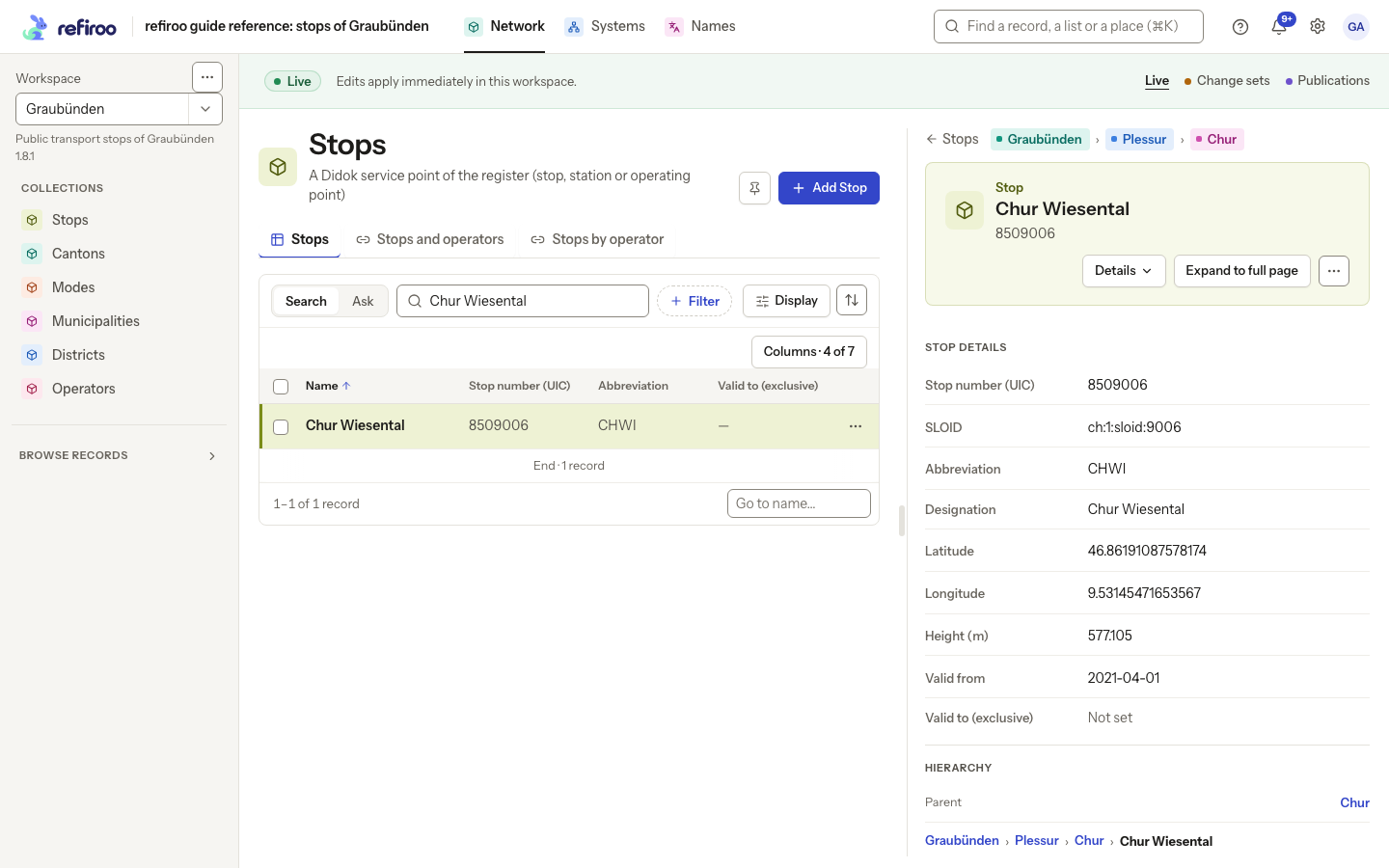
Above: Chur Wiesental is open beside the Stops list in Network. Stop details shows its fields, and Hierarchy places it under Chur; Expand to full page opens the full record.
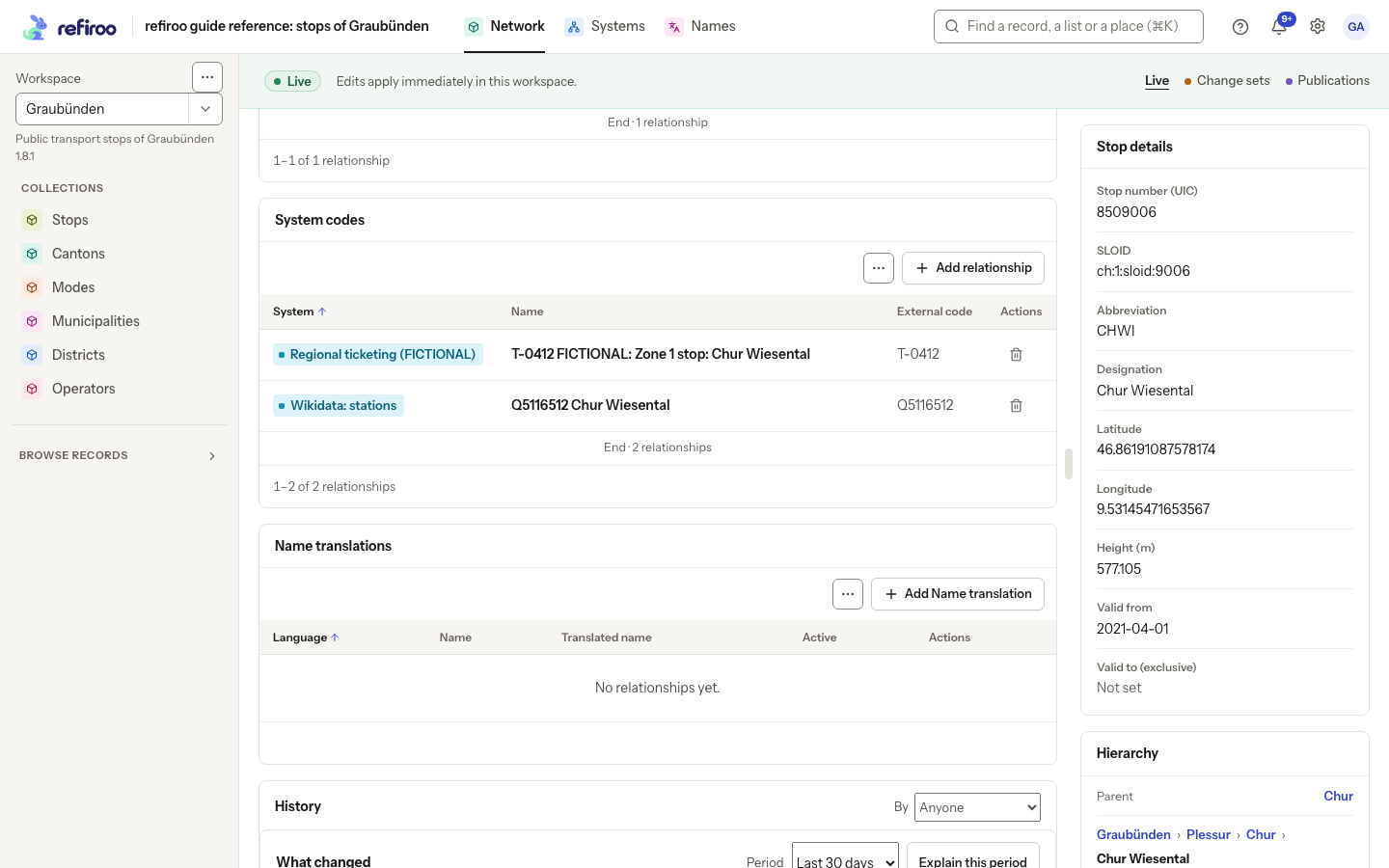
Above: further down Chur Wiesental’s page, System codes holds two codes from other systems. Name translations has no relationships yet.
Choose the right relationship condition
Section titled “Choose the right relationship condition”- Open + Filter and choose a relationship under Relationships. Select Is any of to tick one or more related records: a match to any of them keeps the row.
- Choose Has none to find records without that relationship, or Has any to find records with at least one, without selecting particular records.
- Where the related records sit under parents, Has none under and Has any under let you select one ancestor. They check related records at any depth beneath it.
- Choose Apply, then inspect the filter pill and results. Open a pill to edit it or choose its × to remove it. On a phone, the editor opens as a sheet; its Show … button includes the number of matching records. Check that count before applying.
Other filter groups depend on the view. Text, number, date and Yes/No fields get suitable conditions; More holds additional conditions. In Live, Created and Updated can narrow by when records were made or changed. A missing optional value and a stored empty value can be separate conditions: choose the one matching your question.
Reach a distant row and read related columns
Section titled “Reach a distant row and read related columns”- Scroll inside the list to read more records. The header and footer stay in view, including the range and total. Use the footer’s page field to jump to a page, Go to to seek a sorted value where offered, or Go to start and Go to end for the ends of the list.
- In a related-record column, read the chips. +N more counts records that do not fit on the line; widen the column to see more, or open the row’s record to inspect the full relationship table. The count itself is not an expand button.
- A column that holds only one related record can sort by that record’s name, with missing connections last. Columns holding several related records or showing their fields do not sort. Use a relationship filter rather than trying to filter a chip column.
- Use Display to change shown columns. A one-line value ending in an ellipsis can be read in full on hover, focus or long press. If columns have folded, choose Columns · n of m to show them all. Return using ← and the list’s name above the title after inspecting a record; the address preserves search, filters, the single sort and your position.
The same list navigation works in Live, change sets and publications. If a jump or later page fails to load, retry the failed read before treating the result as empty.
Keep a search you need again
Section titled “Keep a search you need again”- Copy the page address after choosing the search, filters, order and position. Opening that address later reads the same collection state in the named workspace and context.
- Use the collection’s search to look beyond the visible rows. The browser’s Find command sees only rows currently drawn, so it can miss a record elsewhere in the list.
- Without a selected sort, records normally appear by name; a view can choose a different initial order. Only one sort applies. Computed paths and structured values cannot sort; creation and update times are unavailable in contexts without those recorded timestamps.
There is no named saved-search list. Clear all removes filter conditions; where search and filters are both active, Clear search and filters removes both together.