

Explain a model change
Use this task before activating a release or applying a draft to a workspace. You need Model release and Use AI proposals in that workspace, and a configured AI provider. The Claude Code assistant alone does not provide this explanation.
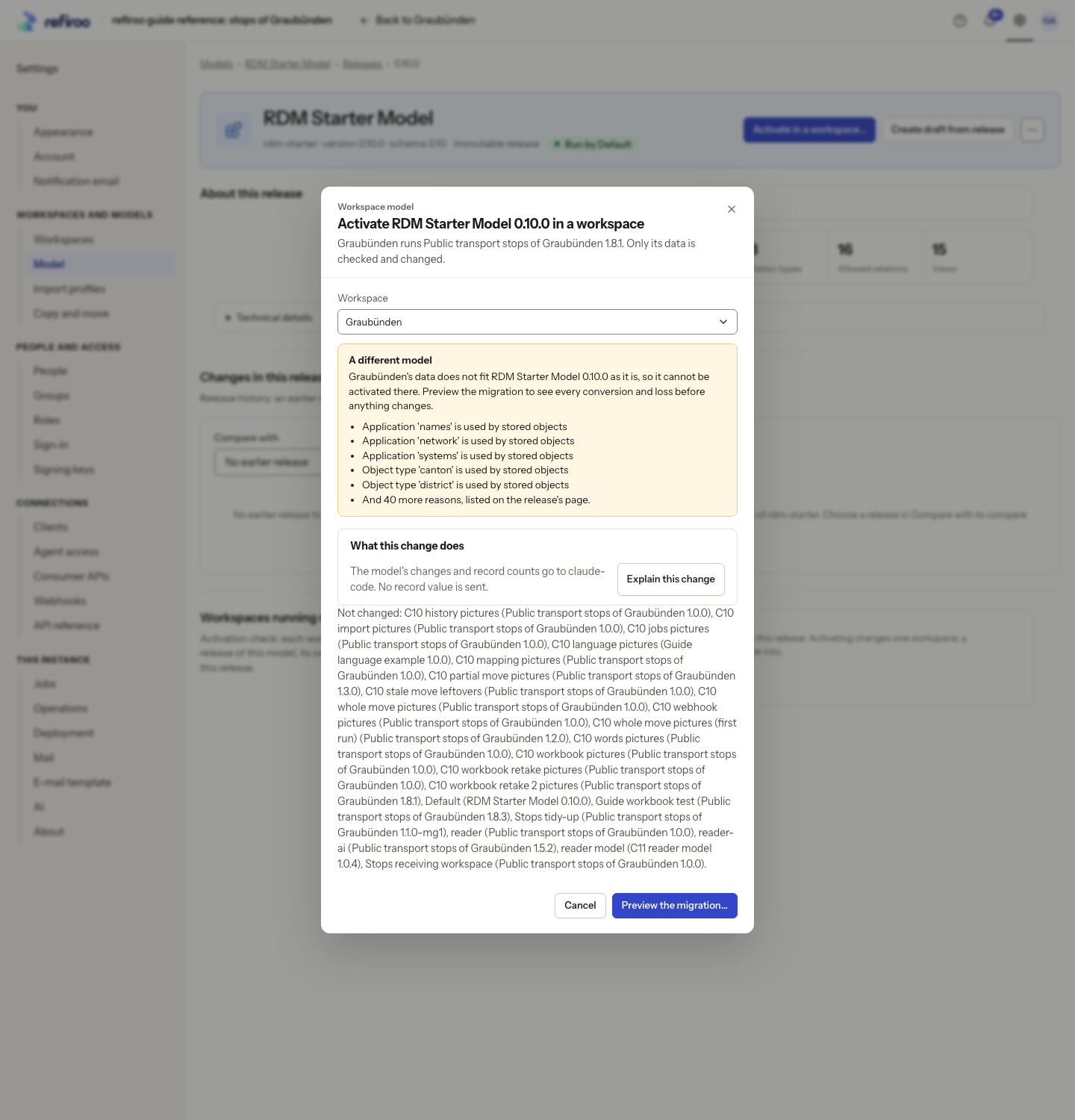
Your request sends the model’s changes and record counts, without record values or names. It may incur provider charges. Successful accounts are reused for the same inputs for up to an hour; call records remain, with content kept only if enabled by the operator. See About AI in refiroo for full costs, access and retention details, and Accounts of model changes for how the facts are prepared.
- Open the release under Settings › Model and choose Activate in a workspace…, then select the workspace. Alternatively, open the workspace’s draft and choose Apply to this workspace. Check the workspace, release and comparison before proceeding.
- Wait for the data and consumer API checks. Opening the dialog does not ask the provider or spend AI usage. Read any compatibility notice first.
- Find What this change does. Read the line saying what goes to the provider, then choose Explain this change. Wait for the account; asking does not activate or apply the model.
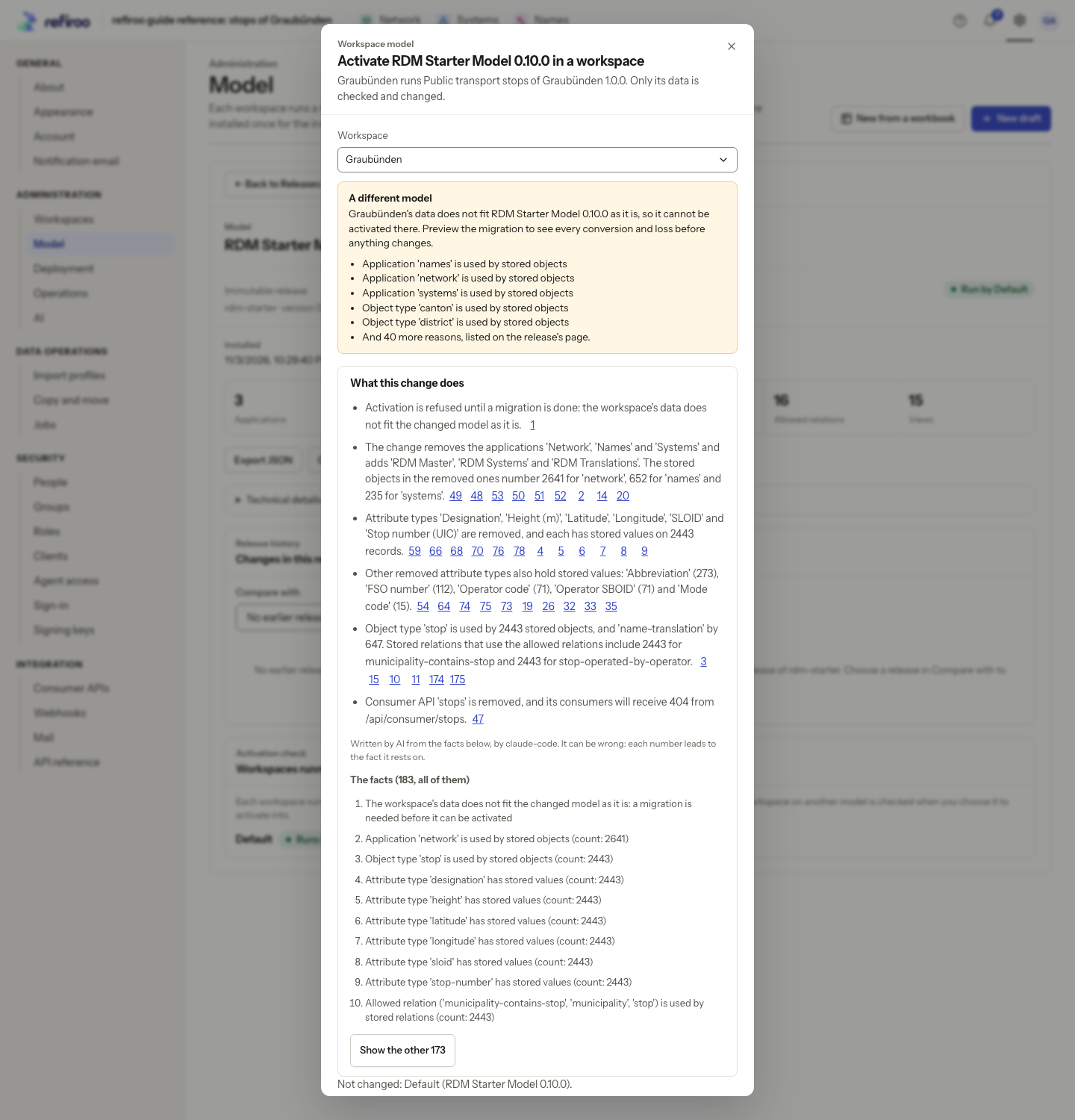
- Read the statements and their AI-written note. Select a numbered citation to move to the fact it rests on. A citation to a hidden fact opens the rest of the list. + refers to the other facts of a kind.
- Review The facts, including counts and blocking reasons. Choose Show the other … when more facts are available. Check the original compatibility and consumer notices too: the account cannot certify that a change is safe.
- Decide what to do using the dialog’s normal action. Cancel if the result is wrong, fix the draft, or follow the migration route if needed. Ask again after a new check; the old account is cleared. For migration, follow Migrate a workspace.
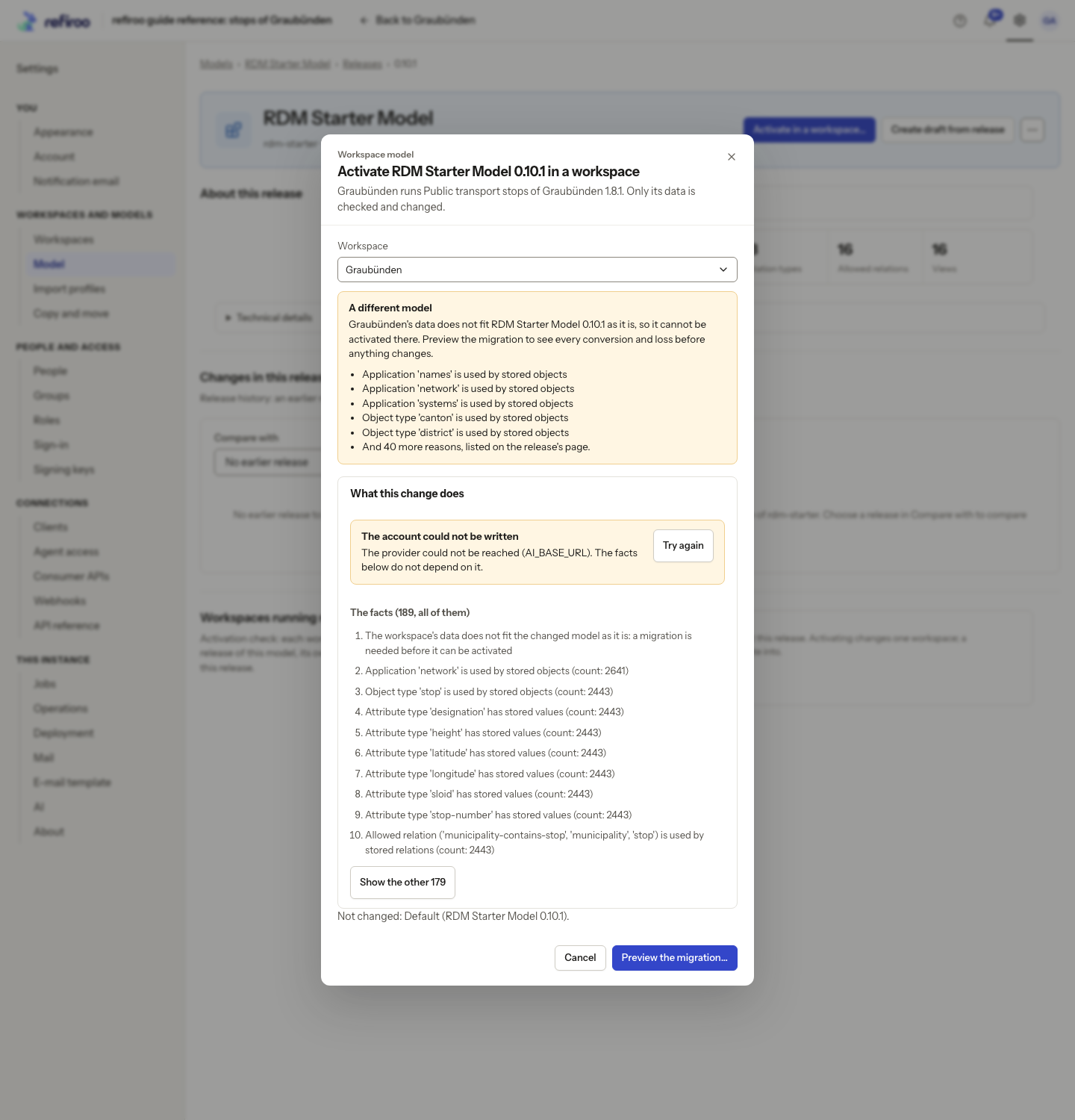
If The account could not be written appears, read the facts below it. Try again asks the provider again; it is not required to continue reviewing the model. If the account could not be asked for, use the reason shown to resolve the request failure. Fix an invalid draft’s issues or reload a newer draft version before another attempt.
If the section is absent, ask an administrator to check provider setup and your workspace permissions. It is absent from the install dialog and migration page by design. You can still read those screens’ checks and outcomes without an AI account.