

People and groups
Use Settings › People and access › People to manage people, and Groups to give several people the same roles. You need Security administration, held by the predefined Security administrator role. That role manages access; it does not itself allow reading workspace data.
People and their sign-in
Section titled “People and their sign-in”Use Search people (Name or e-mail) to find a person. When adding members to a group, Search people by name or e-mail finds them the same way. The list also shows their roles. Active and Deactivated show separate lists and counts. Open a person’s row to see their own page with sign-in methods, roles, groups and recent activity. The first line, ← People, returns to the list. A person has one identity in refiroo and can hold different roles in different workspaces.
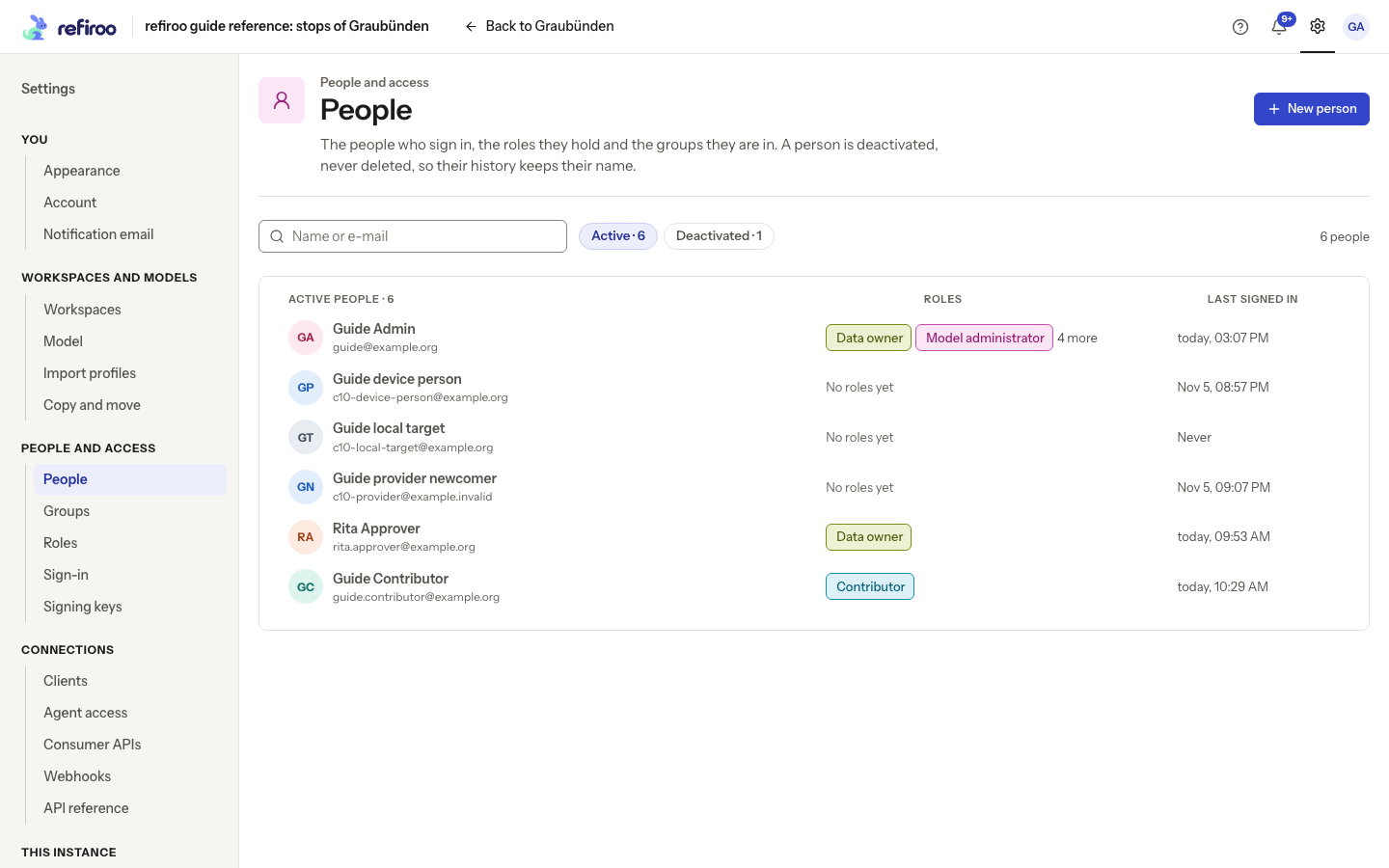
Above: Guide Admin and fictional person Rita Approver are active in the reference instance.
A local account uses an e-mail address and password. New person creates the person and makes a one-time link for them to choose a password. If mail is configured and they have an e-mail address, it is also queued for mailing. It grants no roles. Edit… changes the display name and the e-mail address. Follow Add a person.
A person signing in through the organisation’s provider is created on their first sign-in. Their name and e-mail follow the provider on subsequent sign-ins. An e-mail match alone does not join that sign-in to an existing account. Roles come from grants to the person or to their provider groups; first sign-in does not automatically grant access to data.
For an existing local account, open the newly created provider person’s page and choose More actions › Link to an existing person…. Select the existing person and confirm the named link. The provider sign-in and provider memberships move to the existing person, whose roles and history continue. The new person is deactivated and their sessions end. Linking is refused if that new person already has a password, direct roles or local group memberships; resolve those before retrying. Follow Link a provider sign-in for the complete task. Unlink… removes a mistaken provider link, removes memberships in that provider’s groups and ends sessions started through it. Their next provider sign-in creates a separate person again. Direct roles and local group memberships on the remaining person stay in place.
A person’s page
Section titled “A person’s page”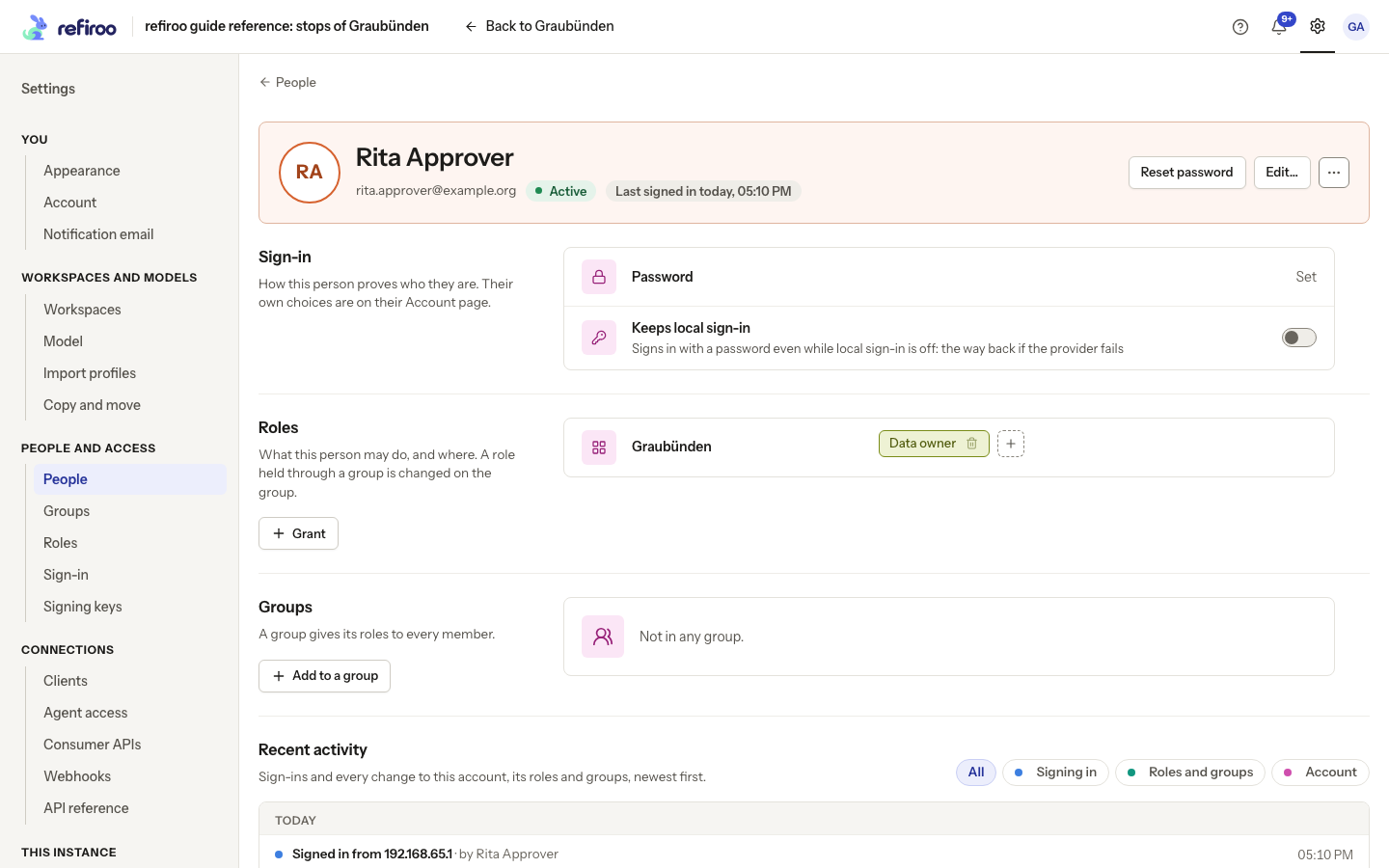
Above: fictional Rita Approver holds Data owner directly in Graubünden and is not in a group.
Roles shows where each role applies, any write restriction and whether it comes directly or through a group. Groups shows memberships. These are separate sources of access: removing a direct role does not remove the same role inherited from a group. See Roles and grants.
Password: Set means the person has a local password; Not set yet means they do not. Make a password link is offered before a password is set; afterwards Reset password makes a new link. Both act immediately, without a confirmation first. The next dialog shows it once, its expiry and whether it was mailed. A newer link replaces the previous one. Using it signs the person out everywhere; making it does not itself do so. It does not remove an authenticator app or passkey. For device problems, follow Help someone who lost a device.
Keeps local sign-in preserves a password sign-in route even when local sign-in is off for everyone else. Reserve it for people responsible for recovery if the provider fails. Turning it on saves immediately and offers Undo; turning it off asks once for confirmation with Stop keeping local sign-in. The last active person keeping local sign-in cannot lose that route while local sign-in is off. See Sign-in.
Sign-in managed by an administrator
Section titled “Sign-in managed by an administrator”Use An administrator manages this person’s sign-in when you look after an account’s sign-in for its users: for example, a shared reception account or an account on a kiosk or training machine. Only someone with Security administration sees and sets this checkbox in New person and Edit…. It is off by default. To change an existing person, choose Edit…, tick or clear the checkbox, then choose Save. Cancel leaves it unchanged.
While it is on, the person cannot change their own password; set up, confirm or remove an authenticator app; make new recovery codes; or add, rename or remove a passkey. They cannot sign out other browsers or sign out everywhere, but can still sign out of the browser they are using. Their Account page shows a message in place of those controls. Forgotten-password requests give the usual response and send no mail for this account.
You can still make a password link for the account holder to choose a password, remove an authenticator app or passkey, and use More actions › Sign out everywhere on their People page. Follow Help someone who lost a device. Clearing the checkbox lets the person manage their own sign-in again.
A managed account with no second factor signs in with its password alone even if the instance requires a second factor. Existing factors still apply. See Sign-in and second factors. Wrong passwords entered for the account’s e-mail address slow sign-in for everyone using it, just as for any account. This matters when several people share one password.
Groups
Section titled “Groups”A role granted to a group applies to every member. Leaving the group removes that source of access on the next request. Other group and direct grants continue to apply.
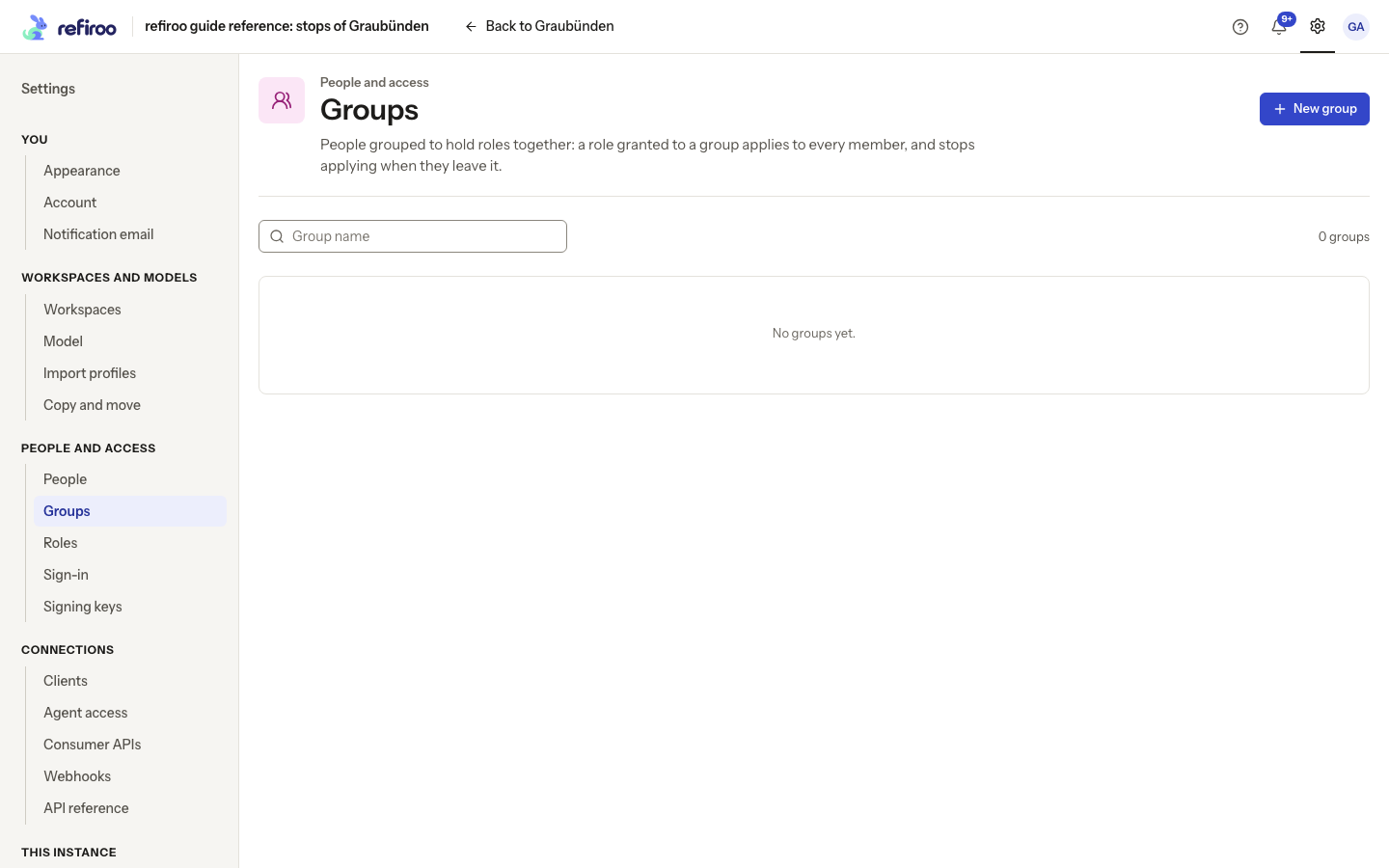
Above: no groups have been created in the reference instance.
Local group membership is managed here. A provider group’s membership is updated when each person signs in through that provider. Its Members seen list contains only people who have signed in; it is not the provider’s full membership list. Change those memberships in the provider, and grant the group’s roles in refiroo. You can create a provider group ahead of first sign-in when a provider is configured to supply groups.
Open a group’s row; ← Groups on its page returns to the list. Select its name or description where it stands, edit it, then leave the field or press Enter to save. Escape puts the old text back; an unchanged input saves nothing. The save notice offers Undo. A refusal keeps the input and reason open with Cancel and Save again. Delete group asks for confirmation, then removes its memberships and grants. It does not delete people or their direct roles. Follow Manage a group.
When someone leaves
Section titled “When someone leaves”Choose More actions › Deactivate on the person’s page and confirm. Their next request is refused and they cannot sign in. Their roles and groups remain, and history retains their name. Their records, change sets and publications are not deleted. Queued or running jobs lose the right to continue at their next permission check. Another authorised person can deal with the remaining work.
To restore access, find them under Deactivated and choose Restore. Review retained roles and groups before restoring them. People are never deleted.
More actions › Sign out everywhere instead ends all their refiroo sessions after confirmation but allows them to sign in again. Use deactivation when they must no longer have access. For a provider leaver, deactivate them in refiroo too: an existing refiroo session does not recheck provider membership on every request.
refiroo refuses changes that would remove the last active person holding Security administration, including access through a group. A client with that role does not replace a human recovery administrator. If another administrator changed a person while the page was open, the current details are reloaded with a warning. Review them and choose the action again.
The person’s Recent activity is grouped by day and can be narrowed to Signing in, Roles and groups or Account. It starts with ten entries, then reads 20 more at a time; Show fewer shortens it. More actions › See changes instead opens their data changes in workspaces you may browse. Who changed what explains which view answers which question.
For several group members at once, use Search and tick or Paste a list and check the e-mail addresses before adding. Unmatched lines need correcting. Several ticked members can be removed together. Provider groups are shown under their provider; change their membership there rather than in the local member controls.
Edit details and memberships
Section titled “Edit details and memberships”Edit… opens the named person’s form with Name and E-mail (optional only for a deactivated person, whose address it frees). Choose Save or Cancel. Provider-supplied name and e-mail follow the provider at sign-in.
Under Groups, Add to a group opens a picker; choose the intended local group and Add to the group. A group chip’s remove control removes that local membership immediately. Not in any group. means there are no memberships shown. Provider memberships are managed at the provider.
On the Groups list, Search groups searches Group name. Entries show the source and member count; a provider group’s count is people seen signing in. No groups yet. and no match for a search are different states: clear the search before creating a duplicate.
Removing several selected local members is all-or-nothing. If it would remove the last active human Security administrator, nobody in that removal is removed. Arrange another administrator before retrying. Adding several members instead reports each result, so check which people actually joined.
For outgoing messages and forgotten-password recovery, see Mail. For retained recovery accounts, follow Turn off local sign-in.
Correct an account or group problem
Section titled “Correct an account or group problem”The person was not created means creation failed; correct the field or reason shown. An e-mail address already used by another person cannot be reused, including by a deactivated person. Search both lists, or clear the address on the deactivated person to free it.
Nobody was added, People could not be searched and The list could not be checked are different failures in Add members. A search or checking failure does not add anyone. Retry that step before submitting the selected people. Nobody was removed means the selected removal did not take effect; check the reason and the current member list.
Group names must be distinct. A provider group also has a distinct provider claim value: renaming it does not let you create another group for the same value. Use the existing group and review its grants. There is no undo for deleting a group; creating another with the same name does not restore its old memberships or grants.
Access records are stored with the instance, rather than in a browser. For moving or restoring the installation, involve the operator and use the backup and restore procedure. Recreating names manually does not restore the identities used by their history.