

Loading with the assistant
Give the assistant a workbook, instructions about existing records, or both. It prepares work for you to review. Use Load a workbook with the assistant for a file, or Change records with the assistant for instructions alone. A task is the saved work you return to as it proposes, checks and loads.
Access and information sent
Section titled “Access and information sent”The built-in assistant must be enabled by your operator. It uses Claude Code, independently of the AI provider used by Search / Ask and mapping suggestions. It needs the send level values, Use AI proposals, Bulk and import, Work in change sets and enabled background jobs. Model changes also need the model permissions; installing a new release needs Model release at instance level. Retired workspaces and publications cannot receive imports.
Claude Code receives your words, the workspace’s model and the whole file, if supplied. It can read the workspace records it needs, within your permissions and their application and type restrictions. It never approves, publishes or activates a model. Turns can incur charges or consume a subscription allowance. Tasks, workbooks and session transcripts are retained while the work can continue and then cleaned up; the normal task retention is 90 days. Read AI and your data for costs, sending and retention before starting.
What the assistant prepares
Section titled “What the assistant prepares”The dialog takes one XLSX or CSV file, within the deployment’s import size limit. Instructions are limited to 4,000 characters. Without a file, instructions are required. Images and documents are not data files for this task. You cannot attach several files, schedule a task or transfer its session to a colleague. Its requester and the workspace’s administrators can read it.
When no saved layout fits, one session reads the workbook, the current model and the workspace’s records. It changes the model draft where needed and turns the file into proposed records and relationships. It finds existing records by reading them, so explain which fields identify a record when names alone are ambiguous. The engine checks every proposed record and relationship against the draft’s model and workspace data without saving the changes. The assistant writes no import profile. One file row can supply several records or relationships.
The same instructions can produce different proposed structures on separate runs; inspect each proposal rather than assuming it repeats a previous design. An update can leave the model unchanged and prepare only record changes. Instructions can also ask for relationships or a model change. The assistant is limited to capabilities refiroo supports; its notes explain when it cannot complete a request. A turn that runs beyond the session limit (30 minutes unless the operator changed it) is stopped like your Stop, and the task goes back to where you can tell the assistant to go on or try again. While other tasks hold the assistant, the page says how many are ahead.
Review the proposal
Section titled “Review the proposal”The assistant’s proposal says what it understood and lists the types it adds, changes or loads, with attributes and record counts. For a proposal with a model draft, Show the model change expands The model: what changes, including changes such as a field becoming optional. A words-only task that needs no model change says No change to the model. It has no model draft, model-change detail or model editor button. For a workbook, What the load does shows new records, existing records matched, new relationships, refused items and rows read. The type table separates New, Matched, Changed, Refused and Linked to. A matched record can be changed or unchanged. Open a type’s row with a click, Enter or Space for example records with their values, links and source cells. Examples show only some of the records the engine checked.
One name twice in one type identifies a name shared by records touched by the load and says whether they sit at the top level or under parents. It is a finding, not proof that the records are unwanted duplicates. Check it against the file and your intent. Expand Where each part of the file goes for sheet and cell ranges and what they become.
Under Checks, read every Needs attention item. Check types holding records that the proposal leaves out, any filled cells left out and Columns left out. Compare new records with matched ones: an unexpected new record can mean an intended update failed to find its record. A successful engine check does not prove the design means what you intended. Empty cells hold no value; they do not by themselves mean a row was skipped.
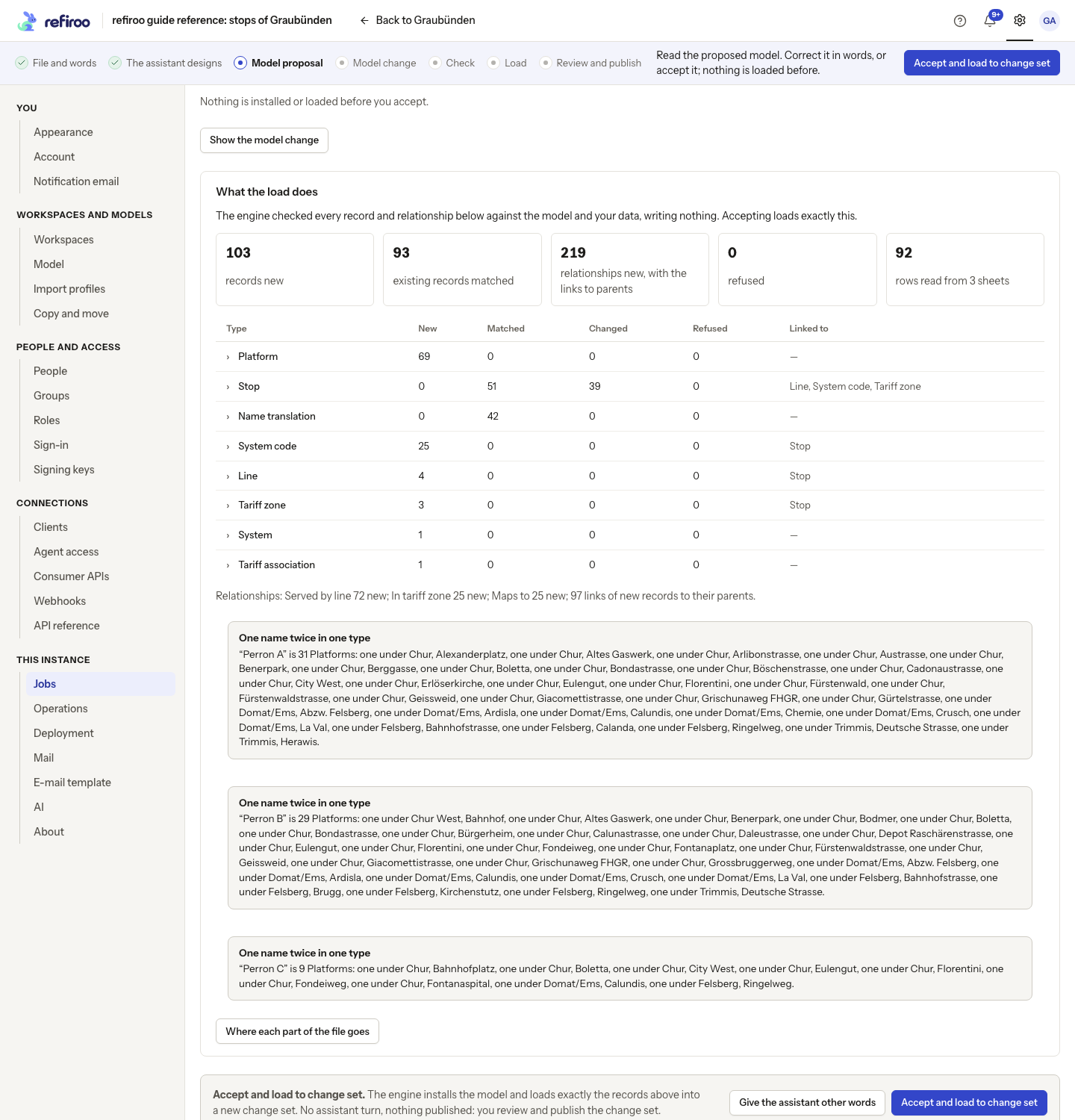
Above: the workbook proposal for the Graubünden reference data, scrolled to What the load does and its results by type. Questions shows the assistant’s assumed answer and the other choices. Accept and load to change set is available; nothing has been installed or loaded.
Questions shows the answers the assistant assumed, only for what a person decides. Keep every choice and the answers are recorded without another turn; change a choice and use Answer and design again. Tell the assistant what to change followed by Send to the assistant continues the same session with your correction. When there is a draft, Open in the model editor lets you edit it directly; the session reads it again before continuing. It cannot change a draft held by another assistant task and must use its own. Close in the editor returns to the task. The draft’s history records who asked for the assistant’s model steps; it does not mark every model element as Proposed.
If the draft changed after the check, What the load does warns that accepting checks every record again first and loads nothing if any is refused. Ask the assistant for a revised proposal if the shown records no longer describe your intended result. A saved-layout check that predates an edit must be renewed before loading. Concurrent task changes reload the latest state and ask you to check before trying again.
Accepting, loading and publishing
Section titled “Accepting, loading and publishing”For a workbook, Accept and load to change set makes the engine install a release if the model changed, open a change set and load exactly the checked records and relationships as one batch. No assistant turn runs. With no model change, the change set uses the workspace’s current release. No model is activated and no records are published by this acceptance.
If an edited draft fails its new check, nothing is installed or loaded. If the data changed since checking and any item is refused during loading, none of the batch is loaded and its change set is discarded. The task names the refused records and their source cells. Tell the assistant what to correct, then review and accept its revised proposal. A release already installed before a load refusal can remain installed.
For a words-only task with no model change, Accept lets the session prepare a new change set on the workspace’s current release. It installs and activates nothing. Model-only and record-move proposals keep Accept the model and the migration or staged-move endings described below. A file whose records are all stored already is a normal outcome: the check shows every record as already there, Accept ends the task loaded with nothing new, and the change set it leaves is empty (discard it from the task). A session that loads without the engine’s check and names an empty change set is not reported as a successful load.
The result names the change set and its counts. Review the change set opens its normal review. Check the actual rows and relationships, validate, then submit for approval or publish as your access and the workspace’s policy allow. If the load uses a different model version, review offers a combined move of the workspace and publication. A model administrator with publication permission reviews the migration preview and confirms Migrate and publish; a separate activation first is not required. See the workbook load’s publication step. The assistant does not confirm it. A second-person approval rule still applies to the person who asked for the work.
The saved-layout path has its own What the load would do check and load button. Read What confirming does, in this order: when that path changes the model, Activate the model and load explicitly activates it as your confirmed action before loading the change set. A subsequent load failure does not undo that model activation. A record load always waits for publication to reach Live.
A task’s bar below the top bar names the current step and next action. It follows you into the model editor and change-set review opened from the task. You can leave while a turn works and return through its entry under Settings › This instance › Jobs; its completion is announced. See Jobs grouped under a task or a draft for the group’s state counts and Open the task.
The next file and the saved profile
Section titled “The next file and the saved profile”A workbook loaded from the assistant’s checked records and relationships saves no import profile. Send the next file of the same layout to the assistant again. Explain how its contents correspond to records already held so the proposal can match them correctly.
A separately saved import profile can still load a matching file without an assistant session or AI cost.
A fitting saved profile takes the engine’s own path: you still review its proposal and row check, but no assistant session starts. Sheets also present in the earlier file but deliberately left out by the profile do not prevent reuse. A new sheet needs the assistant to review it. After the earlier task and its file expire, a sheet the profile left out can also require a new session because that comparison is no longer available. A saved layout can ask its unresolved file-value questions again on each repeat. If The saved layout does not fit this file appears, Read it with the assistant starts a session on that task and file. The saved-layout check also offers Back to the proposal and a correction box. See Load the next version of a workbook.
A model change that moves records
Section titled “A model change that moves records”The workspace menu’s Change this model… asks what should change, with an optional workbook. It additionally needs Model authoring and Model release. The proposal says what becomes what and shows existing record counts. Review the model in the model editor if you need to inspect its structure. For the model administrator’s full task, follow Change a model with the assistant.
For whole types becoming other types, acceptance installs a release but moves no records. Preview the migration opens the migration with the proposed choices. You can go Back to the proposal. A person with Model release confirms it: the records move live with their IDs, values, relationships and history. There is no change set or its approval step for that migration. When the request changes only the model and asks nothing of the records (for example, adding views), the task ends the same way with a migration that moves no type: confirming it puts the workspace on the new model and every record stays as it is.
A whole-type move and a partial move need separate tasks.
For part of a type moving, the task normally shows Three steps are yours: activate a release holding old and new types, review and publish the change set under the usual approval rules, then activate the final release to remove the emptied types. If old types remain in the final model, it shows Two steps are yours instead. The first activation moves no records; publishing moves them. A remaining record in a type being removed blocks the final activation. Each step appears when it is ready; someone with Model release performs activation. A large split can be slow because the records are changed individually. See Model migrations. If the task expires before the final activation, the installed release remains available under Settings › Model so an administrator can complete the step.
Stop, correct or end a task
Section titled “Stop, correct or end a task”Follow Continue or correct an assistant task for the buttons. These states need different decisions:
| What you see | How to continue |
|---|---|
| Working on it or Loading | Stop ends the turn. You can also leave the page while it runs. |
| A stopped correction with an earlier proposal | The last proposal returns with a note. The draft may already contain changes from the stopped turn: inspect it before continuing. Stop does not rewind the draft. |
| A stopped load | The change set being loaded is discarded and its jobs stopped. Return to the accepted proposal and tell the assistant how to continue. |
| The assistant stopped or You stopped the assistant | Read the task’s notes. Use the words box, Try again as it was or Go on as it was, open the draft, or Discard this task. Even a session that never started can be tried again with corrected words. |
| The engine could not apply this proposal | Read the reason above the correction box, then tell the assistant what to change. |
| A loaded change set that is wrong | Use Not what you wanted? Tell the assistant and Discard and load again. Confirmation removes that entire change set, including hand edits. For a workbook load, the same session revises and checks the proposal; review it and choose Accept and load to change set before loading again. |
| A load you want to abandon | Discard the change set ends the task and removes that prepared work. Live records are unchanged. |
| A refused migration or activation | Read the engine’s reason on the task and tell the assistant what to change. |
| Your access no longer permits the next step | The page names the permission needed and lets you copy the task link for a workspace administrator. |
| Published | The task confirms publication and offers Change this model… and Ask about these records… where your access allows. Start new work to correct published data. |
| Discarded | The session has ended. Use Start again in the journey bar or return to the workspace. |
| Expired or unknown task | The page explains it is not kept or does not exist and offers Go to the workspaces. |
The newest three task notes are shown; older notes are folded. Discard this proposal removes the proposal and its draft; closing the proposal keeps it for later. Discarding a loaded task also discards its change set. Unused model releases installed by a session are retired at its end; releases still in use are kept. Published changes and their assistant origin remain in history after the task expires.
A refused workbook batch leaves no record or relationship changes and discards its change set. Other task paths can leave a prepared change set after failure. If the task says it loaded changes before stopping and offers Review the change set, open it before retrying: a failed turn does not prove that no proposed work remains. Live is unchanged until publication.