

Define a consumer API
Define a consumer API when another system needs an agreed view of your workspace’s data. Open a model draft with Model authoring and agree the required information with the consuming team. You choose the public record shape, the operations and the filters; a security administrator separately grants a client access in each workspace.
See Consumer APIs in the model for the rules. The marked examples below use the reference Stops API. They explain the result of your choices; the integrator’s request examples are linked separately.
Choose the records and their public shape
Section titled “Choose the records and their public shape”- Select Consumer APIs in the model pane, then the add button’s Consumer API…. Enter Name, review Key and choose Types to expose. A blank key is made from the name. Choose Add consumer API. The initial definition includes identifiers, names, attached attributes, Get by ID and a list per type. Inspect these starting choices before sharing the contract: exposing a type does not mean every attached field belongs in a public API.
- On Types and related, inspect each type’s public name. Use Expose a type… to add another type. Consumers receive that public name as the object’s type. Choose only the types they need as business objects; related blocks can carry information from other types without exposing those records as business objects in their own right.
- On Fields, open Parent, path and hierarchy… if consumers need containment information. The parent is the immediate containing record; a path or hierarchy names ancestors from the root down, excluding the current record. Review those outputs as part of the contract.
- Use Add related… to include information reached through a relationship. Set Output name, Via and Fields. Each related field pairs a public name with a value on the related record. Check the relationship’s direction and whether it serves one record or several: the answer is respectively an object or an array. A missing relationship gives null or an empty array, rather than an invented related record. The field picker’s group Attributes of the relationship lists the values stored on the relationship itself, when the relation’s binding carries any. Give each selected value a public output name and check its served type in Schema. A connection without that value answers null; the same value can differ on two connections to the same related record.
- To add these values to an existing block, use its Fields… and select from Attributes of the relationship. If the group is empty, review Via and the pair’s Carries in Add a relationship. Do not add connection values to the main object’s Fields: they need the related block’s context.
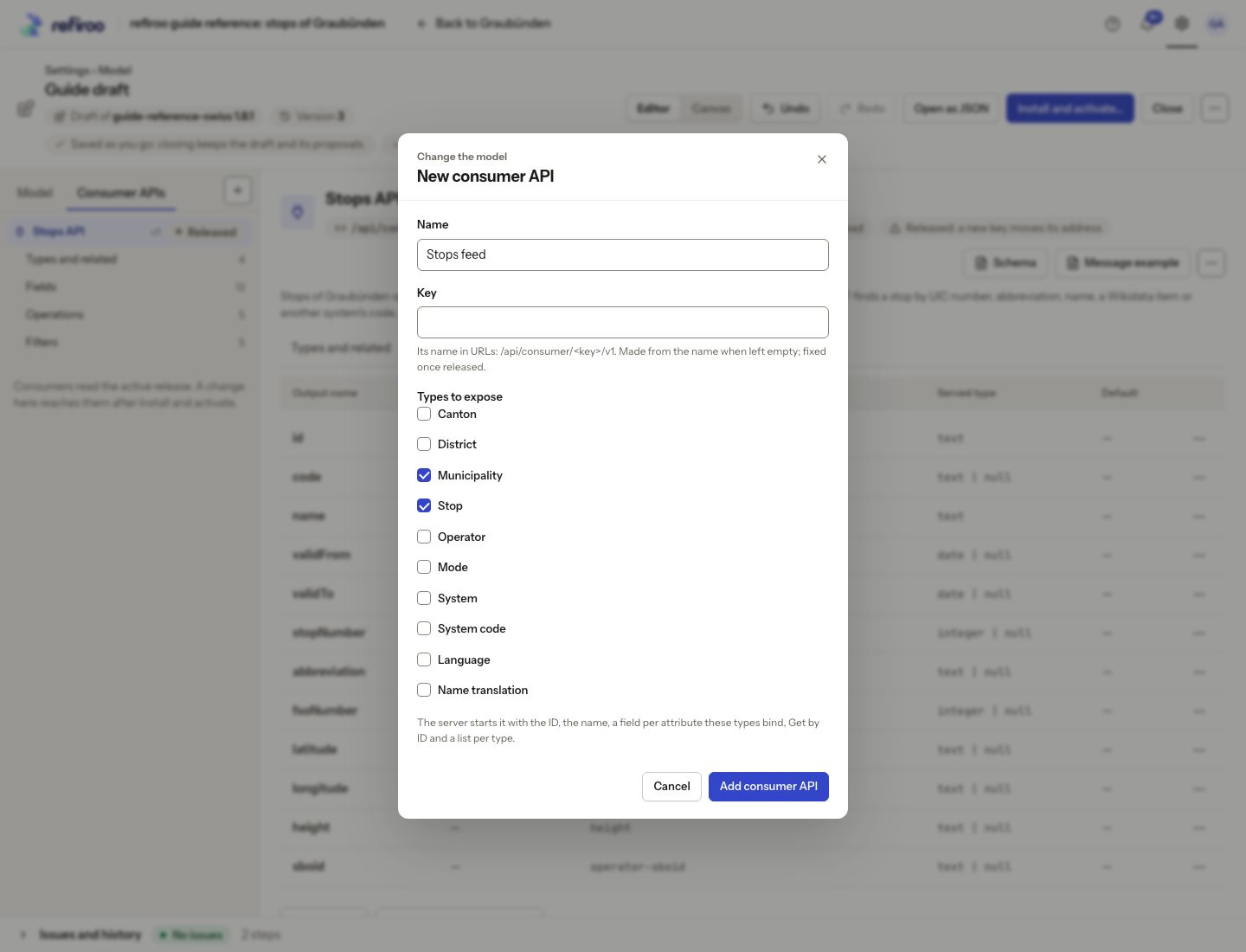
Above: creating a consumer API in the reference model.
Example result. Stops API exposes Stop, Municipality, Operator and Mode. Its Stop
object includes an operator object and a modes array. The parent names the municipality;
the path is Graubünden/Plessur/Chur for the Chur stop. These are outputs chosen in
Types and related and Fields, not extra records copied into the stop. Compare the
complete business object.
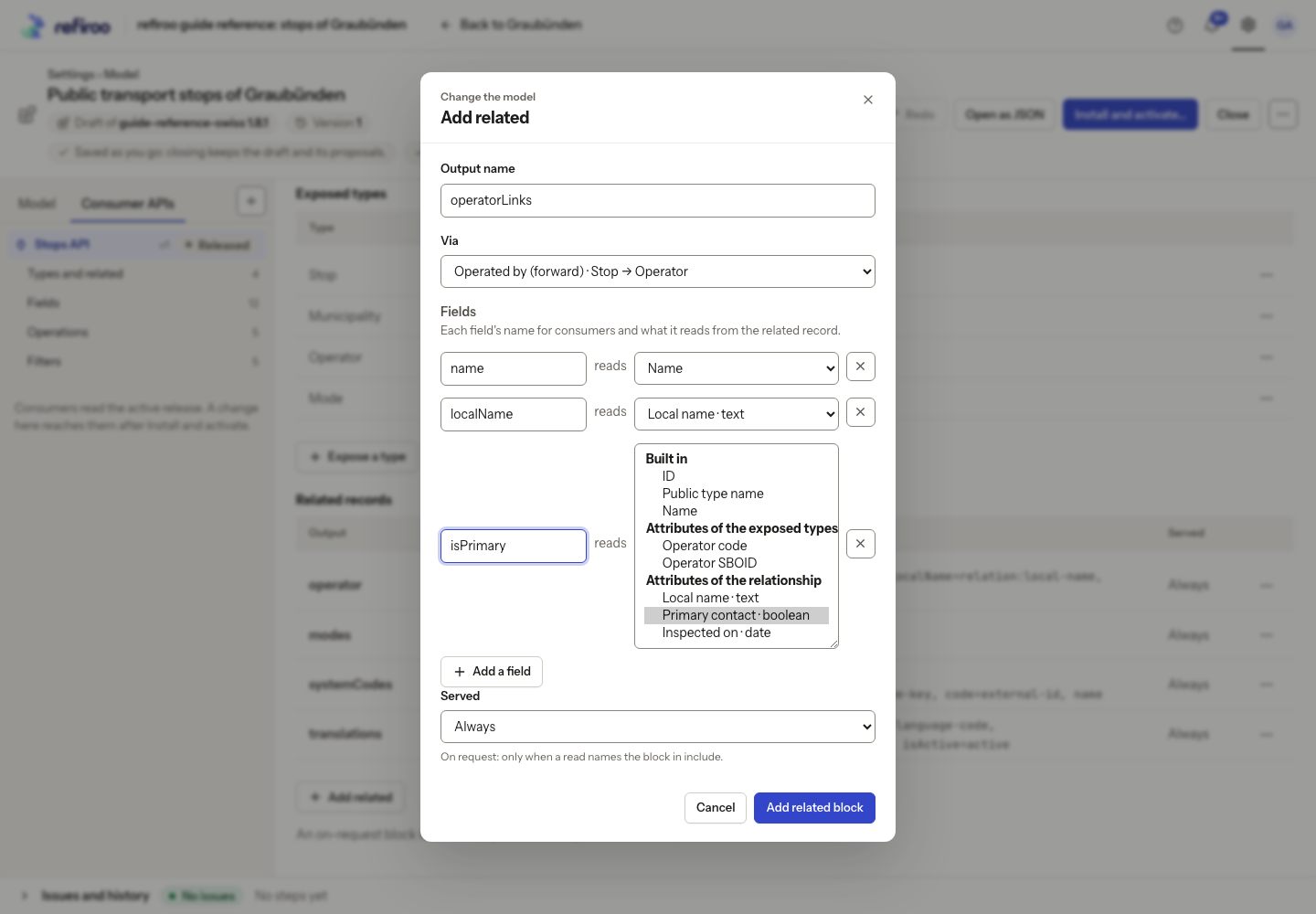
Above: Stops API’s Add related dialog in a reference-model draft, with output operatorLinks and Operated by (forward), from Stop to Operator. The fields are name, localName and isPrimary. The open source list for isPrimary separates Built in, Attributes of the exposed types and Attributes of the relationship. Primary contact is selected beside the Local name and Inspected on choices. This dialog has not been applied.
Add values and related records to the parent
Section titled “Add values and related records to the parent”Use this when a consumer needs the containing record’s values alongside each child. For example, a catalogue item can return its category’s approval flag and external codes. This avoids a second read, but a parent’s related block repeats for every child in a list.
- On Fields, choose Parent, path and hierarchy…, select Serve the parent (objectType, id, code, name) and choose Save. The Parent section appears below the object’s fields. If it is already served, open that section directly.
- Review the parent’s Output name. Select Fields, or choose Parent fields…, to open Fields of the parent. Each row pairs a public name with the source it reads. Choose built-in values or attributes from Attributes of the parent types and review the proposed camelCase name. Edit that name if consumers need another one, then choose Save. The Parent table shows name=source where they differ. These sources belong to types that directly contain exposed records, rather than to the child. A missing or unbound value answers null unless a default supplies a value; with no parent, the whole output is null. Existing short lists remain valid: built-in fields keep their role’s output name, and other sources become camelCase words, such as categoryCode for category-code. Editing writes the parent fields out with explicit output names.
- Under Parent’s related records, choose Add related, or open the consumer API’s ⋯ menu and choose Add related to the parent… to open the same dialog. Give the block an Output name, choose Via, and select Fields, including their public output names. The offered relationships start from the possible parent types. Choose Add related block and inspect the new row. Its block sits inside the parent’s answer; do not add a parent prefix to its output name here.
- In Served, choose Always to return that block in ordinary answers, or On request to return it only when a consumer asks. You can also set Served in the add dialog. The related table on Types and related has the same choices for the object’s blocks. Use Fields on a parent block to adjust what it shows.
- Open Operations. If any block is on request, Include shows the accepted choices, with the parent’s blocks distinguished by a parent prefix. This list is generated from Served; there is nothing to enter here. Share it with the consuming team. An omitted block is absent, rather than null or an empty list; when requested it uses the usual object-or-list shape.
- To filter through the parent’s block, open Filters, choose Add filter…, set Verb to On related, and select the parent’s entry in Related block. Choose Name and Matches on. Select Keep only matching records if children whose parent has no matching item should disappear. Leave it clear to trim only the block. The filter still works when the block is not requested. Leave Crosswalk clear: a parent’s block cannot be a crosswalk target. The parameter used by Include is reserved for requesting blocks; choose a different filter name.
- Review Issues, Schema, Message example and compatibility. The parent has one level; another parent, path or hierarchy cannot be added inside it. Values from the parent’s ancestors are supported through specialist editing, rather than new choices in the parent field picker. An invalid field or relationship must be corrected before activation. Changing Always to On request on a released block needs a higher contract version because the block leaves the ordinary answer.
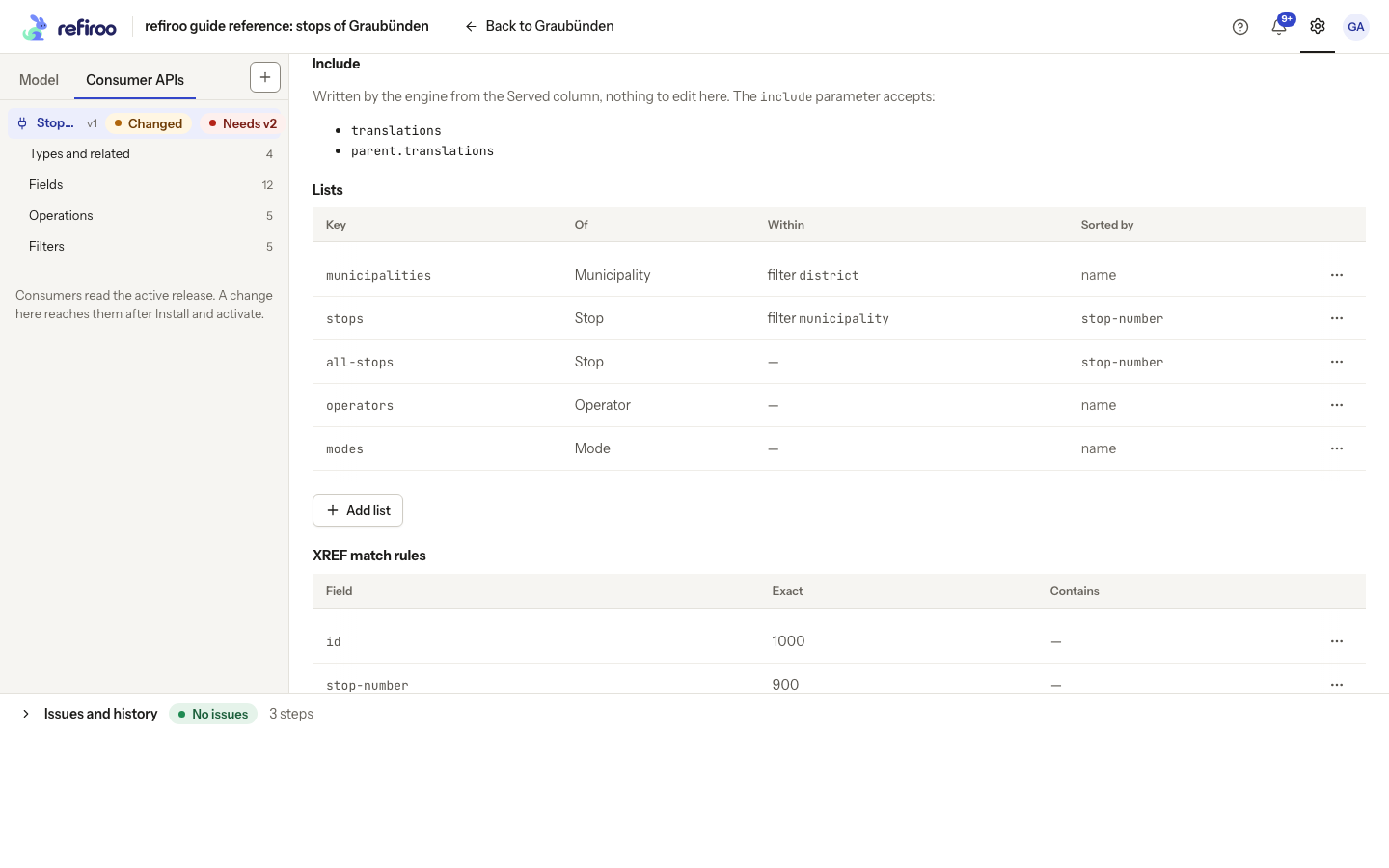
The Include list is generated from the two related tables’ Served choices. See the parent’s rules and requests with optional blocks when reviewing the contract with integrators.
Choose the fields and fallbacks
Section titled “Choose the fields and fallbacks”- On Fields, inspect Output name, Role, Sources (first non-empty), Served type and Default. Output names are the names consumers receive; sources are where their values come from. Use Add field… to add a public field.
- Use Sources… on an existing field to order its fallbacks. The first non-empty value wins. Zero and false count as values. Move up and Move down order supported items; Remove takes an item out.
- Choose Role for an identity, code, name or validity output where needed. The identity reads the record’s stable ID. Keep any business identifier as a separate field. Check Served type after changing sources; incompatible types or conflicting roles appear in Issues and need correction.
- Select an editable Default cell to provide a fallback only when all sources have no value. Leave the input or press Enter to save; Escape puts the old value back. An unchanged input saves nothing. If refused, review the reason beneath it and use Save again to retry or Cancel to abandon the edit. Use the served type: a text fallback cannot stand in for a number. A default changes the consumer answer, not the stored record.
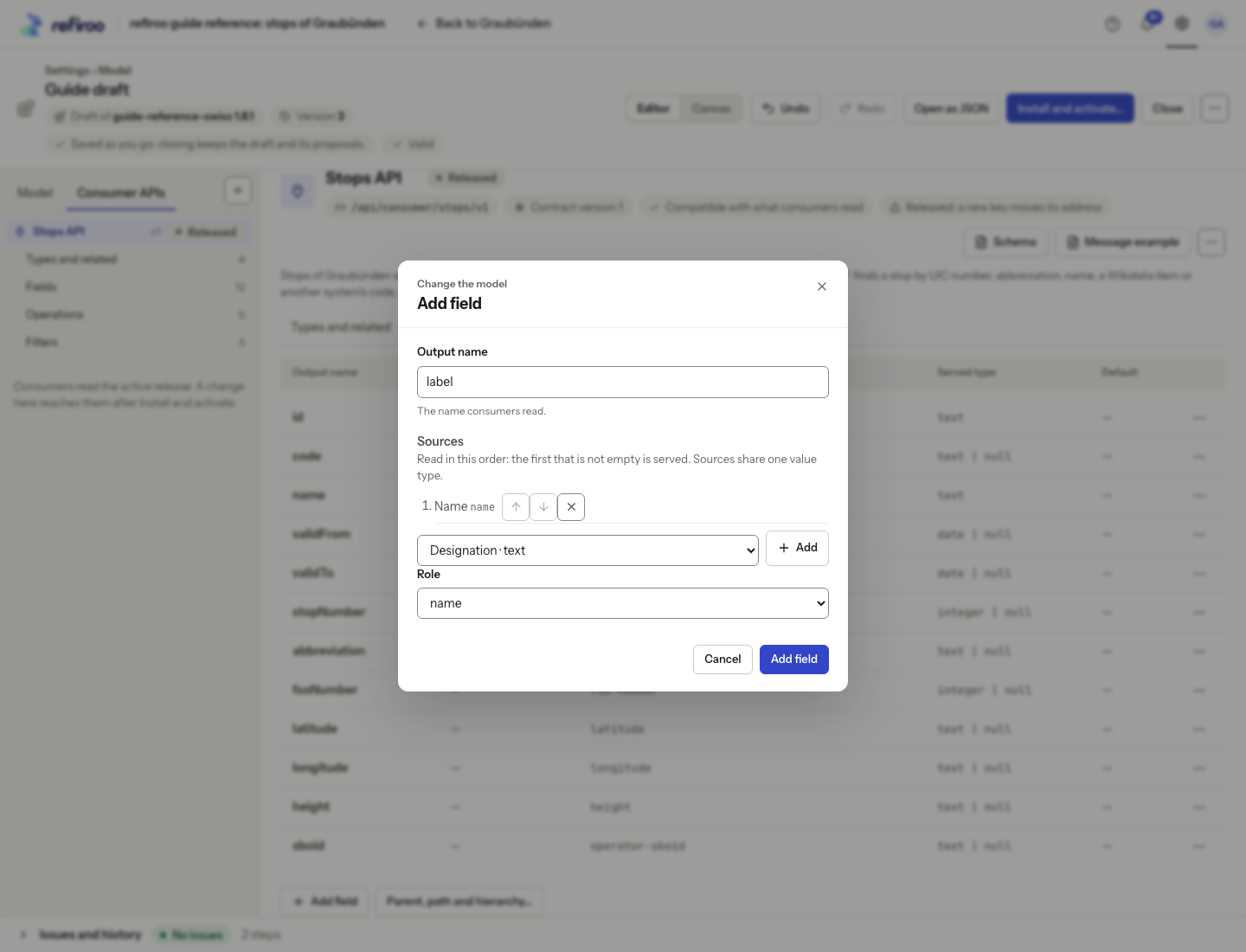
Above: adding a public field to a consumer API in the reference model.
Reference-data example: the code field tries the stop identifier, then the operator code, then the mode code. Chur’s stop shows its stop identifier while its operator shows SBB. The stop number is an integer. A default abbreviation applies only to a record without one; Chur’s existing CH takes precedence. See Sources and defaults.
Offer the operations and filters
Section titled “Offer the operations and filters”- On Operations, review Get by ID, XREF and Resolve. Get by ID reads a stable record ID; XREF matches values such as a code or name. Resolve performs many such reads in a batch and needs both Get by ID and XREF. Leave off operations the contract does not need: consumers cannot use an undeclared operation.
- Use Add list… and set Key, Of, Within the filter and Sorted by. Of selects a type; sorting selects its order. None for Within gives the list no special parent parameter. With an Under filter, a consumer can supply a parent ID to list records below it. Omitting that parameter still returns the whole type.
- Enable XREF if needed, then use Add XREF rule…. Review the fields with Matches on… and Fields… where offered. Exact and Contains are numeric weights, not mutually exclusive modes. Give reliable identifiers stronger weights than broad name fragments. Contains applies to text terms of at least three characters.
- Use Add a match through a related block… when related data should help identify an exposed record. Review Also match through, First of and Prefers. A match through a system code can identify its owning record; a shared code can identify several. Use that row’s Preferred types…, select Prefer records of these types, and choose Apply in the popover to prefer exposed owner types; select none to remove the preference. Review ties with the consuming team rather than relying on the first result.
- On Filters, choose Add filter…, Name and Verb. By type selects types; Under reads containment; Linked to selects Through; On related selects Related block. Review Matches on and the offered Options. Keep only matching records narrows the returned records. A related filter also narrows the related block’s items; Score only matching items limits which items contribute lookup scores. Crosswalk lets consumers ask for a target representation from that block. Enable only the choices the contract needs.
- For a filter on connection values, use On related, choose the block, then Matches on… and a field under Attributes of the relationship. Keep only matching records if objects without a matching connection should disappear too. To score a carried value instead, use a text attribute in the related match’s First of. Review Schema and Message example: only the connection with that value supplies a match, even when other records share its target.
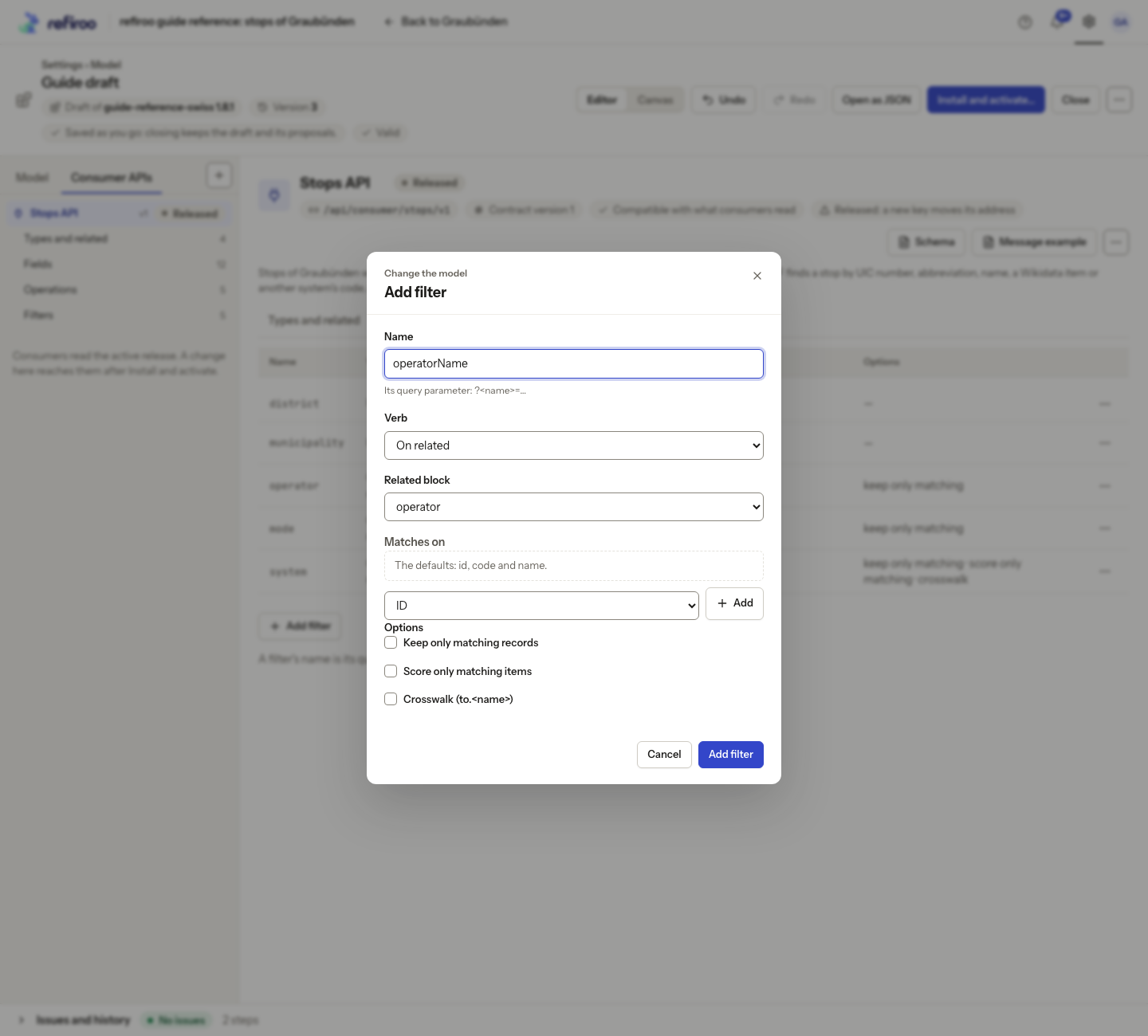
Above: adding a filter to a consumer API in the reference model.
Reference-data example: the all-stops list can use an ordinary municipality filter to match Chur’s FSO number 3901. The stops list uses that filter name as its special parent scope and requires the municipality’s stable identity. Omitting the parent selection returns all stops. Review this distinction with the consuming team.
The stop number Exact rule scores Chur at 900 for its number 8509000. Matching Q663869 through its Wikidata system code instead scores 90. A tied top score stays ambiguous. The mode filter can further restrict results to Train. See Lookups and batch answers for how these choices fit together.
Define notifications and review the contract
Section titled “Define notifications and review the contract”- If every exposed type needs standard notifications for creation, update and deletion, enable Events per type. For a named event, use Add custom event…, then choose Key, Types, Changes and Watches. No Watches means any change to what consumers read, including related blocks. To report edits of carried values, include their related block in Watches and expose those values in the block. The reference event watches only main fields; it needs this extra choice to report connection-value changes. To report changes to the parent’s selected values or related items, watch the parent output or leave Watches empty. One parent edit can update every child that shows it. Full event and webhook objects omit on-request blocks; notifications have no Include choice. This defines an event, not a delivery subscription.
- Use Describe… to explain the API’s purpose to consuming teams. Review Issues, Schema, Message example and the compatibility result. A Not applied notice means the attempted step was refused: correct its named problem, then review again. Specialist editing does not bypass validation.
- If the editor says Needs contract version …, inspect the contract changes and raise the contract version. The contract version is separate from the model release version. Renaming a public field, changing a related block’s shape, removing an operation or reducing event coverage can require a higher version.
- Review and share the generated documents before installing and activating the release. Draft edits do not change the live API. Agree changes with integrators and ask a security administrator to grant the consuming client this API in the workspaces it needs. Model authoring and other roles do not substitute for that grant.
Reference-data example: the reference notification watches code, name and validity dates. A name change produces an update naming the affected name output; changing latitude alone does not. See the event example. The reference contract is version 1. When a draft based on its released definition raises it to 2, the editor keeps version 1 in Earlier versions by default. After activation both read current data, each in its own shape. Check the retained row and agree the changeover with consumers; see Raise a contract version.
Plan the earlier version’s lifetime
Section titled “Plan the earlier version’s lifetime”On Types and related, review Earlier versions after raising a released contract. The editor keeps the base release’s definition even if you made breaking edits before raising; it does not keep an unserved draft version. Review Superseded and optionally edit Sunset day to announce an agreed end. Every retained version must still have the model sources it reads. Keep those types, fields and relationships while its consumers need them.
The model administrator chooses the notice period. A sunset day does not stop service. When the consuming teams are ready, follow Stop serving an earlier contract version to remove the row, review the warning and activate the change. Undo restores a removal in the draft; it does not reverse an already activated release.
Refine a released API safely
Section titled “Refine a released API safely”Turning XREF off can ask Stop offering XREF? because its rules are removed and Resolve stops too. Cancel to retain them, or confirm and inspect the contract difference. Undo restores the step; switching XREF on again alone does not restore the old match rules.
Use Rename… for a display-name change. A new API shows Key editable; a released API shows Released: a new key moves its address. Its key is the access point consumers already use. Change key… is still offered, but after activation the old address answers 404, as if the API were removed, and the contract check warns about it. Removing the API stops those reads after activation too. Coordinate any deliberate replacement and its access grants with the consuming team.
Source for the reference examples: opentransportdata.swiss, Service Points (Didok), Federal Office of Transport / SBB, snapshot 2026-11-02. Wikidata, CC0.
To remove an entire contract, choose Remove consumer API, read the warning and confirm only when consumers are ready to lose that access after activation. Cancel keeps it. Undo restores a saved draft removal. Edit as JSON… is a specialist alternative on the whole API or an individual row; it saves one step and still needs validation and contract review.