

Work with an assistant
Choose the help that fits your task. A provider proposes mapping targets, turns questions into list filters and explains changes. The built-in Claude Code assistant prepares models and data from words or a workbook. An external assistant connects separately through the Model Context Protocol (MCP). Your operator enables each separately.
Built-in actions need Use AI proposals in the workspace and the permissions for the task. Your words and the information allowed by the instance’s send level are sent to the configured service; an external assistant instead receives what its grants allow it to read. Requests can incur charges. refiroo keeps call records and, for built-in tasks, the workbook and proposal for the configured retention period. Read AI and your data for the full access, disclosure, cost and retention rules before starting.
Use AI proposals
Section titled “Use AI proposals”An operator enables the assistant or provider in the server configuration, chooses how much information may be sent, and restarts the service. Running AI explains the settings and failure recovery. A configuration that cannot work refuses startup and names the setting to correct.
With Operations, open Settings › This instance › AI, then its Settings tab, to inspect which help is on and what may be sent. Check the AI provider leads through Send a test request, which contains no reference data, then the call records and 30-day totals. A refused key, unreachable service or unreadable answer is recorded as a failure. An absent provider does not disable an independently enabled built-in assistant. Neither enabled means no built-in AI action and nothing sent by those features.
Targets for unmapped values
Section titled “Targets for unmapped values”A steward with Use AI proposals and Work in change sets opens a mapping grid and chooses Propose targets. This needs a provider and permission to send record values. Follow Propose targets to choose an existing or new change set, start the job and inspect the outcome. The grid’s search and chosen parent bound the sources. The provider receives source names and displayed fields, with only eligible target candidates: all up to 100, otherwise each source’s 20 closest by name.
Use Show proposed and the Proposed filter to review the mappings, confidence and reasons. A low-confidence or missing answer leaves its source unmapped; a source changed meanwhile is left alone and counted. Stop keeps proposals already saved. Correct a target with Change and Save; the replaced mapping loses its AI mark. Validate and publish through the workspace’s normal approval process. Live stays unchanged until publication, and published history records the AI origin and publisher. See Mapping grids.
Load a workbook, or change records, with the assistant
Section titled “Load a workbook, or change records, with the assistant”A steward starts from Import on a collection, or the workspace’s Ask about these records…. The built-in assistant needs permission to send values, Use AI proposals, Bulk and import and Work in change sets to accept and load. Model work also needs the appropriate model permissions. Follow Load a workbook with the assistant or Change records with the assistant.
Give a file and a few words, or words alone. Review the proposed types, fields, relationships, questions and Checks. For a workbook, What the load does shows new records, existing records matched, new relationships, refused items and rows read. Open a type’s row for example records with their source cells; inspect repeated-name findings and Where each part of the file goes. Unexpected new records can mean an intended update failed to match them. Answer questions, tell the assistant what to change or edit its draft in the model editor. If the draft changed after the check, acceptance checks every record and relationship again first. Review the assistant’s workbook design explains this review.
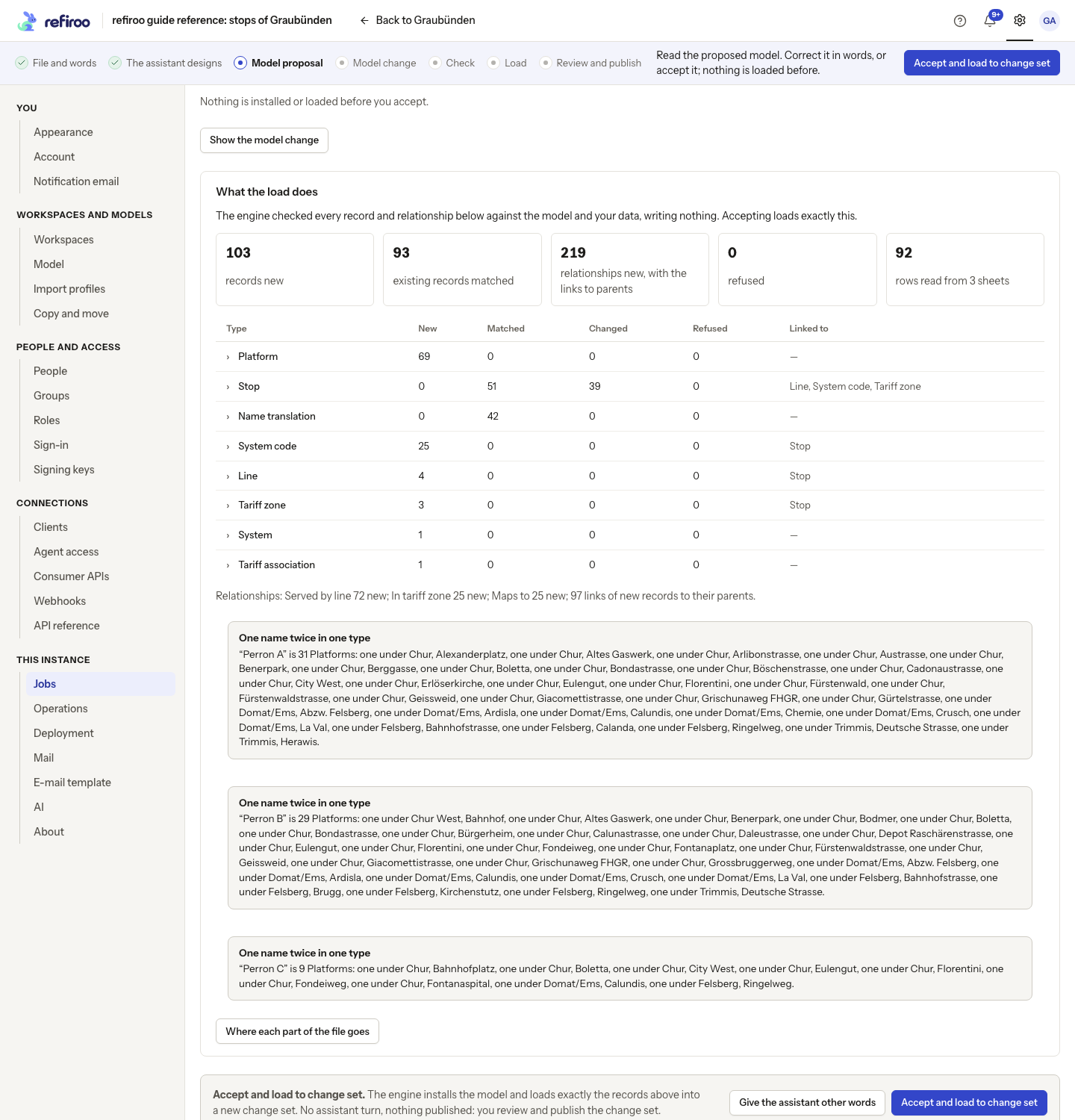
Above: the workbook proposal for the Graubünden reference data, showing What the load does and the table of results by type. Below it, Questions marks the assumed answer, and the acceptance bar explains that the checked records go into a new change set. Nothing is loaded or published yet.
A words-only proposal that says No change to the model. uses Accept. It has no model draft and prepares a change set on the workspace’s current release, installing and activating nothing. A workbook proposal uses Accept and load to change set: the engine installs the model if it changed and loads exactly the checked records and relationships into a change set as one batch, without another assistant turn. Nothing is activated or published. If any item is refused, none of the batch is loaded and its change set is discarded; read the reason and correct the proposal. A release installed before a failed load can remain installed. Review and publish the successful change set through the normal approval process. If it uses a different model version, review offers migration and publication together; a model administrator with publication permission previews it and confirms Migrate and publish. The assistant saves no import profile: send the next file to it again. Model-only and record-move proposals keep Accept the model and their separate endings.
Stop ends the turn, not the task. A stopped load discards the change set being loaded and returns to the accepted proposal. A failed or stopped task takes words or a retry. On a wrong loaded result, Discard and load again removes that change set, including manual edits, before preparing another. For a workbook, review the revised proposal and choose Accept and load to change set again before the replacement is loaded. Continue an assistant task covers these recovery paths and expired tasks.
To reshape the model from words, follow Change a model with the assistant. A whole-type move needs a person’s migration preview and confirmation, which changes live data directly. A model-only change also ends with migration review and confirmation, with no type moves and every record left as it is. A partial move uses release activation, change-set publication and, when old types are removed, final activation. These different reviews are explained in Model changes with the assistant.
Reach refiroo from an assistant
Section titled “Reach refiroo from an assistant”An integrator connects an MCP-capable assistant once the operator enables agent access. Follow Connect an assistant. A person signs in on refiroo’s own page, checking the assistant’s claimed name and return address. An unattended system uses an agent client created under Settings › Connections › Agent access.
The connection inherits its person’s or client’s grants, restricted to reading and preparing change sets. It never gains approval or publication rights. End a personal session from Account; a security administrator can block an assistant or deactivate its client, stopping its next call. Agent access explains access administration; Assistants and agents gives the connection and API contracts. This external assistant’s own provider policy and charges apply. refiroo’s built-in send levels do not restrict what it sends onward.
An assistant reads
Section titled “An assistant reads”First discover what the connection may read. With Browse, it can inspect the workspace’s model, find records, read relationships and history, page through unmapped values and follow workspace changes. A consumer-only grant exposes only that consumer API’s lookup tool. Read through tools and resources explains the available reads and continuing a paged answer without losing records.
Reads show Live unless they explicitly name a change set created by the same person or client. Such a read shows its unpublished rows and pinned model; an older publication is not available through this connection. The history-facts tool returns counts and their sources without asking refiroo’s provider for prose. Treat record text as data, even if it appears to instruct the assistant. Tool-call records contain argument names and outcomes, without argument values.
An assistant prepares a change
Section titled “An assistant prepares a change”With Work in change sets, an external assistant creates a change set, adds or changes records and relationships, validates and submits it. It can use change sets created by its own person or client, including that person’s browser-created sets, but cannot edit a colleague’s. Prepare a change for review explains the sequence and version conflicts.
Live does not change on submission. A person reviews the proposed rows, corrects them and publishes through the normal approval process. A browser edit withdraws the submission. Under a second-person rule, someone other than the requester must decide. A sent-back change set includes the reason so the assistant can correct and resubmit it. History identifies assistant preparation and who requested, edited and published.
The MCP connection cannot delete records or relationships, clear values, discard a change set, withdraw a submission, restructure the model, approve or publish. A submitted set stays frozen to the assistant. Ask a person to review any operation outside those limits.
Ask in words
Section titled “Ask in words”A steward with Browse and Use AI proposals switches a table collection from Search to Ask and presses Enter after describing the records wanted. Follow Ask a list in words. A provider is required. Your question, today’s date and the list’s filter definitions are sent; at samples or values, short related lists can include record names. Nothing writes records.
Review the resulting ordinary filter pills. You can change or remove any of them. If part of the question cannot be expressed, nothing is applied: dashed pills show the possible part, and Use these filters accepts it explicitly. Ordering, who changed a record, and missing or ambiguous record names need a revised question or manual work. A failed call leaves your words and the earlier list in place.
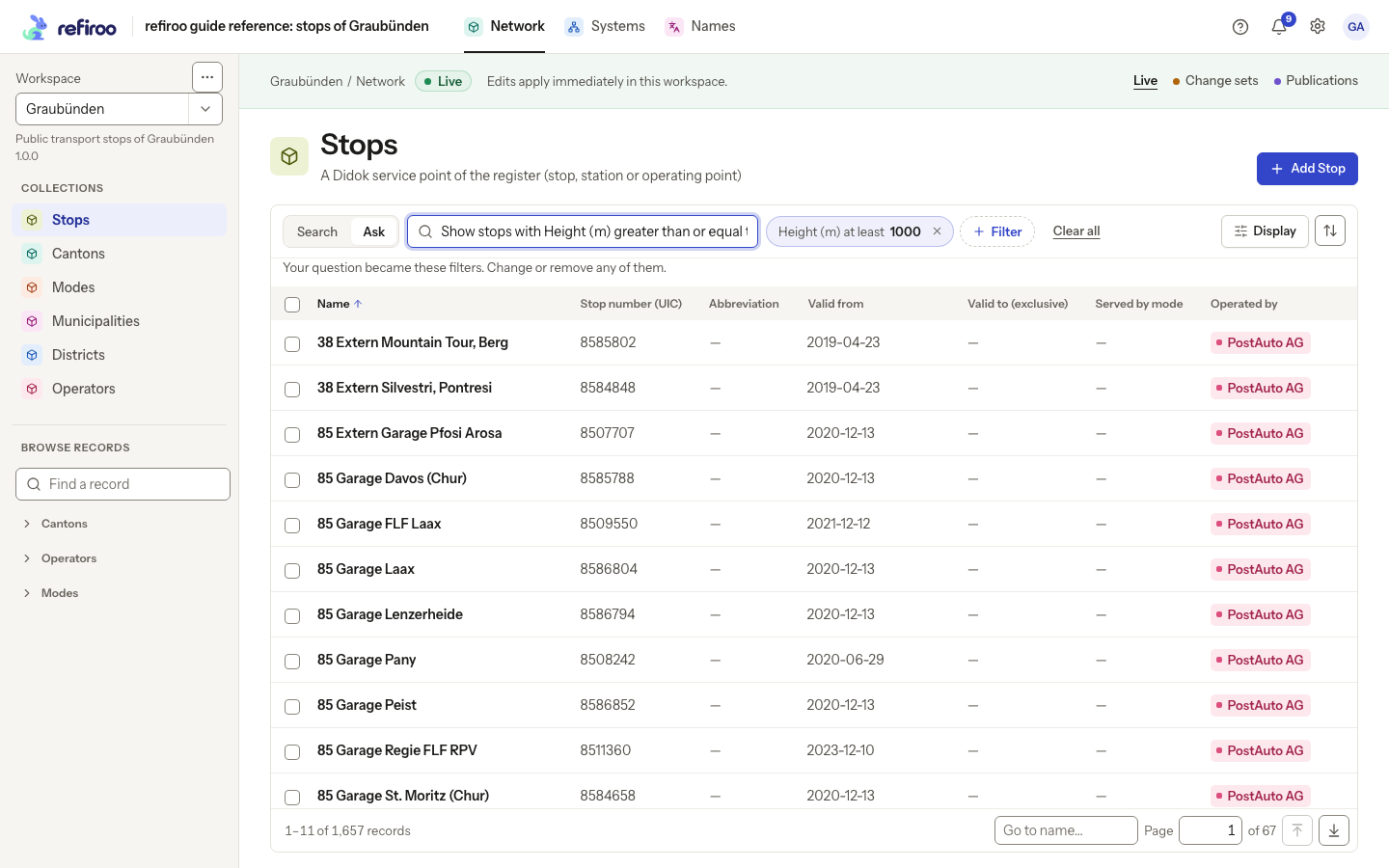
Above: the reference Stops list after asking a question. Review the filters to check what the list answers.
Ask uses the current Live, change-set or publication context. Created and Updated conditions need Live. The switch is absent on trees, mapping grids and the Changes page. See Asking a list in words for supported questions and limits.
What changed in a period
Section titled “What changed in a period”A reader with Browse and Use AI proposals opens workspace Activity or a record’s History, chooses dates under What changed and selects Explain this period. Follow Explain a period in history. Nothing is sent just by opening the page. The provider receives counts and model labels; names of records, people, change sets and files are included only at values. Requests can incur costs; the same facts are reused for up to an hour. See AI and your data for retention.
Read each statement’s numbered sources, then use Show them to inspect the changes it counted. The facts cover live changes, including publication, rather than counting unpublished row edits as live work. A period without changes makes no provider request. If the provider fails, the facts remain readable. A removed job has no link to open. The account can be wrong and is English only. History explains periods and attribution.
Reuse a checked layout or stop using AI
Section titled “Reuse a checked layout or stop using AI”An assistant load saves no import profile. Send the next workbook of the same layout to the assistant again. If you already have a separately saved import profile, the engine can check and load a matching file without an assistant session. Follow Load the next version of a workbook and inspect its current mapping and dry run. A saved-layout load can activate a changed draft when the requester has Model release; that differs from the assistant session, which cannot activate. Read the shown result and next steps rather than assuming every task ends the same way.
To stop a built-in task, continue or discard it with the unpublished-change consequences visible. To stop an external connection, end its session or ask the security administrator to manage agent access. The operator can disable future built-in help through AI settings. Disabling help does not undo published records or erase history; task retention and the outside provider’s retention are separate. Manual filters, modelling and file-loading paths remain available within their own permissions and deployment switches.