

Edit a mapping row
Open a copy or move in Settings › Copy and move with the necessary workspace access. See Model mappings for how mappings and record matching work.
- On Mapping, check From, To, the saved mapping and its version. Change… beside Mapping selects another mapping; it is different from changing one row.
- Focus or select a row and read Why this step. Evidence and alternatives explain a Proposed choice. No numeric score is displayed. Select an alternative only if its meaning is right, not simply because its labels look similar.
- Choose the target type for a source type. For an excluded type, use Map … to…. Then inspect each attribute, parent, relationship direction and matching rule under it.
- Select a target field or Not carried (reported). Review Records already in the target: finding only previously moved records differs from matching by a unique target field.
- For a target field without a source value, use Set a default… and enter a value of its declared type. Use Change… to edit it or Clear to remove it. Supply a meaningful default rather than an arbitrary value just to satisfy a required field.
- Read any problem beside the row. A refused step leaves that choice unapplied. Undo and Redo revisit mapping steps. A manual row says This row is yours; Undo can restore the proposal where available.
- Wait for the new dry run. Inspect Values not carried, dropped relationships and records that cannot go. The dry run waits for the mapping is not a successful check; correct mapping problems first. After The dry run did not run, read why and Dry run again.
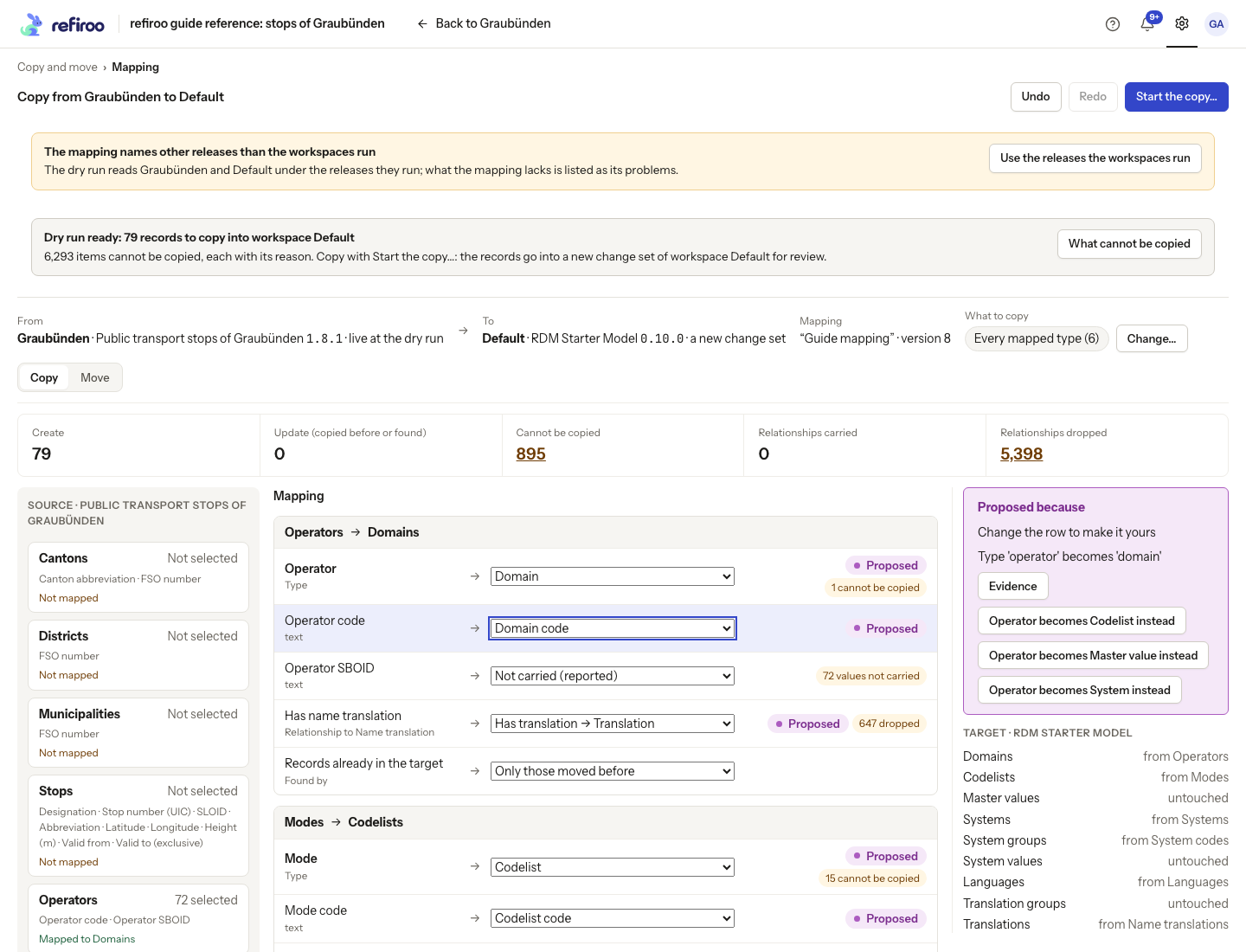
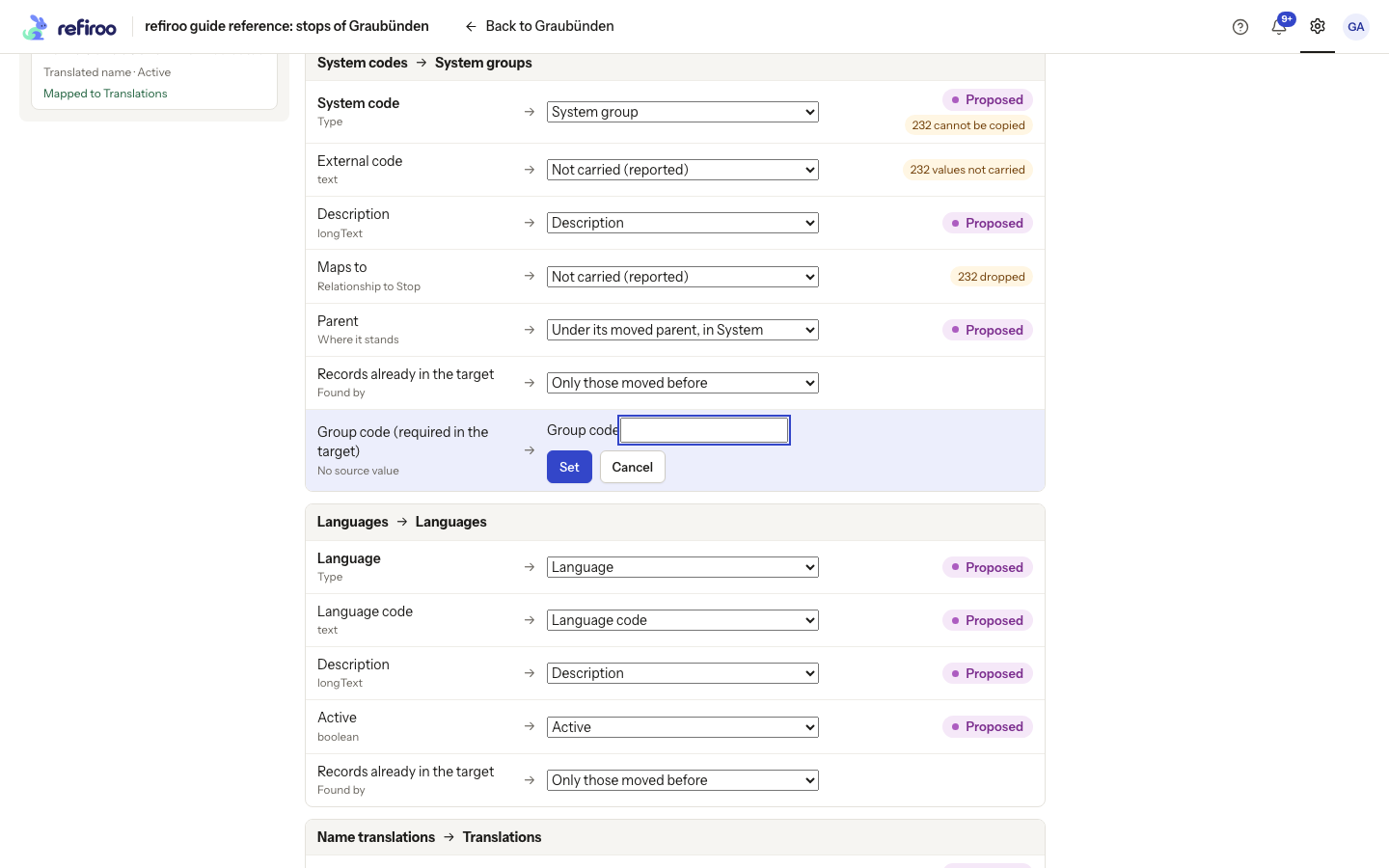
If the mapping names releases other than the workspaces run, choose Use the releases the workspaces run, inspect the choices and check again. A read-only notice means this deployment or your access prevents edits. Saving rows alone copies or moves no records.