

Migrations
Use a migration when a workspace’s records do not fit a selected model release unchanged. The preview checks every record and lists conversions, type changes, created items, removals and items that must be fixed. Workspace data stays unchanged until you confirm. You need Model release in the workspace; background jobs and model administration must be available. Publication also needs the normal data permissions and any required approval.
Start from the editor when a draft changes stored data, or from Change a workspace’s model for an installed release. Follow Migrate a workspace to review and confirm.
From an editor step to a migration
Section titled “From an editor step to a migration”The editor applies changes to released elements, including key changes, moves, splits, merges, removals and tighter rules. History marks steps that affect stored data Needs a migration; a released key change needs one even with no records. Undo takes that step’s part out of the proposed migration; redo restores it. Saving a draft does not convert live data.
In Install and activate… or Apply to this workspace…, Activation needs a migration states what the draft proposes. Review the steps, where records go, counts of records moving, records and relationships created, and refused items. Each released key change warns that integrations naming it must change and names the consumer APIs of the base release that use it.
Install … and preview the migration… installs the release and opens the migration page. From Apply, use Preview what happens to the records…. The release is installed but the workspace keeps its current release until you confirm the migration.
What the draft proposes opens filled in from the draft’s remaining steps and the two models. Its rows show Records of, Become, In, Under and Records, with a Proposed mark for the draft’s choice. Split, list-conversion and relationship-key changes appear beneath the rows. Change Become to review another destination type, or Not kept; each choice previews again without editing the draft. Check the new outcome before continuing.
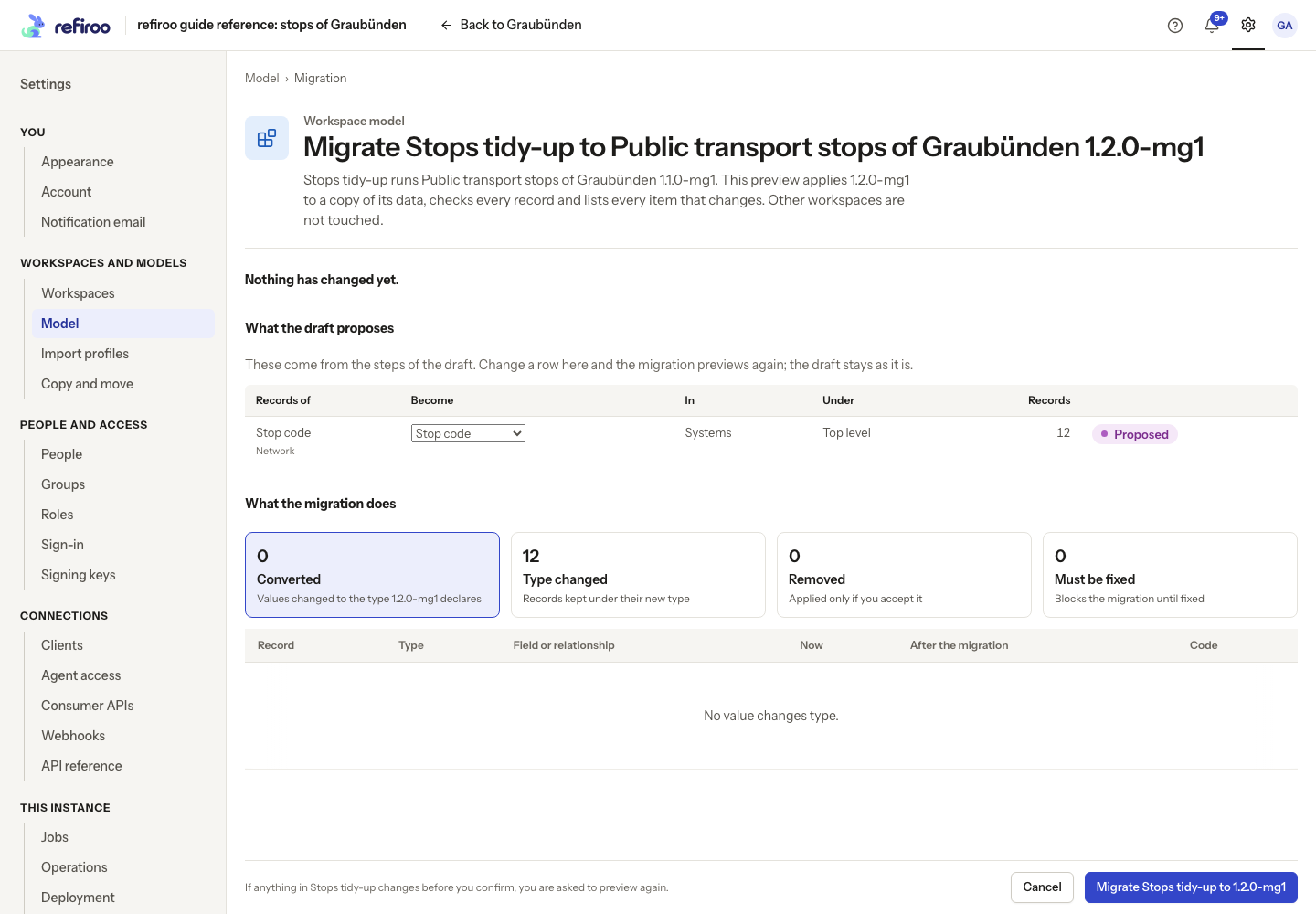
Above: the draft proposes moving 12 Stop code records from Network to the top level of Systems. The row is marked Proposed, and Type changed counts 12 records; nothing has changed yet.
What the preview means
Section titled “What the preview means”| Outcome | What to review |
|---|---|
| Converted | Values changed to the target definition’s value type. Inspect before and after. |
| Type changed | Records kept under a new type, with their IDs and history. |
| Created | Records and relationships a split or list conversion creates. Shown when the migration creates them. |
| Removed | Records, values or relationships lost if you explicitly accept removal. |
| Must be fixed | Items blocking confirmation, such as missing required values or relationships, duplicate unique values or invalid parents. |
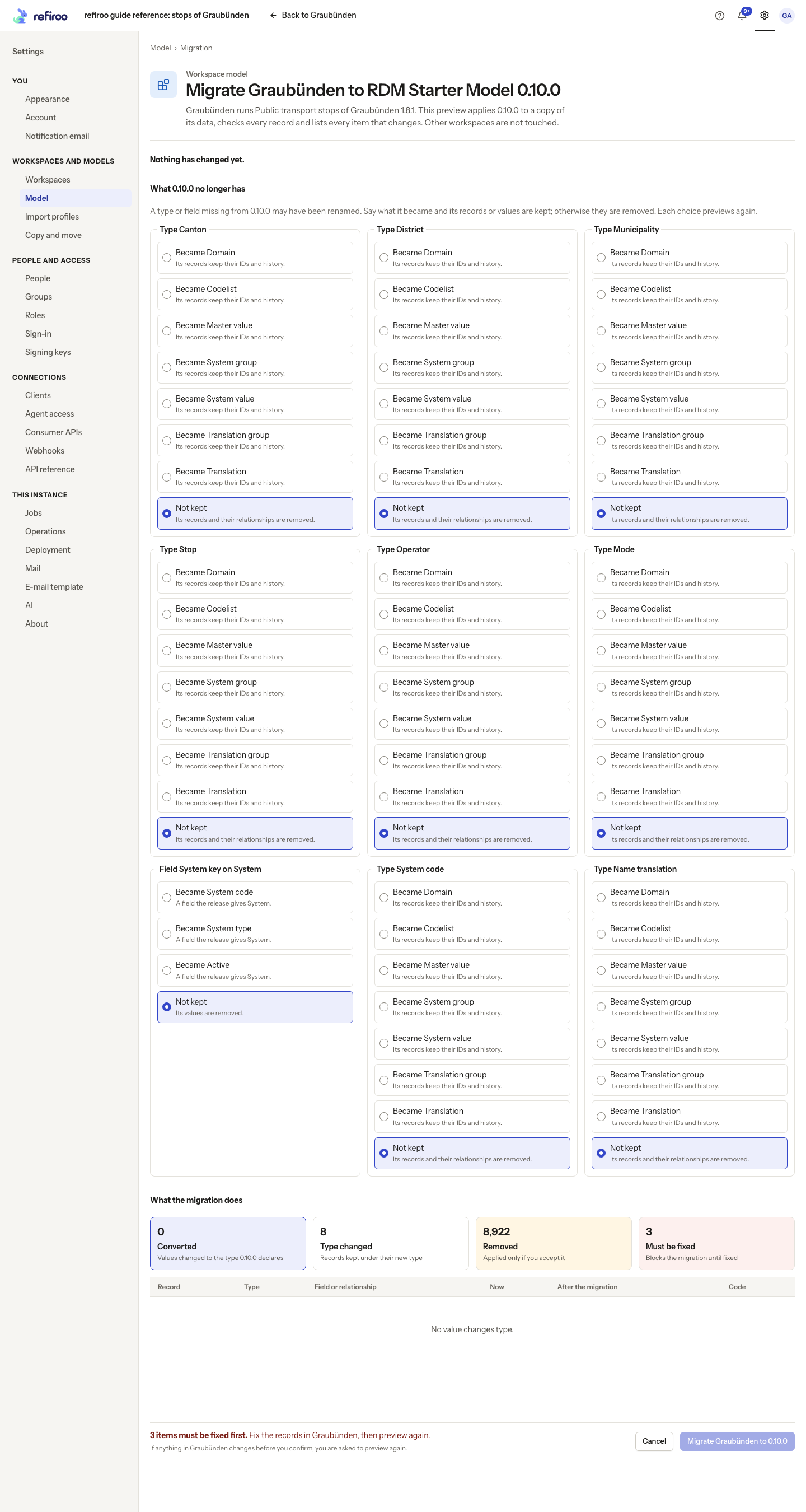
For each missing type or field, Became … says which target definition replaces it. Not kept removes that type’s records and relationships, or that field’s values. Choices are not merely labels: each starts a new preview. The page explains what is kept and what is removed. Do not accept removal until you have inspected its individual items. While any item Must be fixed, confirmation stays disabled and the loss-acceptance checkbox is hidden. After those blockers are resolved, a preview with removals offers the acceptance checkbox.
The data conversion and workspace release switch succeed together. A failed execution does not leave half a migration. A model release installed before this flow can remain installed even when migration fails. Record history keeps what was removed; that is an audit trail, not an undo button. Open change sets stay on their previous release until moved or discarded. Publications remain fixed.
Cancellation, waiting and stale results
Section titled “Cancellation, waiting and stale results”Cancel the preview stops a running preview; Cancel leaves a reviewed one unapplied. The preview may briefly make writes to the live records it checks wait. Let it finish or cancel before retrying a waiting edit. Leaving the page alone does not stop its background job.
Confirmation is bound to the reviewed workspace and data versions. After an intervening edit, publication or model change, a stale-review notice asks for Preview again. Nothing was migrated by the refused confirmation. Review every refreshed outcome before confirming again. Not migrated and Something went wrong require reading the failure and correcting its cause; they are not successful migration results.
Change sets on another release
Section titled “Change sets on another release”A change set can move to the release its workspace currently runs. Move this change set to … opens the same review for its content. The page says nothing live changes. Confirmation converts its content and updates its base and release together against current live records. Conflicting authored records, relationships or mapping sets block the move. Open the resulting change set, review it and validate before publishing normally.
Alternatively, Move … to … and publish… migrates the workspace to the change set’s release and publishes that change set in one step. The review explicitly says Then publishes … and the confirmation says Migrate and publish. Required approval and publication conflicts still apply; neither migration nor publication succeeds alone. Review the named publication afterwards.
Jobs retain the actual counts and item outcomes, with refused items prominent. Open only links your permissions allow and compare the actual result with the preview. For moving data between two workspaces instead, see Model mappings.
Value conversion uses supported source and target value-type pairs. A value that has no valid conversion is listed as a loss; the preview does not invent a conversion for every pair of types. Inspect those items before accepting removal. Activation can also suspend the selected workspace’s consumer subscriptions that its new contract no longer serves; other workspaces’ subscriptions are unaffected. Coordinate changed contracts with their owners before confirming.
What the migration carries
Section titled “What the migration carries”- A renamed type or a merged type keeps its records under the resulting type. Renamed attributes carry their values to the new definitions. A relation type’s new key carries its relationships.
- A type moved to another application takes its records to the application named by the draft, including when several applications list the type. A type the target release still has never loses its records: with no named application they go to the one application that lists the type, or the one that lists it newly; when several qualify the preview refuses them under Must be fixed and a mapping’s application chooses. Moving from containment to the top level removes the old parent and its containment relationship. Under different parent types, records whose existing parent is no longer allowed appear under Must be fixed.
- A split creates a related record of the new type for each source record holding at least one moved value. It carries the selected values there. With Many to one, source records with identical moved values share one new record. The first moved value supplies its name, falling back to the source record’s name. A source record holding none of those values gets no new record.
- A list conversion creates one list record per distinct value, named by that value, and connects each source record to its list record. The values leave the source records.
- Moving an attribute attachment to a different type removes its values from the original type’s records. The preview lists this as loss: the destination type has different records, so moving the definition cannot transfer those values to them.
- Tighter requirements, number limits, value types and bounds are checked against stored data. Records breaking the target rules appear under Must be fixed; values that cannot convert appear as loss. Removing definitions also lists the lost content for explicit acceptance.
Example: a stop-code type that stood under stops in Network can move to the top level of Systems. Its records keep their identities and values in Systems and lose their old stop parents. This is one configuration of the same move available to any model.
To return to an earlier release, select that release and review its compatibility or migration. This does not automatically recover content removed by an earlier migration.
A move proposed by the assistant
Section titled “A move proposed by the assistant”A model change from words can prepare whole-type mappings for this preview. You still inspect and confirm the migration yourself; no change set is created for a whole-type move. For an AI-written account, ask in the activation or Apply dialog before coming here: Explain a model change. The migration page itself lists conversions, removals and refusals without an AI account.