

Require a second factor
Use this policy when a password alone should not sign people in. You need Security administration. It applies to local password sign-in, including recovery administrators, with the exception below. Provider sign-ins use their provider’s own checks. Read Sign-in and second factors for passkeys, sessions and recovery.
An account whose sign-in is managed by an administrator cannot set up its own second factor. If it has neither an authenticator app nor a passkey, it is not asked to set one up: it signs in with its password alone even with this requirement on. Existing factors still apply. Review these accounts in People and groups before relying on the policy to require a second step for everyone.
Prepare people
Section titled “Prepare people”- Tell people who manage their own sign-in that password sign-in needs an authenticator app or passkey. They can prepare on their own Settings › Account page using Set up an authenticator app or Add a passkey. See Your account.
- Ask people using an app to save the recovery codes shown at setup somewhere they can reach without that device. Each code works once. Someone with another registered passkey has another way in if a device is lost.
- Check that an administrator can help with lost devices. If nobody can sign in, recovery requires an operator on the server; turning this policy on includes the recovery administrators too.
Turn the requirement on
Section titled “Turn the requirement on”- Open Settings › People and access › Sign-in and select Local accounts. Under Second factor, find Require a second factor with a password.
- Tick it. The Require a second factor? confirmation explains that people without a factor must set up an app on the sign-in page before a session starts. The administrator-managed accounts described above are exempt from that setup.
- Choose Require it to apply the policy. Cancel leaves it unchanged. Wait for the setting to show as checked. There is no separate Save button.
- At the next password sign-in, check that someone with a factor is asked for the second step. Someone who manages their own sign-in and has neither an app nor a passkey must complete setup and save the recovery codes before continuing. A registered passkey also meets the requirement. For a managed account with no factor, check that password sign-in continues without setup.
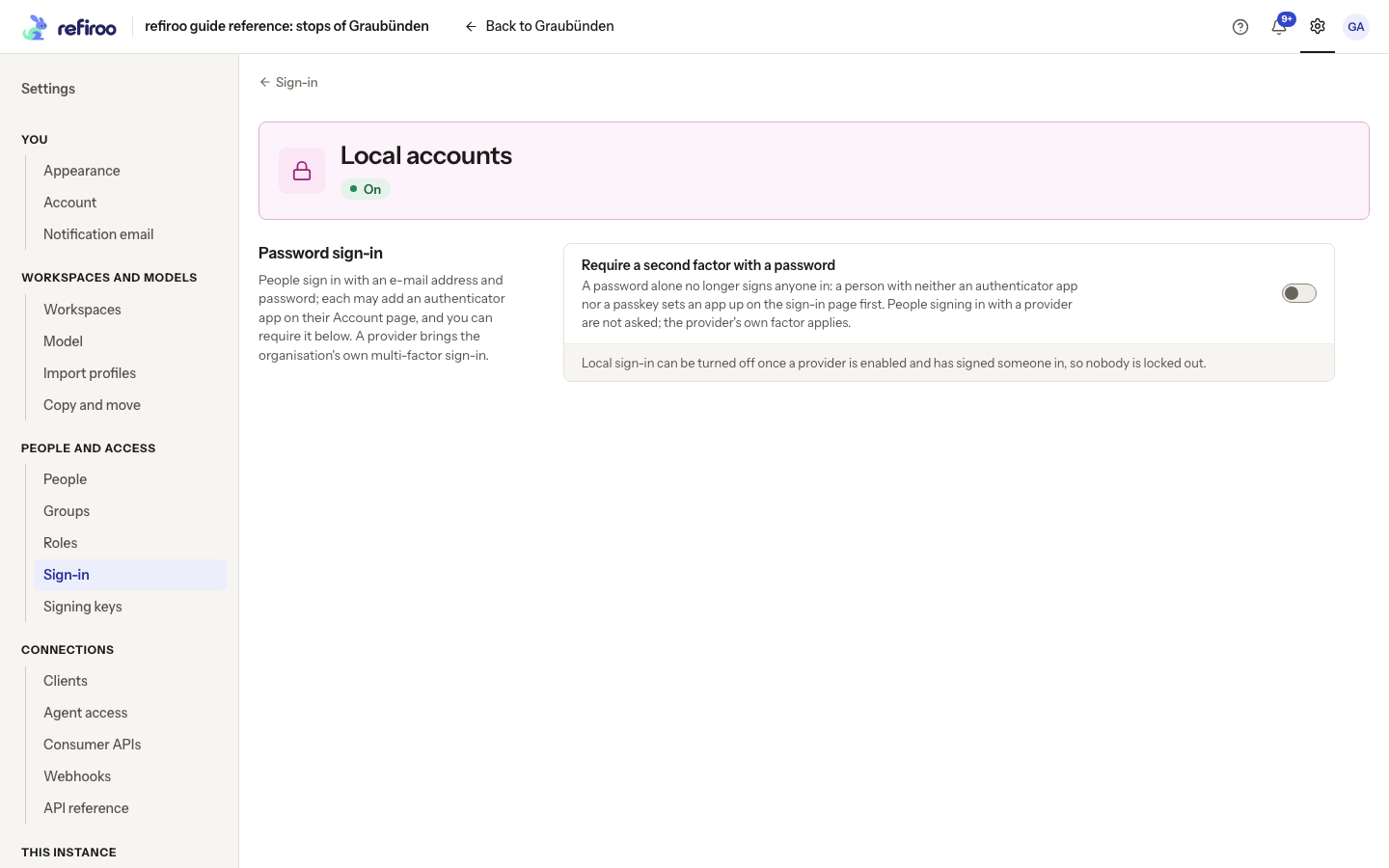
Above: the reference instance shows the requirement before it is enabled. No policy was changed for this capture.
Correct a problem or turn it off
Section titled “Correct a problem or turn it off”If the change is refused, read Not changed, reload the settings and check the saved state before trying again. Someone whose app codes fail should check their phone’s time and use a recovery code or another registered passkey if available. Follow Help someone who lost a device when they have no remaining method.
To stop requiring the second step, clear Require a second factor with a password. This saves immediately. It does not remove anyone’s configured app or passkeys; an account with an authenticator app continues to use it until that factor is removed. People cannot remove their own required factor while the requirement is on.
Changing this policy does not end existing sessions. To require a particular person to sign in again, open their People page and use More actions › Sign out everywhere, then check their next password sign-in. Do not treat an already open session as a test of the new policy.