

Check the AI provider
Use this guide to check whether the configured AI provider answers. You need Operations across the instance. The test can incur provider usage, but sends none of your reference data. It checks the provider, not the built-in assistant.
Read AI settings and access for data sent, permissions, costs and retention. Only an operator can change the server configuration.
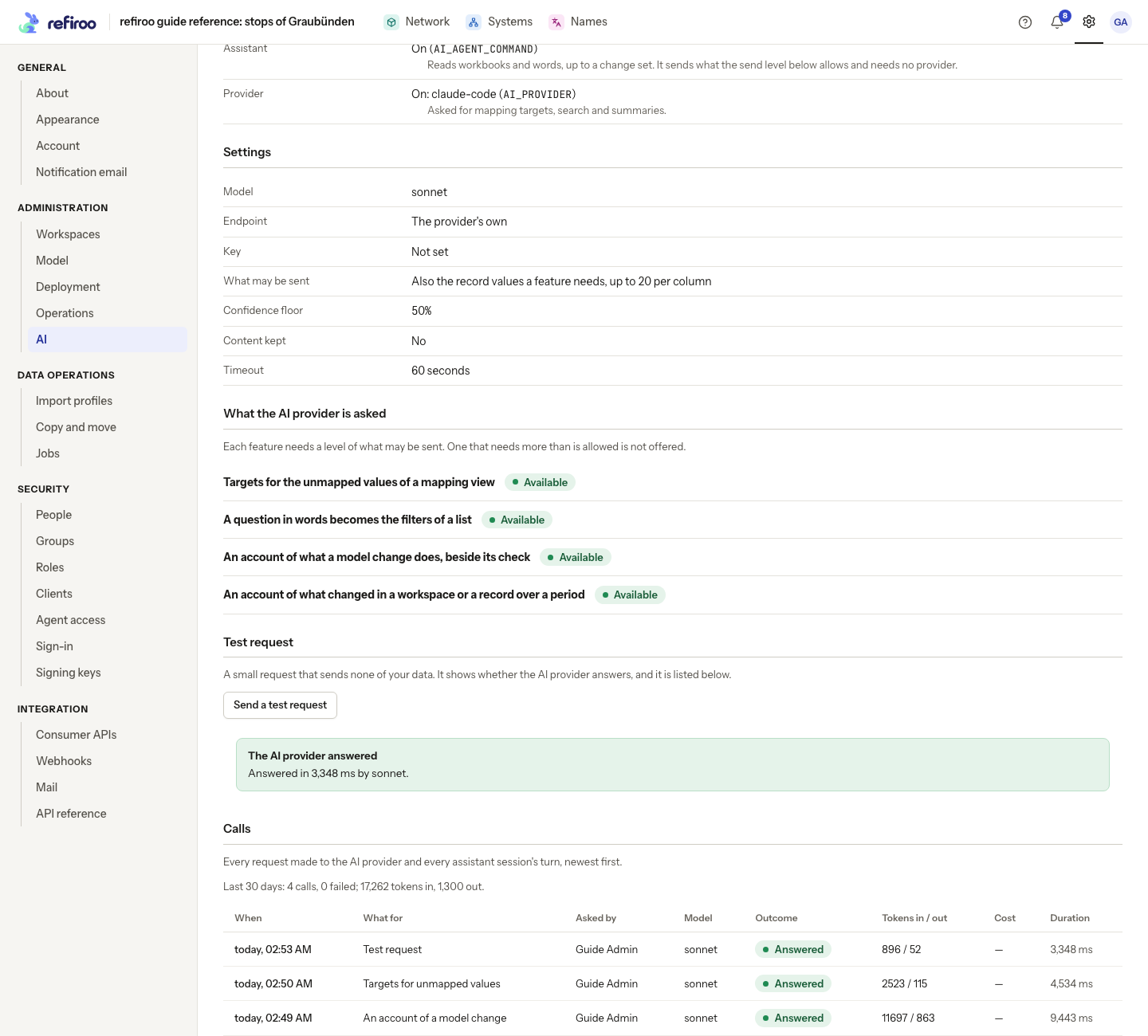
- Open Settings › This instance › AI. On the Settings tab, under What is switched on, check Provider. If neither feature is configured, the page says Neither the assistant nor an AI provider is set up. If only the assistant is on, there is no provider test button. Ask the operator to configure a provider if your task needs one.
- Read Settings. Check Model, Endpoint, whether Key is set, and What may be sent. The secret is never displayed. A provider hosted outside your organisation receives the data allowed for each feature; make sure that arrangement is acceptable before inviting people to use it.
- Read What the AI provider is asked. Each feature says Available or Unavailable. An unavailable feature needs more information than the configured send level permits; a successful connection test cannot make it available. Review the data policy with the operator rather than assuming the test failed.
- Under Test request, choose Send a test request. The button says Sending… while it waits. The fixed request contains none of your reference data, and makes a call recorded on the Calls tab.
- On success, The AI provider answered shows how long the answer took and which model answered. On failure, The test request failed gives the reason. This does not prove that suggestions are correct or that the built-in assistant works.
If the test failed
Section titled “If the test failed”Read the reason before retrying. If the key was refused, ask the operator to check the provider account and credentials. If the provider could not be reached or timed out, ask them to check the connection, service and timeout. An unreadable answer means the provider did not return what refiroo requested; ask the operator to check the provider’s compatibility. Configuration changes require a restart.
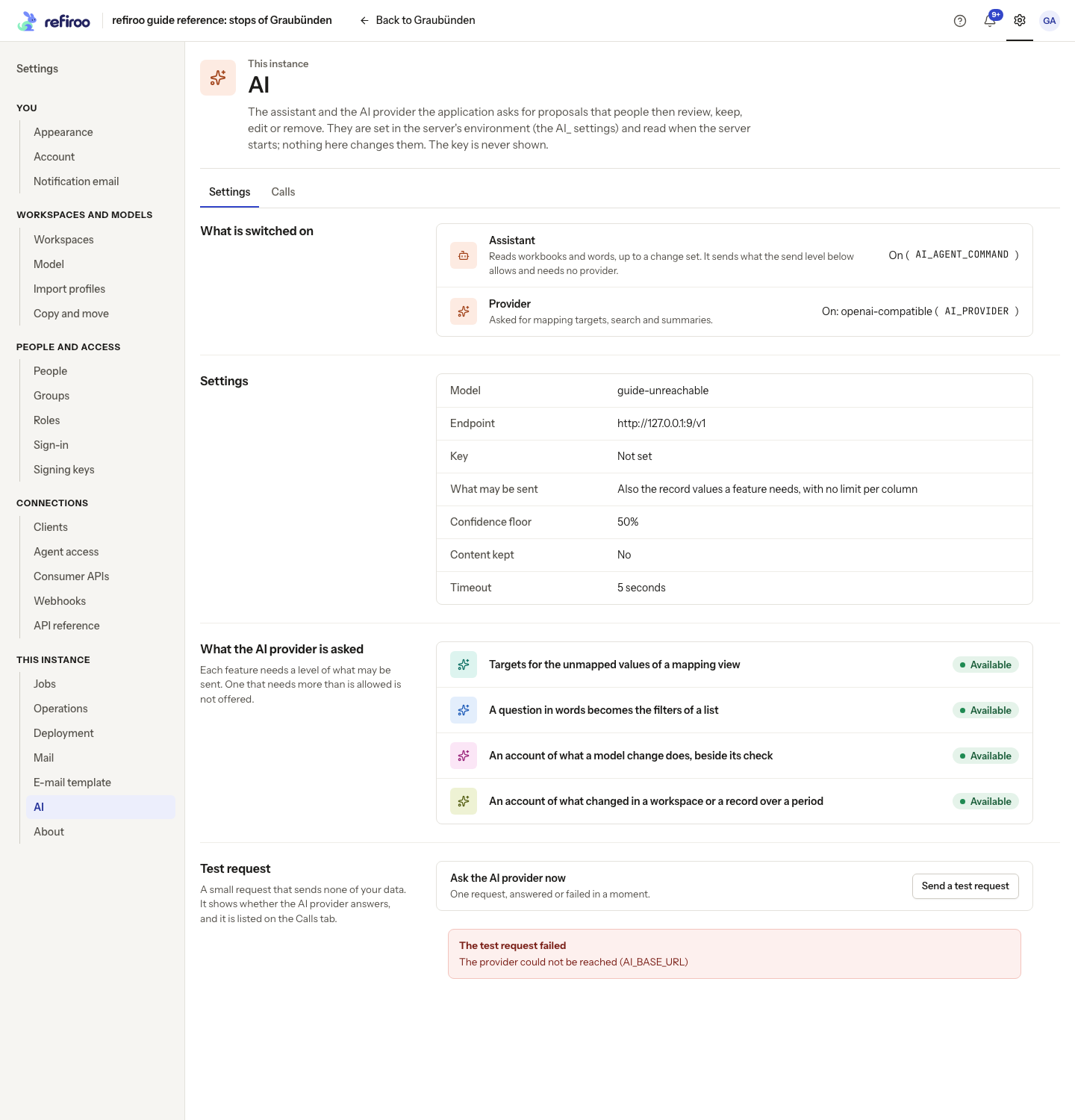
After the cause is fixed, choose Send a test request again. Each attempt is another call and can incur usage.
Check the call record
Section titled “Check the call record”On the Calls tab, find the newest Test request row. Check Asked by, Model, Outcome, Tokens in / out, Cost and Duration. A failed row gives its reason. Show more opens older entries when available; the totals cover the last 30 days.
A dash in Cost means no cost was reported. Check actual charges with the provider. When content logging is enabled, Show what was sent and answered displays the retained content; the normal default keeps call metadata without that content. The setting does not control an assistant’s working files or transcripts.
To check a real feature next, use it with the relevant permissions, review what it proposes and find its call here. AI proposals still need human review and the normal permissions to apply them.