Set up email notices
Choose email copies without changing your inbox. See Notification settings for eligibility and limits.
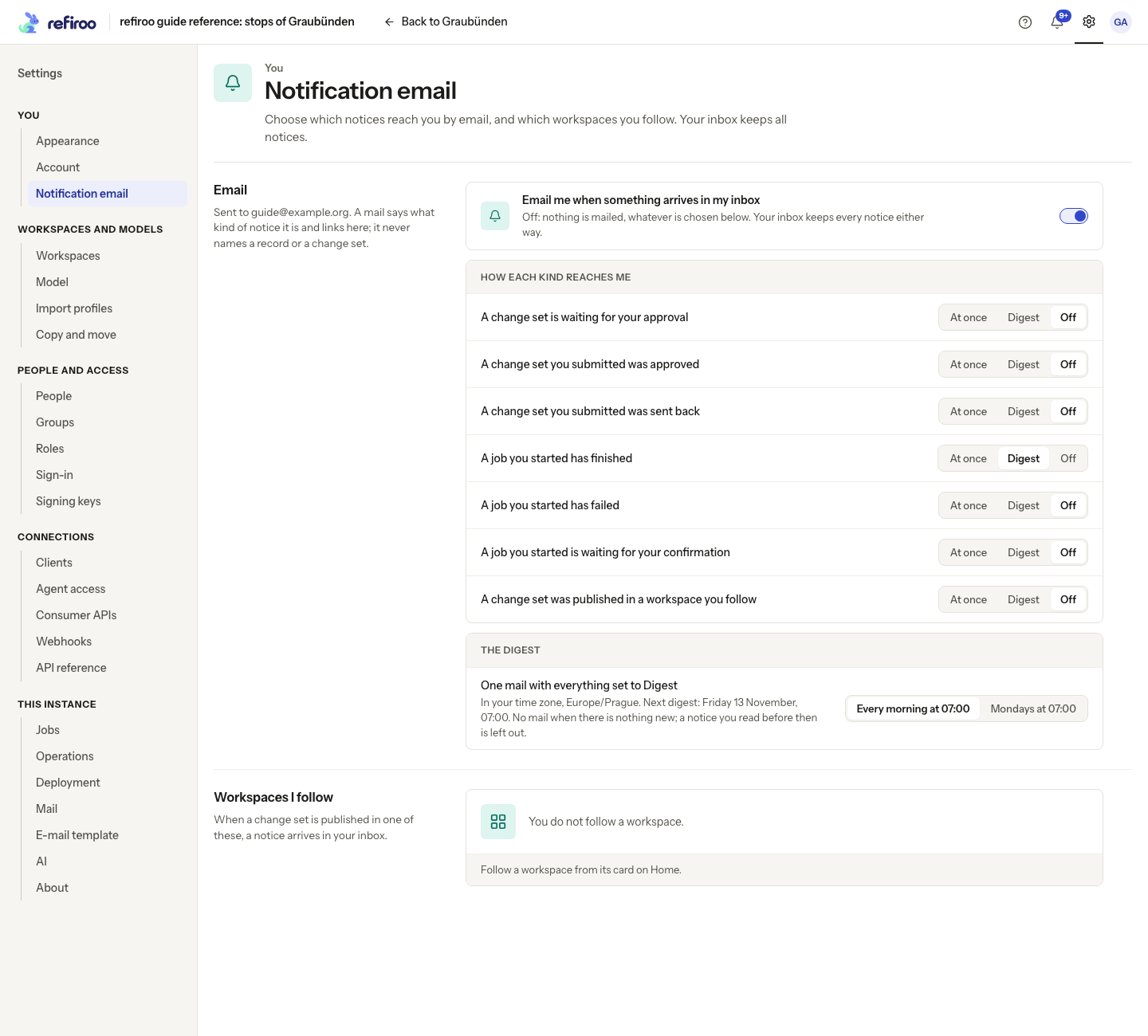
- Open Settings › Notification email, or choose Notification email settings from the Notifications page. Check the address under Email.
- Turn on Email me when something arrives in my inbox. If no switch is offered, read the reason: mail may not be set up or your account may have no address. Ask an administrator to resolve it; following workspaces can still work without mail.
- Under How each kind reaches me, choose At once, Digest or Off for each kind. Changes save immediately. If an error appears, correct the cause and try again.
- For a digest, choose Every morning at 07:00 or Mondays at 07:00 under The digest. Read the displayed time zone and Next digest. The browser supplies the zone; the hour is fixed. The first kind put into Digest starts a daily schedule automatically.
- Return to Notifications for the full inbox. Reading a notice before its digest is sent leaves it out. Nothing eligible means no digest; older unread notices are not excluded merely because they are more than a day old.
To stop all email, turn the master switch off. To stop just one kind, choose Off beside it. Inbox notices remain either way. Immediate mail does not backfill notices from before you enabled email and only sends unread notices less than a day old.