

Applications and views
Applications give people named places to work. A model decides which types and views each application lists. Any application can use any supported view when its structure fits; an application’s name does not give it special capabilities. You need Model authoring to edit these definitions. Start with Arrange applications and views.
Listings and navigation
Section titled “Listings and navigation”Select an application to inspect Object types, Views and Navigation groups. The type table shows where records stand and their attribute and relation counts. List an existing type… adds another listing of a shared definition; it does not copy records. Stop listing in this application removes a listing where allowed. Moving containment or removing the definition has a different effect; see Types.
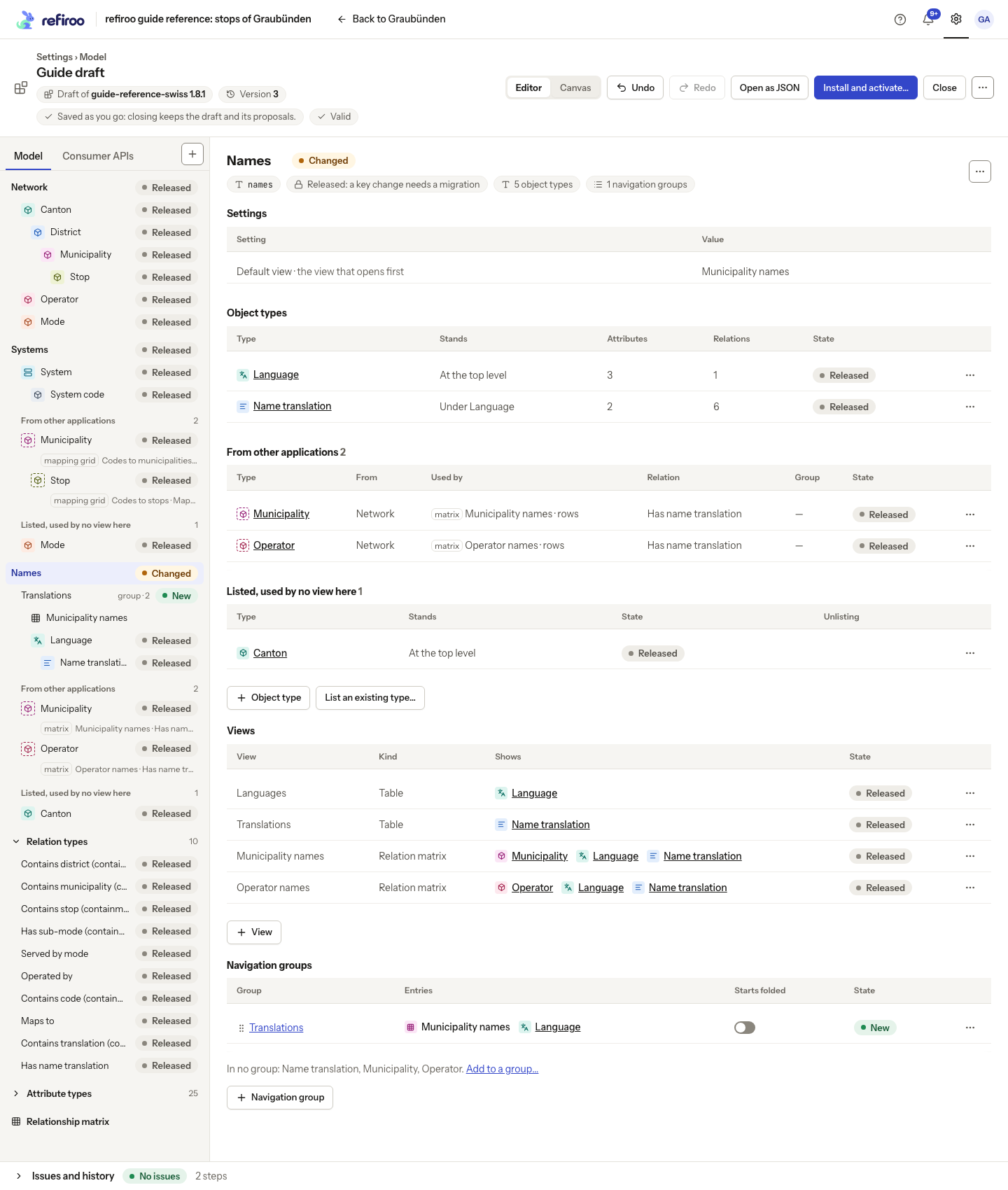
Navigation groups have a Label, ordered entries (collections and views) and an Open or Folded starting state. A collection, or a view, can belong to only one group in an application. Any view of the application can be placed in a group: a table, a tree, a mapping grid, a relationships table or a relation matrix. A view placed in a group has an entry of its own, named after the view, and its collection’s entry stays. The view’s symbol shows its kind in its collection’s colour, and opening the entry goes directly to the view. The view also stays among its collection’s view tabs. Without a group placement, it is available through that collection only. Ungrouped collections appear at the top. An empty group is valid. Grouping does not change parents, data access or the type’s identity. Follow Group collections in navigation.
Navigation groups have one level: a group cannot contain another group. Its collection page lets people search collection and view names; it does not show a record count for each entry. Only collections with a view in this application can be placed in its groups. Group labels and ordering change navigation without requiring a data migration.
A new navigation group starts open unless Folded when the sidebar opens is selected. A person’s later folding choice is remembered in their browser. Within an application, each group has its own key, and a collection cannot be declared in two groups at once. If validation names a collection outside the application, add a suitable view there or remove that group entry.
The group panel
Section titled “The group panel”Choose a group in the model pane, or its name in the application’s Navigation groups table, to open its panel. It shows the application, starting state and entry count. Entries lists collections and views together, in their sidebar order, with Entry, Kind, Opens on and State. The application’s group table also lists both kinds in Entries.
Add to group… lets you search and select several collections and views in one dialog. Their location notes distinguish ungrouped collections, views inside their collection and entries in another group. Selecting an entry from another group moves it rather than copying it. Entries already in the destination group are omitted. The whole addition is one history step, so one Undo reverses it. In the application panel, In no group: offers Add to a group… with the ungrouped collections already selected.
An entry’s row menu offers Move up, Move down, Move to another group… and Take out of the group where applicable. Taking a view out removes its separate entry; it keeps the view in its collection. Every view’s menu in the application’s Views table also offers Move to group… when a group exists. The group panel has Rename… and Start folded / Start unfolded; the group menu orders or removes the group itself.
A collection’s opening view
Section titled “A collection’s opening view”Opens on chooses which of a collection’s views opens from its sidebar entry or the group page. Edit the cell in the group panel when the collection has more than one view; selecting a view saves immediately. The choice belongs to that collection in this application; it does not change another collection’s opening view or remove any view tabs. A view’s own entry always opens that view; this column shows its kind and name, such as “table · Active items”, and cannot be edited.
Without a collection choice, refiroo uses the application’s Default view if it is one of that collection’s views, otherwise its table, otherwise its first view. Choosing that same fallback in Opens on returns the collection to following the default rather than keeping a separate choice.
| View | What people use it for |
|---|---|
| Table | Read a collection with declared columns, filters and sorting. |
| Tree | Browse and move records through a declared hierarchy. |
| Mapping grid | Connect source and target records through a relationship. |
| Relation matrix | Read or edit related cell records at row and column intersections. |
| Relationships table | Show both ends and the connection’s own attributes in rows or a grid. |
A type created through the editor receives a table view. Views lists each view’s kind, what it shows and its state. Use its menu’s Rename… for a label change. Choose Add a view… in the application’s menu to add a Table, Tree, Mapping grid, Relation matrix or Relationships table: each relationship in a row, with its own attributes. The kind list offers only views for which the model has suitable types and relationships. Existing trees, mapping grids and relation matrices have Change…; ordinary collection table layouts are arranged from the type’s Preview. A relationships table has its own Layout… action. Follow Add a table, tree or mapping grid.
Application Settings has Default view, the view that opens first. Choose an existing view; selecting it saves immediately. A collection’s Opens on choice takes precedence when opening that collection. This changes the starting lens, not which types users can access. Icons, colours and free-form presentation settings still need the JSON view.
Relationships tables: columns and grouping
Section titled “Relationships tables: columns and grouping”A relationships table reads one declared, directed relationship between two types. It shows the from record, the to record and values carried by their connection. Containment is not eligible. Both endpoint types are listed in the application when needed; adding the view creates no records or relationships. Follow Add a relationships table for the steps through Add a view….
| Dialog field | What it controls |
|---|---|
| Relationships | The permitted pair and relationship, shown with an arrow from one type to the other. Changing this resets the field choices. |
| Columns of the from record | An ordered, non-empty choice of Name or scalar fields attached to the from type. The initial choice is Name and the first suitable unique field, if one exists. |
| Columns of the to record | The same choices for the to type. Their order is the displayed column order; the first labels each grid column group. |
| Attributes of the relationship | Attributes carried by this specific pair, rather than ordinary fields of either record. None is allowed. JSON values can be columns here. |
| Layout | One row per relationship lists existing connections. Grid: each record once, a column group per related record shows each from record once, with relationship attributes beneath each to-record group. |
| Head the rows by | Nothing: one list, The from record or The to record. Headings collect rows under the selected record. This choice is ignored by the grid. |
| Name | The label people see for this view. |
Endpoint columns cannot repeat and cannot hold JSON. Relationship columns must be declared on the chosen pair and cannot repeat. The form derives filters from selected fields marked Filterable, excluding JSON. Sorting includes both record names, selected scalar endpoint fields and non-JSON relationship attributes. The initial sort is the from record’s name and the reading size is 20. A specialist can adjust filters, sorts and reading size (1–100) in the JSON view. Grid row ordering uses sorts on the from record.
If a saved declaration names a missing type, relationship, undeclared pair or unsuitable field, Issues explains the failed reference. Correct that choice before installing; the specialist rules explain the diagnostic wording. The view’s Layout… changes only its presentation. Remove relationships table removes the view and can stop listing types only it needed; read the confirmation. Stored connections remain. The workspace sees draft changes only after release activation, and the view grants no data permissions.
A relation matrix needs a particular structure
Section titled “A relation matrix needs a particular structure”Rows must connect to cell records; the cell records stand under column records. The form offers only suitable choices. Column heading, ordered Fields in a cell and Row columns determine what is shown. A cell displays its first text or number field, or its record name. Open the matrix’s menu in Views and choose Change… to set What people can do in a cell. Any offered combination of Create, Edit, Link existing and Unlink can be selected. These actions never grant access by themselves.
Create needs all required cell fields and no other required incoming relationship that the cell cannot supply, apart from parent containment. Edit needs a writable selected cell field. Link existing is offered, with individual candidates checked at runtime. Unlink is absent when the relationship is required. Changing the structure or selected fields can remove choices that no longer fit.
Create adds a record and its connection to the row. The relationship’s candidate rules limit where it may belong under the column. The form uses those rules first, then the groups already holding this view’s records, to suggest a place. It can also propose a missing group using other columns as a pattern; accepting it needs no model change. The person reviews the place and can choose another eligible group. See Relation matrices. Link existing adds a connection to a shared record, and Unlink removes only that connection. A filled cell offers Create alongside Link existing unless a one-per-column uniqueness rule or the row’s relationship cardinality limits it to one. Empty, inactive and history-only cells can still offer Create. See Relation matrices for counting states and change-set conflicts.
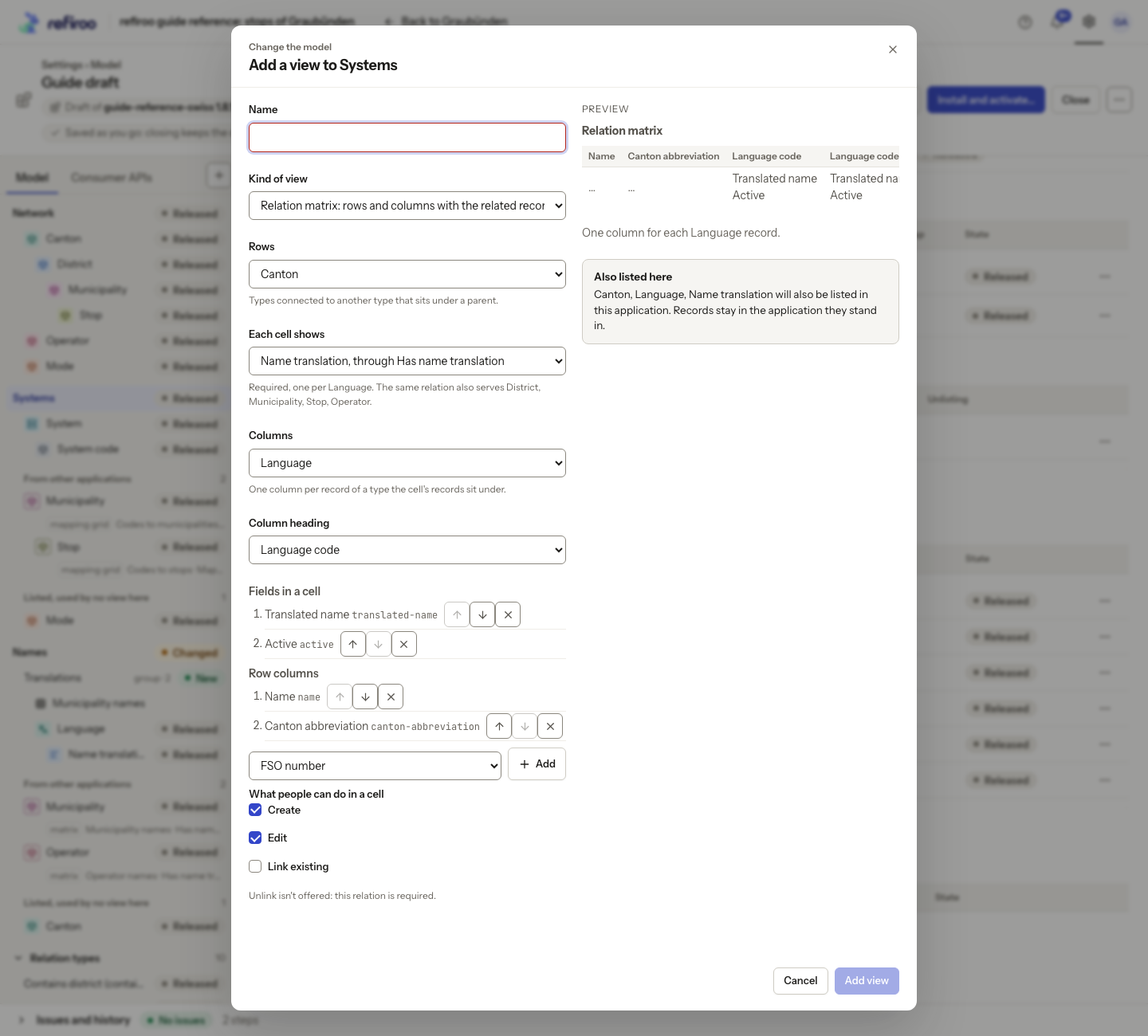
Add a relation matrix walks through the form. Do not confuse it with the editor’s Relationship matrix, which defines permitted type pairs. Record pages and tables covers layout settings. A draft’s navigation and views become active only when its release is applied to the workspace.
Application settings
Section titled “Application settings”The visual Application… form includes Name and Description. In an existing application, Settings lets you change Default view. Application and type icons and existing descriptions need a specialist in the JSON view. Removing an application is a structural model change; retiring a workspace or release is a separate administrative task. Check the removal confirmation for types only that application lists.
Collections and their lenses
Section titled “Collections and their lenses”Views of the same source type appear as lenses of one collection. A table’s source is the type it lists. A mapping grid’s source is the end chosen as its direction; a relation matrix’s source is its row type. A tree belongs to its first declared root type. Adding a second view for one source type adds a way to work with that collection. Placing a relation matrix in a navigation group adds a direct entry for that view while keeping the shared row collection.
Mapping-grid declarations
Section titled “Mapping-grid declarations”A mapping grid chooses one permitted relationship and its two endpoint types. In the outgoing direction its rows are sources choosing targets; in the incoming direction its rows are the other end and the choices run back towards the source. Choose the direction before choosing row and target-display fields. Both field lists must be non-empty and contain no repeats. Columns of a row offers the row’s own fields and, under From the parents, the types it can stand beneath. Choosing a parent type adds a column headed by that type’s name. It shows the name of the row record’s nearest parent of that type, including a parent several levels above it. This gives context without changing the records being mapped. Row search looks at source names and the source’s displayed attributes; it does not search parent names. Columns of the matched record offers that record’s own fields, without parent columns. Candidate search uses names or searchable attached fields of the type being chosen.
The configured relationship must be an optional association. Containment and required ownership cannot be used, because replacing a mapping must not change a record’s parent or orphan a dependent. Saving one selected mapping replaces that source’s mapping set; it does not change the underlying relationship’s cardinality for other clients.
A grid’s model sets a page size of 1–100. The parent scope and coverage choices people select while using it are temporary filters, not model settings. Mapped, Unmapped and Ambiguous describe coverage for the configured relationship. Add a view… and the view’s Change… set its relationship, row end, display columns and candidate search fields. New grids read 20 rows per page; changing that reading size still needs the specialist view.
Relation-matrix rules
Section titled “Relation-matrix rules”A matrix uses one non-containment relationship, in either direction, between row and cell types. The row, cell and column types must all be listed in the application. Its rows include records of the row type in the workspace even when another application owns those records. Columns are records of a type that can contain the cell type, directly or through intervening levels. A cell record belongs to its nearest ancestor of that column type.
Choose unique, non-empty lists of Row columns and Fields in a cell. Row columns can include fields of the row and its ancestor context. The column heading is the column record’s name or a non-JSON field attached to its type. Cell fields must be attached to the cell type. A specialist can also declare row-search fields, using the name or searchable attached fields, and a page size of 1–100.
| Cell action | Why it may be unavailable |
|---|---|
| Create | Every required cell field needs to be supplied or have a default. The cell must not require an additional owner relationship that the matrix cannot supply. |
| Edit | At least one displayed cell field must be editable. |
| Link existing | The chosen records must fit the binding, its candidate rules and number limits. |
| Unlink | A required owner relationship cannot be removed on its own. |
With no enabled cell actions, the matrix is read only. The form offers suitable actions; the model’s validation also rejects impossible declarations. Enabled actions still require each person’s data permissions. If Create is missing despite a default on a required field, ask a specialist to inspect the declaration: the visual form checks that required fields are selected.
Uniqueness and conditional activity come from the relationship’s rules, not a second rule on the view. They describe the relationship’s target end. An incoming matrix does not apply those target-end rules to its cells, so it has no inactive or uniqueness-conflict states from them. To inspect those states, use a suitable outgoing matrix. The matrix shows at most five cell records as a preview with the full count; open a cell to inspect the rest.
Tree declarations
Section titled “Tree declarations”A tree starts with parentless records of its root types. Every root type must also be a node type and allow top-level creation. All shown node types must be listed in the application and reachable from a root through containment using types the tree shows. A missing intermediate type prevents that branch from being a valid tree. Recursive containment can show several levels of the same type.
The main label is the name or a non-JSON field attached to every node type. An optional second field can show identifying information, type, path, timestamps or another non-JSON field shared by the node types. Child ordering is declared per type; without an entry, children sort by name. Descending order is supported. Timestamp ordering falls back to name in change sets and publications, which do not keep those live-only timestamps. Branches read 1–100 records at a time.
The declaration can offer creating children, renaming, moving and changing a Yes/No availability field. With no actions it is read only. Create and Move need a containment possibility among shown types. Rename cannot target a read-only label field. Availability needs an editable Yes/No field attached to every node type, and that field cannot be declared without the availability action. These choices enable controls; they do not grant permissions.
At runtime a node’s menu offers allowed actions; F2 renames where enabled. Creating a child offers only shown types the parent can contain. Move lists possible parents with unsuitable choices disabled and their reasons. Search and opening a record reveal its path by loading the relevant branches. Add a view… and Change… offer roots, a label, a second line, one shared child-order field and an availability field. The editor includes reachable contained types already listed in the application. New trees read 50 records per branch page. The form does not offer separate ordering for each type, descending order, page size or the create, rename and move actions: a specialist maintains those in the JSON view. Applying Change rebuilds the tree’s action choices from the availability selection, so review previously declared actions afterwards.