

Workbook onboarding
Load a workbook when its sheets need to become records, fields and relationships, or extend a model you already use. refiroo keeps the uploaded source with a model draft, proposes how to read it, and checks the rows before you apply them. Follow Start a draft from a workbook for the screen-by-screen task. You can also shape the workbook on the canvas by dragging sheets and columns onto the board; Editor | Canvas switches between views of the same draft. For a separate workspace, New workspace from a workbook offers Adjust to open that canvas before creating anything.
This route starts in Settings, Model and needs model administration. Installing and activating a release and loading records also need the corresponding permissions in the target workspace. Ask an access administrator to check your grants if those actions are not available. It is different from merely opening a file or pasting values into a collection.
Source file and draft
Section titled “Source file and draft”New from a workbook accepts an Excel .xlsx workbook or CSV file. Convert older .xls files to .xlsx first. Formula cells use their stored results; refiroo does not calculate formulas. You name the draft, choose what to propose and choose the workspace whose records are used for comparison.
| Propose choice | Starting point |
|---|---|
| A new application | Add the proposed types and lists as another application in the model the draft starts from. |
| A new model | Start empty, without the active model’s applications, and propose an application there. |
| Additions to the model | Match sheets and columns to existing types and attributes by name and records’ values; propose the rest as additions. |
| Nothing: I will map it by hand | Leave the starting model untouched and map the columns yourself. |
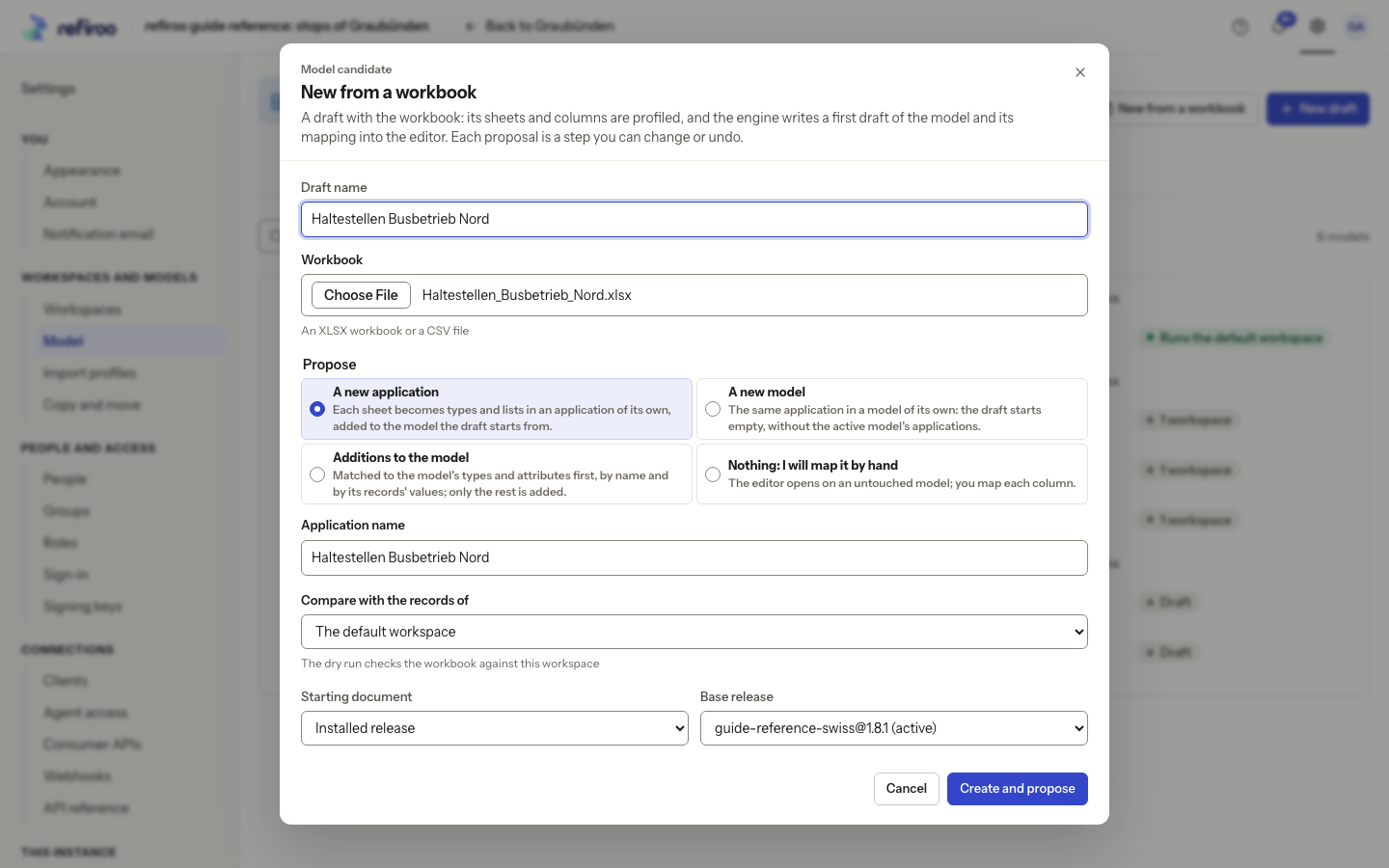
Above: the fictional operator workbook Haltestellen_Busbetrieb_Nord.xlsx is selected. The dialog was cancelled in this capture; opening it alone creates nothing.
The draft holds the model you are editing and an import profile: the instructions for reading the file. Uploading does not change the original file on your computer. Splitting a cell’s values, replacing placeholders or ignoring a column changes those reading instructions; it does not repair or rewrite the source spreadsheet. refiroo records are the result of that mapping, rather than a copy of the workbook’s presentation.
Storing the file starts a background job that reads every sheet and column before mapping can use it. While it runs, Source says Profiling [file name]: reading every sheet and column…. If The workbook was not profiled appears, read its reason and upload the file again from the draft’s menu. A check cannot use a file whose analysis has not finished. Oversized files and formats other than XLSX or CSV are refused; reduce the file or convert it before uploading again.
Once ready, Source shows a tab for each sheet, with its row count. On a sheet arranged as several lists, select a list to inspect Cells, its header, Under, Note and Loads. The cell preview shows the range with surrounding cells: loaded cells are shaded and the header is darker. Adjust list… changes Header row and the range used for loading. Sheet counts can include headers; check the actual list range and dry run before relying on them.
Select a column and read Statistics:
- Filled gives filled rows and distinct values. no value twice: a candidate key means every row is filled with a different value, not that it is the right business identifier.
- Values read as shows which value types the cells can be read as; Most frequent values lists common values and their counts.
- Placeholders and Delimiters, when present, help identify empty-value spellings and cells holding several values. Review them before choosing replacements or splitting.
- Shares values with names other workbook columns or fields and names of records in the comparison workspace, with shared-value counts and percentages. Shared values suggest a match; they do not prove a relationship or identity.
Upload a newer workbook… makes the earlier file superseded. The earlier copy remains for the job retention period measured from replacement, then is deleted. For a saved profile, replacement applies within the chosen workspace; it does not replace another workspace’s file. A profile’s stored file can be used by its uploader and people with Bulk and import in that workspace; files naming no workspace need that access at the instance. Keep the original outside refiroo if you need a lasting archive.
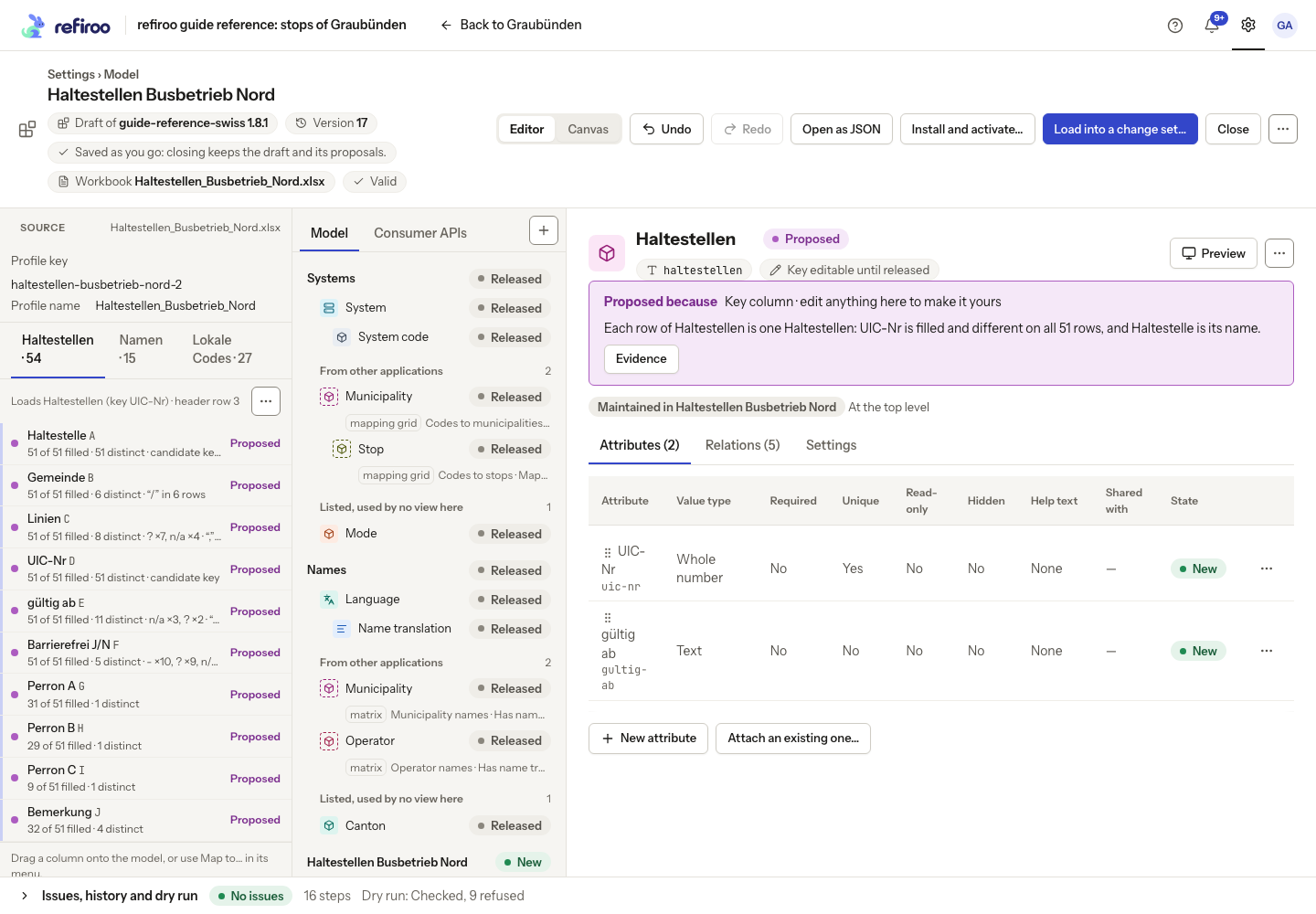
Above: the fictional operator workbook has three sheets. Haltestellen proposes a type with fields and relationships; its source contains 51 data rows.
Proposed steps are decisions to review
Section titled “Proposed steps are decisions to review”Proposed identifies an element that still matches refiroo’s suggestion. Select it to read Proposed because and open Evidence. A column filled with a different value on every row can be proposed as a key, but the statistics do not prove it is the identifier your organisation intends. Review its meaning as well as its uniqueness.
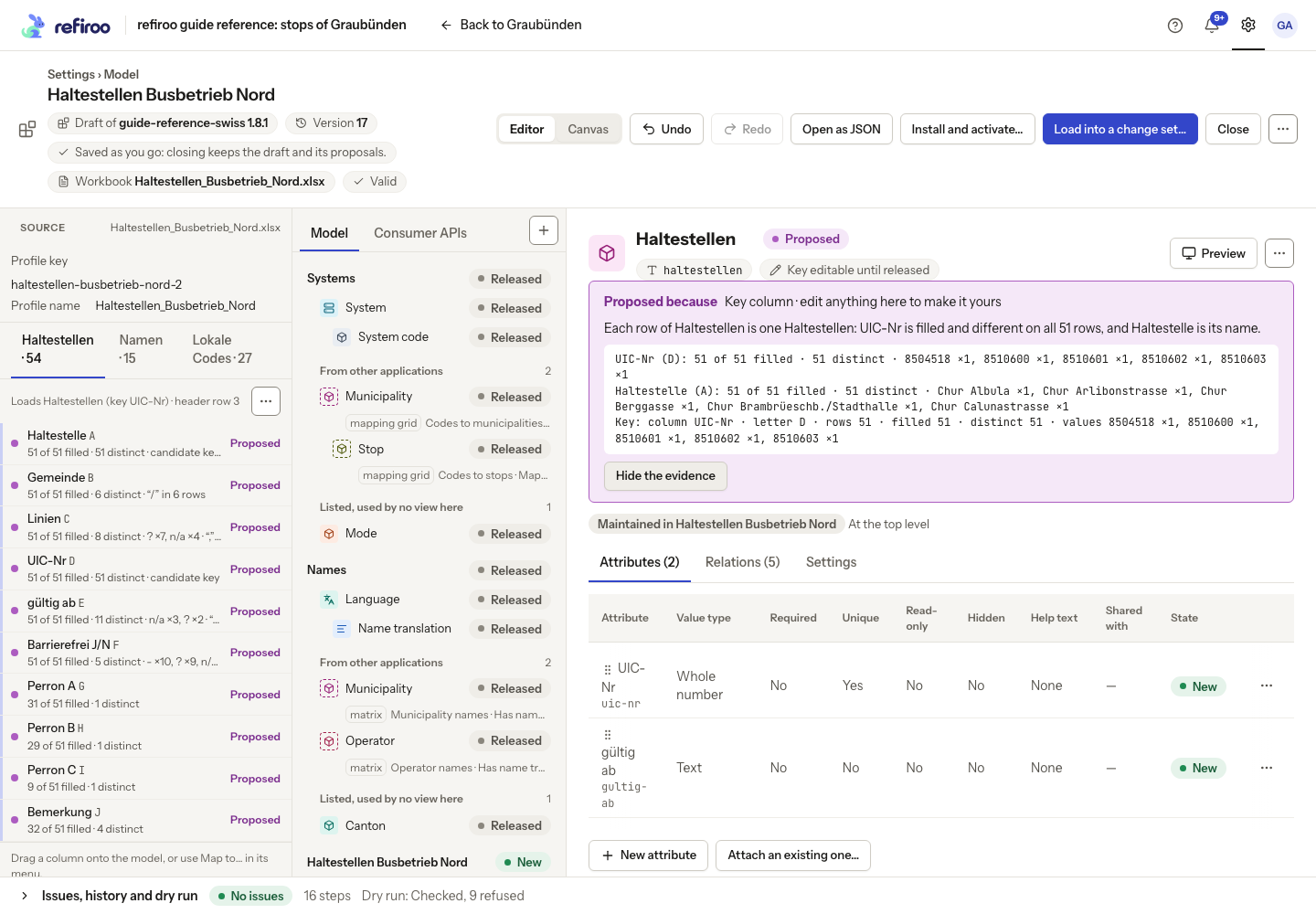
Above: UIC-Nr is filled and distinct on all 51 data rows of the fictional workbook.
Select a column to inspect what it feeds and how it is read. Map to… on its menu changes that mapping; dragging a column onto a type also starts mapping. Columns can supply names, fields, parents or related records, or be ignored. Value maps can treat placeholders as empty. Check whether unknown related values should be created or refused; a missing reference is not permission to invent a record silently.
Each proposal or edit is a step in the draft’s History. Undo and Redo let you revisit steps. Editing a proposed element makes it yours and removes its Proposed mark. Closing the editor keeps the saved draft and its proposals.
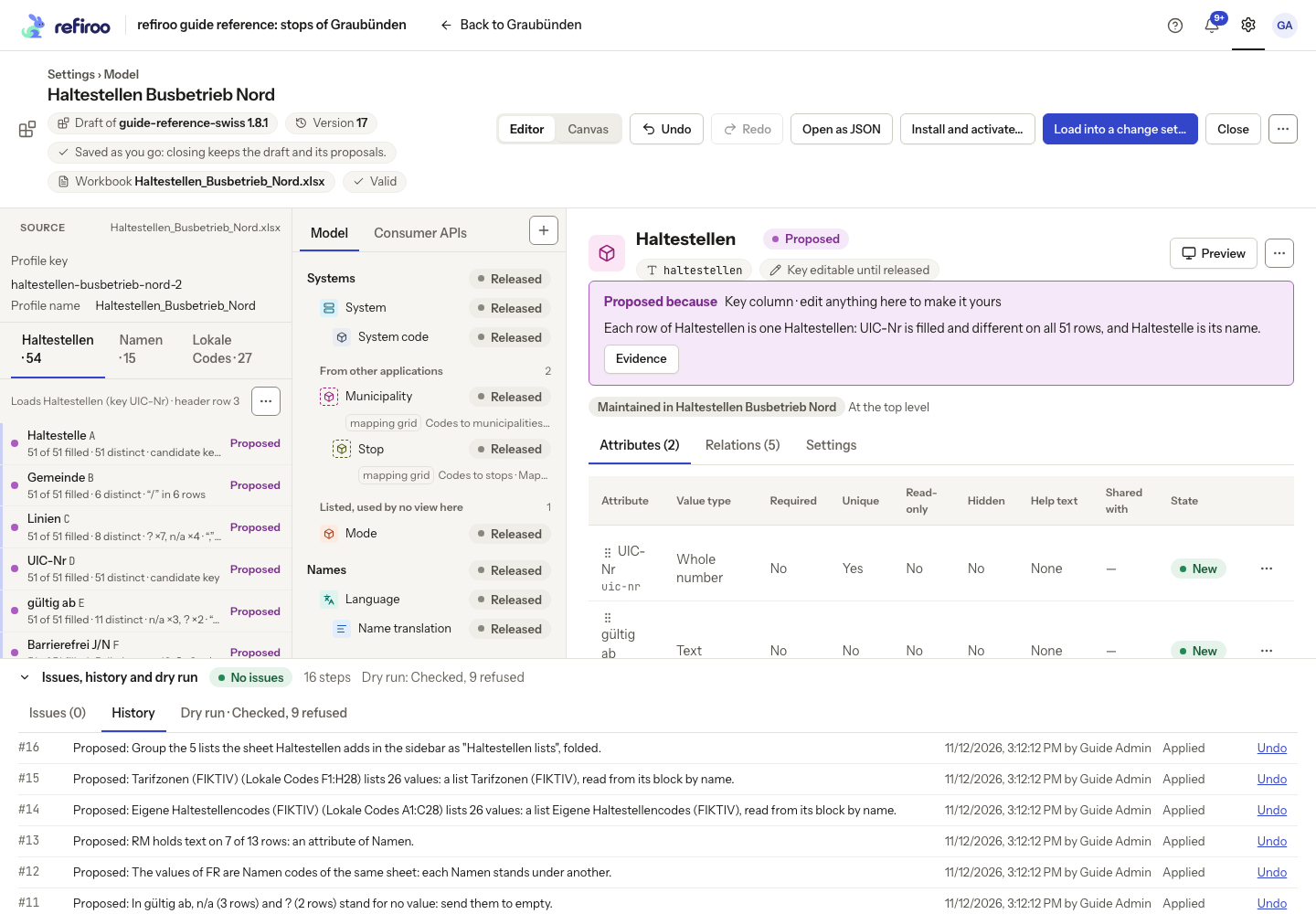
Above: the fictional workbook’s draft has 16 proposal steps, including placeholder handling and lists.
Issues and the dry run answer different questions
Section titled “Issues and the dry run answer different questions”Issues reports problems in the model and its mapping. No issues means the draft is valid; it does not mean all source rows can load.
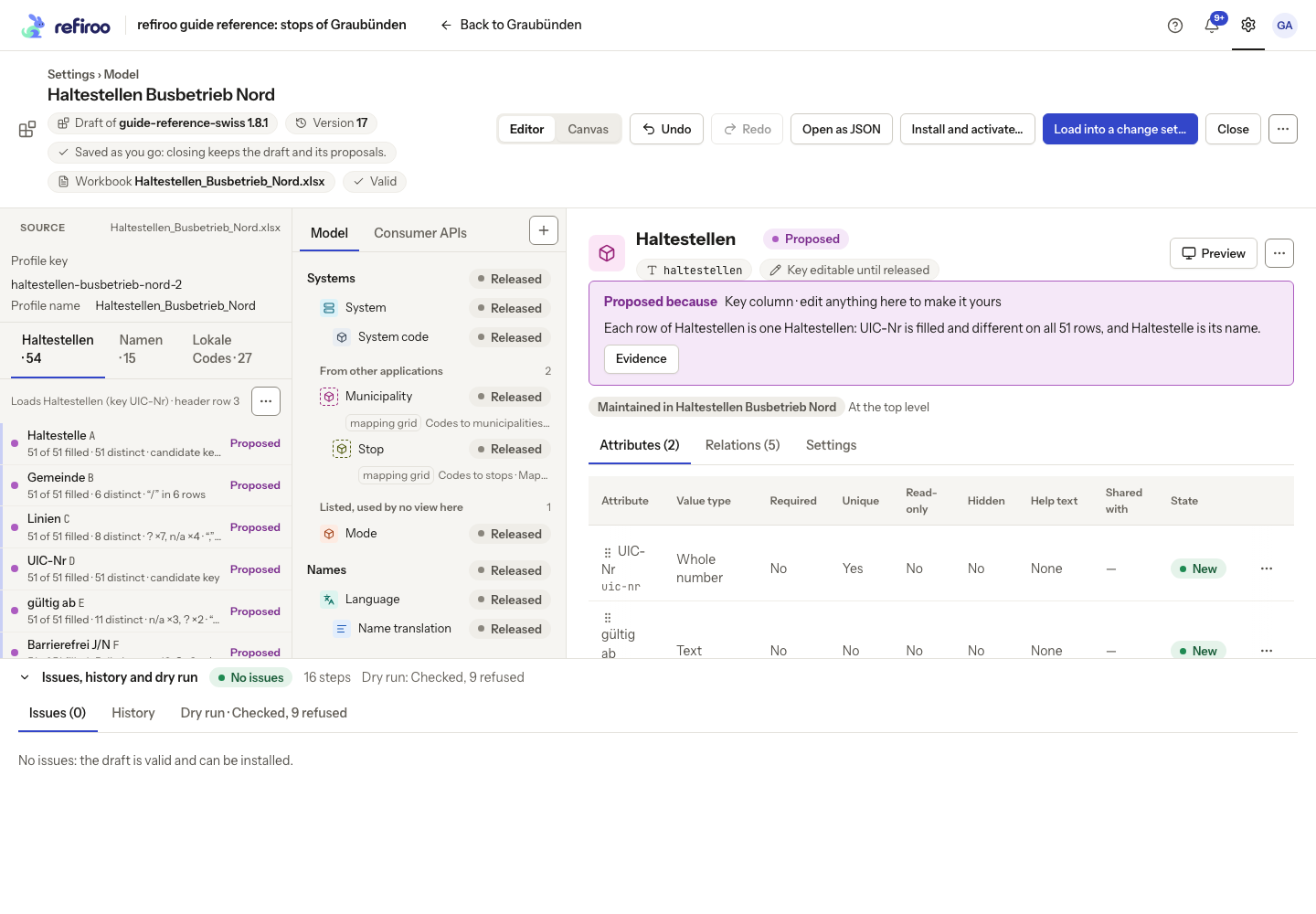
Above: the fictional workbook’s draft has no structural issues, although its dry run refuses nine rows.
The Dry run reads the file against the draft’s model and the comparison workspace without writing records. It counts records created or changed, values, relationships, related records created and refused rows. Each figure opens its underlying rows. A change to the mapping triggers a new dry run; use the result for the current draft version. A result for an older version does not establish what the current draft would load.
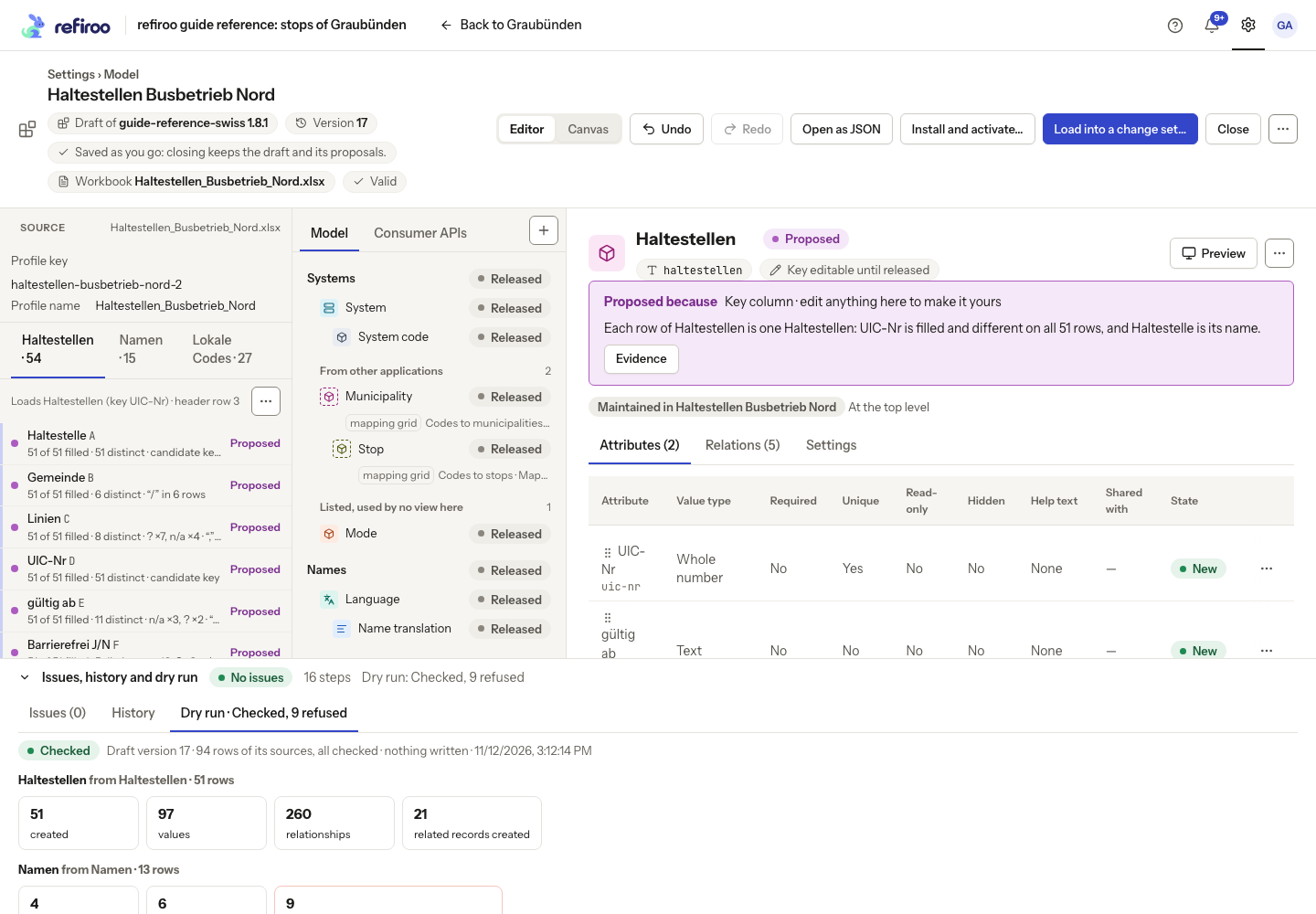
Above: the fictional file’s Haltestellen source would create 51 records, 97 values and 260 relationships, including 21 related records. These are predicted results, not completed writes.
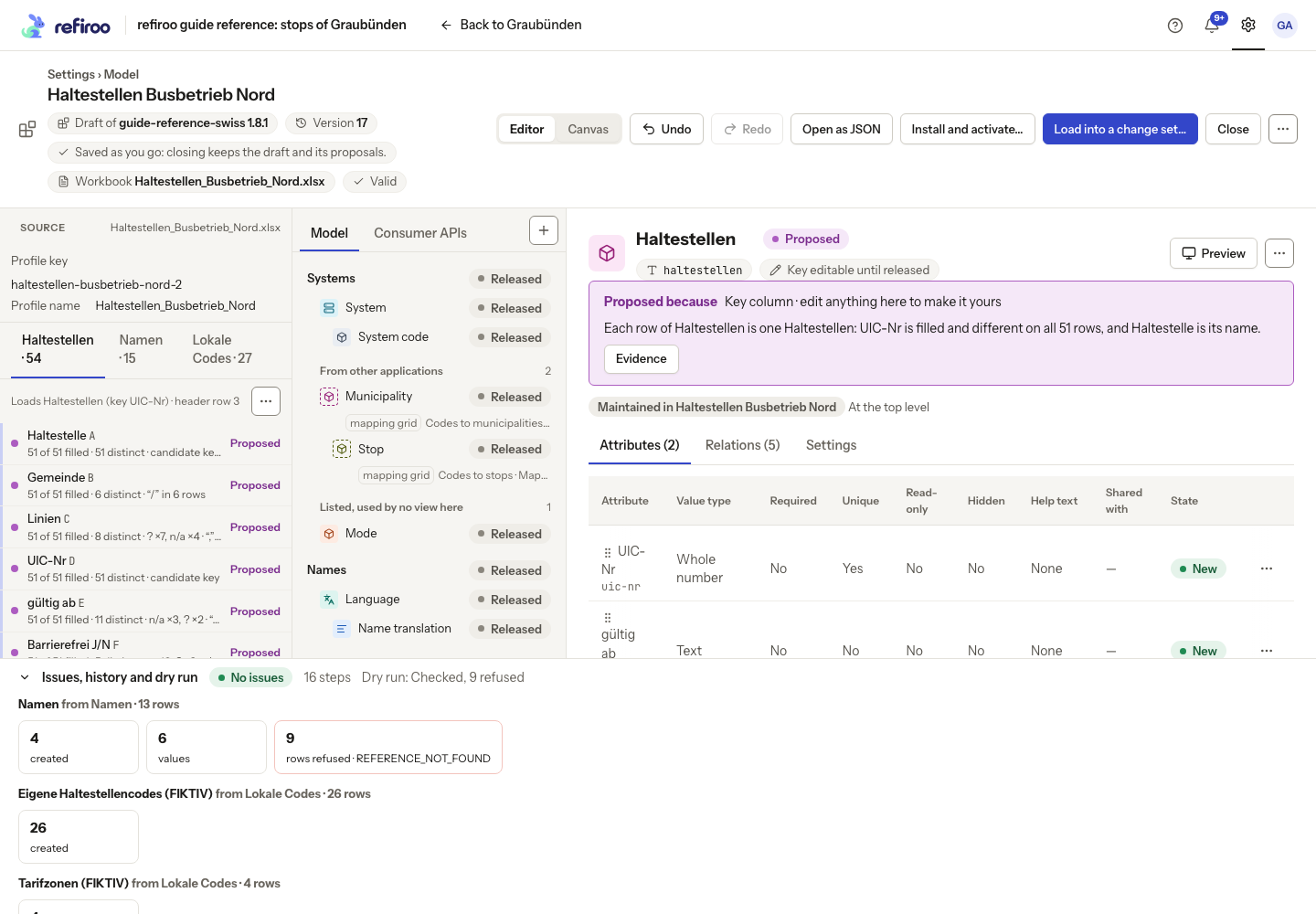
Above: the fictional workbook’s Namen source would create four records but refuse nine rows. The local-code sources are counted separately.
Open refused rows to read their reasons. Correct the mapping or source, or decide explicitly which rows cannot be loaded. Checked means the dry run checked the sources, not that it accepted every row. A failed or stale check needs a new result before applying.
Applying and keeping the work
Section titled “Applying and keeping the work”Load into a change set… opens Load the workbook. Its summary identifies the dry-run version and any refused rows. Review the three stages before starting:
| Stage | What it does |
|---|---|
| Install and activate the model | Where needed, installs and activates the release and saves the import profile. Check Release key, Version and Name when a new release is being made. If no activation is needed, Keep the active model saves the profile without changing the model. |
| Open a change set | Creates the named change set in the Workspace you choose. This is the destination of the loaded records. |
| Load the rows | Reads the stored file through the saved profile. Records found are updated. |
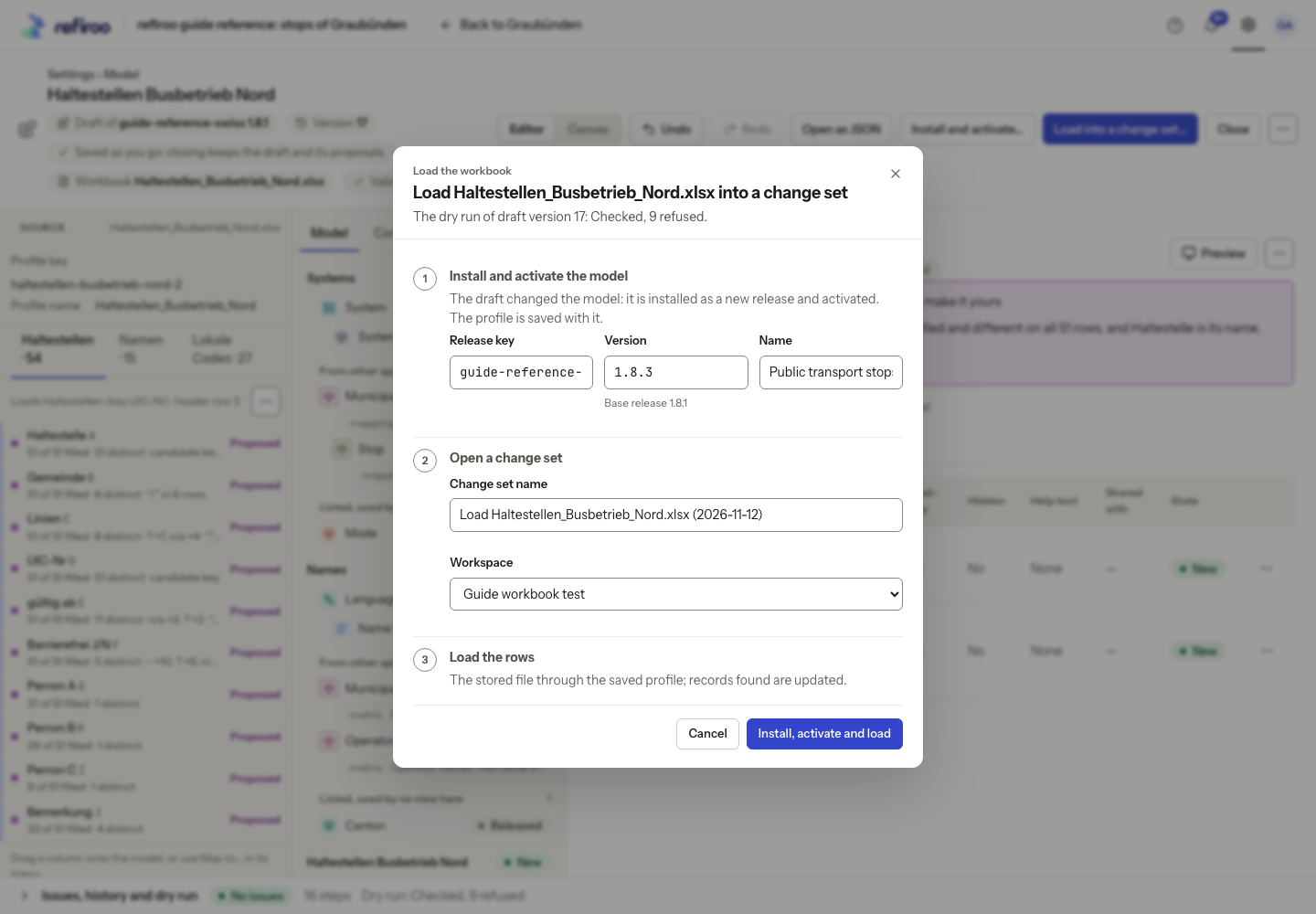
Above: The fictional operator workbook is ready to load into Guide workbook test. The draft changes the model, so the dialog proposes release 1.8.3 and offers Install, activate and load.
Model activation changes the target workspace’s definitions before the row load; it does not wait for publication of the loaded records. These stages can stop separately: an installed release may remain installed if activation fails. Read the reported stage and reason before retrying. Do not assume a later failure undid an earlier stage.
The stages run in order. Completed steps are marked and the active step shows progress. The action button changes to Installing…, Opening the change set… or Loading…. While the stages run, the dialog’s actions are unavailable; wait for the result before leaving it.
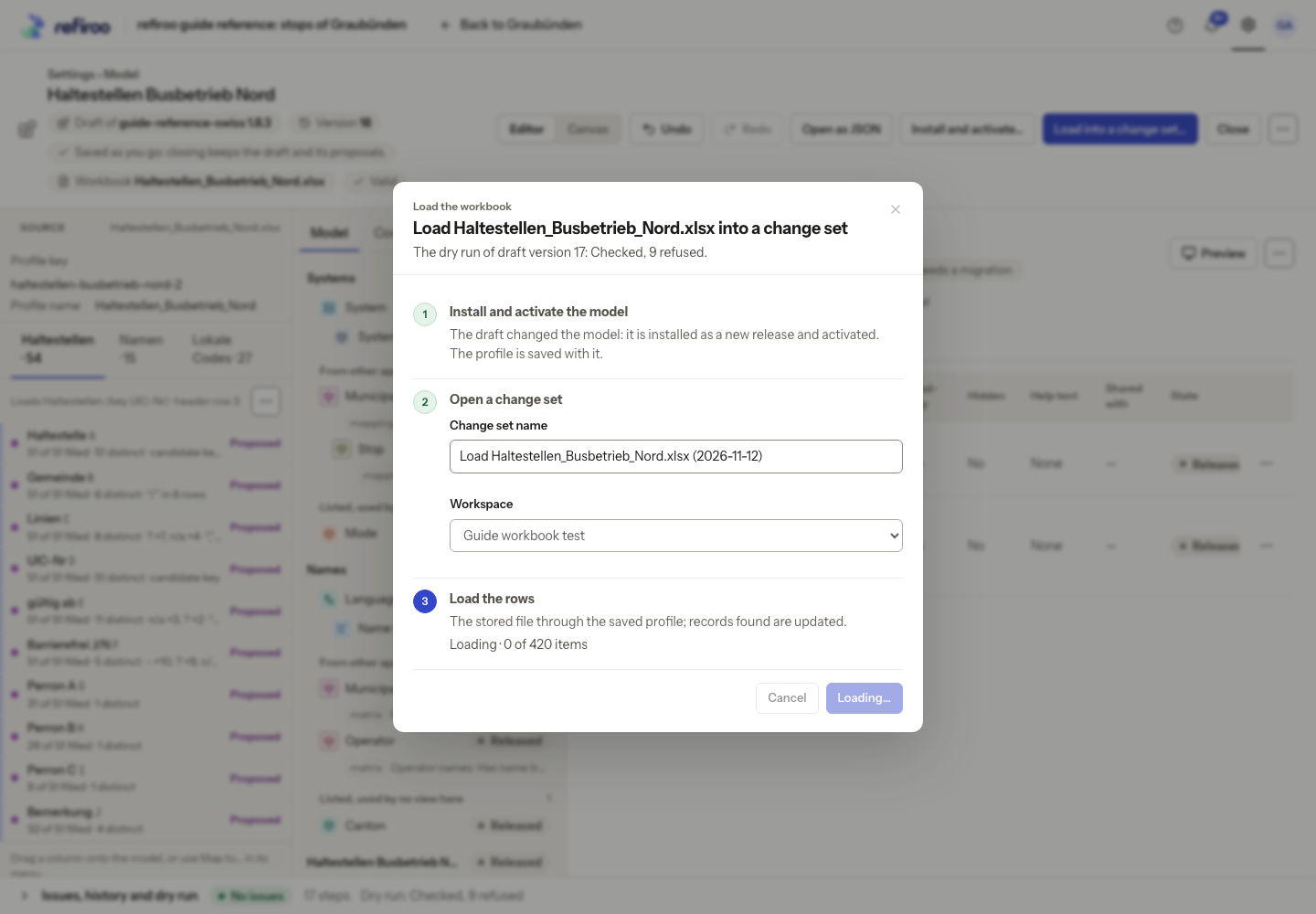
Above: the model is active and the change set is open in Guide workbook test. The fictional workbook’s row load has started; 0 of 420 items have been processed at this moment.
When finished, Loaded into the change set reports the actual counts for records and relationships: created, updated, unchanged and refused. Created means new entries; updated means changes to entries found by the profile; unchanged means no change was needed. Refused items were not applied. A completed load can include refusals, so check the counts rather than treating completion as acceptance of every row. These totals cover records and relationships, not just the number of spreadsheet rows.
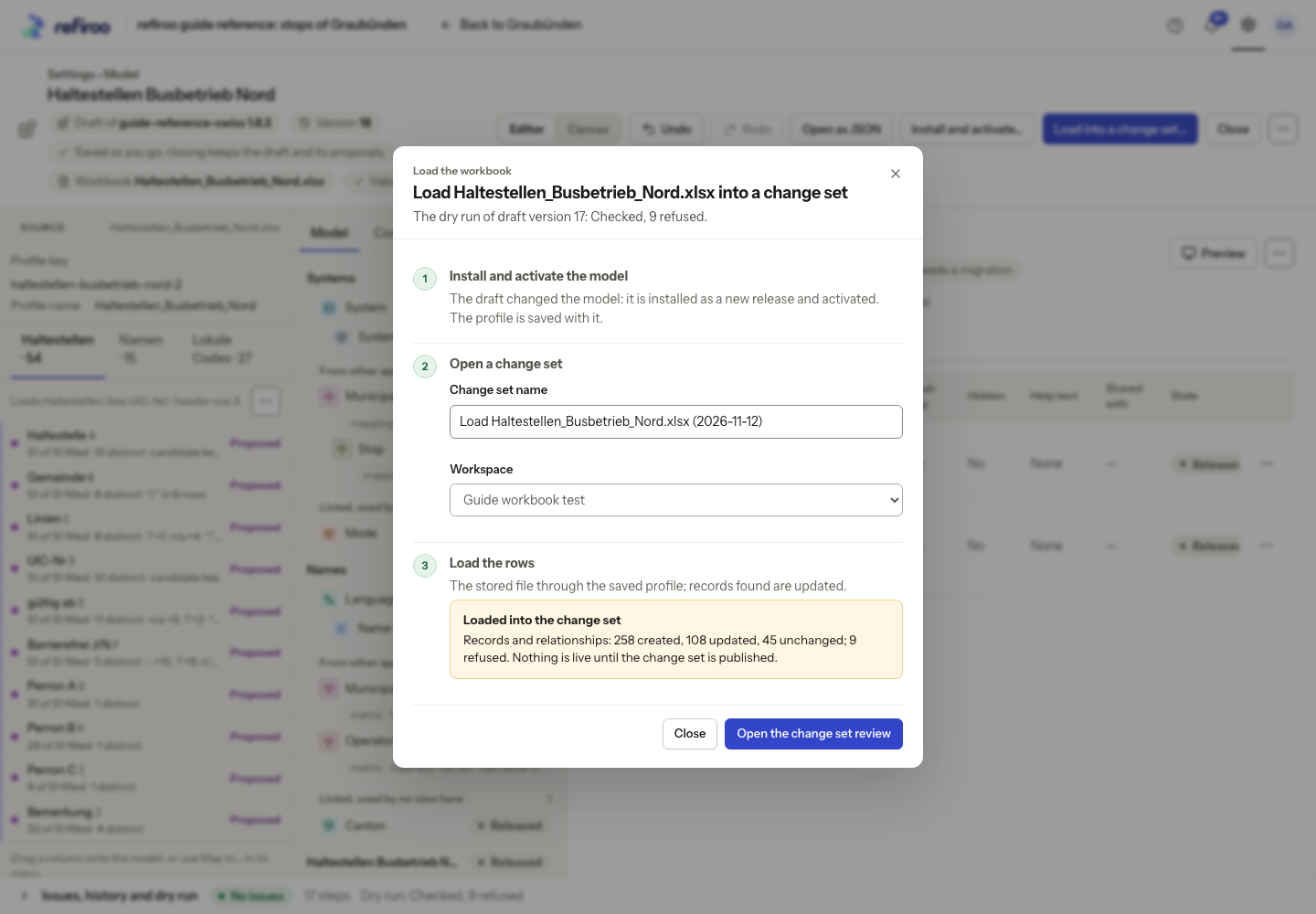
Above: the fictional workbook load reports 258 created, 108 updated, 45 unchanged and 9 refused. All stages are done, but nothing is live until the change set is published.
Open the change set review opens the actual proposed differences. Records shows additions, changes and removals; Relationships shows connection changes. Unchanged entries do not appear as changes, and refused items are not successful additions. Use the dry run’s refused-row details to understand the known refusals; do not expect the change review to list unloaded rows.
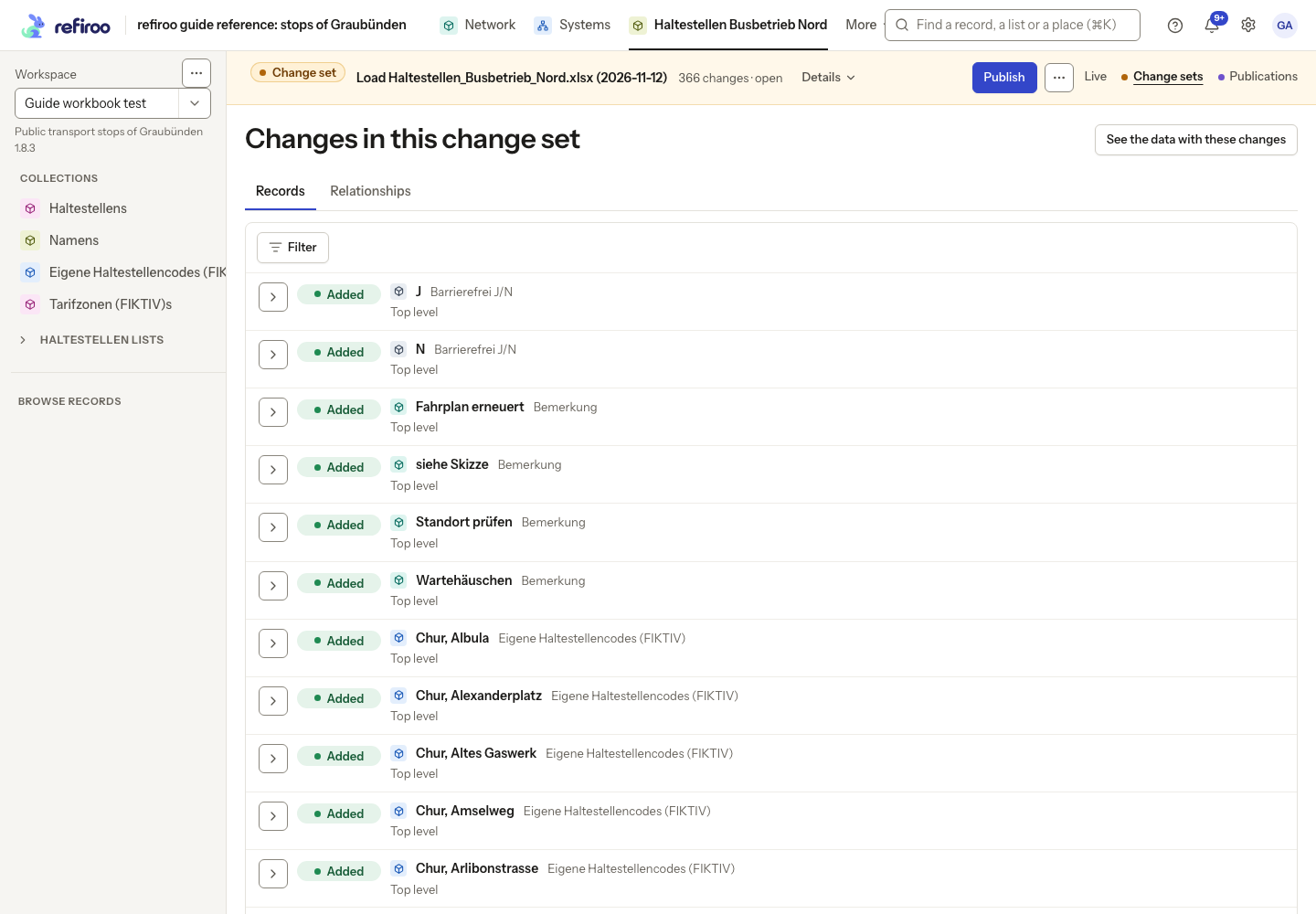
Above: the fictional workbook’s review in Guide workbook test includes added lookup records and local codes. Expand entries to inspect what was loaded.
Choose Back to change set to inspect the records in their collections or correct the proposal. The orange banner still names the change set. Validate and publish, or submit for approval, through the normal change-set process. Loading does not itself publish records.
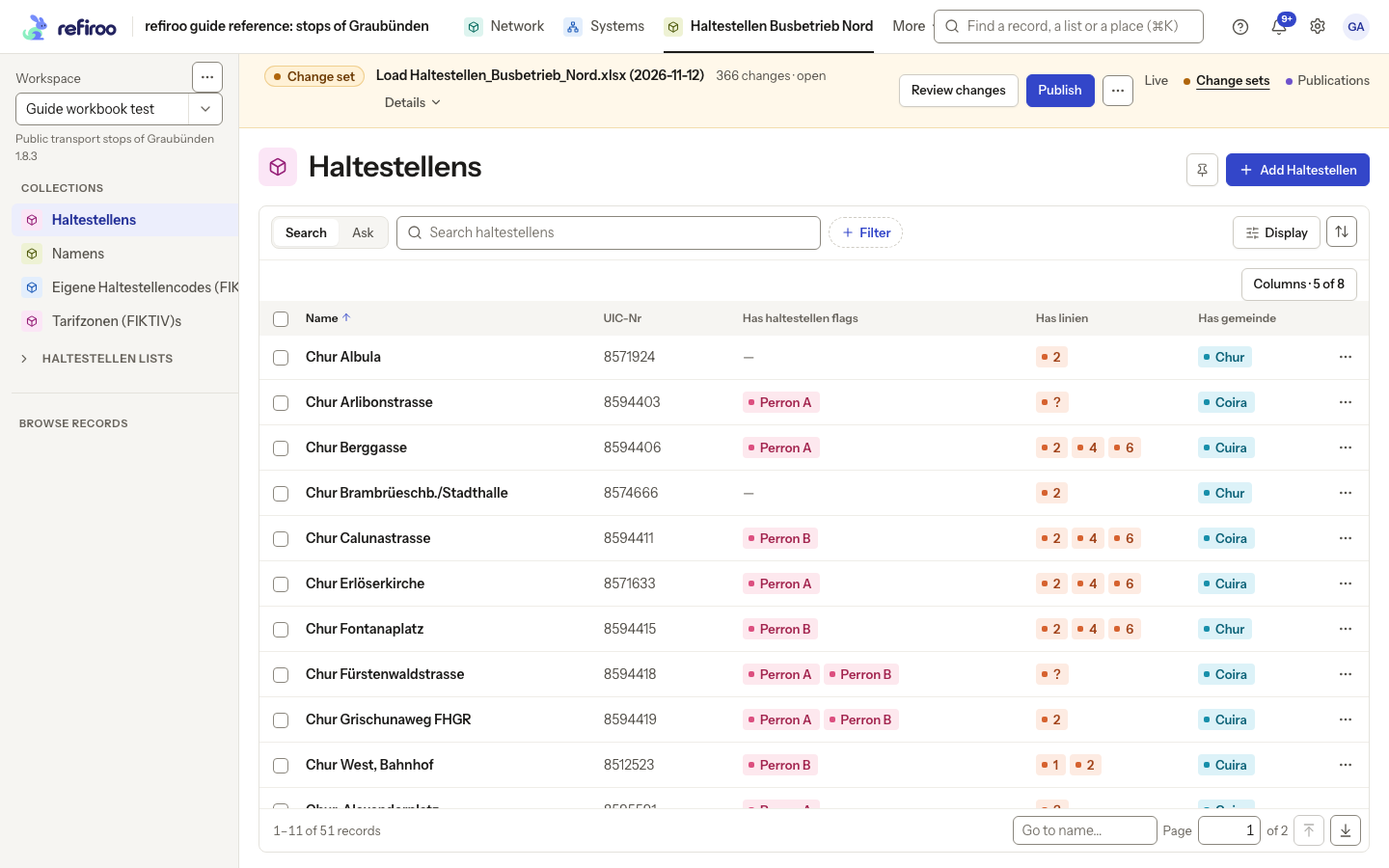
Above: Haltestellens in the fictional workbook’s application contains 51 records in Guide workbook test. The banner identifies the open load change set; these are proposed records.
The draft menu offers Upload a newer workbook…, Propose again… and Delete draft…. Proposing again preserves your edits and leaves undone proposals undone; conflicts with how you mapped a column become issues. Deleting asks for confirmation and removes the draft, its steps, proposals and attached workbook. Installed releases are unaffected. It cannot be undone.
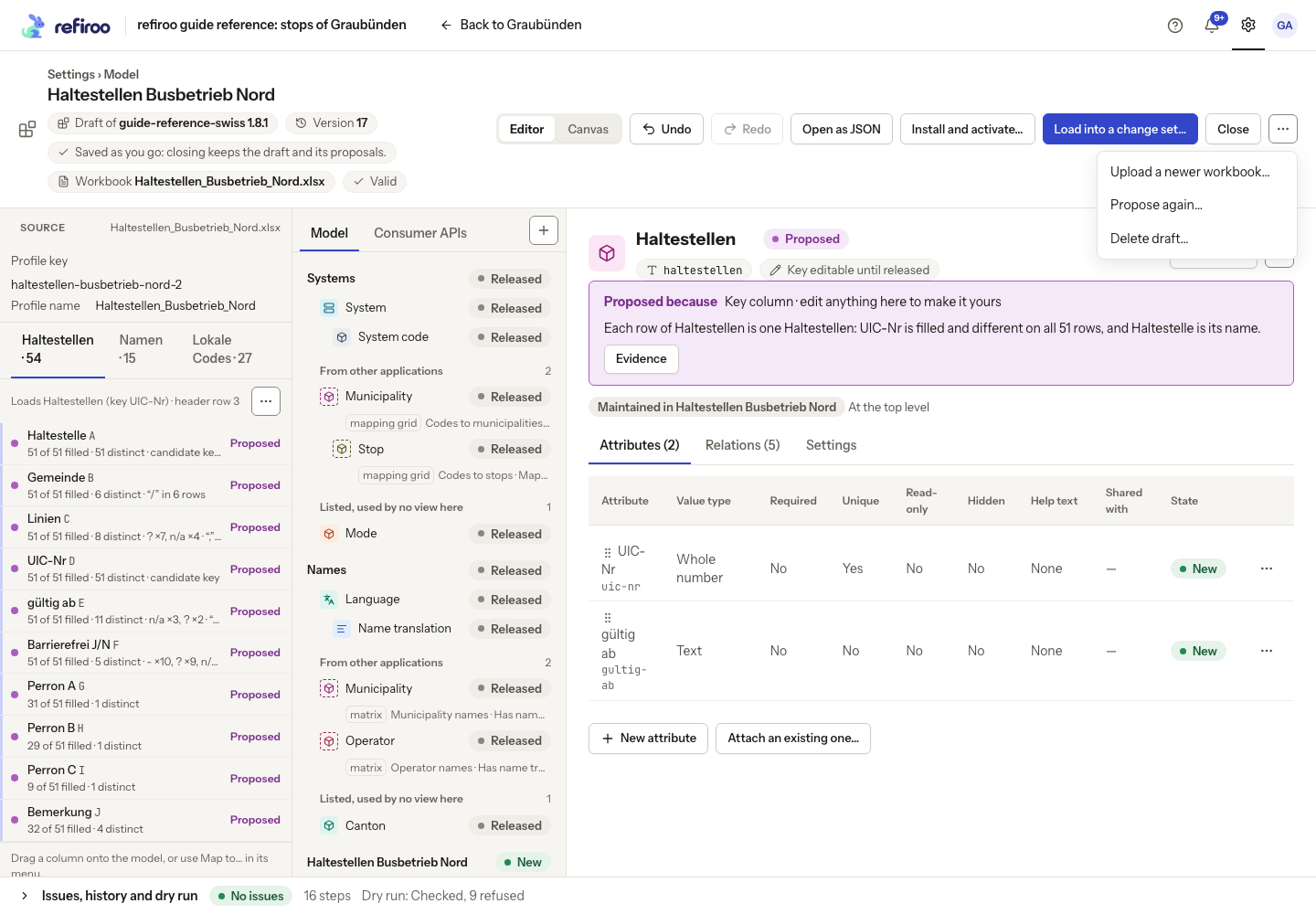
Above: the menu belongs to the draft made from the fictional operator workbook.
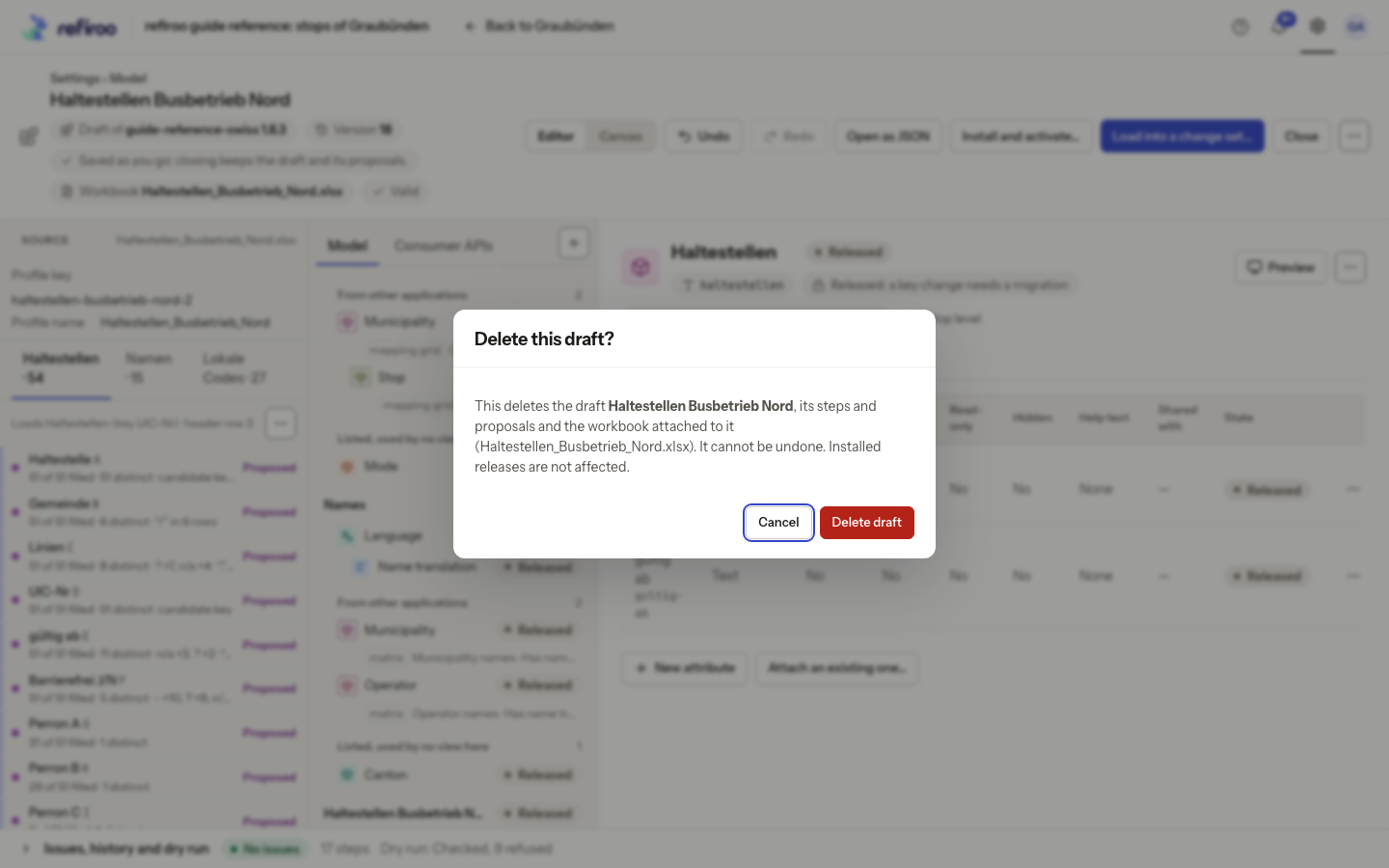
Above: the fictional workbook’s draft can be deleted without removing installed releases.
Once installed, the saved profile can be reused under Settings, Import profiles with Upload the next version…. Review its comparison and dry run before loading: a new file can change headers, introduce unknown values or omit records that still exist in refiroo.
How a workbook is read
Section titled “How a workbook is read”A workbook can describe a model explicitly, contain several lists laid out for people to read, or repeat parent information on each row. The proposal can recognise key-and-name columns, a code with a name, text lists, Yes/No flags, several values in a cell, names by row or column, stable identifiers and placeholders. How workbook proposals are made explains the recognition rules and alternatives. These are suggestions about the file’s shape; check that the result means what you intend before installing it.
When a sheet contains lists, choose Lists in the source pane. Select each list to inspect Under, Cells, Note and Loads. Use Adjust list… to correct Header row, Last row, First column and Last column. Review the resulting range before applying. Don’t load this list excludes a list; Load as a list… chooses how a detected range is read. For at least three lists with the same columns under one title (or none), a proposal can offer Read these N lists as one list under their headers. It creates a list of headers and a list of values beneath them; a value beneath two headers becomes two records. Translated category names and a second header row’s role are not loaded by this choice. Review the alternative before taking it. These controls change reading instructions, not the workbook’s cells. The list’s menu and dialog are the way to adjust its range; the outline is not dragged on the sheet grid.
Map columns deliberately
Section titled “Map columns deliberately”- Select a source column. Read its Feeds, Read as, Matched by and Statistics. Statistics include filled cells, frequent values, placeholders, delimiters and shared values.
- Choose Map to…. Decide whether the column supplies a name, an attribute, a parent, a related record or a Yes/No relationship flag. Choose the destination type and any identifying column requested. Ignore leaves the column out of loading.
- For an attribute, check Attribute name and Value type. For references, check Matched by and the chosen record or naming column. Enable creation of missing related records only if the file genuinely defines those new records.
- Use Split a cell on for cells containing several values. Do not split keeps the whole cell. Under Value map, choose Add a value map… or Edit value map… and map Text in the file to Becomes. Removing a mapping row stops that replacement.
- Use Use as the key of the rows only for a suitable unique identifier. A non-unique column explains why it cannot be the key. Check the refreshed dry run after each decision.
Revisit proposals and files
Section titled “Revisit proposals and files”From the draft’s menu, Propose again… offers the same four proposal choices as creation. Your manual edits are retained and undone proposals stay undone. Conflicting column choices become issues to resolve. Wait while Proposing from the workbook pauses editing. Upload a newer workbook… replaces the attached source; check Compare with the records of again, then inspect changed headers, ranges, mappings and the new dry run before loading.
In Dry run, select each source’s tab and open the counts, including refused rows with sheet and row numbers. The was figures show what changed since the last dry run. Check the current draft version, not an older successful result. The saved import profile belongs to this model and can be used in workspaces running it; it cannot be used against another model.
For the final stages and review, follow Load a workbook into a change set.
Focused tasks and refusal recovery
Section titled “Focused tasks and refusal recovery”Use Map a column, Read lists in a sheet, Propose again with a newer workbook and Check a workbook with a dry run for each part.
A profile key belongs to one model. If installing, activating or loading says the key belongs to another model, use the offered Use ‘…’ action for the free key, or change Profile key in the source pane to a distinct one. Recheck Issues and the dry run before retrying; this is not permission to overwrite another model’s profile.
Every component of a combined row key must be bound and filled. Incomplete keys and ambiguous matches need correction or an explicit skip choice in the profile. Repeated keys with compatible filled values can contribute to one record; conflicting non-empty values refuse all contributing rows. Inspect all affected rows rather than choosing the last value by spreadsheet order.
When missing records are to be deleted, the load must go into a change set for review. Examine which records remain referenced before publishing deletions. For ordinary files using an existing model, see Importing and exporting.
Reuse a saved profile with the next file
Section titled “Reuse a saved profile with the next file”Open Settings › Import profiles and inspect the profile’s model, still-valid status and last load before Upload the next version…. Select the workspace deliberately: each workspace keeps its own uploaded file and latest check. Checking and loading need the corresponding bulk permission there. A file uploaded for one workspace does not replace another workspace’s file.
Read the comparison’s Columns, Values, Records and Profile against the active release. Accept rename keeps the old binding on a recognised renamed column; Ignore new column leaves an unwanted addition out. A missing bound column requires correction. Inspect new lookup values and name drift instead of assuming that a matched key makes every name change harmless. Open missing records before choosing Keep the missing records or the offered deletion choice. Only an explicitly configured deletion profile deletes missing records, and only through a change set. Refused rows do not make their identified records eligible for missing-record deletion.
A rename suggestion uses both column position and shared values; it is evidence to review, not a certainty. Repeated headings stay separately addressable by numbered column names. Already ignored sheets present in the earlier file need not invalidate an otherwise matching layout. Skipped rows are distinct from refused rows; inspect the profile’s figures, and check again if the draft or profile changed after the result.
Model steps also update the draft’s reading instructions: renamed references follow, moved or split fields gain corresponding sources and merged types repoint them. A removal can leave a column unmapped with a warning; inspect it rather than assuming it was safely ignored. A saved profile is checked against the active release and names bindings that no longer resolve.
Only changes that affect loading replace the current workbook dry run. Label, navigation, release-identity, layout and consumer-definition changes do not themselves restart it. Unfilled rows and recognised heading or note rows do not create records. Skip-without-key instructions require a declared key. A source replacement keeps the old file for retained job work; deleting its owner also removes the attached files, so preserve any source you still need.
Limits of workbook mapping
Section titled “Limits of workbook mapping”Use the profile for typed fields, lookups by an identifying value, delimiter-separated values, relationship flags and related records. Value maps replace known spellings or placeholders; they do not calculate new values. Value maps can be reused across columns. Each refused item identifies its sheet and row, so you can find the original value. A load resolves references by their identifying values and orders sources so that referenced records can be loaded first. Spreadsheet row order is not a substitute for a reliable identifier.
If the file needs calculations, joins beyond an identifying-value lookup or custom procedural logic, prepare it outside the editor or ask an integrator to use the bulk and import facilities. The editor is not a general spreadsheet programming tool.
For a single-choice lookup, changing the referenced value in a later file switches the existing relationship to the new record. It does not add a second choice. Review relationship changes alongside field changes in the change set, especially when a value has become empty.
Have the assistant design the model
Section titled “Have the assistant design the model”For a file whose meaning needs more than the workbook rules can infer, review the assistant’s workbook design. It proposes the model first and lets you correct it in words or in the editor before acceptance. This is separate from the rules-based proposals described here.
Leave out a whole sheet
Section titled “Leave out a whole sheet”Open a sheet’s menu in Source and choose Ignore this sheet when none of it should load. This removes reading sources for that sheet and records it as ignored in the profile; it does not delete the sheet from your file or delete live records. The action is unavailable when it is already ignored. Review History, Issues and a fresh dry run afterwards, especially if another source looked up records from that sheet. Use Undo for an unwanted saved step. Ignoring one column or choosing Don’t load this list has a narrower scope.