

Relate records
Connect two records using a relationship declared by the model. See Relationships for candidates, ownership and required connections.
Open the relationship section
Section titled “Open the relationship section”- Open an application in the current workspace and find the record. Check its name, identifying fields and path.
- Check Live for an immediate change, or open a change set to prepare work for publication. Check the banner before editing.
- Scroll to the relationship section you need. Its heading describes the connected records. Read existing entries before adding another. No relationships yet means the section is empty; a loading error needs a retry instead.
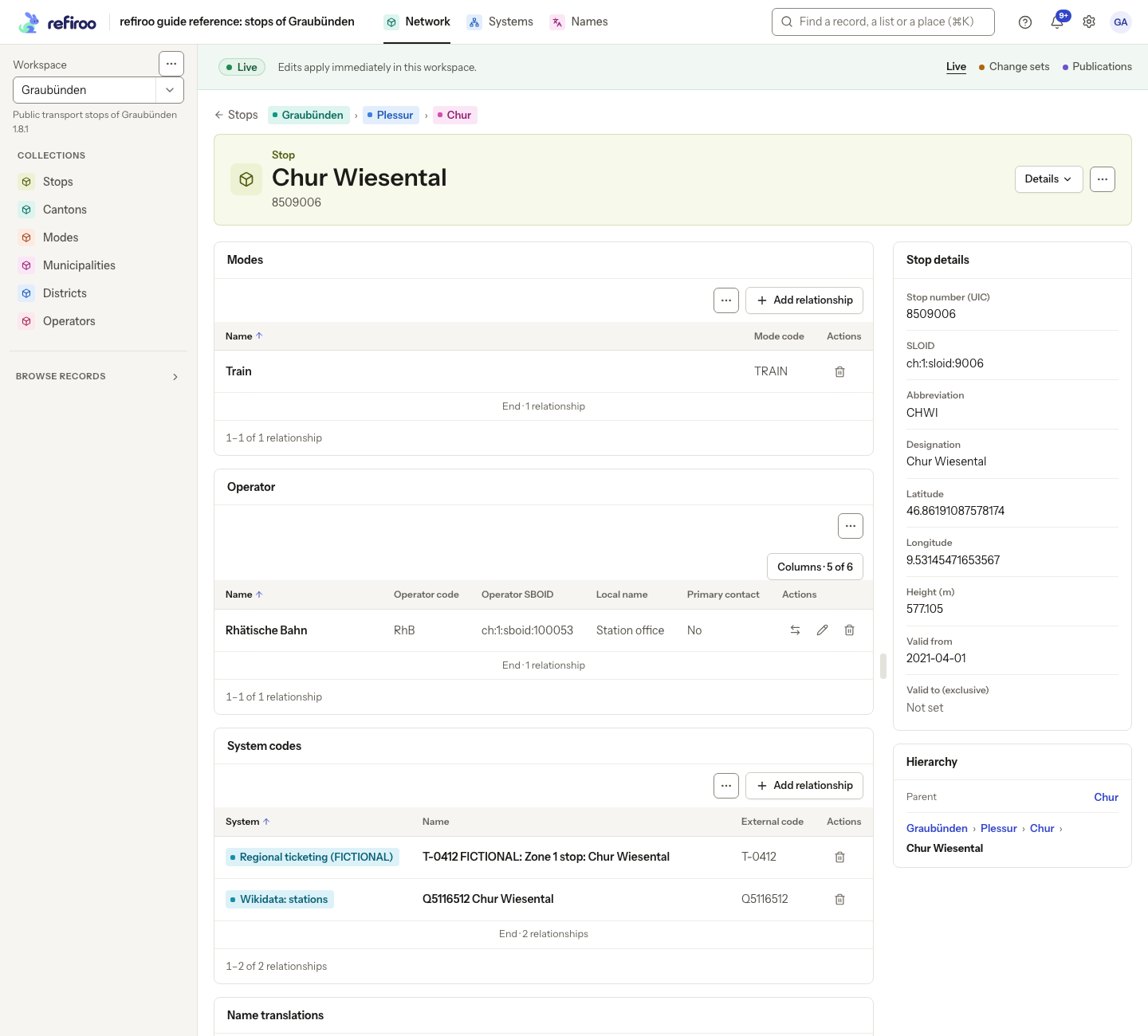
Above: Chur Wiesental in Network has Modes, Operator and System codes sections. Modes permits several connections; Operator permits one. Further sections continue below the capture.
Connect an existing record
Section titled “Connect an existing record”- Choose Add relationship, or Set followed by the relationship name when the empty section permits just one. The connection form opens in the middle of the window on a desktop.
- Where the relationship is known, the form says Add a followed by the related type to this record (or Add an where appropriate). Read the relationship named beneath it. If several choices are offered, choose the intended type and relationship under What to add before searching.
- Under the related record type’s name, type part of the related record’s name or a searchable field. Read any hint explaining which records are offered. Select a result, checking its path. Typing alone leaves Nothing selected and does not enable saving.
- Fill any fields carried by the relationship. These describe the connection, rather than changing the other record’s fields.
- Choose Add followed by the related type’s name, or Set in the single-connection form. On success the dialog closes; check that the connected record appears in the section. Cancel abandons the connection; if asked to discard unsaved changes, confirm only if that is what you intend.
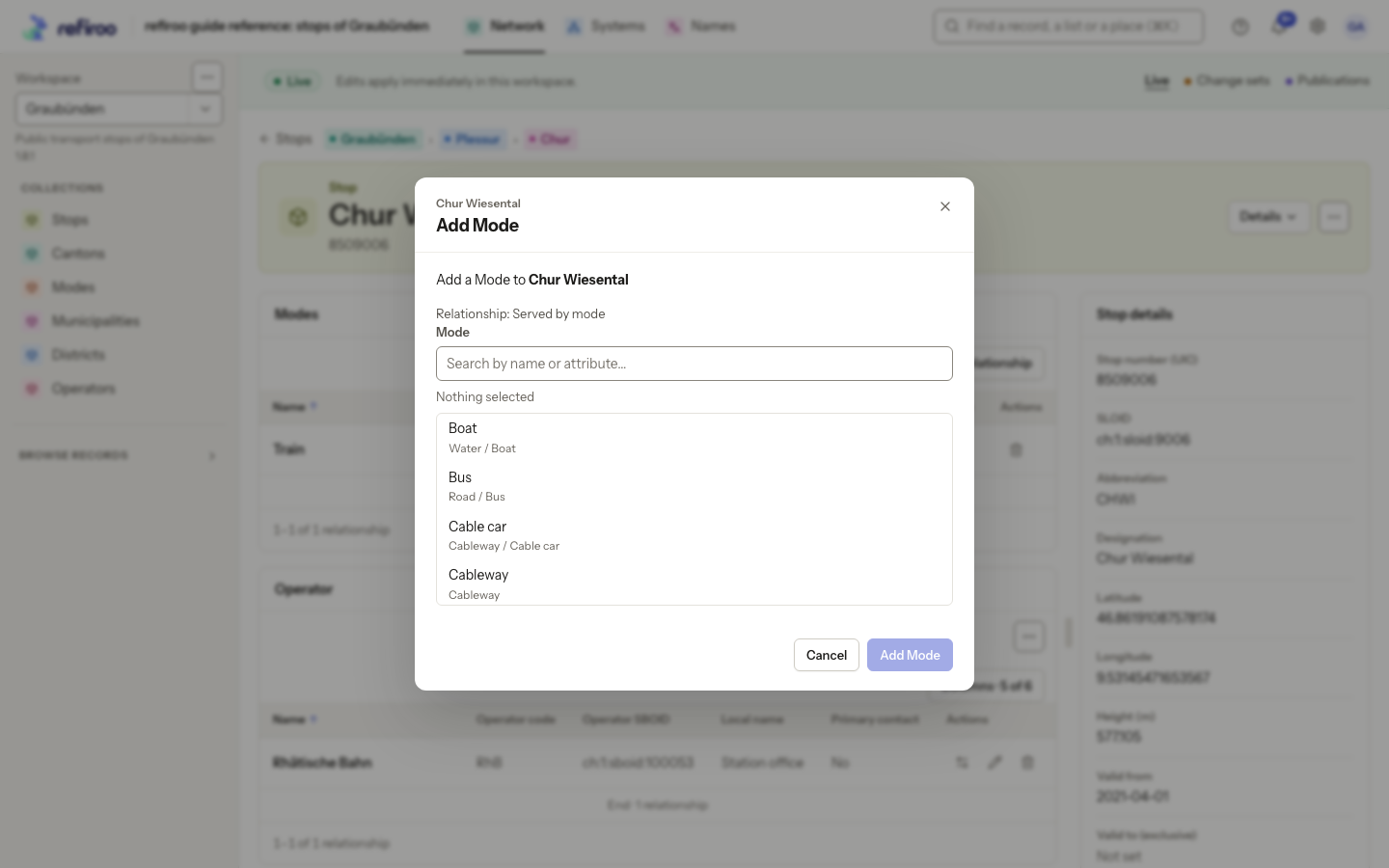
Above: Add Mode for Chur Wiesental names Served by mode and offers candidates such as Boat and Bus. Nothing is selected, so Add Mode is unavailable.
If a record is missing, clear or shorten the search and check the workspace, context, type and candidate hint. A model can limit candidates by their own or their ancestors’ fields. Ask a model administrator about the rule if the expected record is still unavailable. A refused save may report a duplicate, a number limit or changed data; resolve that reason before retrying.
Replace a single connection
Section titled “Replace a single connection”- In a section that allows one related record, choose its Change action. Read Now: to confirm the connection you intend to replace.
- Search and select the replacement under the related type’s name. Check its identifying fields and path. The currently connected record is not offered as its own replacement.
- Choose Change. The replacement is saved together; check the section’s new entry. Choose Cancel to keep the existing connection.
- If the dialog says the relationship changed after the list was read, close it and review the refreshed section. Reopen Change only if replacement is still appropriate.
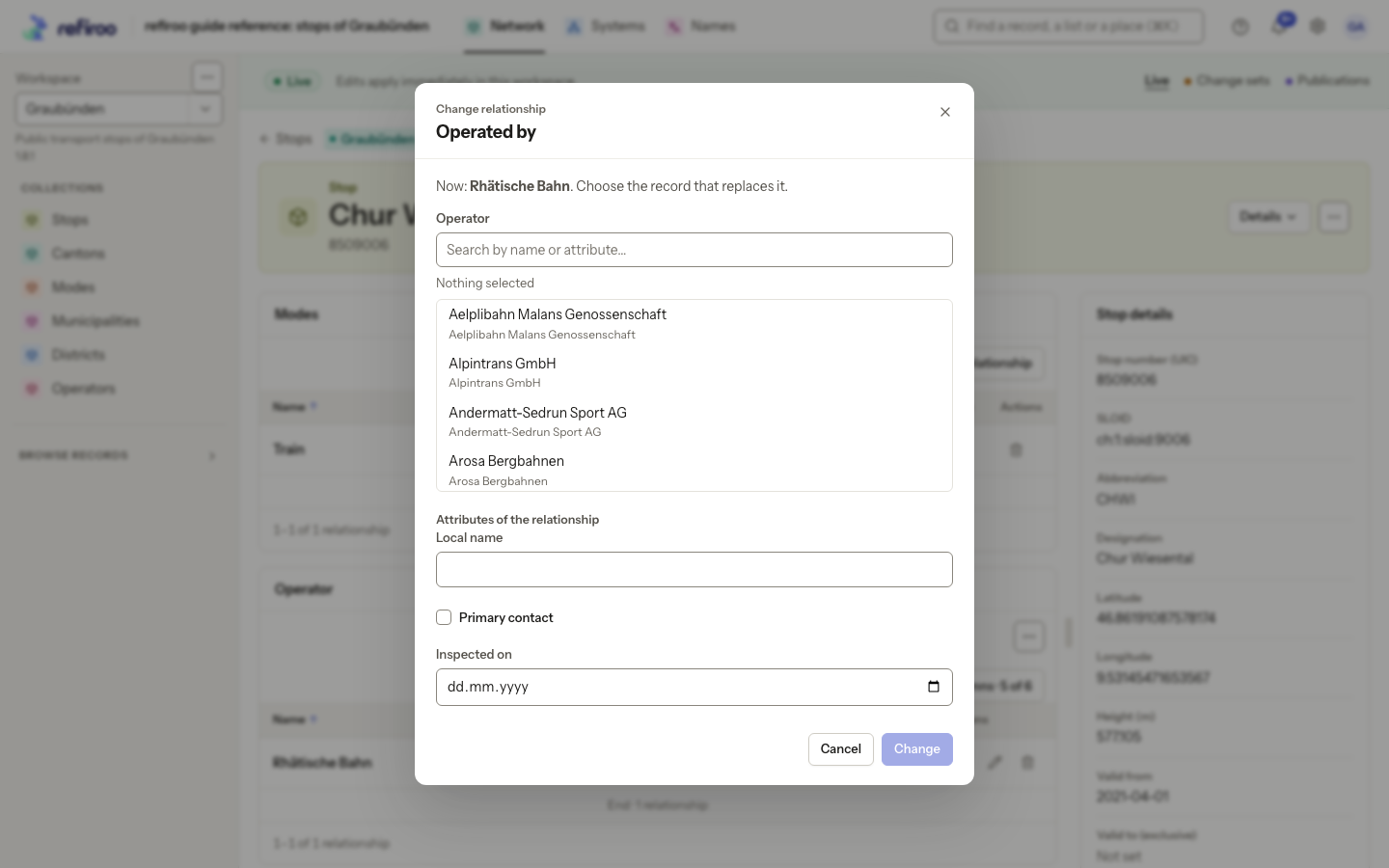
Above: Operated by currently connects Chur Wiesental to Rhätische Bahn. The dialog offers replacement operators. It was cancelled, leaving Rhätische Bahn connected.
Where a relationship has its own fields, its Edit action opens those fields. Correct them and choose Save; use Change when replacing the related record itself. A version refusal requires reviewing the current saved connection before saving again.
Remove an optional connection
Section titled “Remove an optional connection”- Find the exact relationship row and check both record names, especially where a section contains several connections.
- Choose Remove relationship. It removes the connection immediately, without a confirmation; both records remain.
- Check the refreshed section. The removal notice offers Undo to create the connection again. If removal is refused because it is required, review the intended correction and use a replacement where allowed.
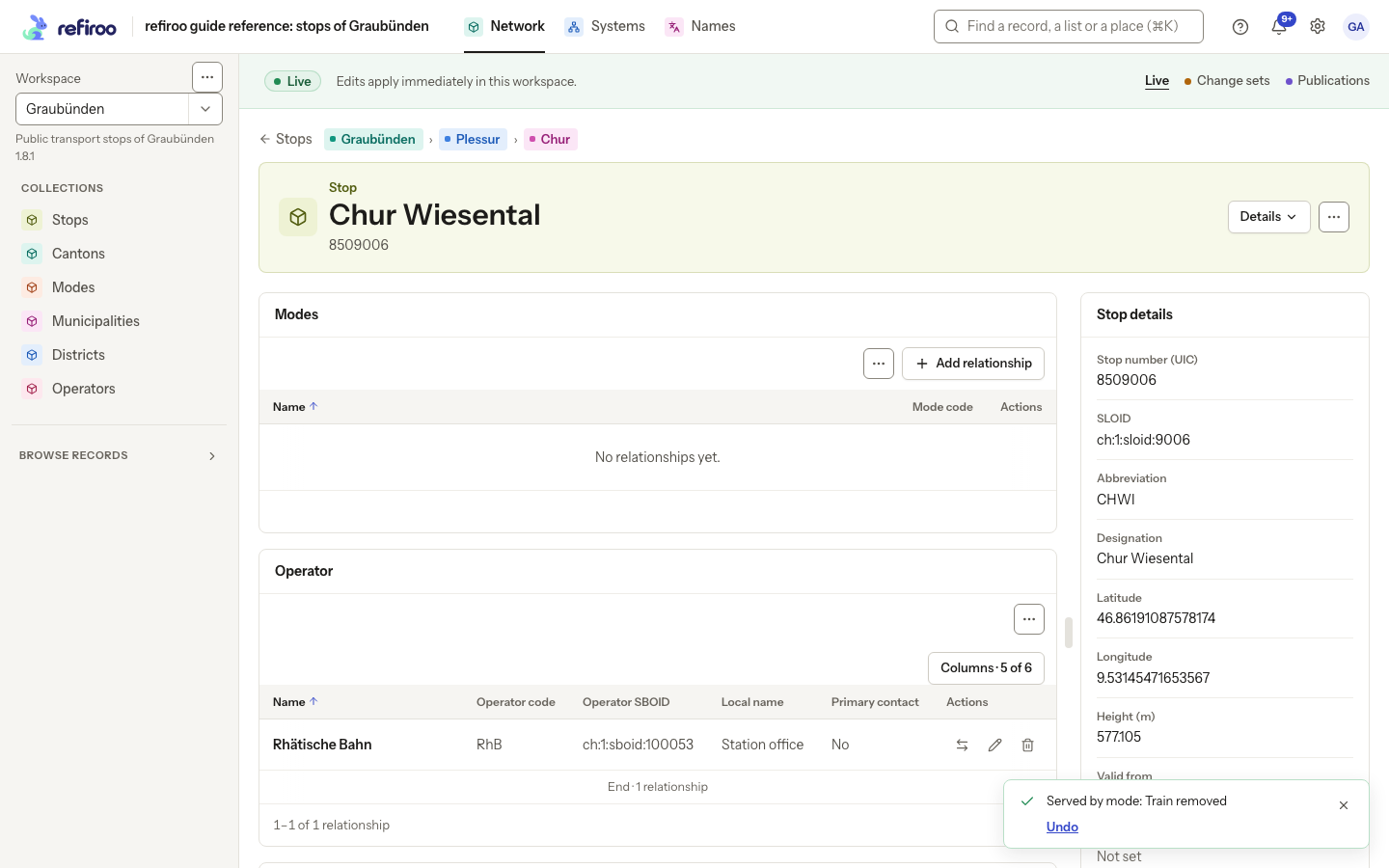
Above: Chur Wiesental’s Modes panel is empty after the Train connection was removed. The removal notice offers Undo; the connection was restored after this picture.
To change containment, move the record. Deleting a record has a different impact; see Records.
Create an owned related record
Section titled “Create an owned related record”Some sections offer an add action named after the related type rather than connecting an existing record. Use it when you need a new dependent record.
- Choose that section’s add action. Check the new record form and its already supplied connection to the source record.
- Under Parent, search and select the intended container where requested. Check the selected path; search text alone does not select it.
- Fill Name and the type’s other fields. Set any field that determines whether the record counts as current according to the model’s rule.
- Choose Add followed by the new record type’s name and check the new entry in the original section. Correct any reported missing values or duplicate before retrying. Cancel leaves without creating the record.
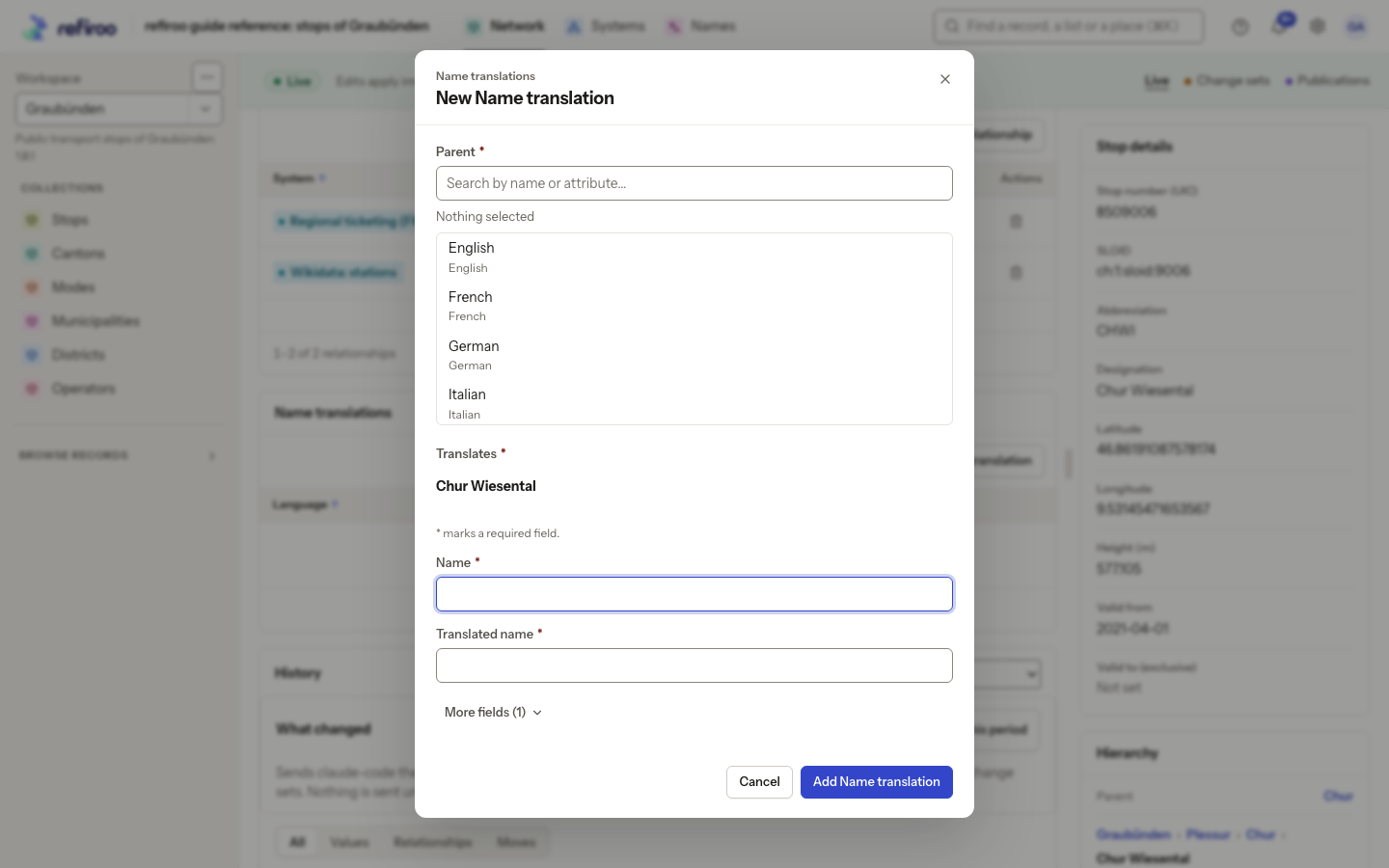
Above: Add Name translation on Chur Wiesental opens a form with Translates already set to that stop. Parent offers languages; Name, Translated name and Active describe the new record. The form was cancelled. This is an example of creating an owned record.
If editing actions are absent, check your context and record permissions. A publication is read-only; a Reader can inspect connections but cannot change them.
A lock on a row explains why it cannot be deleted or changed independently. Parent connections are maintained by moving the record. Beside a tree, Connected chips open related records; open the full record page to use the relationship tables and their tooltip-labelled icons.
Screenshot data: Source: opentransportdata.swiss, Service Points (Didok), Federal Office of Transport / SBB, snapshot 2026-11-02. Wikidata, CC0. See The example data for sources and fictional additions.