

Load a workbook with the assistant
Use this when a file needs interpretation before it can load. You need the assistant enabled, permission to send values, Use AI proposals, Bulk and import, Work in change sets and available background jobs. A model change needs a model administrator’s access too. The whole workbook, your words and the workspace model go to Claude Code; it can read records as needed. Turns can incur costs and the task and session files are retained. Read AI and your data and Loading with the assistant before starting.
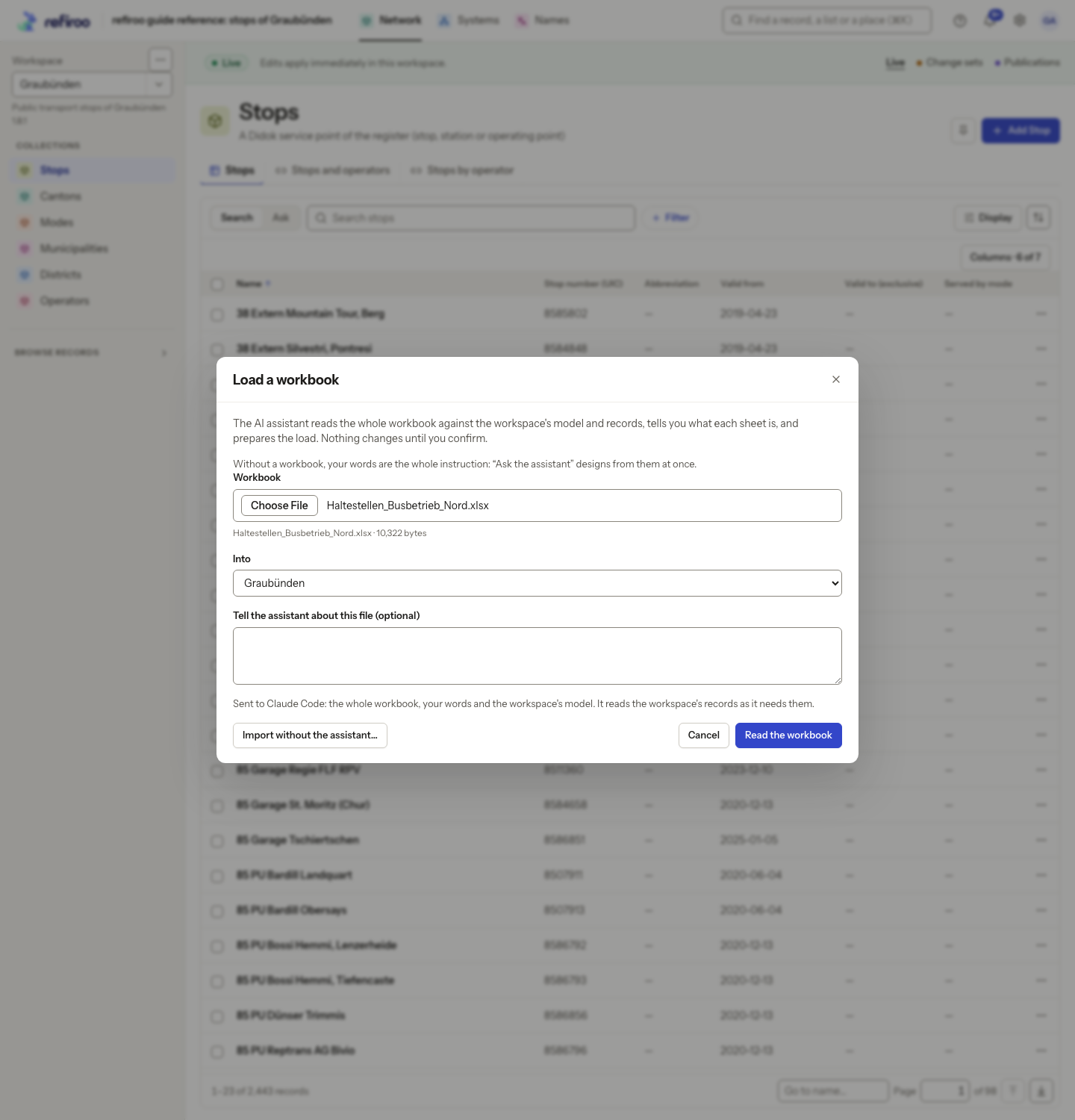
- Open an application in the current workspace and check that it is writable. Open the workspace’s ⋯ menu and choose Import…. When the assistant is offered, Load a workbook opens first. To use a known manual import instead, choose Import without the assistant… and follow Import a file.
- In Workbook, choose one XLSX or CSV file, or drop it onto the field. To follow the illustrated example, download the example workbook, a fictional operator’s stop list from the guide’s reference data. Check Into names the intended workspace. In Tell the assistant about this file (optional), explain the result you need: for an update, say how rows correspond to the records already held and what must stay unchanged. Read the sending note, then choose Read the workbook. If the file exceeds the instance’s size limit, reduce it or ask the operator about that limit; nothing has been loaded.
- The task page shows Working on it and the steps actually completed. You can leave and return from Settings › Jobs, or choose Stop. A fitting saved profile can prepare the file without starting AI; the page then follows that saved layout.
- Read The assistant’s proposal and What the load does. Check the totals for new records, existing records matched, new relationships, refused items and rows read. New relationships include the links of new records to their parents; the summary says how many of those links it includes. Open each type’s row to inspect example records, their values, relationships and source cells. Read One name twice in one type if shown, and expand Where each part of the file goes. Check Show the model change, Checks and Columns left out. Unexpected new records instead of matches, unexplained repeated names and omitted filled cells need a correction.
- Under Questions, inspect the assumed choices. Change wrong ones and choose Answer and design again. For other corrections, use Tell the assistant what to change and Send to the assistant. Open in the model editor opens the draft if you need to edit it. Close the editor to return. If the draft changed after the check, accepting checks every record and relationship again first. Ask for a revised proposal if the shown examples no longer describe what you intend.
- When the proposal matches your intent, choose Accept and load to change set. The engine installs the model if it changed and loads exactly the checked records and relationships into a new change set, as one batch. No assistant turn runs and nothing is published or activated. If any item is refused, none of the batch is loaded and its change set is discarded. Read the task’s reason, then tell the assistant what to correct and review its new proposal. A release already installed before a load failure can remain installed. A saved-layout task instead shows What the load would do and a load button: inspect the per-sheet figures, expand changed records, read refused row examples and What confirming does, in this order before loading. Its button explicitly says when it also activates a model; that activation is not undone if the subsequent load fails.
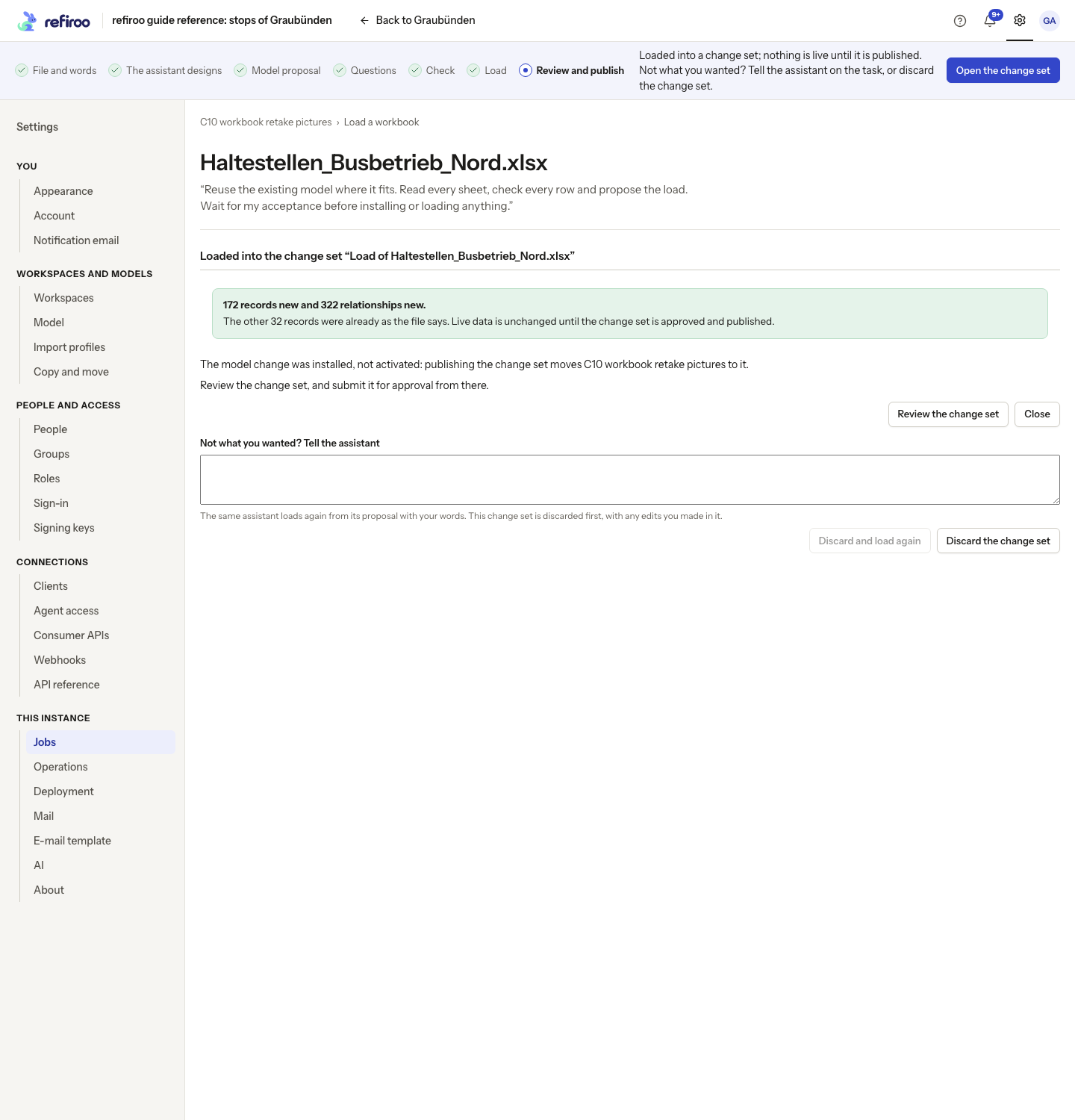
- On Loaded into the change set, compare the actual record and relationship counts with the checked result: the same relationships, including parent links, are counted in both. A load prepared by the assistant does not save an import profile. Send the next file of the same layout to the assistant again.
- Choose Review the change set. Check the actual record and relationship changes, validate, obtain any required approval and publish through Prepare and publish a change set. If the change set uses a different model version, review offers Move followed by the workspace name, the proposed version and and publish…. A model administrator with publication permission can use this to preview the migration and choose Migrate and publish. This moves the workspace to that model and publishes the change set together; a separate activation first is not required. Follow Migrate a workspace to inspect the preview and resolve any blockers or approval requirement. Loaded records reach Live only when published.
If the proposal or load is wrong, use Continue or correct an assistant task. For the next file, start another assistant task and explain how it should match existing records. If you already have a separately saved import profile, use Load the next version of a workbook.