

Appearance and devices
Make refiroo comfortable to read in this browser. Open Settings › Appearance; changes apply immediately and need no Save button. Other browsers and devices keep their own choices. Follow Change how refiroo looks for the steps.
Display choices
Section titled “Display choices”| Setting | Choices and effect |
|---|---|
| Theme | Current, Hearth, Studio, Instrument or Website purple changes colours, title typeface, corners, type sizes, control height and the arrangement of the frame. Every theme works in light and dark. |
| Light or dark | System, Light, Dark. System follows your device’s light or dark setting. |
| Table density | Comfortable or Compact sets the default; a table’s own Display choice overrides it. |
| Type colours | B: magenta and olive or A: plum and gold. The palettes differ in their third and fourth colours. |
| Edit pencil | On hover and focus or Always, faintly. Touch screens always show edit hints. |
On a desktop, Current, Hearth and Website purple keep the applications in the top bar and lists in the sidebar. Studio puts the applications and lists in one side column beside a raised page. Its search remains above the page and the Live, change-set or publication band stays above the data. Instrument puts application tiles, Help, Inbox, Settings and your account in a narrow strip, with lists in the panel beside it. Search stays above the page; the data context appears along the bottom. Pages without search need no top bar in Instrument. On a phone, every theme uses the bar and navigation drawer.
Hearth, Studio and Instrument add short motions when surfaces open. These stop when your device requests reduced motion. A theme changes presentation; it does not change the model, records or permissions.
A table’s Display menu controls visible columns, density, rows per page and column widths. The identity column stays visible. These choices are remembered on this device for that view; page size also travels in the address. Reset display restores its display defaults. There is no column-reordering control in this menu.
Drag a panel’s resize separator to change its width. Focus the separator and use Left/Right for small changes, or Shift with those arrows for larger changes. Home chooses its minimum; End chooses its maximum. Where reset is offered, Enter or double-click resets it. Resize record inspector adjusts the inspection pane; Resize record properties adjusts the record’s properties. Availability and widths depend on the current layout.
Keyboard operation
Section titled “Keyboard operation”Opening a record collection or view puts focus on its page title; after deleting a record, focus returns to the list heading. Tab then moves through controls with a visible focus indicator; Shift+Tab moves back. Use the skip link at the beginning to reach the main content. Enter or Space activates a focused button. Menus offer keyboard choices; Escape closes a menu or dialog. Leaving a single-value input with Tab saves it, as does Enter for a single-line field. In text of several lines, Enter adds a new line and Ctrl+Enter (Cmd+Enter on a Mac) saves. A choice or a tick saves as it changes. Escape puts the old value back; an unchanged input closes without saving. Escape also clears the tree search or Notifications search. Dialogs keep Tab within them and return focus when closed. Resolve an unsaved-input prompt before leaving an editor.
In a tree, Up/Down moves between visible records, Right expands or moves into children and Left collapses or returns to the parent. Home/End reaches the first/last visible entry. Shift+F10 opens the focused record’s menu where available, as does right-click. Use Move to… when dragging is inconvenient.
In tables, Up/Down moves row focus. Space toggles a focused selection checkbox; Shift extends a range. Cmd/Ctrl+A inside a selectable table selects all matching records. Ctrl+Home and Ctrl+End jump through long lists. These keys apply in their local controls. Press ⌘K on a Mac or Ctrl+K elsewhere to focus search. On Home it searches record names across your workspaces; within a workspace it also finds lists and places such as Settings under Go to. Use refiroo’s search: the browser’s Find sees only drawn rows of long lists.
On a phone or touch screen
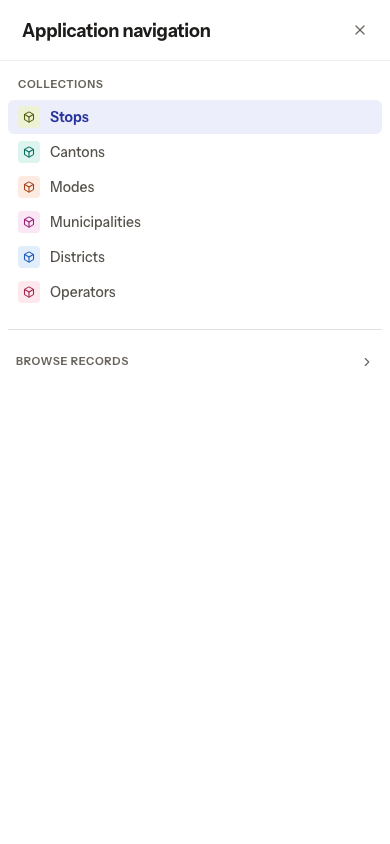
Section titled “On a phone or touch screen”The band beneath the top bar keeps workspace, application and Live/change-set/publication choices within reach. Open the navigation drawer for collections. In Settings, use the Settings: … toggle for the navigation and the Back link to return. Panels can stack or use tabs rather than staying side by side. On narrow tables, Show all … columns reveals extra columns and Show fewer columns hides them again.
Tap a record to open it. In an editable tree, hold a record still for about half a second to start a drag; moving sooner scrolls instead. Drag near an edge to scroll. A stationary release in the sidebar opens its node menu. Read-only and publication trees do not drag. See Hierarchies for permitted destinations.
Long text can be read on hover, focus or touch; Escape closes its full-text box. Record and relationship labels accompany colours, and controls have accessible names. These facilities describe how to operate the interface, rather than a guarantee for every browser or assistive device combination.
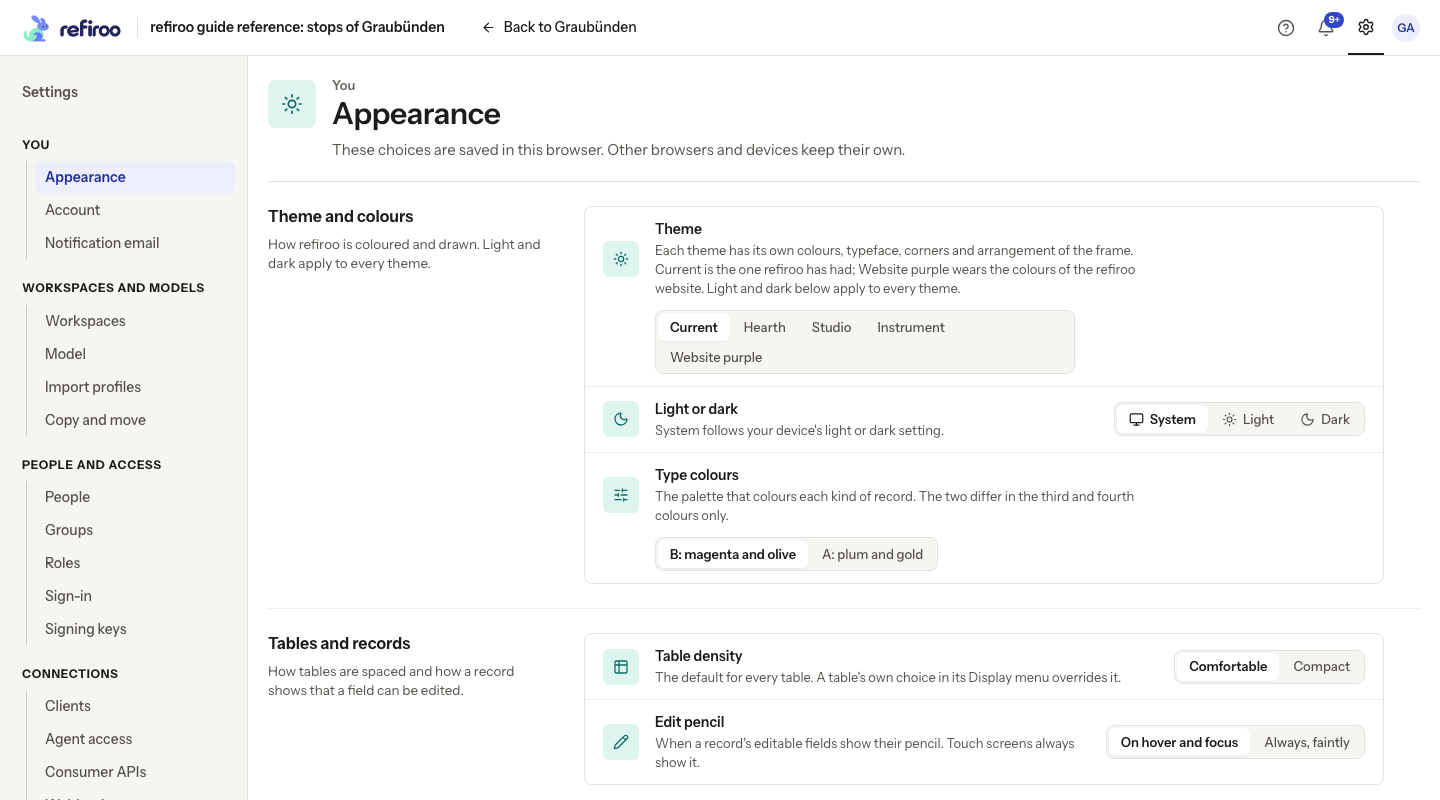
Settings groups its pages under You, Workspaces and models, People and access, Connections and This instance, with About last. Your permissions determine which pages and groups appear. Jobs lets you inspect background work; Import profiles needs Bulk and import, and Copy and move needs the corresponding permission. A missing navigation entry does not grant access through a copied address. Ask an administrator about missing permissions.
Help beside your work
Section titled “Help beside your work”Choose ? in the top bar, to the left of the bell, to open the documentation in a new tab. The documentation and API reference share a header: the logo returns to the application, Documentation and API reference switch between them, and the documentation has search. The System, Light and Dark theme choice is shared with the application, including other open tabs in this browser.
The initial choices are Current, System, Comfortable, B: magenta and olive and On hover and focus. To return to those defaults, select them again. Clearing this site’s browser storage also loses display preferences, so keep any collection addresses you need separately. Display preferences do not change your roles or the workspace model.