

Reuse and change attributes
Work in a draft with Model authoring. Read Types, attributes and relations before changing a shared field.
- Select the receiving type and open Attributes. Choose Attach an existing attribute… and select the field. Already attached fields are not offered. Choose Required only if every record of this type must supply it, then choose Add attribute.
- Check Shared with. A shared attribute’s name, value type and uniqueness are used by all attached types. Open Attribute types to inspect the common definition and its attachments.
- In the type’s table, select an editable Required or Read-only cell, choose Yes or No. The choice saves immediately. The menu also offers Make required / Make optional and Make read-only / Make editable. These choices apply to this type’s attachment.
- To change the shared field, use Rename…, Value type…, Make unique or Allow repeated values. On the attribute type, Features… chooses Searchable, Filterable, Sortable and Unique. Inspect every attached type before applying a shared change.
- Use Move up or Move down to order attributes. Move to…, or dragging a field onto a type in the model pane, moves the attachment; its columns and panel placement move with it. Check the destination rather than creating a duplicate attribute definition. For a released field, read Needs a migration when installed: moving the attachment removes its values from the original type’s records. They cannot be carried onto a different type’s records.
- Review Issues and History. A released field change that affects stored data applies and is marked Needs a migration, with affected records, values and relationships. Installing the draft shows the migration to review. Check conversions, loss and records that break tighter rules before confirming it. Use Undo if the draft change is unwanted.
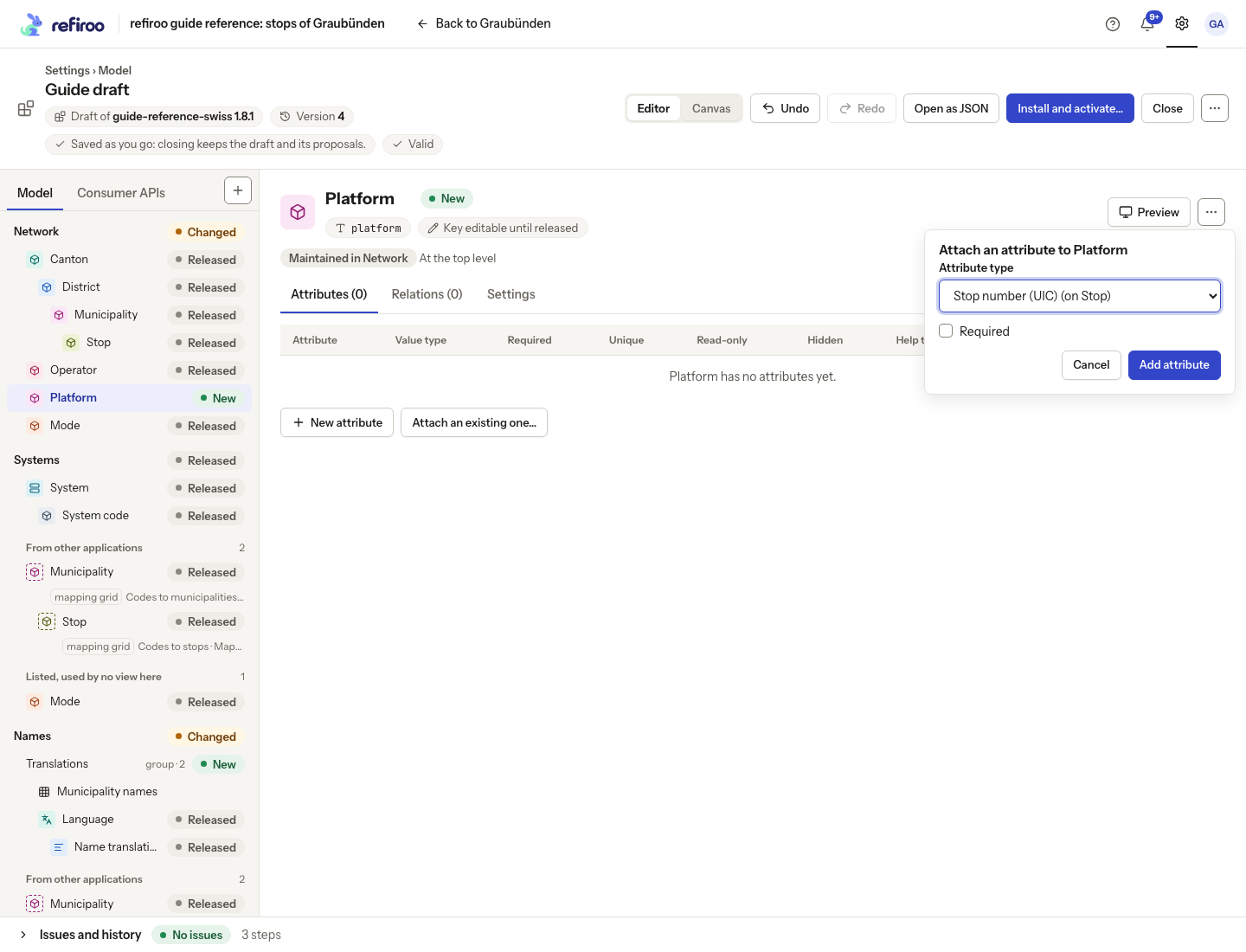
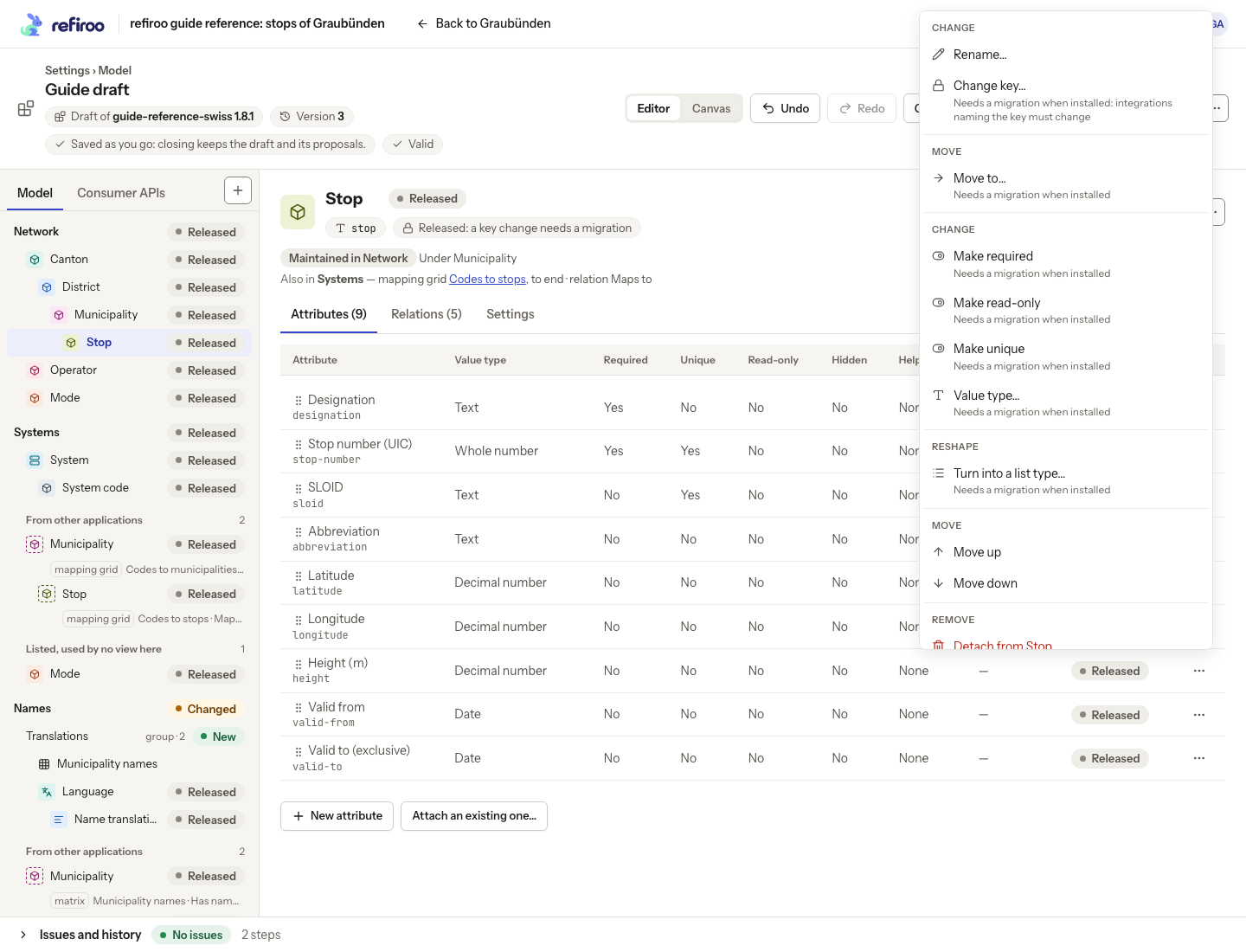
Detach from … removes the attachment and its uses in that type’s views and panels; it does not mean remove the attribute from every type. Read the confirmation, or cancel to keep it.
Set bounds and field guidance
Section titled “Set bounds and field guidance”- Select the shared definition under Attribute types. For Whole number or Decimal number, edit Minimum or Maximum in Settings. Both open Minimum and maximum…. Enter either or both, or leave them empty to remove bounds, then Save in the popover. A minimum greater than the maximum is invalid. All uses of the shared field receive these bounds.
- Edit Hidden or Help text in the same Settings table. A Hidden choice saves as soon as you select it. Help text saves when you leave its input or press Enter; Escape puts the old text back. An unchanged input saves nothing. These are shared presentation choices. Hidden leaves the field off record forms without deleting its data.
- To provide guidance for just one type, select that type’s Attributes table and edit Hidden or Help text there. A local help text replaces the shared help; clearing it returns to shared help. A field hidden by the shared definition remains hidden even when the local cell says No. Review a populated and an empty record in Preview.
- Check Issues and the release comparison. Bounds apply to stored values too; saving the draft does not convert or fill data. Correct incompatible records or review a migration before activating the release.
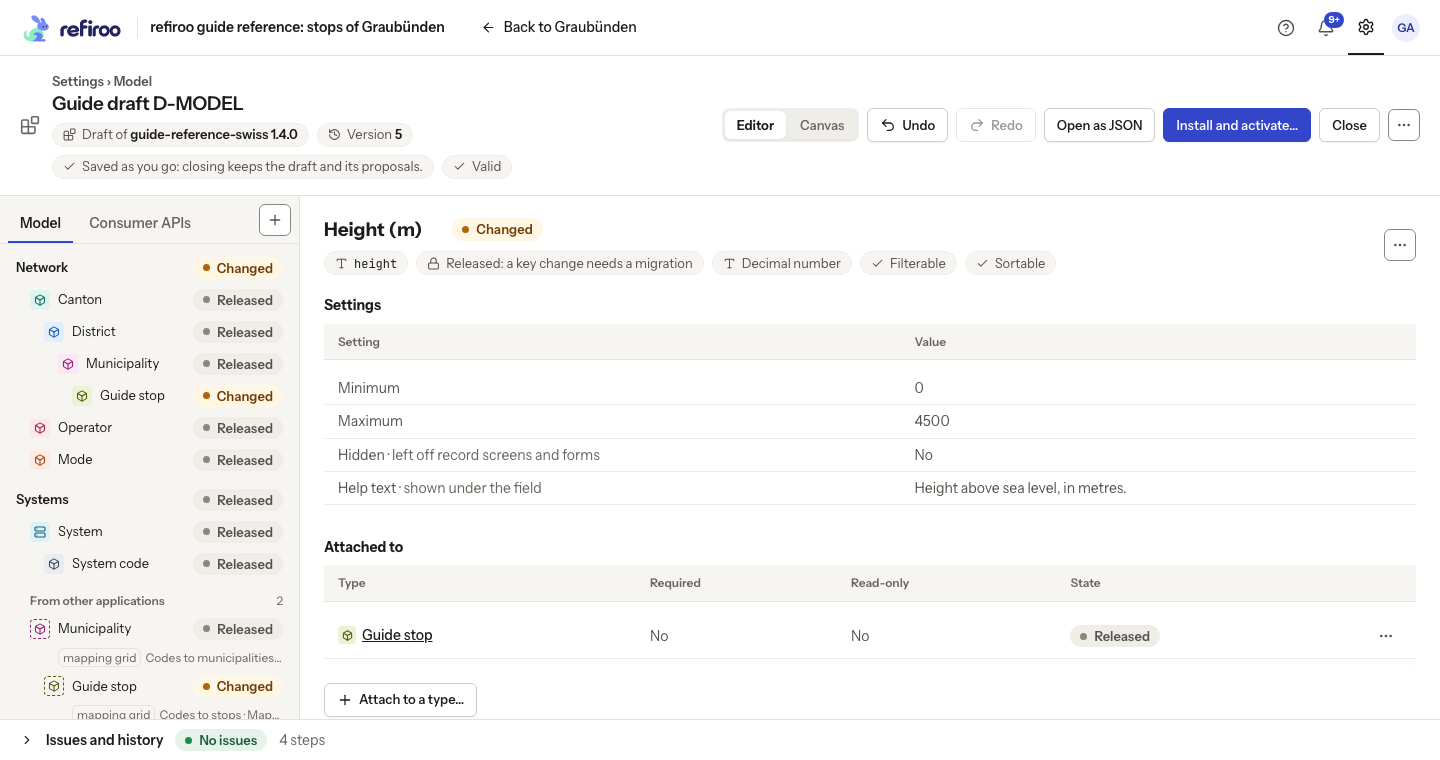
Above: Height (m) has a minimum of 0, a maximum of 4500, Hidden set to No and help text. Its facts say Released: a key change needs a migration.
The shared definition’s Attach to a type… is another way to reuse it. Change key… is also available after release, with a migration and a warning that integrations naming the key must change. See Rename or re-key an element. Remove attribute type removes the common definition where allowed; review its attachments and the confirmation. Detaching from one type is the smaller change when other types still need it.