Load the next version of a workbook
Use a saved import profile to recognise a recurring workbook. This differs from creating a model from a new workbook; that task belongs to Workbook onboarding.
- Open Settings › Workspaces and models › Import profiles. Open the profile’s row and read its Last load: file, destination, row counts and whether its change set was published.
- If your permissions offer Upload the next version…, choose it and upload the newer workbook. Choose the intended comparison workspace and wait while it is checked. The profile is checked and saved against that workspace’s model. Nothing is loaded into its records by this check.
- Review new, missing and renamed columns, new values, changed names and missing records. Choose Accept on a Renamed row only where the proposed column really replaces the old one. Choose Ignore on a New row to leave that column out. Ask the profile’s model administrator to fix ambiguous bindings or model problems; do not guess which field a column represents.
- Check the saved missing-record choice with the profile’s model administrator. In the model editor’s list panel or the canvas inspector, Records no row names offers Report them (the default, keeping the records) or Delete them. Deletion needs a keyed source loading its own records and confirmation with Delete them on load; it stages removals only in a change set. A missing key means reliable recurring matching is not available: resolve it before relying on repeated uploads.
- When the report allows loading, choose Load into a change set… and review the destination and proposed changes in its dialog. Loading creates a new change set containing differences.
- Choose Open the change set review from the completed load or Last load. Review additions, corrections and removals before publishing or submitting for approval.
The saved profile also repeats any instructions to read a wide sheet as rows, fill blanks from the cell above, or read heading rows as parents. A wide reading makes one row per filled cell in the selected columns; a heading row has no other filled cell and supplies the parent until the next heading. Headers match without surrounding spaces. These readings are set on the canvas or in the model editor, under Readings in a column’s panel; a loaded list’s panel also offers Read these columns as rows….
Review readings after a column disappears or is renamed. An accepted rename follows the new header; missing columns can remove a reading and the mappings of columns it added. Ask the model administrator to check the resulting reading before loading.
If the file could not be read or the profile could not be saved, correct the displayed cause and check again. Missing controls can reflect your access; ask the responsible model administrator. See Importing and exporting for row refusals.
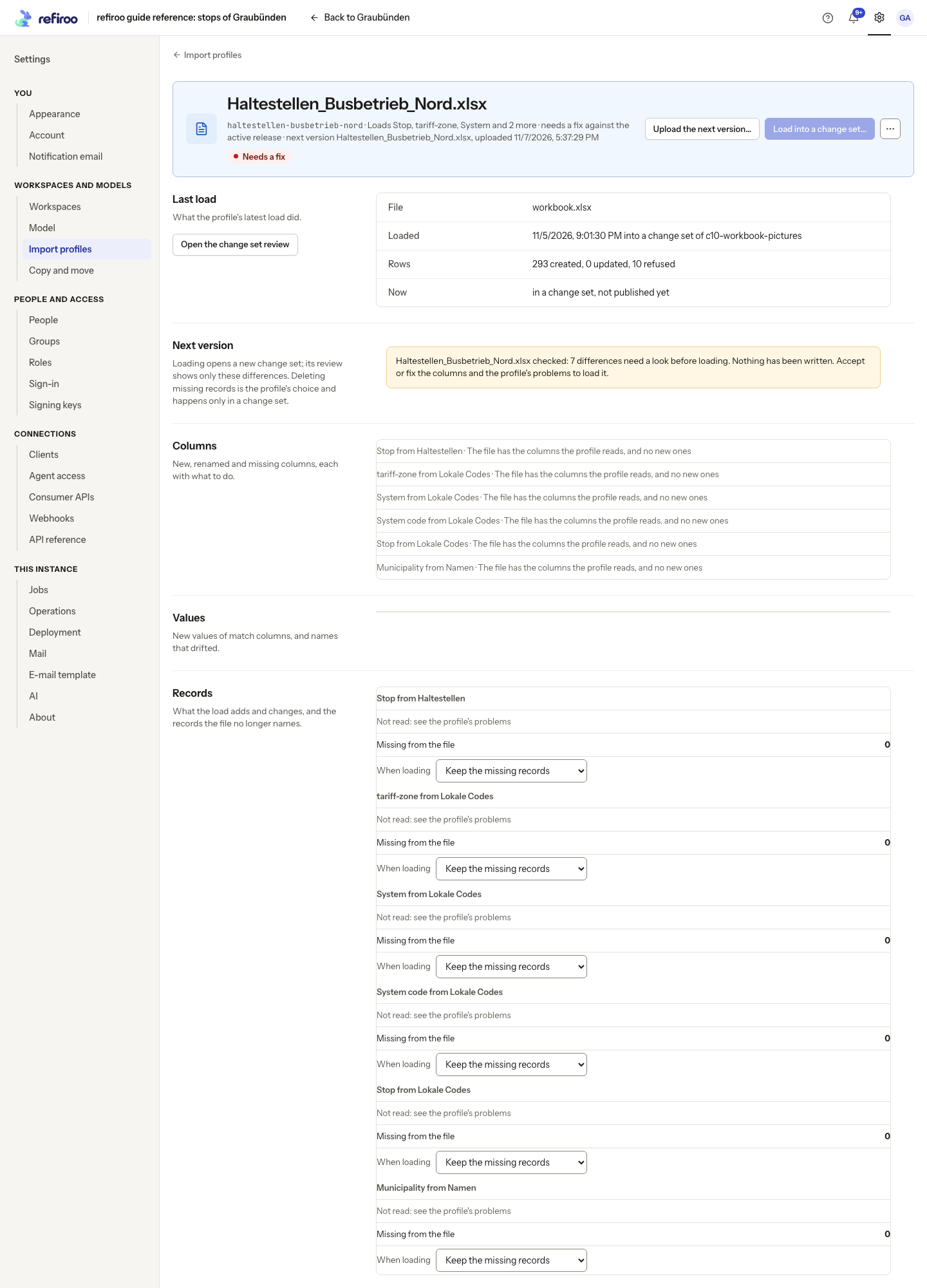
The pictured profile still Needs a fix, so Load into a change set… is disabled. Resolve the reported problems before loading.
In Load … into a change set, check the proposed name and workspace before choosing Load. The steps Open a change set and Load the rows show what is happening. The suggested name starts with Load, the file name and a date. If loading fails after the change set was opened, inspect that change set and the load’s job before starting again; do not assume the first proposal disappeared.
Use a saved profile through the assistant dialog
Section titled “Use a saved profile through the assistant dialog”A workbook loaded from the assistant’s checked records and relationships saves no import profile. For that route, send the next file to the assistant again and explain how to match existing records; see Loading with the assistant.
If you already have a separately saved import profile, follow the steps above to reuse it. Starting through Import… can also recognise that saved layout and prepare the file without an assistant session or AI cost. You still review the proposal and row check. The saved layout does not fit this file offers Read it with the assistant. That sends the file and instructions to Claude Code, can incur costs and keeps task files; see AI and your data. A new sheet or changed layout needs review, not an assumption that the previous mapping fits.
Remove a file you no longer need
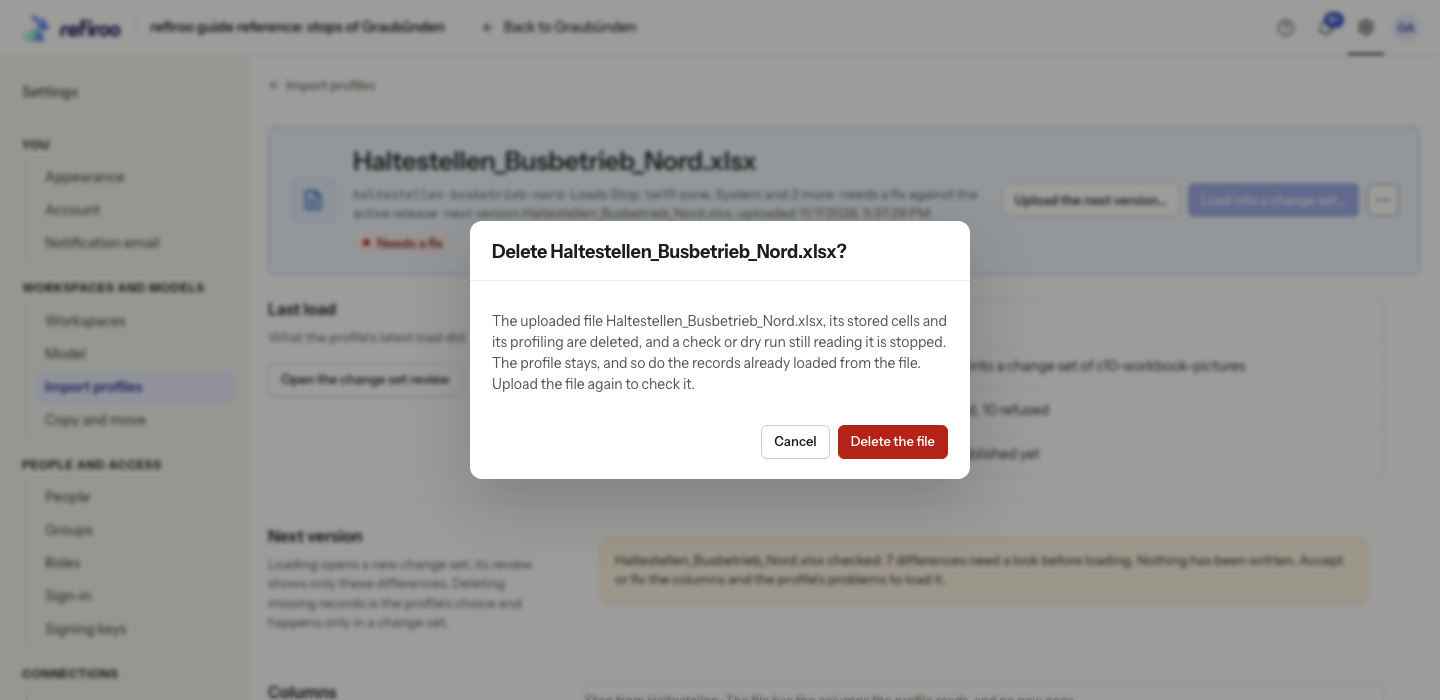
Section titled “Remove a file you no longer need”- On the profile page, choose More actions › Delete the file….
- Read Delete
? . It removes the upload and its stored analysis, stops a check still reading it, and keeps the profile and already loaded records. - Choose Delete the file to continue or Cancel to keep it. After deletion, upload a file again to check it. A failed deletion leaves its reason in the dialog; resolve that cause before retrying.
To stop reusing the profile itself, choose More actions › Delete the profile… and confirm Delete the profile. Read what each deletion keeps before confirming; deleting a profile does not reverse its earlier loads.