

Accessibility and devices
refiroo includes keyboard navigation, visible focus and layouts for narrow screens. Appearance choices let people adjust how much information they see and how it is displayed.
Work with a keyboard
Section titled “Work with a keyboard”A Skip to main content link bypasses repeated navigation. Labelled regions, semantic tables and trees, and named controls provide structure. Menus and dialogs support keyboard operation; dialogs keep focus inside while open and restore it when closed. Leaving a single-value input with Tab saves it, as does Enter for a single-line field. In text of several lines, Enter adds a new line and Ctrl+Enter (Cmd+Enter on a Mac) saves. Escape puts the old value back. An unchanged input closes without saving. A refused input stays open with the reason and Cancel and Save again beneath it. Forms with several fields keep Save and Cancel and guard against leaving unsaved input behind.
Trees support arrow-key navigation and record menus. Move to… provides an alternative to dragging records. Resizable panel separators can be focused and adjusted with arrow keys; Shift makes larger changes, and Home and End choose their limits.
Long lists load and draw a bounded part of their records. Use the collection’s search to find records throughout the list: the browser’s Find sees only rows currently drawn. See Appearance and devices for keyboard details and Finding records for list navigation.
Choose the display
Section titled “Choose the display”Settings → Appearance offers Current, Hearth, Studio, Instrument and Website purple under Theme. The separate Light or dark choice offers System, Light and Dark; System follows the device’s light or dark setting. Every theme works with either light or dark. Table density sets a comfortable or compact default; a table’s own display choice can override it. Type colours offers two palettes, and Edit pencil controls whether edit hints appear on hover and focus or remain faintly visible. Touch screens always show the hints.
Choices take effect immediately without a Save button and are saved in that browser, so another browser or device keeps its own settings. To reset them, choose Current, System, Comfortable, B: magenta and olive and On hover and focus again. Panel widths can be adjusted where the layout offers a separator. See Change how refiroo looks.
Use a phone or touch screen
Section titled “Use a phone or touch screen”On a narrow screen, navigation moves into a drawer and panels can stack or use tabs. Workspace, application and Live, change-set or publication choices remain accessible in the band beneath the top bar. Tables can show fewer columns initially, with a control to reveal the rest.
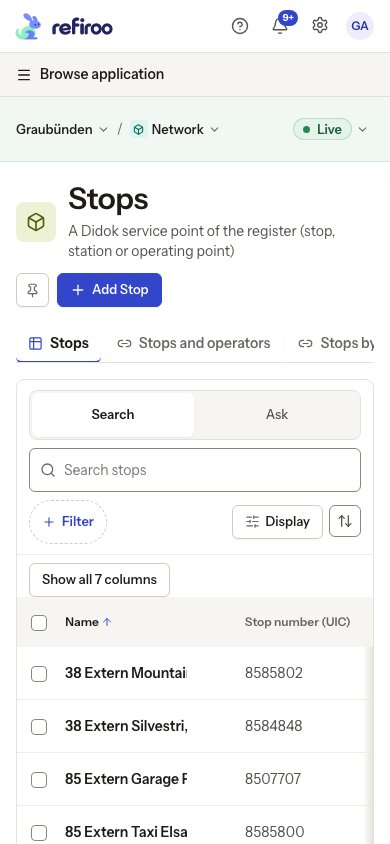
Above: the Network application in the Graubünden workspace, showing stops on a phone-sized screen. This is one model’s use of the same collection layout. Source: opentransportdata.swiss, Service Points (Didok), Federal Office of Transport / SBB, snapshot 2026-11-02.
A tap opens a record. In an editable tree, holding a record still before moving begins a touch drag; moving sooner scrolls instead. The record’s menu provides Move to… where dragging is inconvenient. See Hierarchies.
What has been checked
Section titled “What has been checked”The project has automated accessibility checks using axe and visual regression checks for main screens, including light and dark themes. Those checks help catch structural and appearance regressions. They do not prove that every task works with every assistive technology.
No screen-reader user testing has been recorded. No formal accessibility conformance claim is made here. Evaluate the workflows and assistive devices your team needs, and report barriers with the screen, action, browser and assistive technology involved.