

Applications
Open an application to reach the records and views you need in the current workspace. Choose a workspace’s name or tile on Home to open its page: it offers record search, applications, your shelf, waiting change sets and recent activity grouped by day. Edit model and the workspace’s ⋯ menu offer the actions and Settings pages your access allows. Follow Open an application for the steps.
An application groups record types and views. Its name, collections and starting view come from the workspace’s model. Applications are not fixed modules of refiroo: a model can rename, replace or remove them. Any application can offer any of the view kinds when the model declares the structure that view needs.
Collections and views
Section titled “Collections and views”Choose an application in the top bar, then a collection in the sidebar. In Studio the applications share the side column with the lists; Instrument puts application tiles in the narrow strip beside the lists. See Appearance and devices for the frame arrangements. A collection can have several views, shown as tabs under the list’s title. Changing tabs changes how you inspect the records; it does not copy them. The model can choose which view opens when you select a collection in the sidebar or on a group page. That choice may differ from the application’s starting view; use the tabs to switch to another view when needed. Browse records offers another route to individual records through their hierarchy. Open it to browse; it starts folded and remembers your choice in this browser.
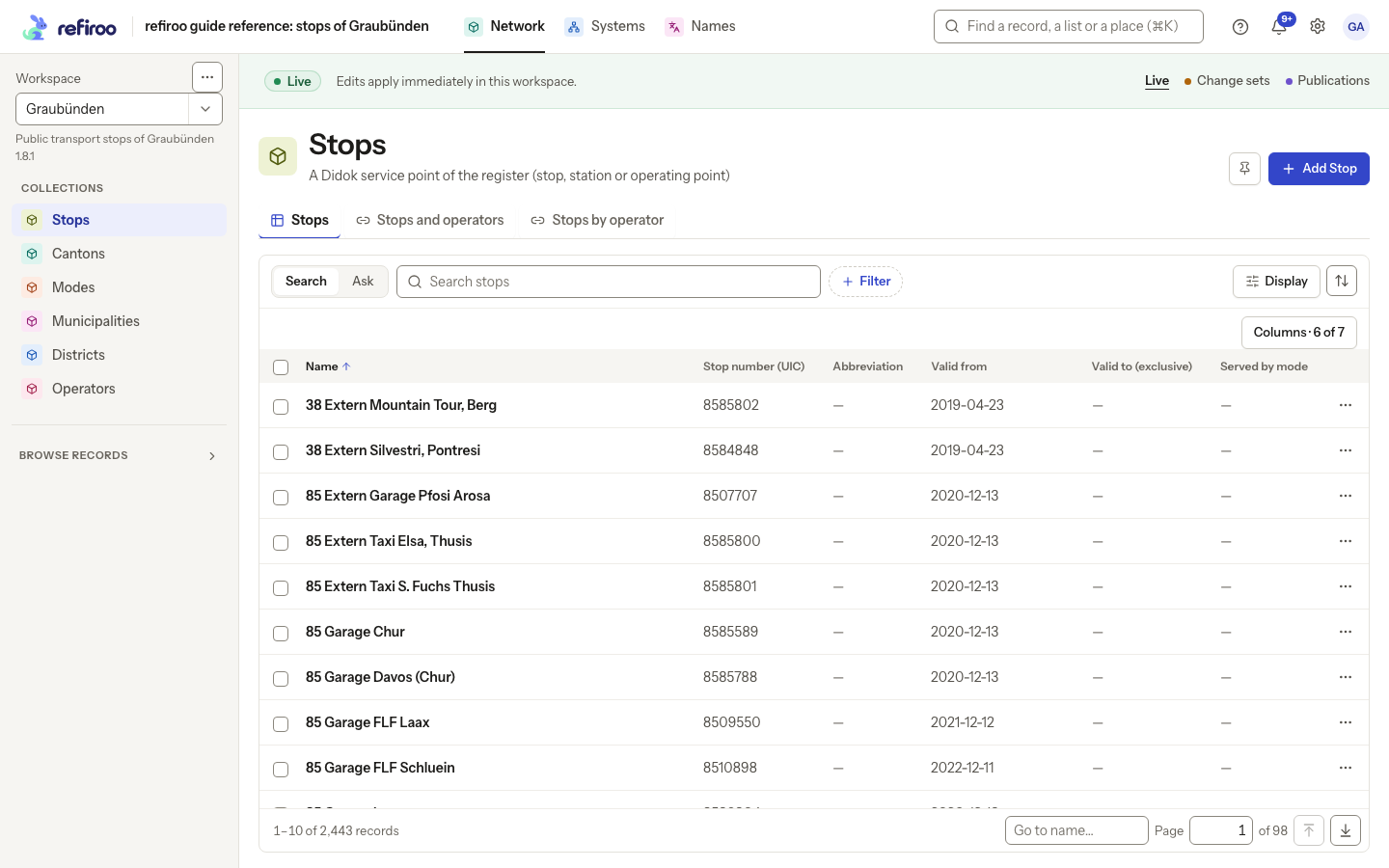
Above: Network in Graubünden shows the Stops table and the collections declared by its model.
| View | What you can do |
|---|---|
| Table | Search, filter and sort records, then open one. See Records and Find records. |
| Tree | Browse parents and children and move records to an allowed place. See Hierarchies and Arrange records in a tree. |
| Mapping grid | Inspect connections, missing connections and multiple targets. See Mapping grids and Map codes between systems. |
| Relationships table | List one relationship’s records and its own values (a weight, a flag) as rows. Declared by the model; in the model contract (relationTable). |
| Relation matrix | Compare related records across columns and find missing connections. See Relation matrices and Fill in a relation matrix. |
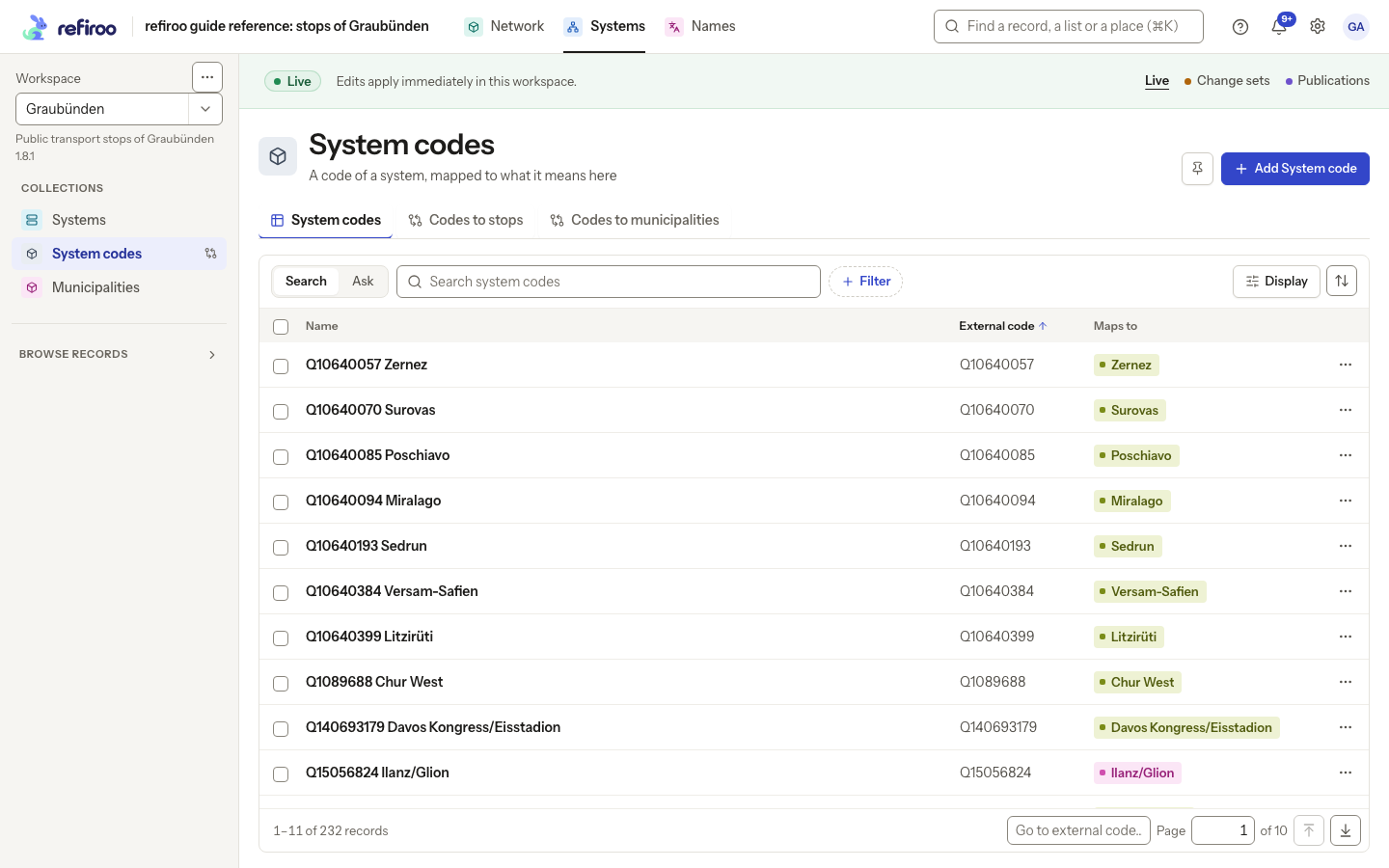
Above: System codes in Systems offers a table and mapping views. These are choices in the example model, not features reserved for this application.
A missing tab may mean the model does not declare that view. Ask a model administrator if you need a different presentation. An empty table means no records match the current context and filters; a loading error needs a retry before you can draw that conclusion.
Shared workspace, different ways in
Section titled “Shared workspace, different ways in”Applications in one workspace use that workspace’s data. Relationships may connect records across applications where the model allows it. The same record can appear in a table, a hierarchy, a mapping grid and a relation matrix without becoming separate records.
The banner identifies Live, a Change set, or a publication. Live edits apply immediately; a change set holds proposed changes; a publication is read-only. On a computer the band shows only this data context, its explanation or change-set summary and the Live · Change sets · Publications switch. On a phone it also shows the workspace and application. Check the context before editing. Your roles determine which actions are offered. A declared view does not grant permission to change its records. See Record permissions.
For configurations of these capabilities, see The example data and The starter model.
Collection groups and record pages
Section titled “Collection groups and record pages”Ungrouped collections appear first. Expand or fold a labelled group with its arrow; your choice is remembered in this browser. The model sets whether a group starts folded on your first visit. A folded group is marked when it contains the open collection. Choose the group’s name to open its page, search entries by name and open one in the same Live, change-set or publication context.
A view of any kind the model places in a group (a table, a tree, a mapping grid, a relationships table or a relation matrix) has its own entry, named after the view. Its symbol shows the kind and uses the source collection’s colour. Choose it to open the view directly, from either the sidebar or the group page. The source collection stays in the sidebar and still offers the view among its view tabs. A view without its own group entry is available through that collection. Groups have one level and show no record counts.
A record page combines panels for fields, children, relationships, tables, hierarchy and history. The model chooses their arrangement. If it declares no detail layout, refiroo provides a default. The collection views above are the supported kinds; dedicated form and dashboard views are not available.
The group page’s Find a collection or view searches the names of the group’s collections and views. This group has no collections or views. describes an empty group, rather than no records in its collections. For the shared table controls, see Lists, search and filters.
On a wide screen, each application has a coloured tile in the top bar. The open application is underlined; hovering over its tab shows the model’s description. The product mark returns to Home, and the gear opens Settings. Applications that do not fit are under More. Settings opens an index grouped by task. Inside Settings, ← Back to followed by the workspace’s name returns to its page. On a phone, choose the application from the band beneath the top bar instead. See Appearance and devices.
If a group says No collection or view in this group matches “…”, clear Find a collection or view or press Escape in that search field. This search covers collection and view names, not records. Opening a collection result uses its chosen starting view; opening a view result goes straight to that view. Both keep the current data context.
Find a list in the sidebar
Section titled “Find a list in the sidebar”Use the workspace search above the page, Find a record, a list or a place (⌘K), to find a list by name, including lists in folded groups. Press ⌘K on a Mac or Ctrl+K elsewhere to focus it. Matching lists appear under Lists; select one to open its view. Go to offers matching places such as Home, Change sets and Settings.
When an application has more than ten entries in its sidebar, the sidebar also shows Find a list under Collections, with a count such as “3 of 14”. Typing narrows the sidebar to the matching lists. Enter opens the first match, and Escape clears the field. No list matches means no entry name contains what you typed.
The same search finds record names across the workspace. Results are grouped by record type and show each record’s place. Use the arrow keys to choose a record and Enter to open it. Workspace search opens records in Live; use a collection’s own search to stay in a change set or publication. Browse records has no search box of its own. The group page’s Find a collection or view searches only that group’s entries.