

Sign-in and second factors
Open Settings › People and access › Sign-in to choose how people prove who they are. You need Security administration. Sign-in establishes identity; roles and grants decide what that identity may do afterwards.
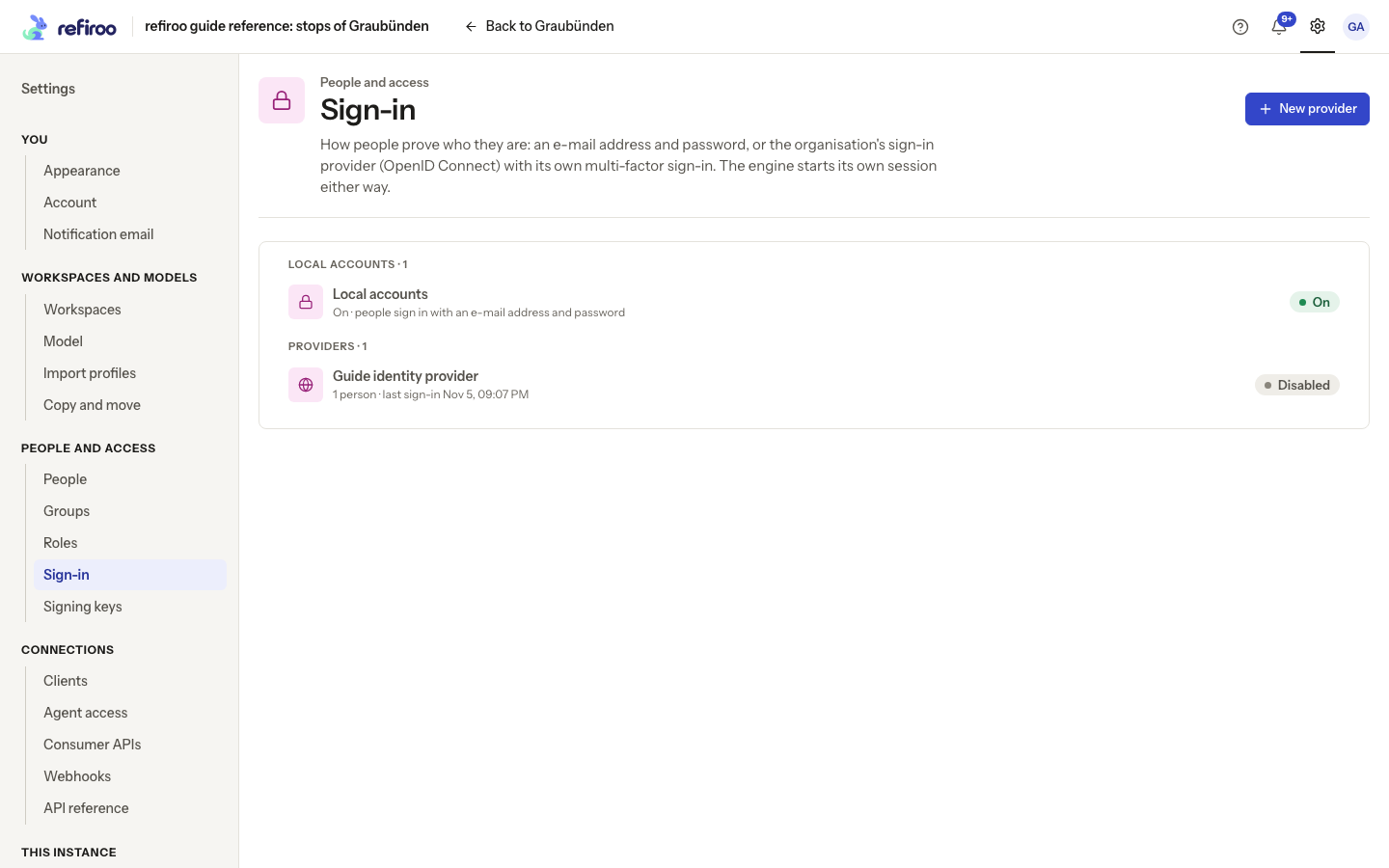
Above: Local accounts is on. Guide identity provider is listed but Disabled in the reference instance.
Local accounts
Section titled “Local accounts”With Local accounts on, people can use their refiroo e-mail address and password. Unless an administrator manages their sign-in, they manage their password, passkeys and authenticator app on their own Account page. For shared, kiosk or training accounts, see Sign-in managed by an administrator. Passwords normally need 15–128 characters. The operator can change the minimum. A password equal to the e-mail address or a common password is refused with a reason. Repeated failed sign-ins are delayed, rather than permanently locking the account; the sign-in screen says how long to wait. Slowdown starts after five failed attempts for an account or twenty from an address. Waits double up to fifteen minutes; repeatedly retrying does not bypass them.
Keeps local sign-in on a person’s page lets them retain this route when local sign-in is off for everyone else. They use Sign in with a local administrator account on the sign-in page. Keep a working recovery administrator before changing organisation sign-in. Clients are unaffected by turning local sign-in off.
Turn off… is offered only after an enabled provider has successfully signed someone in. Read and confirm the warning. People without the retained local route then use a provider. Turn on restores local sign-in. The last active person keeping local sign-in cannot be deactivated or lose it while local sign-in is off.
The organisation’s provider
Section titled “The organisation’s provider”A provider uses OpenID Connect and brings its own multi-factor sign-in. refiroo still starts its own session. People are matched by their provider identity, never by e-mail alone. See People and groups for linking an existing person and for provider-controlled membership.
To add a provider in the browser:
- Choose New provider. Enter Name on the sign-in button; the button reads “Continue with” followed by that name. Enter a Key, which cannot change once saved.
- With your organisation’s sign-in administrator, enter Issuer, Client ID and Client secret from its application registration. The issuer must match exactly. The secret is saved securely and is never shown again. Changing an unused issuer requires the secret again; a secret is not silently carried to a different provider endpoint.
- Set Groups claim only if the provider supplies group memberships. Empty means its groups are not used. Ask the sign-in administrator for the correct field name.
- Leave Offer it on the sign-in page now selected to enable it, then choose Add provider. An enabled provider is checked when saved. If discovery, connection or certificate checks fail, read the reason and correct the provider details with the operator.
- Open the saved provider’s page and copy its Redirect address under Address to register with the provider. Have that address registered with the provider. Prove a complete sign-in before turning local sign-in off.
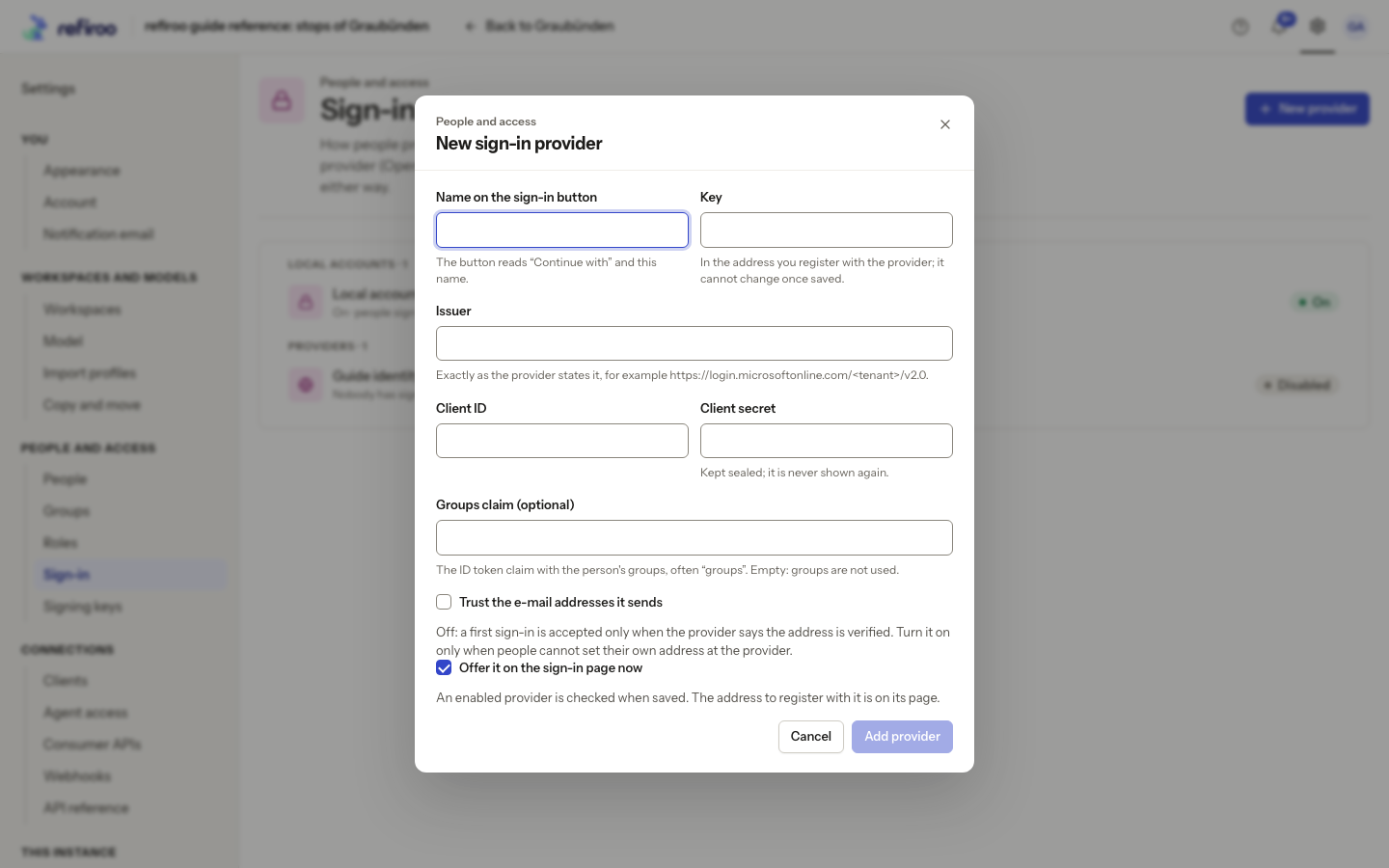
Above: the reference instance’s New sign-in provider dialog is open and has not been saved.
Once anyone has used a provider, its issuer cannot change. Add another provider and link people instead. Disabling a provider ends sessions it started. Removing someone in the provider alone does not end an already open refiroo session; deactivate leavers in refiroo too.
On the provider page, Sign people out of … too also signs the current browser out of the provider. It is off by default and can sign the person out of other organisation applications in that browser. It needs provider support and registration of the displayed Sign-out address. Sign out everywhere ends refiroo sessions only.
Server address, HTTPS and recovery setup belong with the operator. See the Run refiroo sign-in instructions.
Provider groups and sign-out limits
Section titled “Provider groups and sign-out limits”OpenID Connect works with Microsoft Entra ID, Google, Keycloak, Okta and other compatible providers. A provider group’s membership comes from the person’s sign-in. Create expected provider groups before go-live and grant their roles, or grant them after they first appear. A new provider person has no direct roles; an e-mail address matching an existing person does not merge them.
For Microsoft Entra ID, group values are object IDs rather than readable names. Ask its administrator to include groups assigned to the registered application, then give those groups readable names in refiroo. With more than 200 groups, Entra ID can return a link instead of the list. refiroo does not follow that link, leaving the person with no provider groups. Reduce the groups assigned to the registration. Keycloak needs a Group Membership mapper. Google does not supply groups through this sign-in.
A person’s e-mail address is their sign-in name in refiroo, so a provider’s address is taken only
when the provider confirms it (email_verified), or when the provider’s Trust the e-mail addresses
… sends switch is on. A new provider starts with the switch off. Turn it on only when people
cannot set their own address at the provider; in some Entra ID set-ups they can. Providers added
before 0.17 were switched on by the upgrade, so check each one. An address the provider marks as
not confirmed is never taken. A first sign-in refused for that reason, or because another person
already has the address, does not show the address.
Name and e-mail are refreshed from the provider when the person signs in; an address that is not confirmed, or that another person already has, leaves the stored one in place. Removing a person at the provider does not recheck an existing refiroo session: deactivate leavers here too.
Turning on provider sign-out affects sessions started afterwards. Older sessions did not retain the needed provider proof and sign out of refiroo only. An administrator ending someone’s sessions, or Sign out everywhere, also ends refiroo sessions only. If the operator changes the public site address, have both displayed return addresses registered again before testing sign-in.
If Delete provider is refused because people have used it, choose Disable instead. The retained provider preserves their identities while its sessions end.
Second factors and passkeys
Section titled “Second factors and passkeys”Someone whose sign-in is managed by an administrator cannot add or change their own factors. The following Account controls are for people who manage their own sign-in.
A local password must be set before a person adds an authenticator app or passkey. A provider-only account cannot add local factors. Adding or removing a passkey on Account requires proof with a password, authenticator code or recovery code; knowing an account’s name is insufficient. A person can register up to 25 passkeys.
An authenticator app uses time-based one-time passwords (TOTP), adding a six-digit code after the password. Setup includes confirmation with a code and ten recovery codes shown once. Each recovery code works once. A phone’s clock must be correct; if valid-looking codes fail, check its automatic time setting.
A WebAuthn passkey uses a fingerprint, face, device PIN or security key. It can sign someone in alone, or supply the second step after a password. It meets the second-factor requirement. A passkey belongs to the site’s address; a change of host requires people to register new passkeys.
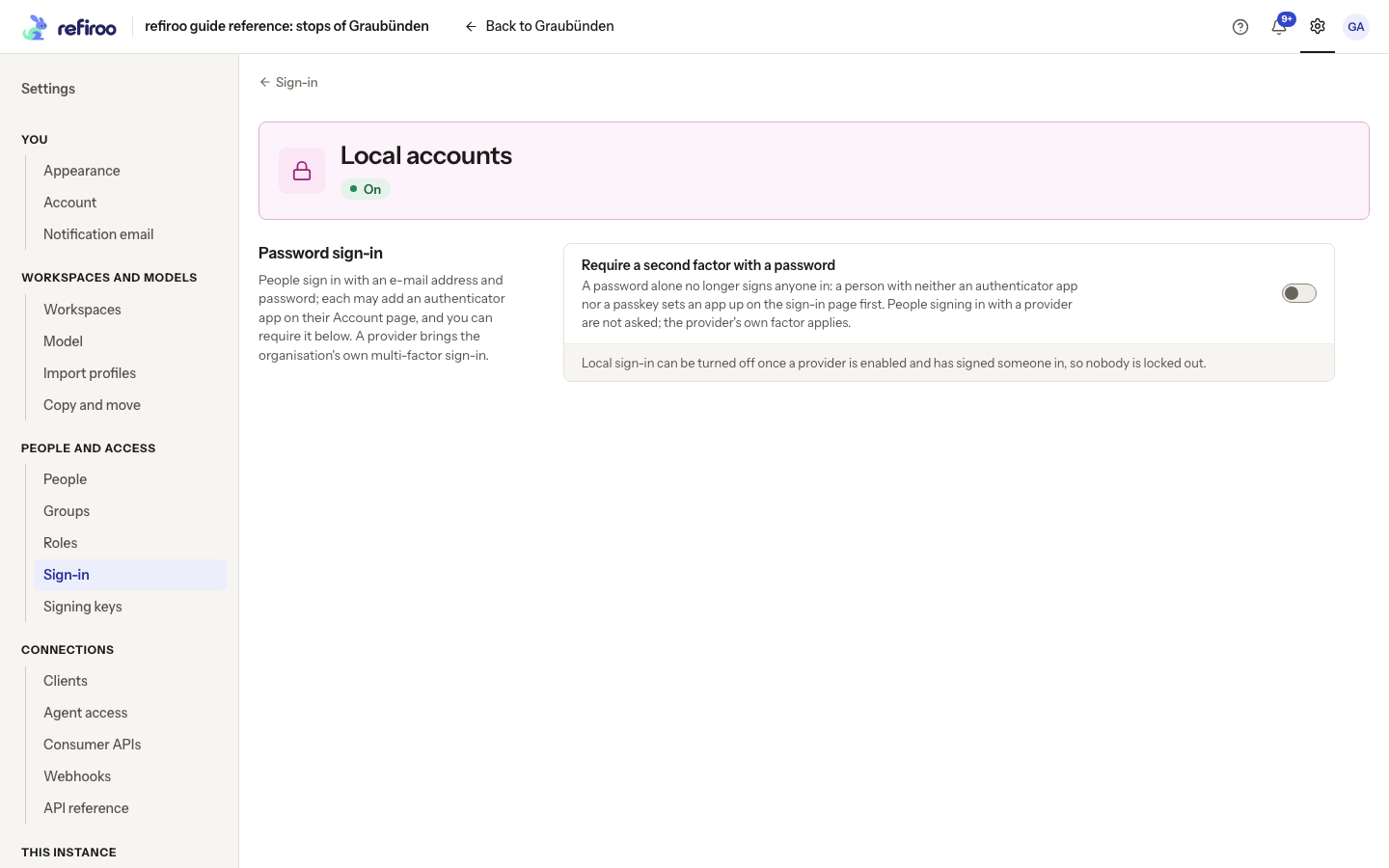
Above: Local accounts is on in the reference instance; Require a second factor with a password is unchecked.
Require a second factor with a password applies to local password sign-in, including recovery administrators. Someone who manages their own sign-in and has neither an authenticator app nor a passkey must set up an app on the sign-in page before a session starts. An account whose sign-in is managed by an administrator is exempt from this setup: with no factor, it signs in with the password alone even while the requirement is on. An existing authenticator app or passkey still applies; switching on administrator management does not remove it. Provider sign-ins use the provider’s own checks, and clients are not asked for a second factor. This is the browser’s administrative policy control; there are no separate session-duration or passkey-policy settings here. Follow Require a second factor.
An app code that was already accepted cannot be used again. Authenticator time needs to be within about a minute of the server; turn on automatic time before replacing an otherwise working app. Someone who has registered passkeys but no authenticator app has no app recovery codes. They need another passkey kept elsewhere, or an administrator to remove the lost passkey. While ordinary local sign-in is off, passkey-only sign-in also requires Keeps local sign-in.
Sessions and help
Section titled “Sessions and help”A session renews while the person works. By default it ends after 12 hours without renewal or 14 days overall; the operator can change these limits. Once it ends, the person signs in again and returns to the requested page.
Only the person’s own Account › Where you’re signed in lists individual sessions. This section is hidden for a person whose sign-in is managed by an administrator. They can sign out of their current browser, but need an administrator to end other sessions. Administrators have Sign out everywhere on the person’s page, with confirmation. Deactivation and using a password-reset link also end their sessions. Changing one’s own password keeps the current browser signed in and ends the others.
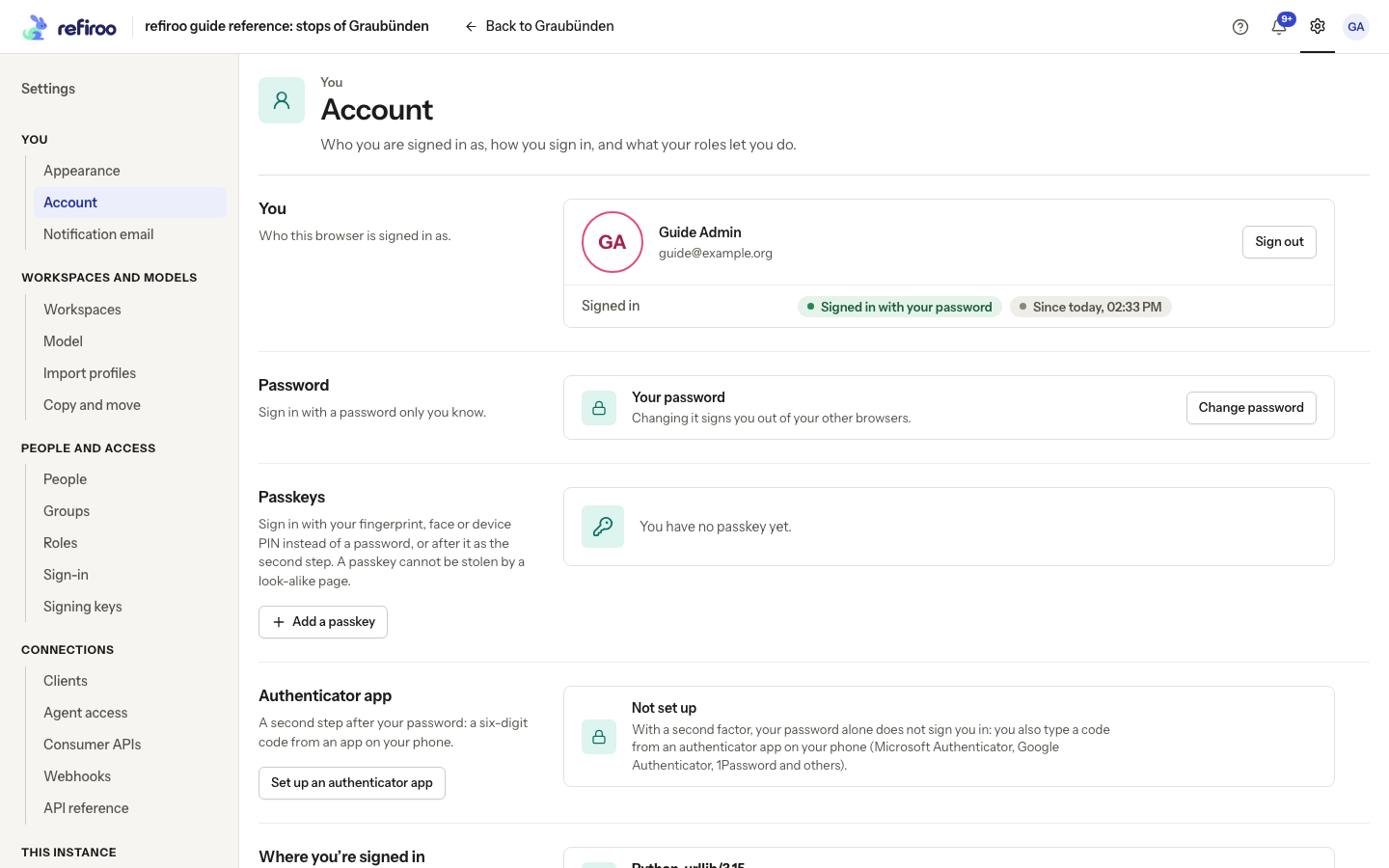
Above: Guide Admin’s own Account page. The reference account’s many sessions include automated capture sessions; this is not an administrator’s list of other people’s browsers.
If someone loses a device, a remaining passkey or recovery code may let them sign in. Otherwise an administrator can remove the lost authenticator factor or passkey from the person’s page. A password reset does not bypass a second factor. Follow Help someone who lost a device.
When mail is configured, the sign-in page offers a forgotten-password link for local accounts. A person who manages their own sign-in can request recovery there rather than asking an administrator to make a link. If it is absent, use the administrator’s reset procedure. The account-side password, session, passkey and recovery-code tasks are on Your account.
A forgotten-password request replaces only earlier links requested from the sign-in page. It does not cancel a link made by an administrator. Making a new administrator link replaces all earlier password links for that person.
Opening a valid link takes the secret part out of the address bar before showing the password form. You can reload the page in the same browser without losing the link. If the form no longer opens, reopen the original link while it is valid; an expired, replaced or used link needs a new one. Keep the original link private rather than sharing the address shown after it opens.
Help with the sign-in screen
Section titled “Help with the sign-in screen”The screen shows the refiroo mark and Reference data that stays in step. People enter E-mail address and Password, then Sign in; Signing in… means it is waiting for an answer. Provider buttons say Continue with …. Sign in with a passkey uses a registered passkey and the device’s own confirmation.
The next step depends on the methods available. Enter your code asks for an app code. Confirm it is you also offers Use a passkey. Use a recovery code instead opens Use a recovery code; Use the app’s code returns to the app. Set up a second factor shows the setup image and key, followed by Confirm and continue and Keep your recovery codes. Ask the person to store the codes before continuing. They can start again if the sign-in attempt has expired.
Your session ended. Sign in again to return to where you were. calls for a fresh sign-in, not a password reset. Signing in is not possible right now with Try again can mean a service or connection failure. If the message says this site’s address is not accepted, give the operator the browser address and message so they can correct deployment access. Do not change a person’s password to repair a service failure.
Expired or invalid proof of access is refused before an operation runs. The browser normally renews a session automatically; if it cannot, sign in again. For an external system, have the integration owner follow Signing in and tokens.
With no mail server, the screen instead says Forgotten your password? Ask a security administrator for a reset link. With mail, the person requests a one-time link, enters New password and Type it again, then chooses Set password. Your password is set. You were signed out everywhere. leads back to Sign in. The request gives the same answer for known, unknown, provider-only and deactivated accounts; mail is sent only for a qualifying local account. An account whose sign-in is managed by an administrator receives no recovery mail; ask an administrator to make a password link instead. An app or recovery code is still required afterwards when configured. See Mail.
For the administrator’s tasks, follow Add a sign-in provider, Link a provider sign-in and Turn off local sign-in. Open a provider’s row for its own page; ← Sign-in on the first line returns to the list. On the provider catalogue, No provider yet: people sign in with a password. describes an empty list, not a connection failure. Saved provider details include separate Enable, Disable and Delete actions; disabling or deleting one ends the sessions it started.
Change provider credentials and recover access
Section titled “Change provider credentials and recover access”If the provider’s client secret expires or is replaced there, open the saved provider, enter its replacement Client secret under Settings and choose Save. A blank field keeps the saved secret for an unchanged issuer; it does not clear it. Arrange the handover with the provider administrator and test a new sign-in in a separate browser. refiroo does not renew that provider credential for you. Existing refiroo sessions are separate from a new provider sign-in, so an already open page does not prove the new credential works.
Turning local sign-in off or changing the second-factor requirement changes subsequent sign-ins; it does not sign out existing sessions. Use More actions › Sign out everywhere on a person’s page when their existing sessions must end. Turning the requirement off leaves registered apps, recovery codes and passkeys in place.
The following messages call for different corrections:
| Message | What to do |
|---|---|
| Local sign-in stays on until an enabled sign-in provider has signed someone in, so nobody is locked out | Enable the provider and complete a successful sign-in before trying again. |
| Local sign-in is off and this is the last person who keeps it; turn local sign-in on, or let someone else keep it first | Prepare another recovery account or turn local sign-in on before removing this route. |
| This provider changed while the page was open. It is shown as it is now; try again. | Review the refreshed provider before applying your change. |
| Another sign-in provider has this key | Open the existing provider or choose a distinct key for a different registration. |
A provider’s Disabled state is reversible with Enable. Deleting an unused provider has no undo: its registration details must be supplied again. Disable a used provider rather than replacing its issuer. Keep a tested local recovery account while correcting a failed provider. If none can sign in, the operator uses server recovery. Moving or restoring the installation also needs the operator’s backup and restore procedure; changing the public address affects registered provider return addresses and passkeys.