

Load a workbook into a change set
Use this for the manual workbook route in the model editor, which loads through an import profile. For an assistant’s proposal, use Review the assistant’s workbook design: Accept and load to change set loads its checked records and relationships without saving an import profile or activating the model. The steps below apply to the manual route.
First start a draft from a workbook and check every source’s mapping and dry run. See Workbook onboarding for the separate model and data stages. You need the release permissions for any activation and the import and change-set permissions in the destination workspace. Loading does not publish the records.
Load and review
Section titled “Load and review”- Choose Load into a change set…. Check the dry-run version and summary at the top.
- Read stage 1. If the model changed, check the release’s Release key, Version and Name. Installing and activating changes the target workspace’s model before loading rows. If the model is unchanged, this stage keeps it and saves the profile.
- Under Open a change set, set Change set name and Workspace. Verify the destination before proceeding, especially if it differs from the comparison workspace.
- Review Load the rows. Found records are updated through the saved profile. Choose Install, activate and load, or Load when no activation is needed. Cancel leaves the dialog without starting these stages.
- Wait as the stages run in order. Completed steps are marked; the button shows Installing…, Opening the change set… or Loading…. During the row load, read the processed-item count under Load the rows. The dialog’s actions are unavailable while it works.
- If it stops, read which stages completed and why it stopped. An installed release can remain installed after a later failure; inspect the reported state before retrying. If the profile or model has issues, return to Issues and resolve them.
- At Loaded into the change set, read all four counts: created, updated, unchanged and refused. They cover records and relationships. A finished load with refused items is not a complete import of every source row. Compare the result with the dry run and resolve unexpected refusals before publishing.
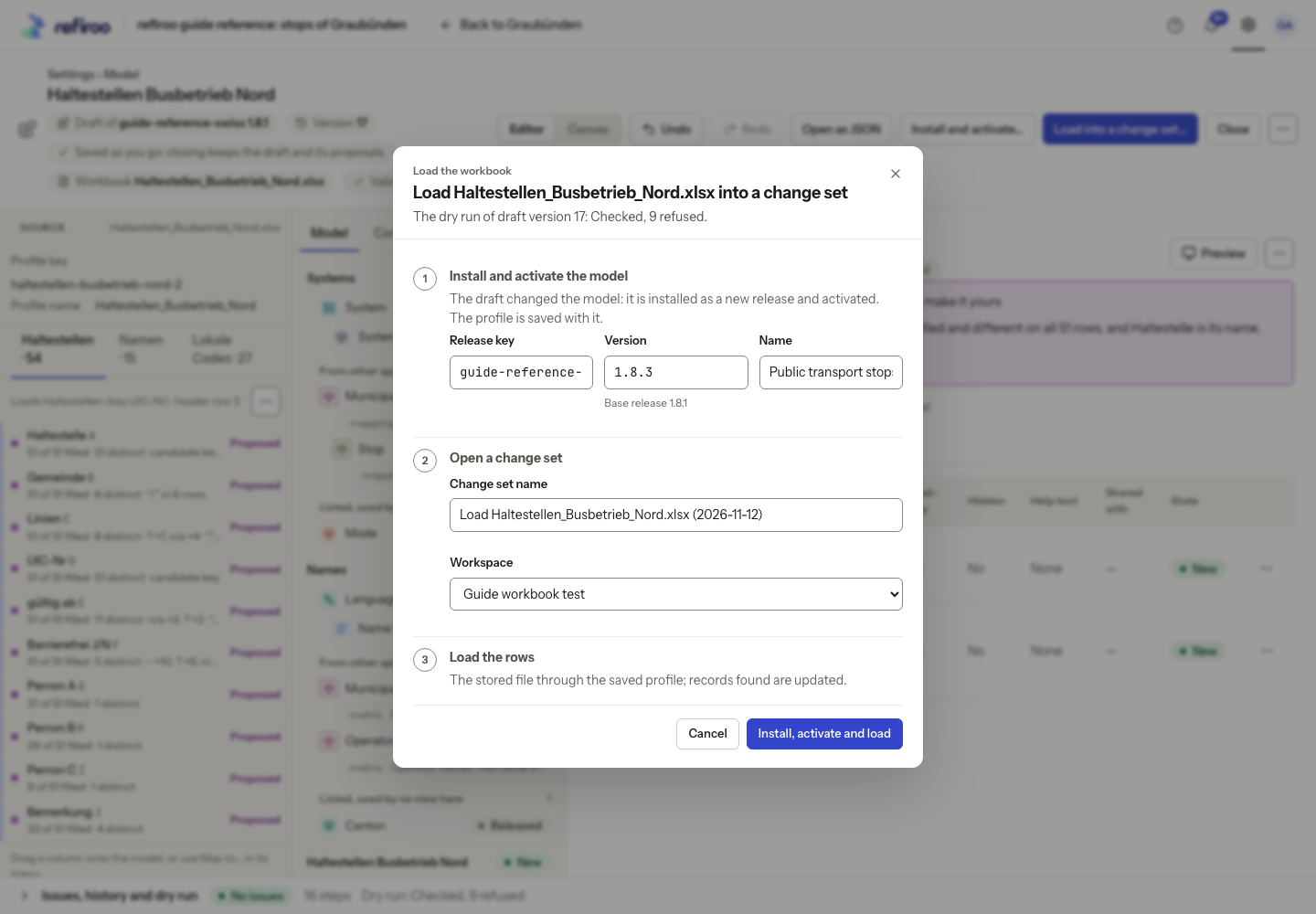
Above: The fictional operator workbook is ready to install release 1.8.3, open a change set in Guide workbook test and load the rows. This is the destination chosen for this example.
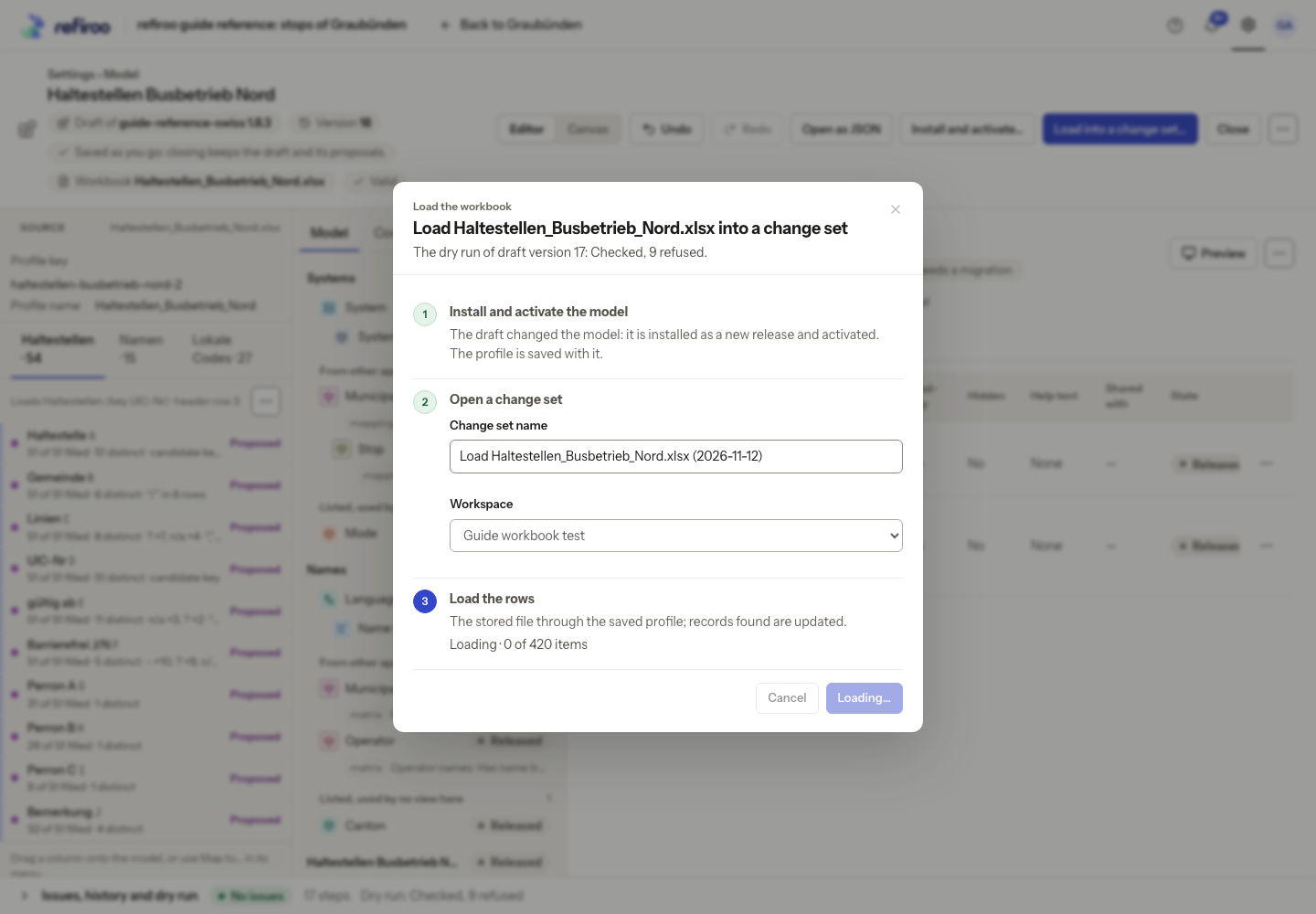
Above: the first two stages are done. Loading has begun at 0 of 420 items; the button says Loading….
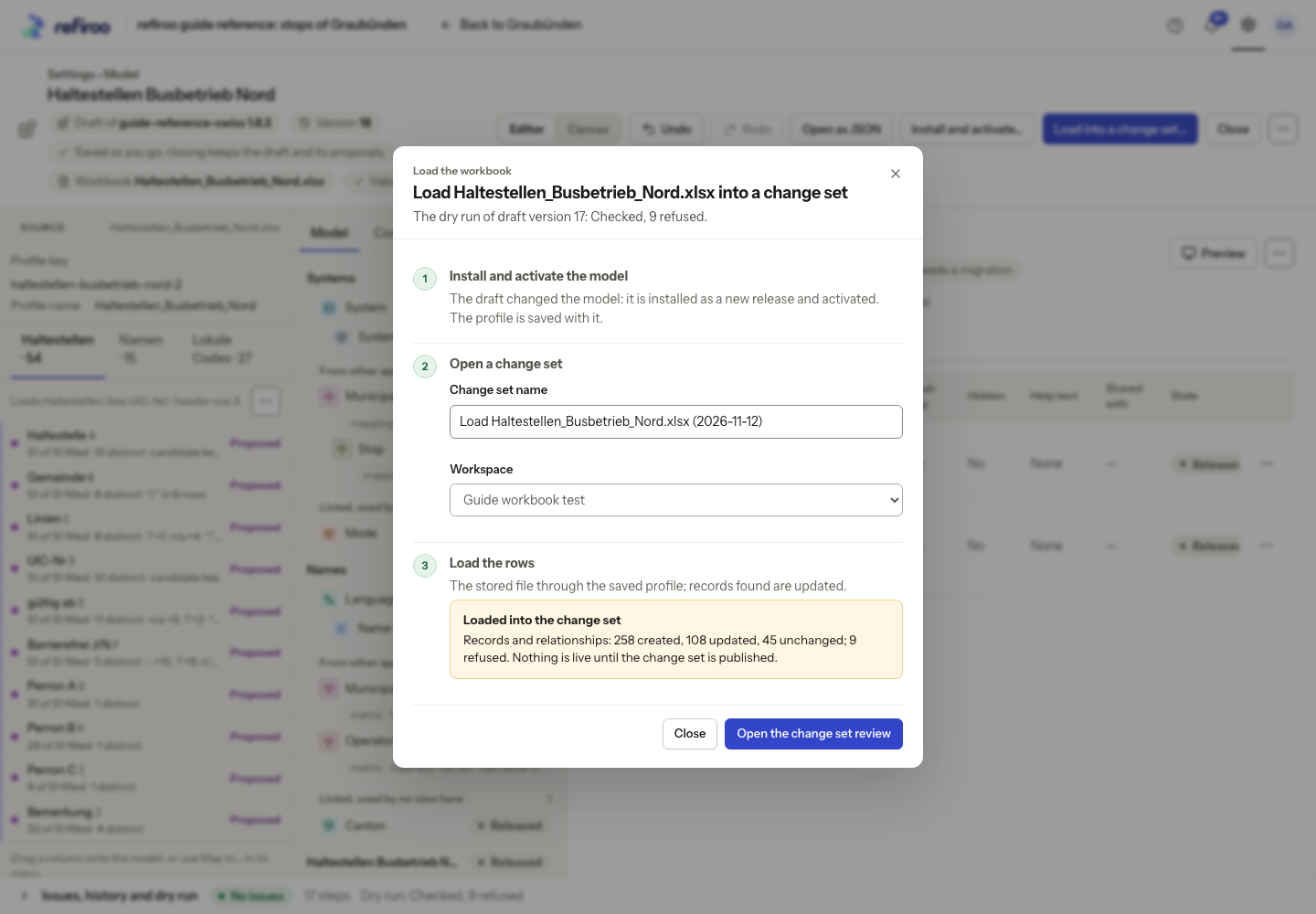
Above: the fictional workbook load created 258 records and relationships, updated 108, left 45 unchanged and refused 9. The result is in a change set, ready to review.
Inspect the loaded changes
Section titled “Inspect the loaded changes”- Choose Open the change set review. Check its workspace and change-set name against the destination you chose. On Records, read the kinds of change and expand entries to inspect the loaded details. Use Filter if needed, then remove it to check the rest.
- Open Relationships and inspect the connections. Compare the proposed changes with what you intended to load. Unchanged records do not count as differences; refused rows have not become successful record changes. The dry run’s refused-row details explain its known refusals.
- Choose Back to change set. Open a collection and inspect the records’ fields and relationships. Check the orange Change set banner before correcting anything; the load has not published the records.
- If the result is ready, review, validate and publish the change set, or submit it for approval. Close in the finished load dialog leaves the loaded proposal unpublished; it does not undo it.
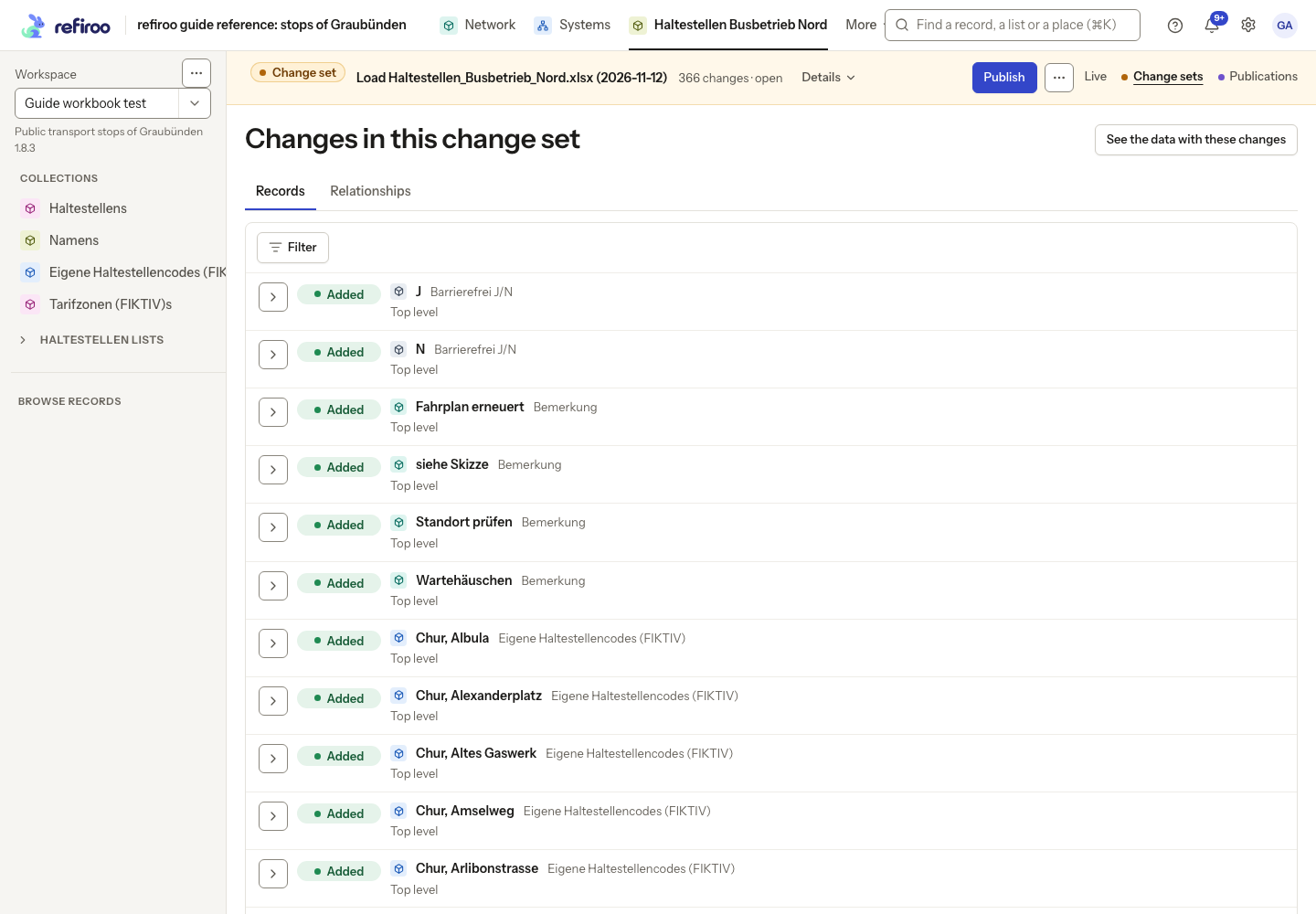
Above: the load’s review in Guide workbook test includes new lookup values and local codes. Each arrow opens the record’s details; Relationships has its own tab.
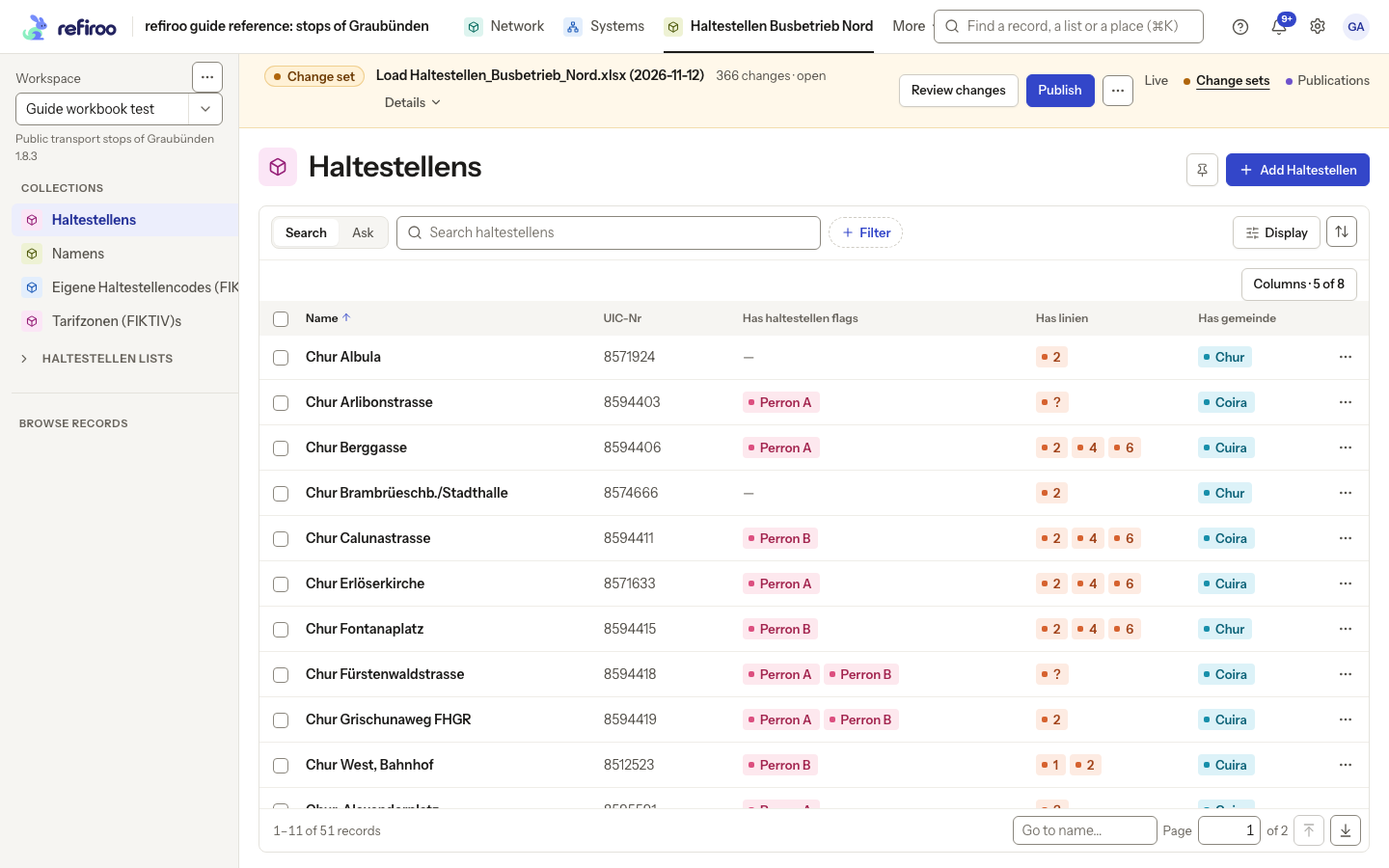
Above: Haltestellens lists 51 proposed records in the fictional workbook’s application. The change-set banner remains visible above the list; the records have not been published.
Keep the draft if you need to revisit its mapping. To remove it, choose Delete draft… on the editor menu and read the confirmation. Deletion removes its proposals, steps and attached workbook permanently; installed releases remain. Cancelling deletion keeps the draft.