

Rotate a client secret
You need Security administration. Arrange the handover with the integration owner before a routine rotation. See Clients for how secrets and grants differ. Rotating the secret preserves the client ID, name and grants.
Choose an overlap
Section titled “Choose an overlap”- Open Settings › Connections › Clients and open the intended client’s row. Check its name and Client ID. Inspect Secrets, including the last four characters, Valid until and Last used, so you can distinguish the current secret from a previous one.
- Choose Rotate secret…. Select how long the current secret should keep working: 1 hour, 24 hours (the default), or 7 days. Use enough time for the agreed handover.
- If the secret may have leaked, choose Stop it now. The system is refused when it next tries to authenticate with the old secret until it has the replacement.
- Choose Rotate secret. Cancel leaves the secrets unchanged. If creation fails, read No new secret was made, reload the client and check its current secrets before retrying.
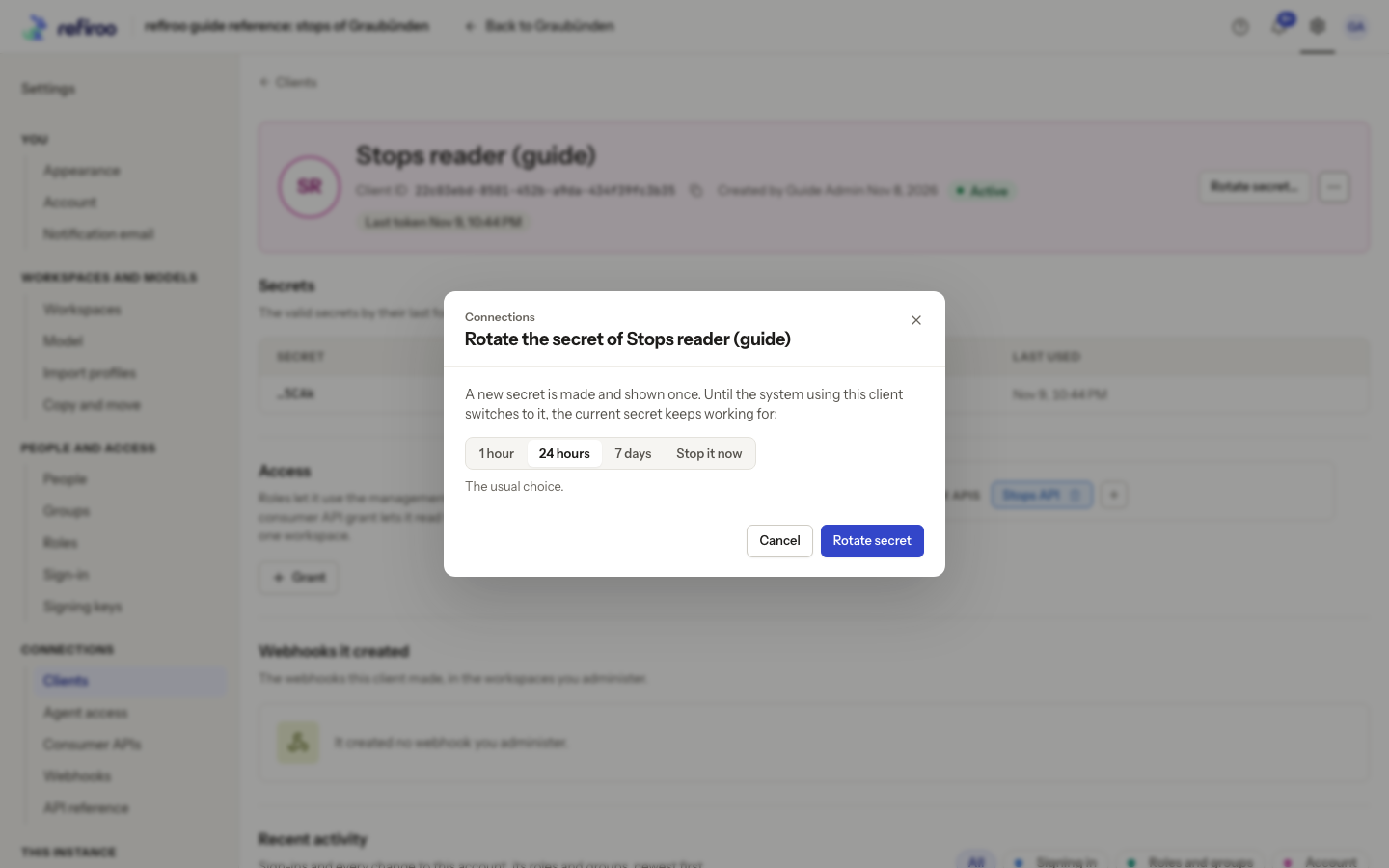
Above: Stops reader (guide) is set for a 24-hour overlap in the reference dialog; no rotation has been submitted.
Save and switch
Section titled “Save and switch”- Copy the new secret from New secret for … into the agreed secure store. The dialog shows it once and says when the previous secret ends. Choose I have copied it after saving it.
- Have the integration owner replace the configured secret while keeping the same client ID. For an active client, both old and new secrets work for authentication during the overlap.
- Ask them to prove a fresh sign-in and the intended operation with the new secret. Check its Last used time in Secrets; a system still using existing access may not have tested the replacement yet.
- Let the overlap expire, or use End now for the previous secret after checking the new one works. Match the last four characters carefully before ending an older secret.
If the new secret was not saved before the dialog closed, it cannot be displayed again. Make another replacement and coordinate that handover. If access is refused after the overlap, check that every running copy of the integration has switched and that the client remains active.
A rotation applies the overlap to every older still-valid secret, keeping any earlier expiry. Repeated rotations do not extend an old handover window. Ending a secret alone prevents new authentication; it does not end access already issued.
Recover after a leaked secret
Section titled “Recover after a leaked secret”- Open the client and choose More actions › Deactivate. Confirm the deactivation. Its requests are refused from their next request, including requests using access already issued. Its name, ID and grants remain.
- In Deactivated, open the same client’s row and choose Rotate secret…. The dialog explains that the new secret takes effect when you restore the client. Rotation does not restore it.
- Choose Stop it now, then Rotate secret. This ends every older still-valid secret immediately. Copy the replacement from New secret for … and store it before choosing I have copied it. Have the integration owner configure the replacement.
- Review the retained grants and the lifetime of access issued before deactivation with the integration owner. Restoring the client can allow that earlier access again if it has not expired; replacing a secret does not revoke it.
- When the client is safe to use, choose Restore. It takes effect immediately. Have the integration owner prove fresh authentication with the new secret and the intended operation, then check Last used.
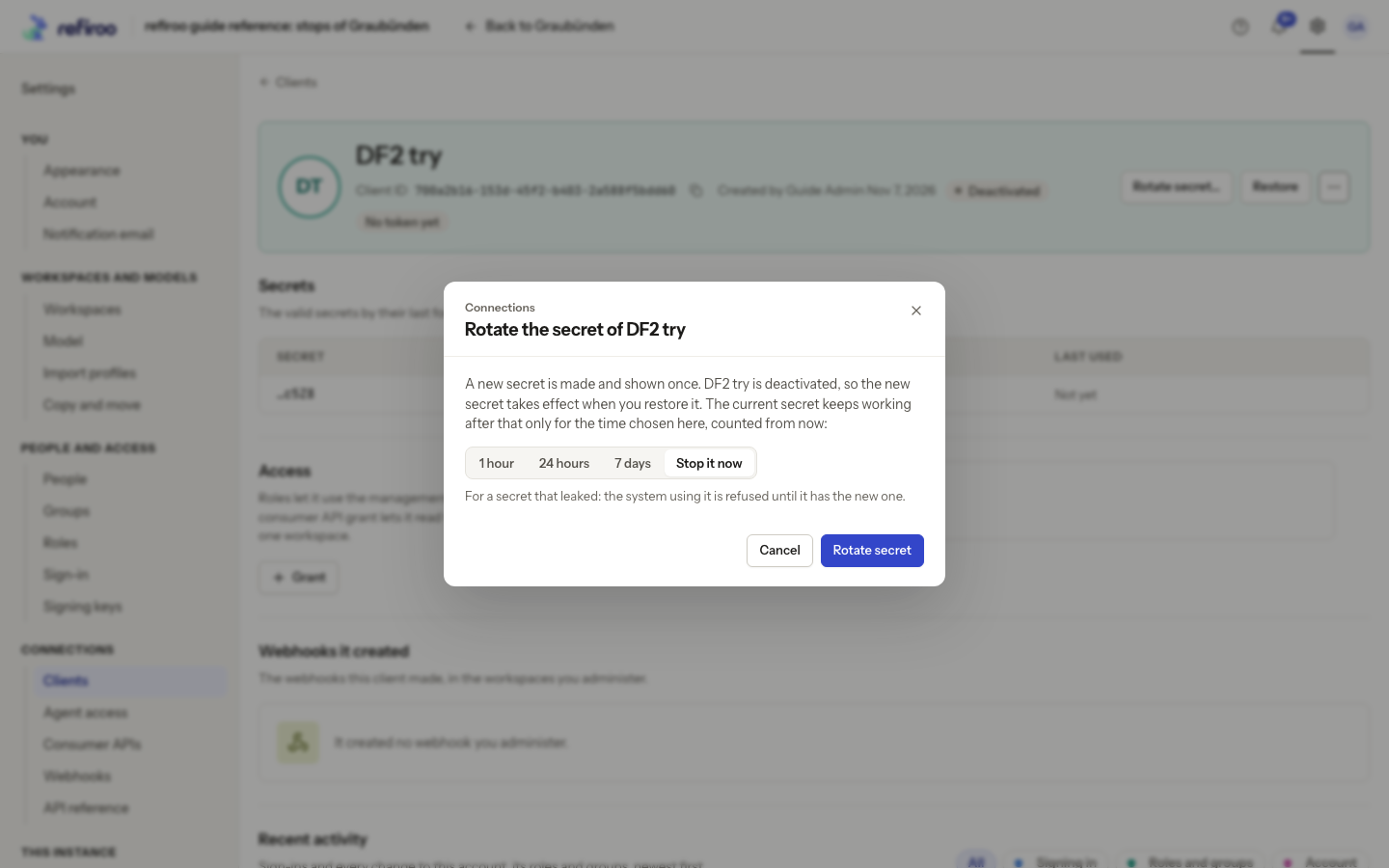
An overlap starts when Rotate secret succeeds, including time spent deactivated. It does not restart when you choose Restore. For example, restoring two hours after a one-hour overlap leaves only the new secret usable. Restoring within that hour lets an older secret authenticate until its existing deadline. Use Stop it now for a leaked secret rather than leaving that window open.