

Open a retired or unavailable workspace
A retired workspace is readable history. An unavailable workspace cannot currently be served. See Workspaces for choosing a dataset.
- For a retired workspace, open Settings › Workspaces where your access offers it. Select the workspace and choose Open workspace. It may be absent from the active workspace selector. Check the Retired · read only mark and the context band’s Retired: read only. message.
- Browse its applications, records and retained publications. Editing records, relationships, change sets and migrations is refused. Ask the workspace administrator about reactivation; do not try to work around read-only status.
- If the destination says Workspace … cannot be opened or Cannot be opened, read its reason. The model’s language can be too old or too new, or its release can be invalid. Other workspaces are not affected and nothing was changed by opening the address.
- Send the reason to the responsible model administrator or operator. Bring it up to date and Review the change, when offered to an authorised administrator, belong to Model language versions. A steward should choose another readable workspace while that is resolved.
- If the page instead says No workspace …, check the address with its sender. If an application or type is not in this workspace’s model, use Workspaces whose model has … to select a suitable destination, or Go back. If none exists, the page says No other workspace’s model has it.
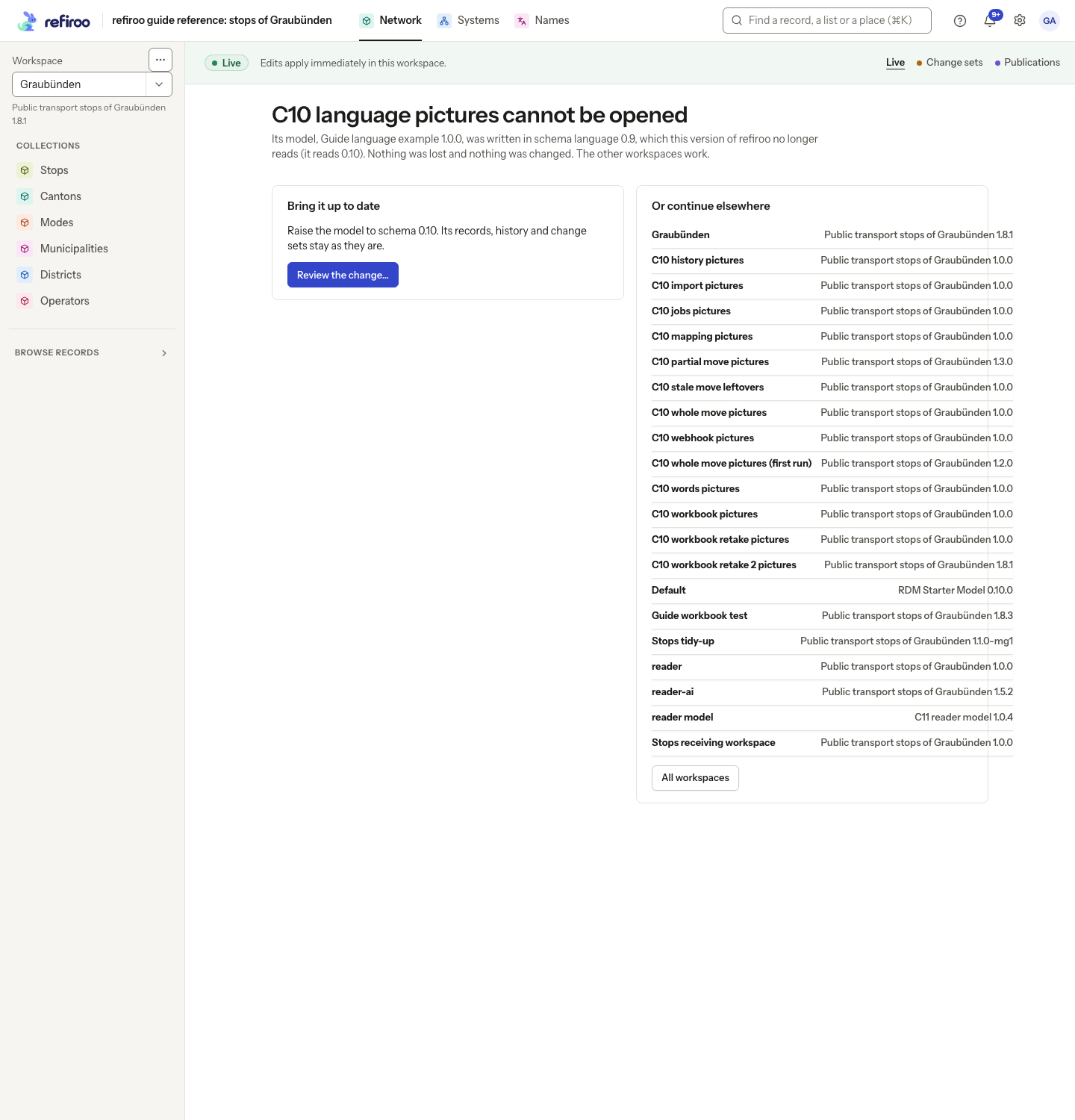
An unavailable model is different from missing Browse access. Ask about the displayed reason; repeatedly retrying a record save does not repair it.
For a missing application, collection or record type, the suggested destination button reads Open in … with the workspace name. It opens that workspace; recheck its model and context on arrival. The start-page button instead keeps you in the workspace already named.