

Releases
Install a draft to keep a fixed model release. Activate that release to make one workspace use its definitions. These stages are separate even when the editor offers them in one confirmation. Follow Install and activate a release.
An installed release never changes
Section titled “An installed release never changes”A release records its model name, stable release key, version and schema. The version distinguishes releases of your model; the schema identifies the model language. Neither is a draft’s edit count. To change definitions, make a draft and install another release. You cannot overwrite a release’s content by reusing its identity for different definitions.
Open Settings, Model, choose a model and select Releases. The list shows its installed versions, schema, installation date and workspace use. Drafts lists editable work separately, with each draft’s base release.
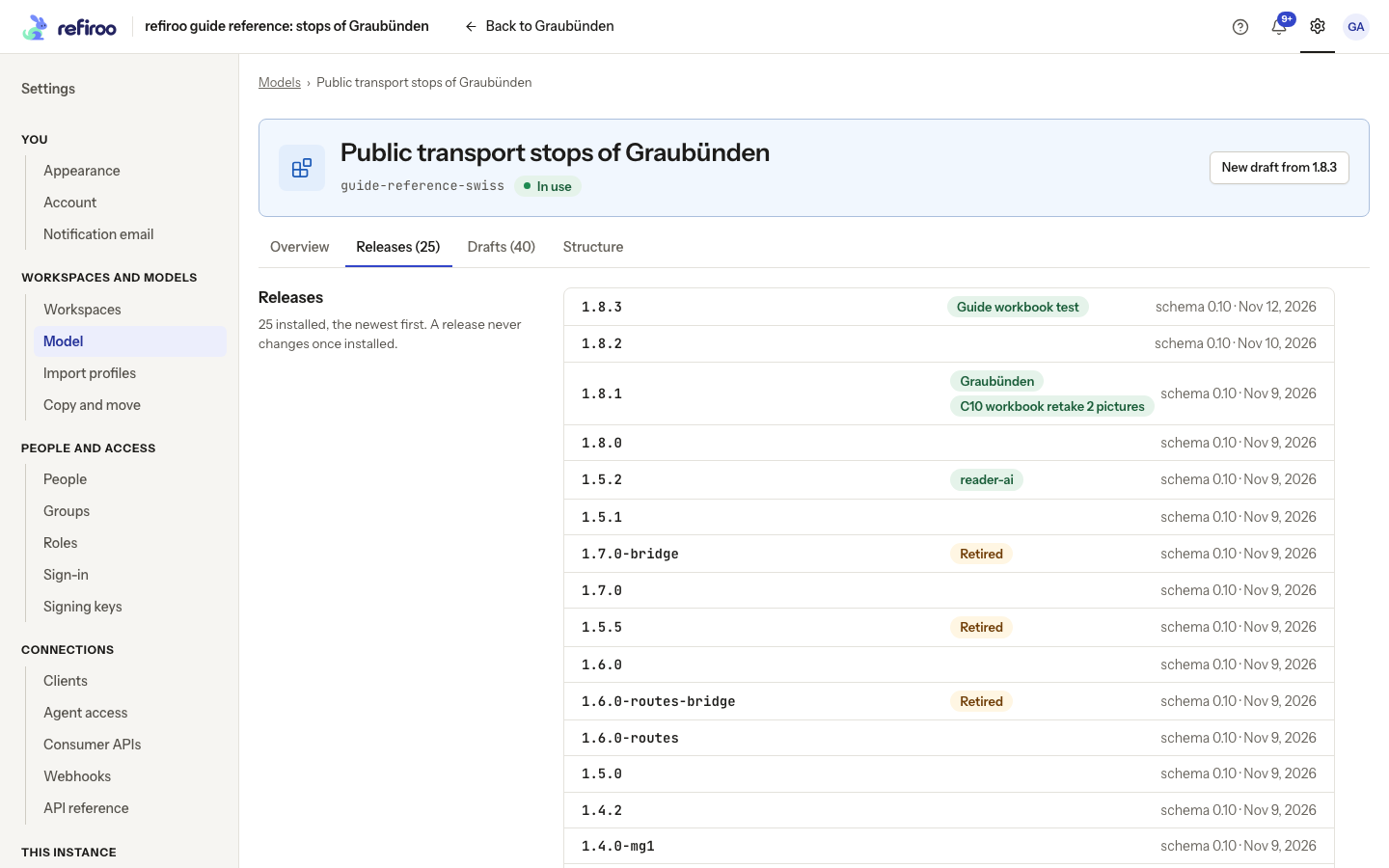
Above: The Graubünden model lists its installed releases, newest first. Graubünden runs 1.8.1; Guide workbook test runs 1.8.3.
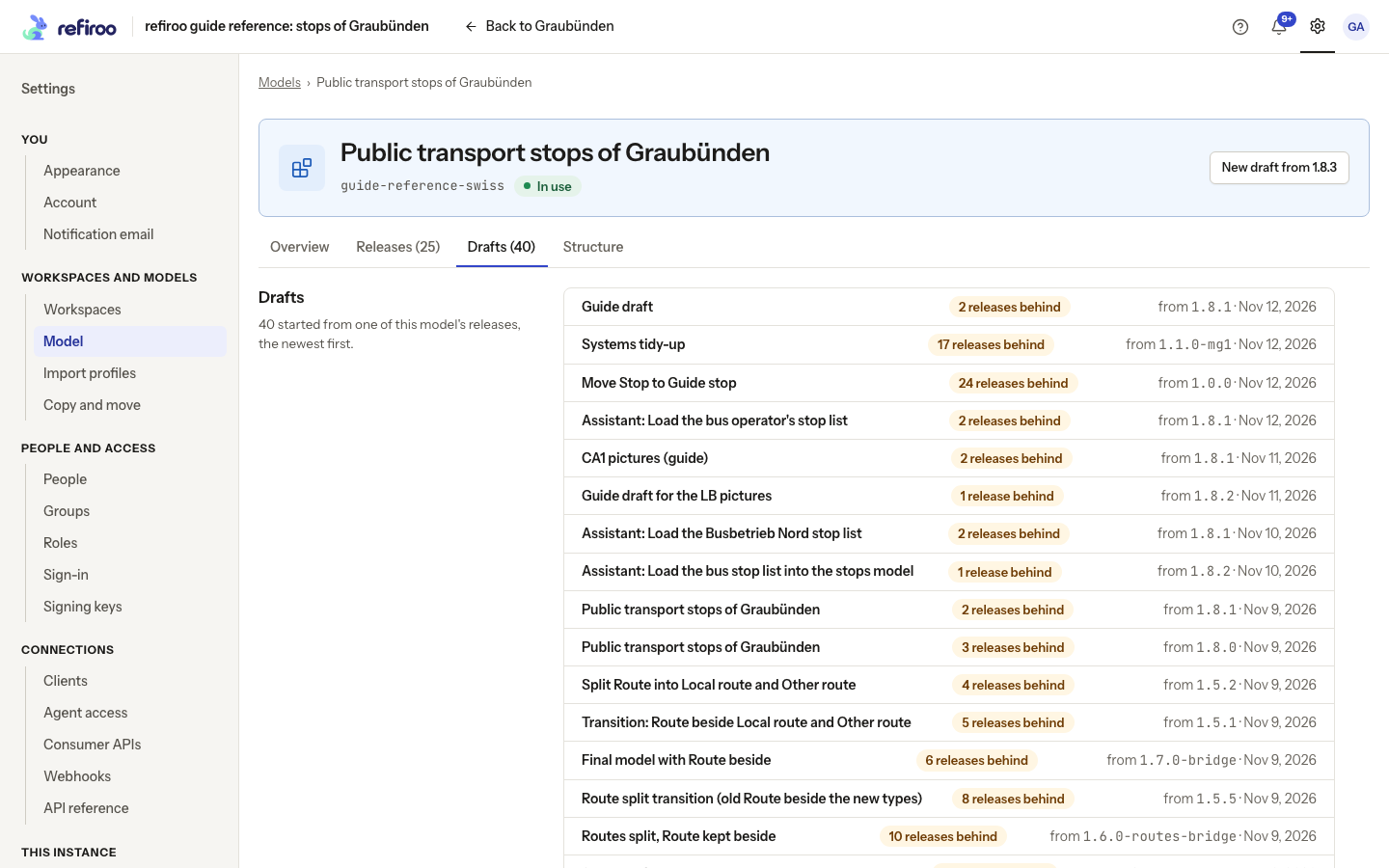
Above: The drafts list shows each base release and how many releases it is behind. Guide draft starts from 1.8.1.
Open a release to inspect its counts and workspace use, Create draft from release, or Activate in a workspace…. The header shows up to two actions; any remaining action is under More actions. Structure on the model’s page is read-only and initially selects the newest release; its Release picker can show another version.
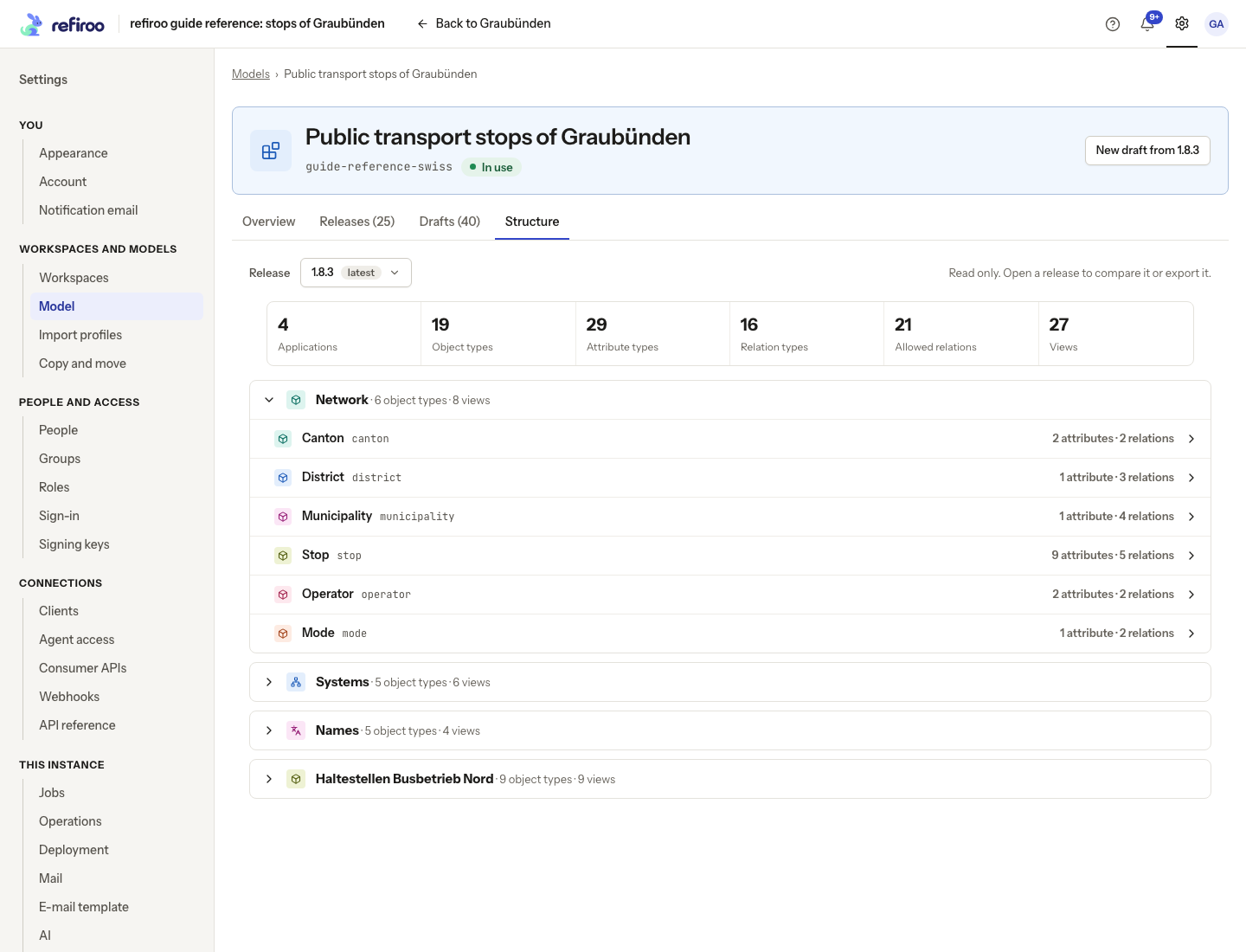
Above: the newest Graubünden release lists Network’s types and the other applications.
The release’s Changes in this release section lets you choose Compare with. It shows added, changed and removed definitions relative to that choice. Check the before and after release names: a chosen comparison may be another model rather than this release’s predecessor. With no earlier release, there may be nothing to compare until you choose a baseline.
Activation belongs to one workspace
Section titled “Activation belongs to one workspace”Each workspace runs its own release. Different workspaces may run different versions or entirely different models. Making a release available does not switch every workspace. The default workspace is simply the default destination; it does not impose its model on the rest.
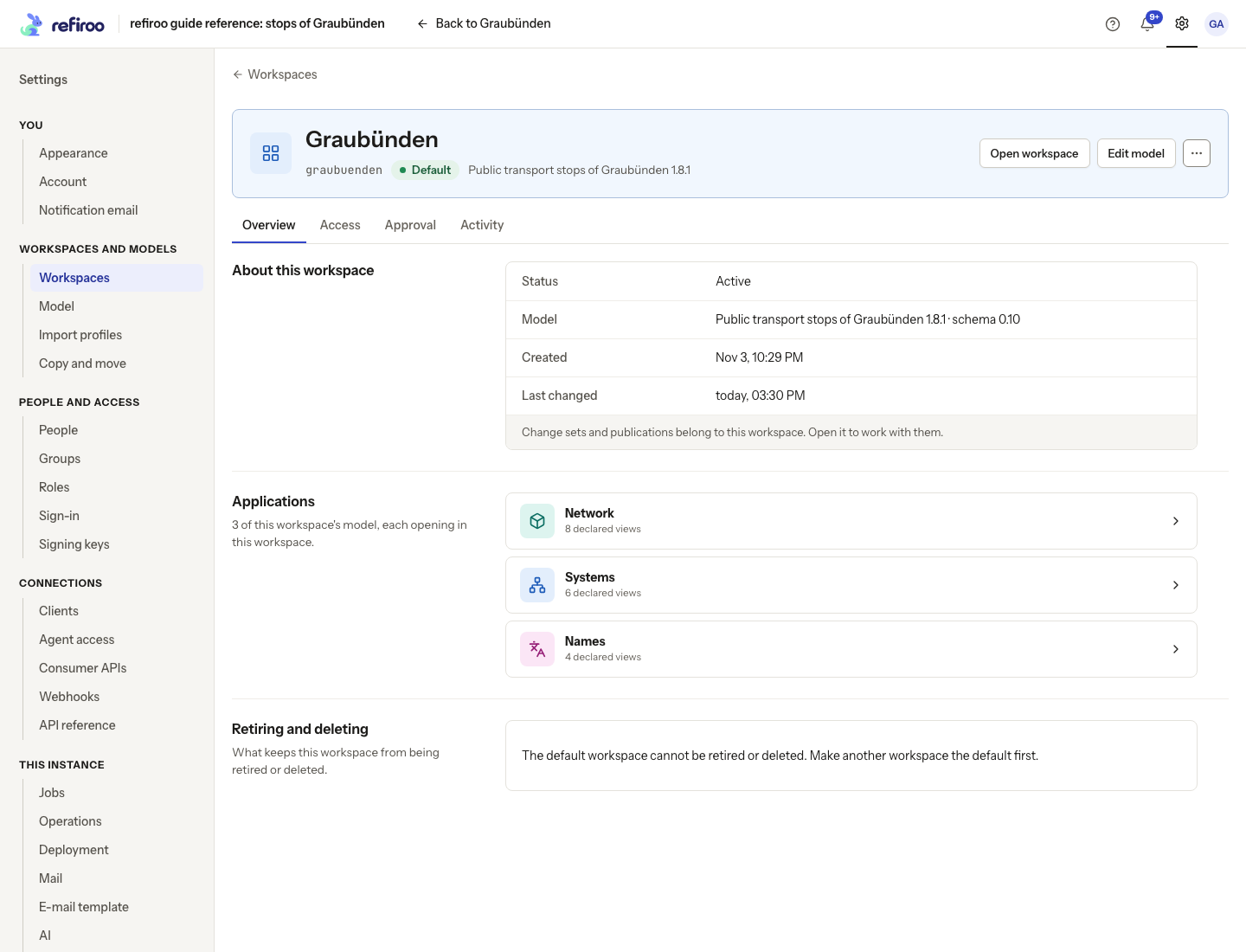
Above: Graubünden runs Public transport stops of Graubünden 1.8.1 and offers Edit model.
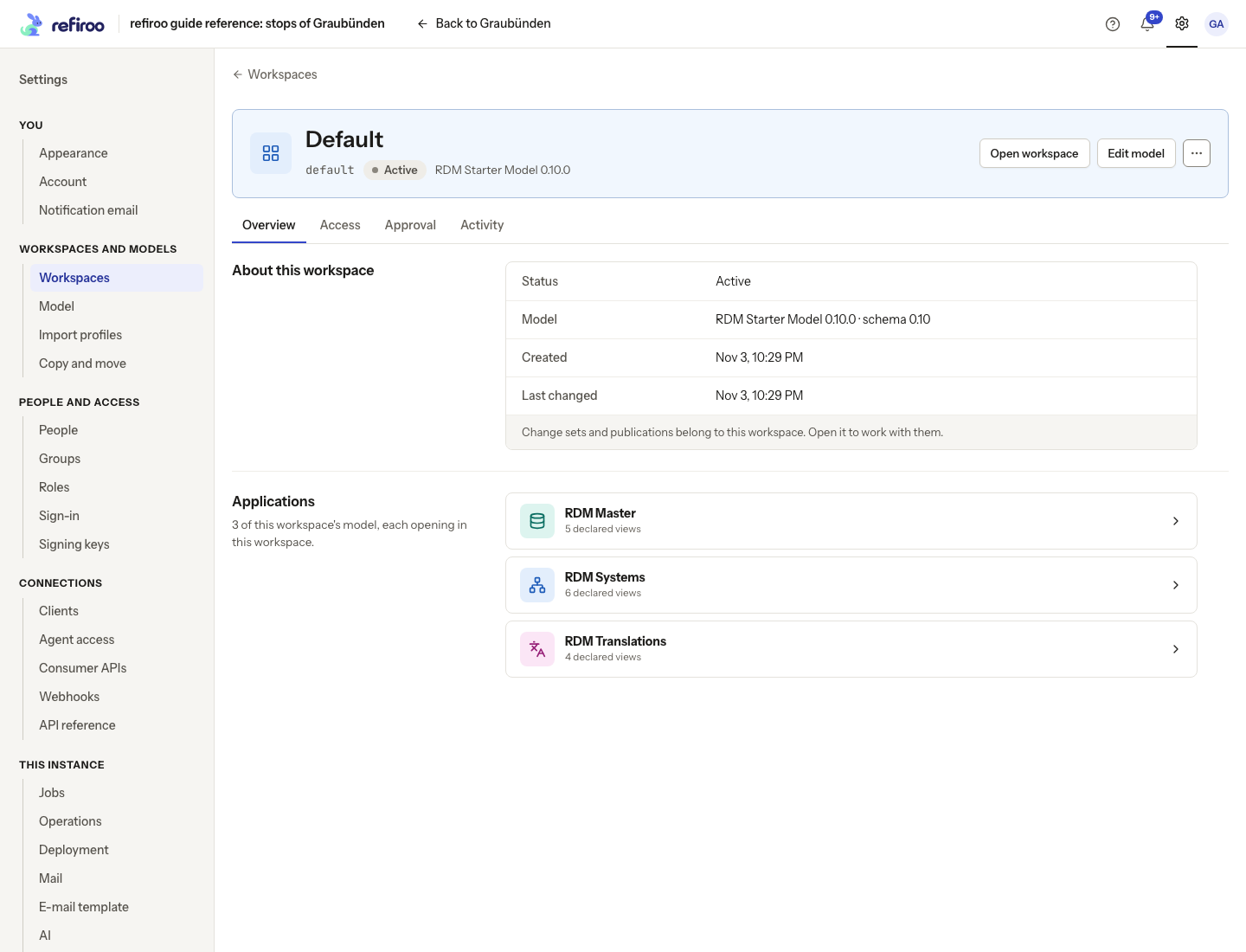
Above: Default runs RDM Starter Model 0.10.0 alongside Graubünden, with its own applications.
Activation checks the target workspace’s records, values and relationships. It is refused when those data do not fit unchanged, or when consumer API compatibility requires another contract version. A release that fitted yesterday can fail today if data changed. Selecting an older release is subject to the same checks; it is not a way to undo record edits.
When you open Edit model from a workspace, the editor identifies it with Applies to and Apply to this workspace…. The confirmation lists the model differences, data compatibility, consumer API compatibility, other workspaces left unchanged and open change sets left behind. If data needs migration, it offers Preview what happens to the records… for a separate review and confirmation. Opening that preview alone changes nothing.
Change sets keep their release
Section titled “Change sets keep their release”Activating a new release does not rewrite open change sets. They remain pinned to their old release and cannot be published while the workspace runs a different one. The confirmation lists them so you can plan the change. Move each to the new release and validate it, or discard it through the change-set workflow. Publications remain fixed snapshots.
See Change sets before applying a model change beside work in progress.
Retiring a release
Section titled “Retiring a release”A release can be Retired to stop it being chosen for new work. Workspaces and change sets already on it keep working. On the release page, More actions › Retire… asks for confirmation; More actions › Bring back makes a retired release available again. The default workspace’s release cannot be retired. These controls need installation permission.
Deletion is more restrictive: a release must have no remaining references. A running workspace, history, an import profile or a mapping can prevent deletion, and the refusal explains why. Deleting a release does not delete its drafts. Read the confirmation before using Delete release.
Read the result of both stages
Section titled “Read the result of both stages”Installed, not active means installation succeeded but the workspace did not switch. The installed release remains available. Resolve the reported reason and activate that release from its page; do not assume a second installation is needed. A concurrency refusal means the workspace or draft changed after your check: refresh, review the current state and check again.
If the mutation controls are unavailable, check your permissions in Models and whether model administration is enabled.
Availability, details and checks
Section titled “Availability, details and checks”The page marks Runs this release for a workspace using it and Run by no workspace when none does. Under Technical details, Release ID and Content hash each have Copy; these identify a release and its exact content, rather than its displayed version alone. Export JSON, in the header or under More actions, downloads the immutable model document for a specialist model author.
Under Workspaces running followed by the model’s key, the activation check reads each workspace’s data separately. Read the workspace name and result; a successful check for one workspace says nothing about another’s data. A failed check is not compatibility. The confirmation checks again when you activate.
More actions › Retire… removes a release from new choices without changing workspaces already running it. More actions › Bring back makes it available again. A release never run and with no records, change sets or publications made under it can offer More actions › Delete… with confirmation. Retirement preserves the release; deletion removes an unused one. A model with all releases retired and no running workspace appears under Retired.
Release pickers offer usable releases supported by this refiroo version. A new workspace starts with the newest release of each model offered, with older versions available on request. A change set offers every usable version and its own workspace’s release even if that release is retired. Older unsupported releases remain inspectable and exportable; ask the operator about updating their model-language version before using them again.
Tasks and checks
Section titled “Tasks and checks”Compare releases, Retire or delete a release and Export a release cover the release page’s actions. Change a workspace’s model explains the activation results; Migrations explains conversion and explicit acceptance of loss. Model language versions explains a historical release that cannot be used by this deployment.
The release page’s activation check under Workspaces running covers workspaces running this model. A workspace running another model is checked separately when selected as a destination. Historical release means this deployment cannot interpret its model language for the usual comparison and activation checks; its metadata and raw export remain readable.
Installation makes the installed release the draft’s base without resetting its editing version. A second different definition under the same release key and version is refused; the install dialog proposes an editable next version. Exact reinstallation of the same content can restore a retired release. After a switch, an older open data form may be refused because it was based on the old model; reload and review the new definitions before editing again.
Open change sets can use Change model version only when their content already fits the chosen release. If conversion is needed, use the migration review. Starting a change set from current live data likewise checks that its selected model can hold that data; choosing a model version does not waive its rules. Publication requires a successful validation of the current change-set version and agreement with the workspace’s active release. See Change sets for the ordinary creation and publication steps.
Ask what activation changes
Section titled “Ask what activation changes”With a configured AI provider and the required workspace permissions, the activation dialog offers What this change does. Accounts of model changes explains the facts, sent data, costs and limits. Follow Explain a model change to ask; opening the dialog alone makes no provider request.