

Records
A record is one item of reference data: something your organisation names, describes and connects to other items. Its record type defines the fields it holds, the relationships it may have and where it belongs. The model defines these types; your records are the data kept using them.
On a desktop, opening a table row shows the record beside its list, keeping your place. Choose Expand to full page to open the record’s page. On a phone, the row opens the full page directly.
For the steps to locate and inspect one, see Find records.
For choosing the dataset and view, see Workspaces and Applications. For connected records and placement, see Relationships and Hierarchies. For coverage across records, see Relation matrices and Fill in a relation matrix.
Workspaces, applications and types
Section titled “Workspaces, applications and types”A workspace holds a set of reference data under a model release. An application groups the types and views you work with. A record type defines one kind of item. The applications, types and labels you see depend on your workspace’s model.
A record belongs to a workspace and an application, and has a record type. A relationship may connect it to a record in another application within the same workspace, where the model allows that connection. Being in different applications does not make the records separate copies.
The workspace selector identifies the data you are working on. The context above the records identifies Live, a Change set, or a publication. Live shows current data; a change set holds proposed changes; a publication shows a saved, read-only snapshot. The same record can therefore look different in these contexts. See Change sets for how they fit together.
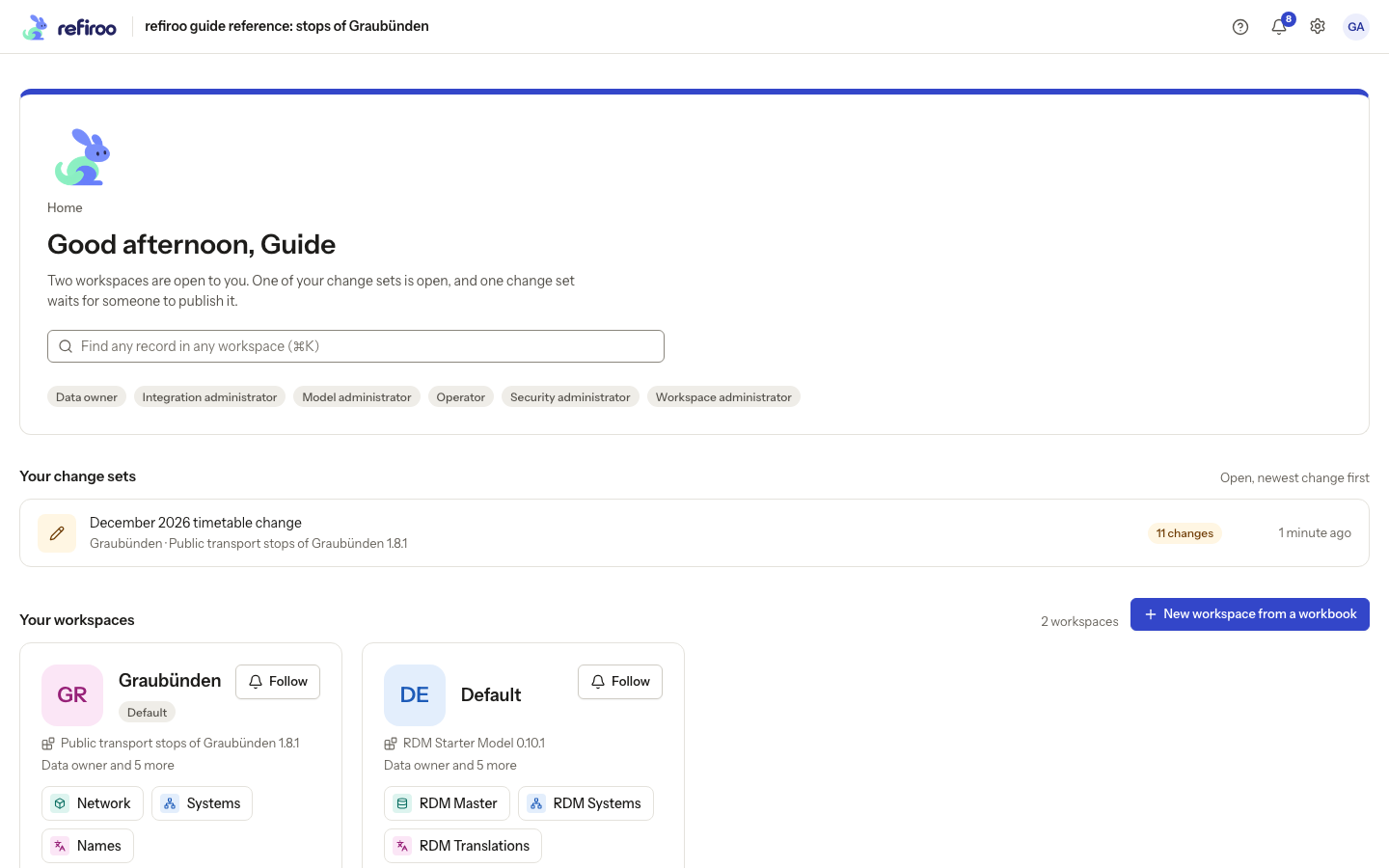
Above: the Graubünden workspace offers Network, Systems and Names. These are applications in the example model; other models can define different applications and record types.
What a record holds
Section titled “What a record holds”A record has a stable ID as well as its displayed name. Renaming it keeps its identity, relationships and place in the hierarchy. Its ID is separate from a business code stored in a field: changing a code does not create a different record.
Fields hold typed values, such as text, numbers, dates and Yes/No values. Zero and No are values, rather than empty fields. Depending on the model, a field may be required, read-only, unique, or limited to a range. A save that breaks a rule is refused with a reason. A blank optional field means that no value has been set.
A model can hide a field from record forms and the fields panel. A hidden field is absent, rather than an empty field you should fill. Hiding it does not delete its stored value. Ask the model administrator if information needed for your task is missing. Read any help text below a form field: it explains that field’s use. The model can give a field different help for different record types. Read-only fields can be shown but cannot be changed.
The model also chooses how the record’s page presents it. Fields may appear in the heading or in a details panel; other panels show children, relationships and history. For ways to edit a single value or several fields together, see Correct a record.
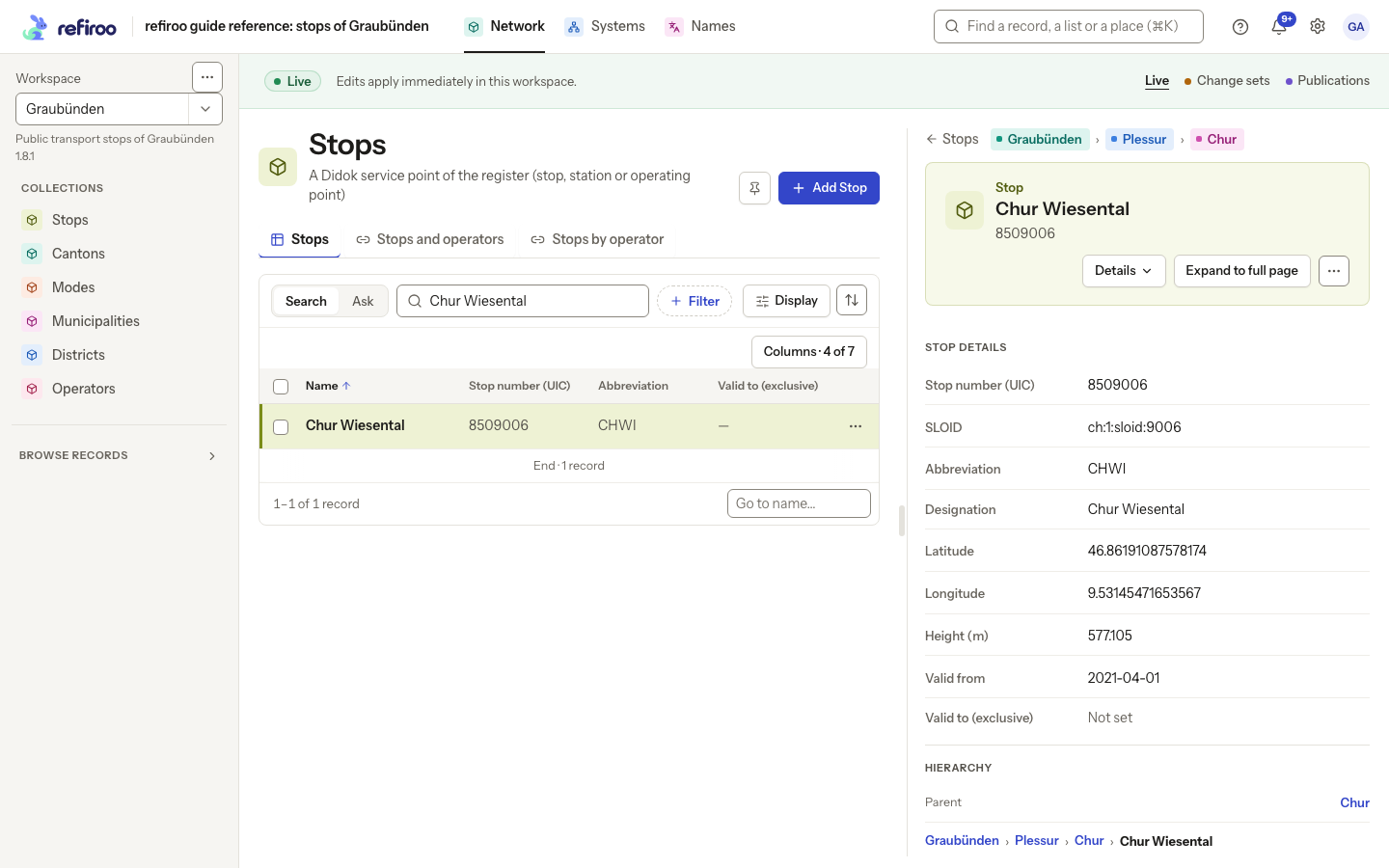
Above: Chur Wiesental is open beside the Stops list in Network. Stop details holds its number, abbreviation and other fields, and Hierarchy shows its parent. Details and Expand to full page are in the record header.
Relationships and a place in the hierarchy
Section titled “Relationships and a place in the hierarchy”A relationship is a named connection between records. The model defines its meaning in each direction, which types it connects, whether it is required and how many connections are allowed. A connection can carry fields of its own. A relationship table shows connected records using the fields and labels chosen by the model. In the Relationships panel, the connection’s own values follow the related record’s columns. Display lists them under Attributes of the relationship. They cannot be used to sort this panel; see Relationships.
A parent gives a record its place in a hierarchy. Some types can stand at the top; others need a parent of an allowed type. The line above a record’s title starts with ← and the list’s name when you opened it from a list, followed by its ancestors where the model shows them. Choose the list’s name to return. A parent is more than an ordinary connection: changing it moves the record in the hierarchy and keeps the parent connection consistent. An invalid parent or a move that creates a cycle is refused.
Relationships can express ownership or an association with an independent record. This matters when deleting: a record that belongs to an owner can be removed with it, while an independent record remains. The deletion section below explains the distinction.
See Find records for inspecting these panels, and Correct a record for the form that includes Parent. The model determines which parents and related records are available.
Records that belong to another record
Section titled “Records that belong to another record”A model can define records that belong to an owner through a required relationship. Each owned record has its own fields, identity, version and history. Its owner can be in another application in the same workspace. This is a general relationship rule, not a feature tied to one domain.
A relationship panel on the owner’s page lists the connected records. No relationships yet means none are connected there. A relation matrix can compare owners against column records and show their owned records in the cells, where the model declares that view. Follow Create an owned related record or Fill in a relation matrix for the steps.
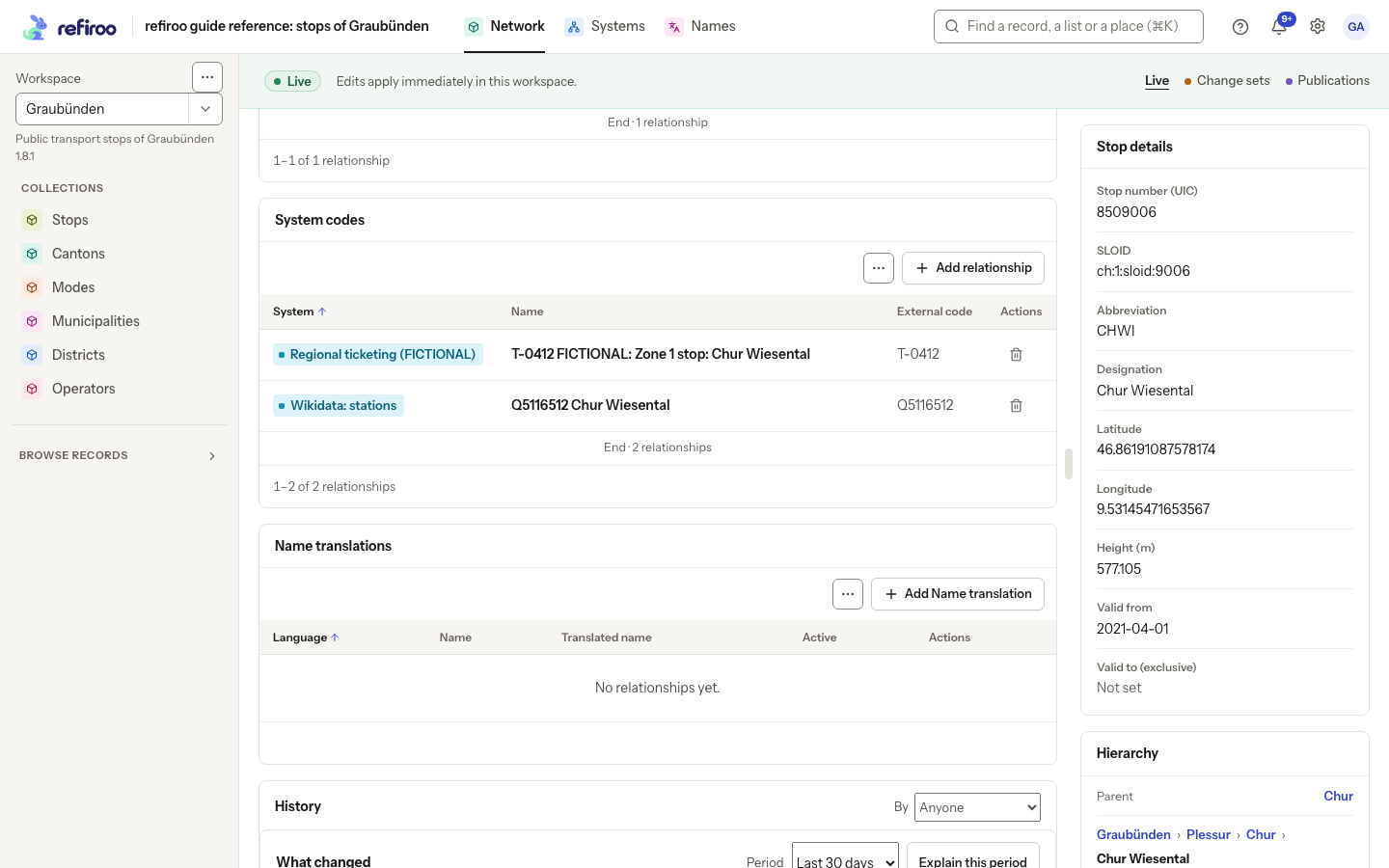
Above: Chur Wiesental has two System codes and no Name translations. Regional ticketing (FICTIONAL) is an invented example system; the other code belongs to Wikidata: stations.
See Translations as an example for one configuration of owned records and a relation matrix. Languages, names and the rules connecting them come from that model.
Validity periods
Section titled “Validity periods”A record type can define a validity period using two date fields. The start is the first valid date, including that day. The end is the first date on which the record is no longer valid, excluding that day. An empty start leaves the beginning open; an empty end leaves the end open. When both dates are set, the end must be later than the start.
For example, a stop with Valid from set to 1 April 2021 and Valid to (exclusive) set to 13 December 2026 is valid from 1 April 2021 through 12 December 2026. Those are the example model’s labels; other types can use different labels or have no validity period.
Validity describes the data’s business dates. Setting an end date keeps the record, its identity and its history. It does not delete the record or schedule a change set to publish on that date. See Correct a record for editing a date and Prepare and publish a change set for coordinating several date changes.
Versions and refused saves
Section titled “Versions and refused saves”The version under Details in a record’s header protects it from being overwritten by an older edit. When you save, refiroo checks the version you read. If someone else saved a change first, your save is refused, even if you changed a different field on the same record. Their saved change remains in place.
The field editor keeps your attempted value and shows Current saved value alongside the refusal. Review the refreshed record before deciding whether to save again or cancel. Another change before the next save can cause another refusal. Follow If someone else changed it first for the recovery steps.
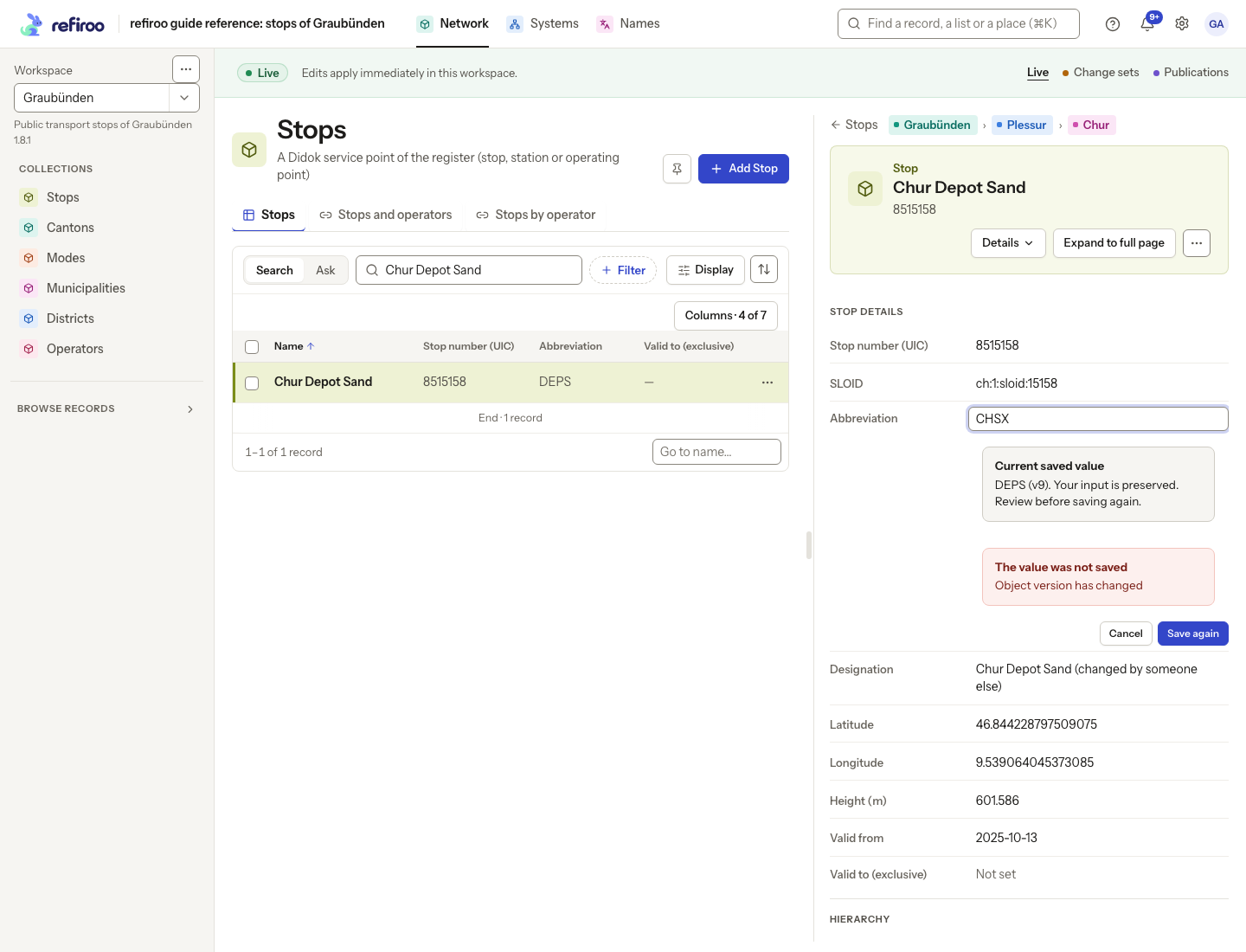
Above: another session changed Chur Depot Sand’s Designation before this Abbreviation save. The editor preserves the attempted abbreviation, shows the current saved value and reports “The value was not saved” and “Object version has changed”.
A record version is different from a model release, which defines the data’s structure, and from a publication number, which identifies a workspace snapshot. Work in a shared change set is also protected by the change set’s version; a colleague’s intervening change can require a refresh.
History
Section titled “History”History shows what changed, who changed it and when, newest first. Expand an entry to read its details. See History for record events and activity across records, and See who changed what for the steps and filters.
Deleting a record
Section titled “Deleting a record”Delete record on the record menu opens one confirmation. It reads what deletion would remove before offering the delete button; opening it deletes nothing. The impact follows these rules:
- Descendants in the hierarchy are removed with their parent.
- Records owned through required relationships are removed with their owner, including dependants in another application. Their dependants are included too.
- Relationships to independent records are removed, but those records and their hierarchies remain.
The confirmation counts the records and relationships removed and names up to eight dependants with their types, followed by and N more where needed. Choose Delete N records when dependants are included, or Delete followed by the type’s name for one record. Cancelling leaves everything in place. A failed impact read offers Retry and no delete button. If the record or impact changes before deletion, the stale attempt is refused and the refreshed impact must be reviewed and confirmed again. A required connection cannot simply be removed on its own while leaving a dependant without its owner.
In Live, deletion takes effect immediately. In a change set, it remains a proposed deletion until publication. Existing publications retain their snapshots. Ending a validity period is different from deleting a record.
See Correct a record for the record menu and editing context, and Prepare and publish a change set for applying proposed removals together.
Who may read and change records
Section titled “Who may read and change records”Access comes from roles granted to you directly or through a group. A grant covers a workspace, or the whole installation. The relevant permissions are Browse, Edit live and Work in change sets.
| Predefined role | Read records and history | Create, change and delete in Live | Create, change and delete in change sets |
|---|---|---|---|
| Reader | Yes | No | No |
| Contributor | Yes | No | Yes |
| Data steward | Yes | Yes | Yes |
| Data owner | Yes | Yes | Yes |
An administrator can also define custom roles. Write permissions may be limited to particular applications or record types. A deletion must be allowed for the dependent types it removes too. Browse covers the workspace’s data as a whole; it is not narrowed to selected types. An administrator role alone does not give permission to read or edit reference data.
Your available controls reflect your access. Publications are always read-only, and a retired workspace remains readable but refuses changes. The workspace’s publication approval policy does not by itself require approval for a direct live correction. See Correct a record for direct work and Change sets for publication permissions.
A narrowed grant permits a relationship change when you may write either connected record. It does not permit changing unrelated records of a type outside your grant. A bulk load refuses individual out-of-scope items; publishing a change set containing out-of-scope changes refuses the publication as a whole. Check the proposal’s types before asking someone to publish.
Edit a value or create a record
Section titled “Edit a value or create a record”Fields can hold text, long text, whole numbers, decimal numbers, Yes/No, dates, dates with times or structured values. The model may require a value, limit a number’s range, require at least one of several fields, or require a unique value across the workspace. Separate relationship rules can limit counting records beneath an ancestor; see Relationships. A missing value is different from No, zero or a deliberately stored empty value.
Click a value on the record page, or focus it and press Enter, to open its editor. Selecting text to copy does not start an edit. The value becomes its field where it stands, without Save or Cancel buttons. Leaving the field, by clicking elsewhere or pressing Tab, saves it; Enter also saves a single-line value. In text of several lines, Enter adds a new line and Ctrl+Enter (Cmd+Enter on a Mac) saves. Escape puts the old value back. An unchanged input closes without saving or showing a notice. Click an empty field to add a value. An editable Yes/No value in the details is a switch: changing it saves immediately; in a list cell, the tick saves as soon as it changes. A choice from a list saves when selected. You can open another field while one is open; the first saves as you leave it.
Saving through an input shows ‹Field› saved with Undo, including a value set for the first time: Undo makes that field Not set again. If the record changed again in the meantime, Undo is refused with “Undo was not possible: the record changed again in the meantime.” An optional value’s trash button removes it immediately and offers Undo in the notice. Read-only fields have no editing control.
If a save is refused, the field stays open with your input and the reason beneath it. Cancel and Save again then appear under the reason. Correct the input or review the current saved value before choosing Save again; Cancel abandons the correction. Leaving a refused field again retries only after its input has changed.
The header’s title and subtitle edit the same way. An empty subtitle offers Add. Open Details in the header for the record’s ID, its copy button and version. Copy ID is also in the record’s ⋯ menu. Use Edit record in the ⋯ menu for the form containing all fields. A new record form saves its fields, allowed parent and required relationships together: complete all required choices before choosing Add followed by the type’s name. Required fields come first; optional fields are under More fields (n), remembered per type in this browser. Missing or wrongly typed values are explained beneath their fields. On a desktop, forms and confirmations open as dialogs in the middle of the window. A refusal leaves the invalid record uncreated; correct the named field or connection.
In a table, use the cell’s pencil to edit without opening the record. Optional values and single relationships can have a trash button. These icons appear on hover and stay visible on touch screens; the row’s menu is the keyboard alternative. Clicking the value elsewhere still opens the record. A saved value shows one ‹Field› saved notice with Undo; the context band shows whether you are in Live or a change set. A relationship picker’s save notice names that context. Ancestor fields, containment, owned relationships, computed fields and publications have no cell editing icons. Relationship rows use tooltip-labelled icons for changing the other record, editing the connection’s fields or deleting it; a lock explains a required or parent-managed row.
There is no business-date filter in the browser. Validity fields describe business dates; searching today’s lists does not automatically select the records valid on another day.
Propose instead of editing Live
Section titled “Propose instead of editing Live”A Contributor sees Propose a change on a record and Propose a new … on a collection. The first use asks for a change-set name, then opens your proposal for editing. Later uses continue your newest change set. The band names it, its change count and state. Open Details for who started it, when, its version and model. A Reader’s band says You can read this workspace and whom to ask. With narrowed write permissions, controls appear only on the allowed record types and the Live band names those types.
For several records, permitted collections offer selection and Change values, Change relationships and Delete with a preview before applying. Deletion previews count children and owned dependants by type, relationships removed and those reaching records that stay. Review these separately from the number of selected records.
Screenshot data: Source: opentransportdata.swiss, Service Points (Didok), Federal Office of Transport / SBB, snapshot 2026-11-02. Wikidata, CC0.
Clearing, uniqueness and related cells
Section titled “Clearing, uniqueness and related cells”Required fields need non-empty values; empty text does not meet the requirement. A model’s default fills a missing value on creation, rather than replacing an existing value on every save. Workspace-wide uniqueness prevents two records holding the same nonempty unique value; missing values and empty text do not reserve one. A conditional relationship rule can further limit which records count within an ancestor; see Relationships.
To clear an optional field, empty its input and leave the field, or use its remove-value button. Either removes the value without asking for confirmation and keeps the record. The field reads Not set, and ‹Field› removed offers Undo to put it back. Leaving a required field empty is refused beneath it: ‹Field› needs a value. Cleared and Empty text still appear when already stored. There is no No value choice in the input: emptying a text input removes its value rather than setting either state. After any refusal or refresh problem, inspect the current saved state before another edit.
A multi-record relationship cell opens a checklist and saves additions and removals together. See Replace a record’s related records. For full workflows, use Add a record, Delete a record, Stop offering a value or Propose a change. For bulk policy and results, see Changing many records.
When a record cannot open
Section titled “When a record cannot open”Record unavailable is a failed read, not an empty record. Read its reason and choose Retry, or Back to list to inspect another result. A record belonging to another application follows that application’s route where the model allows it. A record belonging to another workspace cannot be read by silently substituting the workspace you have open. Check the workspace and original address with its sender.
Read-only fields cannot be supplied on creation, changed later or cleared by an ordinary edit. If a type requires at least one of several fields, keep one filled when changing or removing another. For a related-record cell, a single-valued relationship opens its picker; a many-valued one opens the complete checked set and saves its additions and removals together. Computed fields, ancestor values, parent containment, ownership-managed connections and publication cells have no ordinary table edit controls.
Different records’ business validity periods may overlap. Ending a period does not turn the ordinary list into a view of another date. Use Valid on when exporting a file to request that business-date selection. There is no record restore from History: review and save a new correction instead.