

Notification settings
Keep your inbox in refiroo and choose which notices also reach your email address. Open Settings › Notification email, or Notification email settings on the Notifications page. Follow Set up email notices for the steps. For the notices themselves, see Inbox and approvals.
Email is your choice
Section titled “Email is your choice”Email me when something arrives in my inbox is off until you enable it. The page shows the destination address. Under How each kind reaches me, choose At once, Digest or Off for approval requests, decisions on your requests, jobs and other offered kinds. These choices change only email: your inbox keeps every notice. Choices save as you make them; read any error before assuming the new choice was stored.
If mail has not been configured or your account has no address, a sentence explains why no email choice is offered. Ask an administrator about the missing setup or address. If email was already on, the switch can remain visible so you can turn it off after mail becomes unavailable. Email is for people’s accounts, not clients used by other systems.
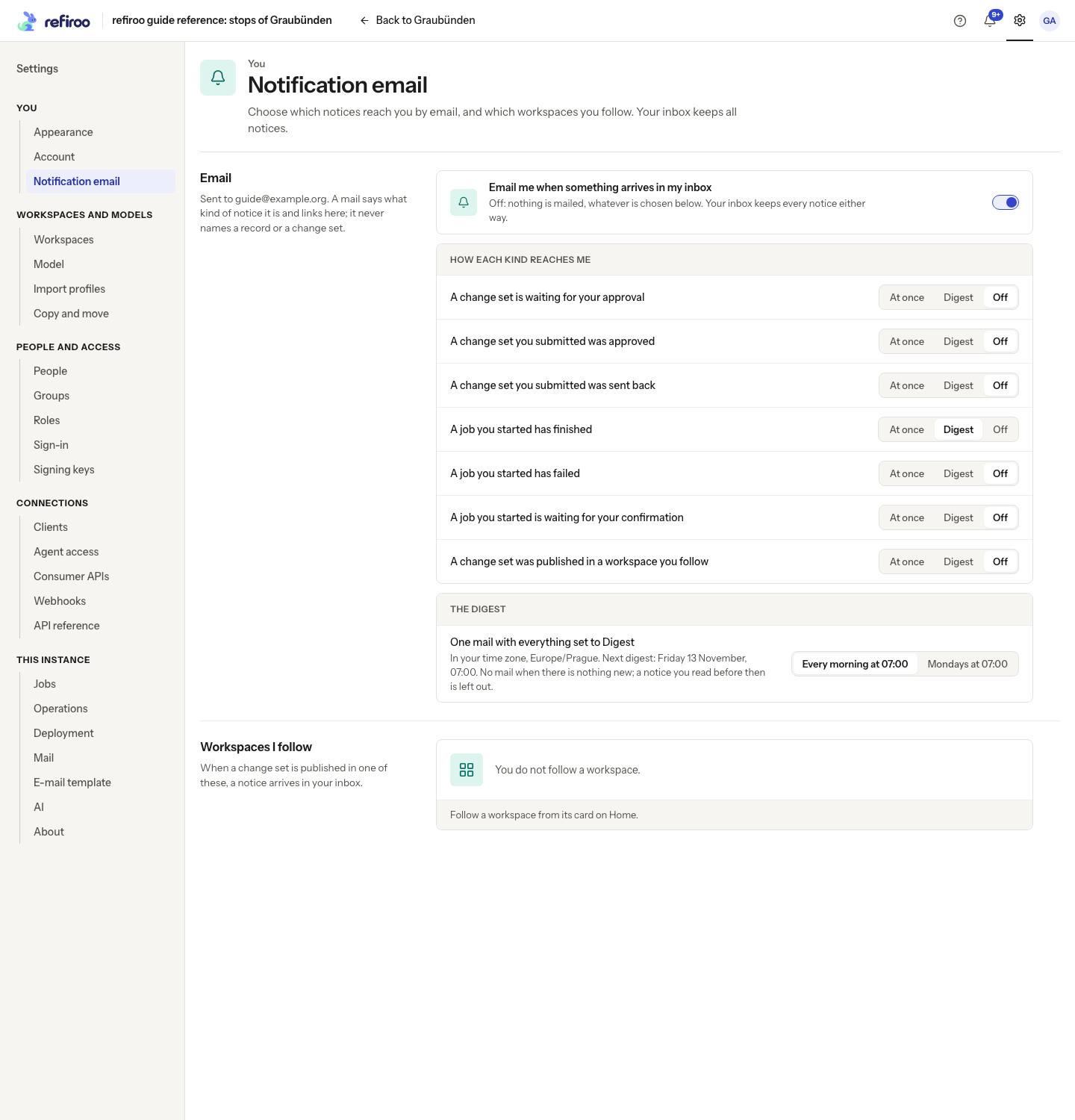
Above: the reference account has no email address, so no email delivery choices are offered. Its followed-workspaces list is also empty.
At once sends an eligible unread notice once, provided it arrived since enabling email and is less than 24 hours old. Previously read notices and notices from before enabling email are not sent. Turning email off leaves inbox notices intact.
A digest instead of separate messages
Section titled “A digest instead of separate messages”Choosing Digest for the first kind starts a daily schedule in your browser’s time zone. Under The digest, choose Every morning at 07:00 or Mondays at 07:00. The page shows the saved time zone and Next digest. There is no choice of another hour or an evening digest. Enabling email recalculates its next time; changing the frequency or time zone moves it. Saving the same schedule preserves its next time. With email off or no schedule, no next time is shown. The browser supplies the time zone when you choose the schedule.
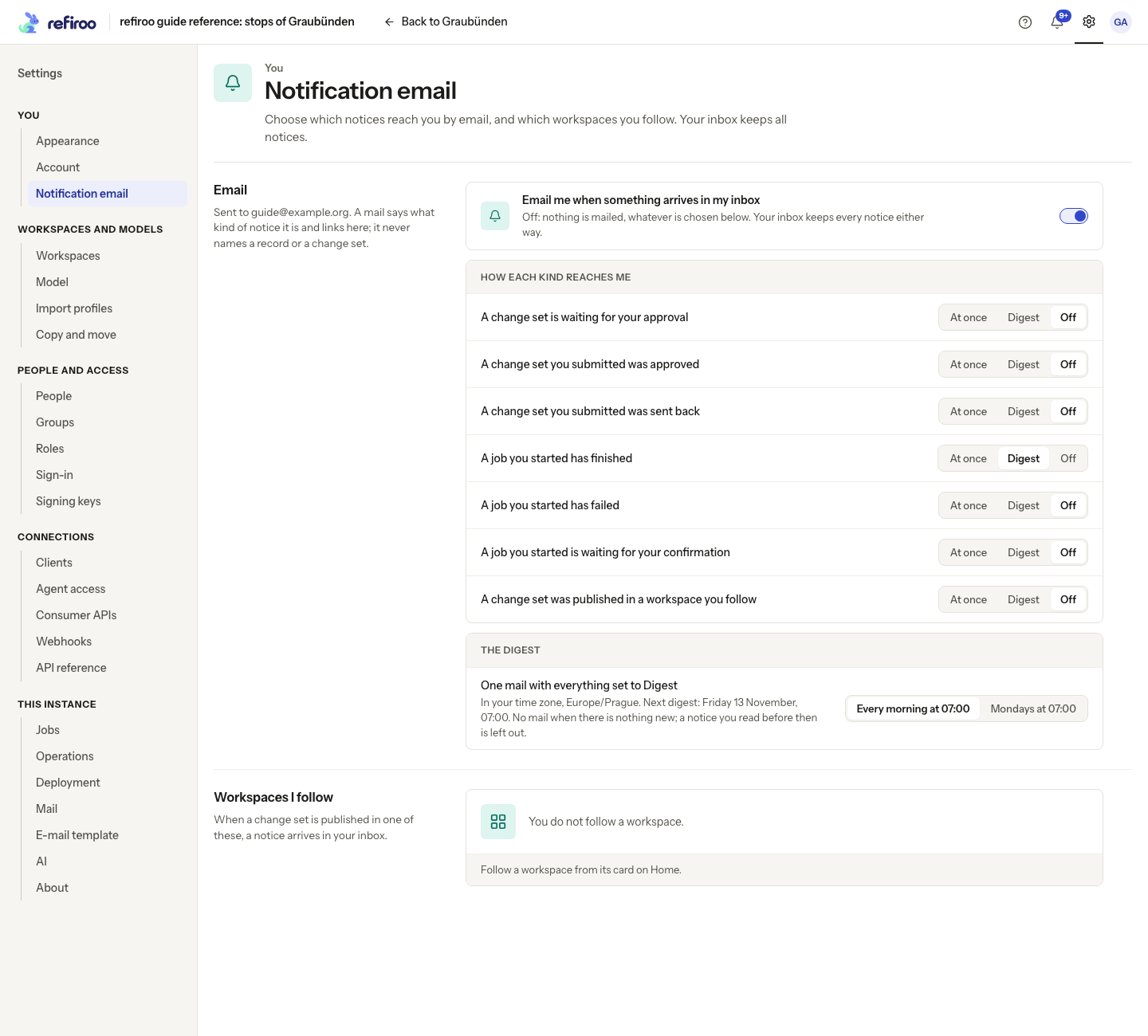
A digest counts all eligible unread, unhandled notices since email was enabled and lists the newest 50, with links to the rest. Unlike immediate mail, it has no 24-hour cutoff. Job entries can include applied and rejected counts while their results remain retained. Notices already read or handled are omitted; nothing eligible means no message. A notice included in a digest is not mailed again as a new digest entry.
Email uses fixed wording, kinds, times, counts and links. It contains no record, change-set, workspace, person or file names. Digests do not require AI. If settings are refused, the prior preferences remain; retry after checking the shown reason.
Follow publication in a workspace
Section titled “Follow publication in a workspace”Follow on a workspace’s Home card opts you into notices when someone else publishes a change set there. Your own publication does not create a follower notice for you. Workspaces I follow lists your choices with Stop following. Following requires Browse and starts off. Selecting Follow again does not create duplicate subscriptions.
Losing Browse or deactivation stops notices while retaining your follow choice. Notices can resume when access returns. Stop following to remove that choice deliberately. Following is independent of whether email is available; its notices still appear in the inbox. See Follow a workspace.
There is no browser view of a sent digest. Read the message in the receiving mailbox; use Notification email to check its saved delivery choices and schedule.
When email does not arrive
Section titled “When email does not arrive”An unread notice alone is not enough: email must be enabled, the account active, a destination address present and the instance able to send mail. A digest also needs a schedule and at least one kind assigned to it. Choosing the first Digest kind saves a daily schedule with your browser’s time zone automatically. If that save is refused, your old choices remain; read the error and retry rather than expecting a partly saved schedule.
Nothing eligible means no digest message. Check the inbox first: reading or handling a notice can remove it from the next message. Turning a kind Off affects email only. There is no interface-language or general account-locale chooser here; the digest time zone is a separate schedule choice, not a language preference.
The unavailable-email messages are Email is not set up for this installation, so there is nothing to choose here. and Your account has no email address, so there is nothing to choose here. Neither means notifications are lost. Read them in Notifications and ask an administrator to set up mail or correct your account’s address.