

Read lists in a sheet
Use this task when a sheet is laid out as several lists rather than one rectangular table. Open its draft with Model authoring. See Workbook onboarding. On the canvas, you can also drag sheets onto the board and choose how to read columns and heading rows. In the model editor, a loaded list’s Readings row also offers Read these columns as rows…: select at least two columns, name the two added columns and choose Read as rows. When it is on, Stop reading these columns as rows reverses it. A column’s Readings row also offers Fill blanks from the cell above and Rows holding only this column are headings…; see Map a workbook column.
- Select the sheet in Source. For a sheet laid out as lists, select a detected list and read Under, Cells, Note and Loads. The cell preview shades the loaded range and shows a darker header; surrounding cells help you see whether its boundaries are right.
- For a loaded list, choose Adjust list…. Set Header row, Last row, First column and Last column. Check the displayed range before applying. The cell outline is not a draggable range editor.
- Choose Don’t load this list to exclude it. A Not loaded notice explains why nothing reads a range: it may be empty, treated as free answers or interpreted another way.
- For a range that really is a list, choose Load as a list… and review its interpretation. Check Loads again to see the type, key and any fixed parent it creates records under.
- Where offered, review Read these N lists as one list under their headers. This proposal is for at least three same-shaped lists under one title or no title. It creates header records and values beneath them; a value beneath two headers becomes two records. Translated category names and the role of a second header row are not loaded by this choice.
- Inspect Issues and each source’s Dry run after changing a range or interpretation. Note identifies a skipped second header or explanatory row; check that it is not data you needed to keep. These edits never rewrite the uploaded spreadsheet’s cells.
For a loaded list with a key that loads records of its own, Records no row names offers Report them (the default) or Delete them. Choosing Delete them opens Delete the records no row names?; choose Delete them on load to confirm that every load deletes, in its change set, every record of this object type that no row of the file names. Review those deletions before publishing: the workspace’s live records stay unchanged until then. Choose Report them again to stop deleting missing records on future loads.
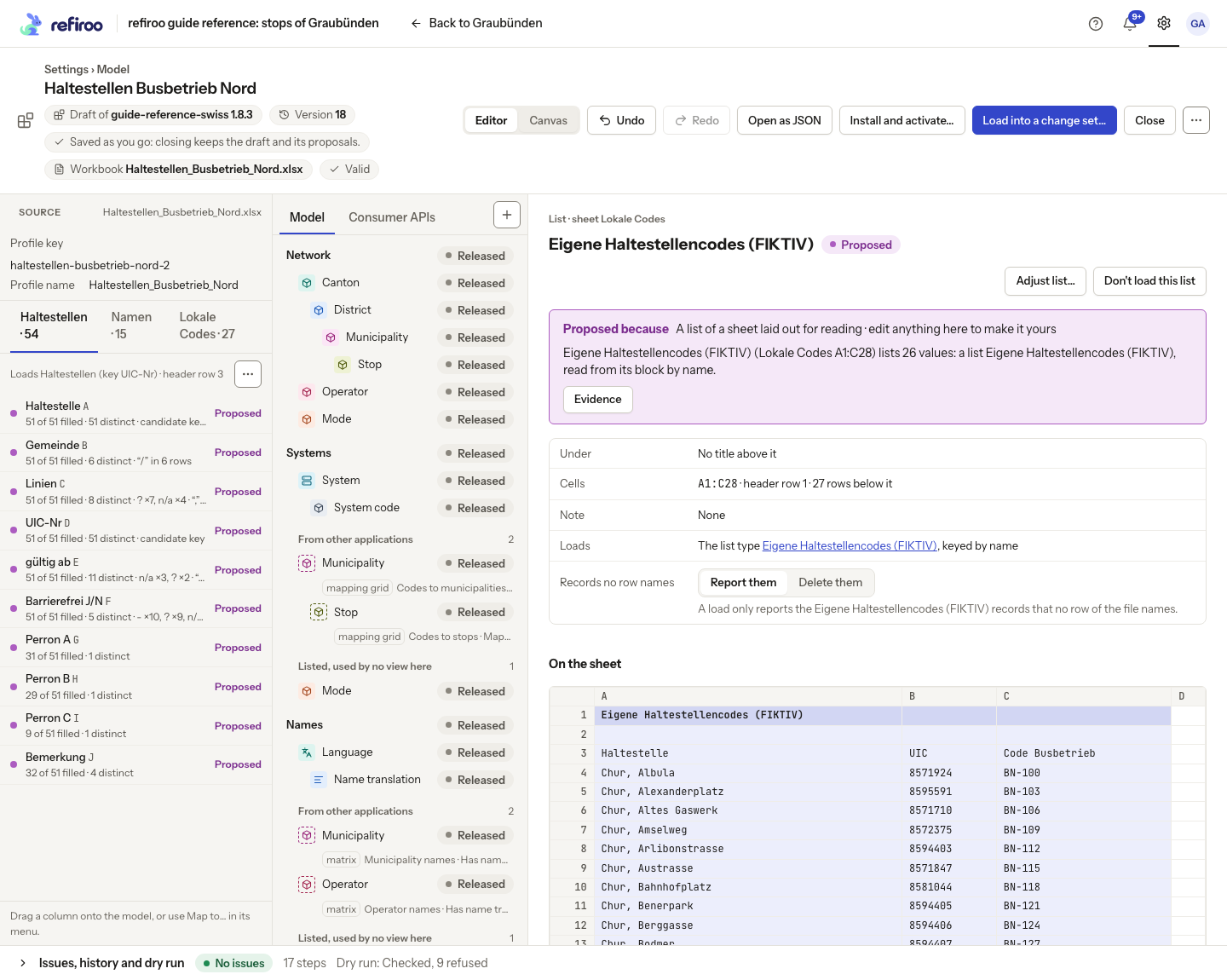
Example. The fictional local-code sheet above has its column headings on row 3, but the proposal uses row 1 as the header. Review Adjust list… before loading it; a detected range is a starting point, not confirmation that the headings are right.
If the cells cannot be read, use the displayed retry after correcting the cause. A reasonable range alone does not establish that every resulting record passes the dry run.